How to Reduce PDF Size: Practical Methods
A comprehensive guide on how to reduce PDF size using image downsampling, font management, metadata removal, and optimized export settings. Learn practical steps to balance file size and readability for sharing, emailing, or archiving.


In this guide you will learn how to pdf size reduce by applying practical techniques like image downsampling, font subset selection, metadata cleanup, and exporting with optimized settings. You’ll understand which elements contribute most to file size and how to preserve readability while shrinking the file for easy sharing and storage.
Understanding PDF Size: Why it Matters
PDFs vary widely in size depending on the content and the way they’re created. Large PDFs can hinder email delivery, slow down uploads, and consume valuable storage space. When you learn how to pdf size reduce, you’ll target the main culprits: high-resolution images, embedded fonts, unnecessary metadata, and unoptimized objects. The goal is to keep essential content intact while trimming excess data. For professionals using PDFs to share reports, portfolios, or manuals, a well-sized file improves accessibility and collaboration. PDF File Guide emphasizes that the best reduction strategy starts with a clear assessment of what must remain visible and navigable, and what can be simplified behind the scenes.
Quick Wins You Can Implement Today
If you’re asking how to pdf size reduce quickly, start with a few low-effort steps that yield noticeable results:
- Remove redundant pages or hidden layers that aren’t needed for viewing.
- Downsample embedded images to a resolution that remains crisp on screen but uses less data.
- Subset embedded fonts so only the characters actually used in the document are stored.
- Strip nonessential metadata, comments, and attachments that don’t affect readability.
- Export the document with optimized settings designed for smaller file sizes.
These steps can often shrink file size substantially without sacrificing core readability. PDF File Guide recommends testing after each change to ensure the document still communicates the intended information clearly.
Image Optimization Strategies for PDFs
Images are typically the largest contributors to PDF size. Effective image optimization includes choosing appropriate compression (lossy vs. lossless), downsampling resolution, and coloring. When you how to pdf size reduce, aim for a balance: keep images legible on target devices while avoiding oversized bitmap data. Convert color images to grayscale where color isn’t essential, and prefer JPEG or JPEG-compatible compression for photographs. Keep vector graphics clean by simplifying complex shapes and removing unnecessary color fills. Always verify that image quality remains acceptable in print or on screen before finalizing.
Font and Object Optimization
Embedded fonts can dramatically increase file size, especially if every glyph is stored. Subsetting fonts (keeping only the characters used in the document) can cut data dramatically while preserving text rendering. Also review embedded images, forms, and multimedia objects—remove anything not required for the user’s experience. Flattening transparency and merging layers where appropriate can reduce data overhead. Remember that some workflows rely on font accessibility or searchability; weigh the impact before removing font data or tagging text. PDF File Guide notes that font management is a key lever for size reduction when done thoughtfully.
Metadata, Accessibility, and Hidden Data
Beyond visible content, PDFs include metadata, bookmarks, annotations, and structure data. Removing redundant metadata and unused bookmarks can shrink the file without impacting the viewer’s experience. If accessibility is a priority, preserve necessary tags and reading order; balance is essential. Hidden data like hidden layers, comments, or embedded thumbnails may be safely purged if they’re not required for your audience. The objective is to minimize excess data while keeping the document usable and accessible where needed.
Advanced Techniques and Pitfalls to Avoid
For advanced users, techniques such as enabling fast web view, optimizing the document structure, and re-exporting with streamlined settings can further reduce size. However, be cautious: aggressive downsampling or excessive font subsetting can degrade readability or searchability. Always keep a copy of the original file before applying batch changes, so you can revert if the quality drops below an acceptable threshold. PDF File Guide recommends an iterative approach: apply changes, test thoroughly, then repeat until you reach the desired balance between size and readability.
How to Verify Results and Choose the Right Balance
The final step in learning how to pdf size reduce is verification. Compare file sizes before and after optimization, and review critical pages to ensure text remains legible and images still convey necessary detail. Use multiple devices or viewers to confirm consistent rendering, and check that hyperlinks, forms, and interactive elements function as expected. Document the changes and maintain a record of the original and optimized versions to support future revisions. A pragmatic, repeatable workflow helps you reliably achieve smaller PDFs without surprising compromises.
Putting It All Together: A Reusable Workflow
A robust workflow for reducing PDF size combines assessment, selective optimization, and validation:
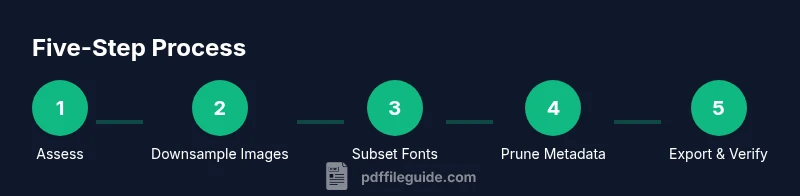
- Assess current size and identify largest contributors.
- Apply targeted image downsampling and color reduction where appropriate.
- Subset fonts and prune unnecessary metadata.
- Re-export with optimized settings and verify results.
- Save a clean version and archive the original.
By following this workflow, you’ll steadily improve your ability to produce smaller PDFs suitable for sharing and storage, while preserving essential content and readability. This is the practical path many practitioners rely on when addressing the challenge of how to pdf size reduce.
Tools & Materials
- PDF editor with compression features(Allows image downsampling, font embedding control, and metadata removal.)
- Image editor (optional)(Used to downsample or compress embedded images before inserting into PDF.)
- Batch processing tool (optional)(Helpful for applying the same downsampling/compression settings to multiple PDFs.)
- Metadata cleaner (optional)(Removes hidden metadata to reduce size and protect privacy.)
- Reliable source PDFs(Start with the original, uncompressed files to optimize from a clean baseline.)
Steps
Estimated time: 45-90 minutes
- 1
Assess current size and content
Open the PDF and note its current file size. Identify the largest elements—often images or embedded fonts—that contribute most to the total size. This baseline helps prioritize where to invest optimization effort.
Tip: Record the baseline size before making changes. - 2
Downsample embedded images
Reduce the resolution of embedded images to a level that remains clear on target devices. Apply compression (lossy or lossless) to balance quality with size savings.
Tip: Test on expected viewing devices to ensure readability. - 3
Subset fonts and manage fonts
Replace full-font embedding with font subsetting so only used glyphs are stored. This can dramatically reduce size when fonts are a major contributor.
Tip: Maintain essential typography for accessibility and readability. - 4
Remove metadata and unused objects
Clear metadata, thumbnails, comments, and any unused attachments or form fields that are not required for your audience.
Tip: Retain necessary accessibility information if required. - 5
Export with optimized settings
Export the document using an optimized or reduced-quality profile. Ensure the options chosen preserve the necessary features and structure.
Tip: Choose settings that align with your distribution channel (email, web, print). - 6
Verify results
Compare the new file size and review critical pages for readability and correctness. Repeat steps if needed to reach the target balance.
Tip: Keep an audit trail of changes for future revisions.
Questions & Answers
What causes a PDF to be large?
Large PDFs typically result from high‑resolution images, embedded fonts, extensive metadata, and unoptimized objects. Identifying the primary contributors helps you target the right changes when learning how to pdf size reduce.
Piling up images, fonts, and metadata usually makes a PDF big; focus your tweaks on those areas.
Can I reduce size without lowering image quality?
Yes. Use image downsampling and compression that preserves readability, and remove unnecessary data. Always preview critical pages to ensure the balance remains acceptable.
You can shrink files without obvious quality loss by smart downsampling and choosing the right compression.
Is metadata safe to remove?
Removing metadata reduces size and can improve privacy. Ensure you don’t delete essential accessibility or indexing data required by your use case.
Yes, metadata can be removed if you don’t need it, but keep accessibility data if needed.
Which settings maximize compatibility?
Lowering the feature set or PDF version can reduce size but may limit some capabilities. Choose a balance that fits how the document will be used and viewed.
Smaller sizes often come with fewer features; pick settings that match your distribution needs.
Should I compress images or convert to grayscale?
Compress images and consider grayscale where color isn’t essential. Color images contribute most to file size, so selective color use helps.
Compress and, if appropriate, convert to grayscale to save space.
Watch Video
Key Takeaways
- Assess the content to target the biggest size drivers.
- Downsample images and subset fonts for substantial gains.
- Remove nonessential metadata and elements before exporting.
- Use optimized export settings and verify results across devices.
- Maintain originals for future revisions and quality checks.