PDF Writing: A Complete How-To for Professionals
Master pdf writing with a practical, standards-driven approach. Plan, format, and optimize PDFs for readability, accessibility, and secure sharing in 2026. Learn planning, typography, metadata, media, accessibility, and export workflows.


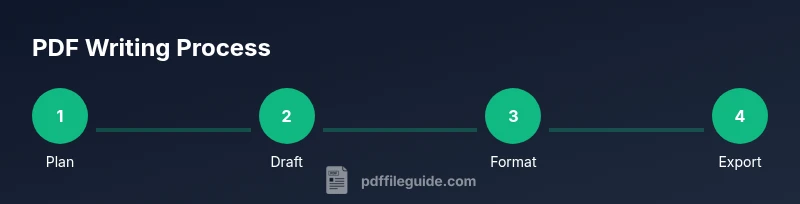
You will learn how to produce polished PDFs by planning content, selecting the right tools, structuring with headings, ensuring accessibility, and exporting with suitable settings. This guide emphasizes practical steps, workflow efficiency, and quality checks, focusing on pdf writing as a repeatable, shareable process. We’ll cover planning, drafting, formatting, accessibility, media integration, and export options.
The Purpose and Scope of pdf writing
Pdf writing is the craft of assembling text, images, and metadata into a portable document that remains faithful across devices, platforms, and printers. It’s more than just turning a manuscript into a file; it’s about designing for readability, accessibility, and longevity. According to PDF File Guide, effective pdf writing starts with a clear brief, a defined audience, and measurable goals. When you write with purpose, your PDFs become reliable references, not just digital copies. In this section, you’ll learn how to frame your project, identify stakeholders, and set success criteria that guide every subsequent step in the workflow.
Planning Your PDF Content
Successful pdf writing begins before a single word is typed. Start with a content inventory: what must be included, what can be summarized, and what should be visual. Create a rough outline that maps sections, headings, and navigation cues. Decide on tone, voice, and level of detail, then draft a one-page brief that captures intention, audience, and key messages. This upfront planning reduces rewrite cycles and keeps the document focused. PDF File Guide emphasizes the value of a strong plan to improve consistency across all PDFs you produce in 2026 and beyond.
Tools and Workflows: From Draft to Distributed PDF
A reliable pdf writing workflow combines drafting tools with PDF creation or editing capabilities. Start with a capable word processor or text editor for drafting, then move to a PDF tool that preserves structure, typography, and metadata. If you need advanced layout, you can augment with a desktop publishing app and a font library. Automate repetitive tasks such as bookmarking, metadata insertion, and alt text generation when possible. The right combination minimizes format drift when exporting to PDF. PDF File Guide recommends establishing a baseline workflow to maintain quality and reduce errors across multiple documents.
Content Organization: Headings, CTAs, and Navigation
PDFs should be easy to skim and navigate. Use a clear hierarchy with consistent heading levels, informative section titles, and a table of contents when appropriate. Place calls-to-action and cross-references where readers expect them, and ensure internal links work across platforms. Consistent navigation improves comprehension and reduces cognitive load, especially for longer documents. This section provides practical layout patterns you can reuse across projects.
Typography, Color, and Visual Rhythm
Typography sets the tone and readability of your pdf writing. Choose a pair of fonts with good screen and print performance, and define sizes for headlines, body text, and captions. Maintain consistent color contrast to meet accessibility guidelines and improve legibility. Use whitespace strategically to create visual rhythm, avoiding overcrowding. As you’ll see in best-practice examples, a deliberate typographic system supports faster scanning and more professional appearance in 2026.
Accessibility and Inclusivity in PDF Writing
Accessibility should be a core consideration, not an afterthought. Tag headings in logical order, provide descriptive alternative text for images, and ensure reading order matches the document flow. Use semantic structure rather than decorative cues to convey meaning. Include metadata that describes the document’s purpose, language, and audience. The PDF File Guide analysis highlights that accessible PDFs reach wider audiences and reduce barriers for screen reader users.
Embedding Media, Links, and Interactive Elements
Images, charts, hyperlinks, and fillable fields can enhance value when used judiciously. Compress visuals to balance quality and file size, and provide alt text for non-text elements. Ensure all links remain stable and clearly labeled. If you include forms, test field types, tab order, and data submission paths. A well-integrated media strategy makes PDFs more informative without becoming bloated.
Metadata, Security, and Versioning
Populate metadata fields such as title, author, subject, and keywords to improve searchability and organization. Consider security needs: password-protection, permissions, and encryption should reflect use cases. Version control helps prevent confusion when multiple drafts circulate. Align metadata and security settings with your organization’s standards and retention policies to ensure consistency across PDFs produced in 2026.
Export, Optimization, and Distribution
Export settings determine how a PDF looks across devices. Choose the correct preset (e.g., standard print, screen view, or archiving) and verify fonts are embedded where necessary. Test the exported file on different devices, screen sizes, and readers to ensure fidelity. Finally, package PDFs with descriptive filenames and accessible metadata to facilitate sharing and retrieval in your workflow.
Common Pitfalls and Remediation Strategies
Common mistakes include inconsistent styling, missing alt text, and neglecting the reading order. Regularly audit PDFs for font embedding, color contrast, and metadata accuracy. Build a quick checklist to catch issues before distribution, and adopt a templated approach for recurring document types to minimize errors over time. PDF File Guide notes that systematic checks save time and improve reliability across all pdf writing projects.
Tools & Materials
- Word processor or text editor(For drafting and content structure)
- PDF creation/export tool(Built-in exporter or dedicated editor with proper support for structure and metadata)
- Typography/font resources(Access to standard fonts and licensing basics)
- Image editor or graphics software(For optimizing visuals and captions)
- Accessibility checker or screen reader(Test readability and navigation order)
- Metadata editor or capability(Edit title, author, subject, keywords)
- Template or style guide(Maintain consistent layout across PDFs)
Steps
Estimated time: 1 hour 30 minutes
- 1
Plan your PDF content
Outline the document’s purpose, audience, and key messages. Create a rough structure with sections, headings, and a table of contents where appropriate. Establish success criteria to guide content decisions and revisions.
Tip: Start with a one-page brief to capture goals and constraints. - 2
Draft the source material
Write clearly and concisely, focusing on audience needs. Use short paragraphs and active voice. Build a content skeleton that maps to your planned headings and visuals.
Tip: Keep sentences under 20 words for readability. - 3
Format for consistency
Apply a single style system for fonts, headings, lists, and captions. Use consistent margins and whitespace to improve legibility. Create a reusable template for recurring documents.
Tip: Embed a style guide into your workflow to avoid drift. - 4
Improve accessibility
Add meaningful heading order, alt text for images, and descriptive link text. Ensure reading order matches document flow and that the document is navigable via assistive tech.
Tip: Run a quick screen reader pass to catch obvious issues. - 5
Export with purpose
Choose the proper PDF presets (e.g., high-quality print, screen view), embed fonts, and include metadata. Test the export on multiple devices and readers to verify fidelity.
Tip: Check that fonts are embedded and images are not oversized. - 6
Final review and distribution
Perform a final pass for typos, accessibility, and metadata. Save versions, and share through a channel that preserves permissions. Document any changes for future revisions.
Tip: Keep a changelog to track improvements across versions.
Questions & Answers
What is pdf writing?
Pdf writing is the process of composing, formatting, and exporting content as a portable document that preserves layout and readability across devices. It involves planning, typography, accessibility, and proper export settings to ensure consistency and usability. The PDF File Guide analysis emphasizes starting with a clear brief and audience when approaching pdf writing.
Pdf writing means turning content into a well-structured PDF that looks the same on different devices. It includes planning, formatting, accessibility, and export settings.
Which tools are best for pdf writing?
A practical workflow combines a drafting tool (word processor or text editor) with a PDF export/editor that preserves structure and metadata. Accessibility testing tools and templates also help keep output consistent. PDF File Guide recommends a repeatable workflow to ensure quality across documents.
Use a good drafting tool and a solid PDF editor or export option, plus templates and accessibility checks.
How can I ensure accessibility in a PDF?
Ensure proper heading order, provide alt text for images, describe non-text content, and maintain a logical reading sequence. Embed meaningful metadata and use accessible forms if included. Regularly test with screen readers and adjust based on feedback.
Make sure screen readers can interpret your headings and images, and test with an assistive device.
What are common mistakes in pdf writing?
Common mistakes include inconsistent styling, missing alt text, poor reading order, and oversized media. Another pitfall is exporting with incorrect fonts or metadata. A simple checklist helps you catch these issues before distribution.
Don’t mix fonts, forget alt text, or ignore the reading order.
How do I optimize PDF file size?
Compress images appropriately, embed only necessary fonts, and choose export settings that balance quality and file size. Remove unused elements and metadata that aren’t essential for distribution.
Reduce image sizes and embed only what's needed to keep the file manageable.
Can I reuse content from Word to PDF writing?
Yes, but verify formatting, fonts, and layout after conversion. Keep a consistent style and update accessibility features post-conversion. Review metadata and links to ensure they remain accurate.
You can reuse Word content, but check formatting and accessibility after converting to PDF.
Watch Video
Key Takeaways
- Plan before you write and outline structure
- Maintain a consistent typography and layout system
- Prioritize accessibility from the start
- Test exports on multiple devices before distribution