PDF Expert: Master Editing, Conversion, and Optimization
A comprehensive, actionable guide to becoming a pdf expert—editing, converting, accessibility, and optimization workflows for professionals.


A pdf expert is a professional who edits, converts, and optimizes PDF documents to meet quality standards. In this guide you’ll learn proven workflows for editing, converting, formatting, accessibility, and security—so you can reliably produce polished PDFs from source files and across platforms. This rapid primer supports professionals aiming for consistent results.
What is a pdf expert and why it matters
A pdf expert is more than someone who can open a PDF. It’s a specialist who can edit text and images, correct layout inconsistencies, convert PDFs to other formats, and optimize files for speed and distribution. In professional environments, a pdf expert ensures that documents stay faithful to source intent while meeting accessibility, security, and archival standards. This role is especially important when teams collaborate across departments, vendors, and devices, where small mistakes can cascade into costly rework. PDF File Guide’s analysis shows that standardized PDF workflows reduce revision cycles and improve cross-team consistency, making the role essential for editors, designers, and legal teams alike. By combining technical know-how with a disciplined QA process, a pdf expert delivers reliable results that scale.
The core value of a pdf expert is not just “fixing” PDFs but orchestrating a repeatable process that preserves fonts, metadata, accessibility tags, color profiles, and document structure. As you develop expertise, you’ll build a toolbox of checks, from preflight reports to automated validations, that catch issues before they reach colleagues or clients. In practice, this means starting with a clear brief, validating inputs, and documenting each step so outputs are auditable and reusable across projects.
Core competencies of a pdf expert
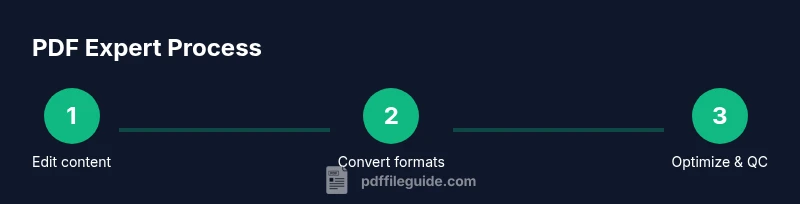
A proficient pdf expert blends several skill areas. First, content editing and redaction require precision and an understanding of how changes impact layout and pagination. Second, conversion skills ensure fidelity when exporting to Word, Excel, images, or other formats, including careful management of fonts, embedded assets, and alternate formats for accessibility. Third, optimization involves balancing image quality with file size, removing redundant metadata, and applying compression without compromising legibility. Fourth, accessibility and structure ensure that tagged PDFs work with screen readers and that navigation appears logically for users with disabilities. Finally, governance and security—such as document permissions, watermarking, and revision control—help protect sensitive information while keeping workflows compliant. Mastery across these areas makes a pdf expert invaluable in corporate, legal, and educational contexts.
Essential tools and workflows
To operate effectively as a pdf expert, you’ll rely on a core set of tools for editing, converting, and validating PDFs. A robust PDF editor is your primary instrument, supplemented by a reliable viewer, a preflight tool, and accessibility testing utilities. You’ll also need font management, color profile handling, OCR capabilities for scanned documents, and batch processing for large jobs. Establishing a consistent workflow is critical: begin with a source check, perform edits in a non-destructive environment, run automated checks, and maintain versioning on every project. Together, these tools and practices help you produce consistent, auditable results while reducing manual rework.
Best practices include keeping a clean sandbox for edits, using named layers or versions for traceability, and maintaining a master template with tagged structures for accessibility. Documentation should accompany each project, including the chosen export targets, compression levels, and any font embedding decisions. By combining the right toolkit with repeatable steps, you’ll behave like a true pdf expert—and your outputs will meet professional standards consistently.
Practical editing, conversion, and optimization workflows
Real-world PDFs often require a blend of editing, conversion, and optimization tasks. Start by identifying the primary output: a print-ready PDF for distribution, an accessible document for assistive technologies, or a dynamic file for collaboration. Then apply a structured workflow: clean up fonts and image assets, annotate or edit text precisely, reorder pages as needed, and redact sensitive information if required. When converting, compare layout fidelity across formats (e.g., PDF to Word) and adjust formatting to preserve headings, tables, and lists. For optimization, tune image resolution, compress non-text elements, remove unnecessary metadata, and re-check accessibility tags. Document your decisions and save a versioned audit trail to enable easy rollback or handoffs to teammates.
Accessibility, compliance, and best practices
Accessibility should be considered from the start. Ensure the document has proper tagging, meaningful alt text for images, and logical reading order. Use semantic structure (headings, lists) to support screen readers, and verify that interactive elements function correctly in assistive technologies. Compliance with corporate or regulatory standards often dictates retention of metadata, font embedding, and color management. Regularly run automated accessibility checks and perform manual verifications by navigating the document with a screen reader. As a pdf expert, you’ll keep up-to-date with evolving guidelines and incorporate them into your templates and QA checks.
Quality assurance and continuous improvement
Quality assurance is the heartbeat of professional PDF work. Establish a QA checklist that covers font embedding, image quality, tag structure, searchability, and metadata accuracy. Validate outputs across devices and viewers to catch rendering inconsistencies. Gather feedback from teammates and stakeholders to refine templates, preflight profiles, and export settings. Continuous improvement means maintaining versioned templates, documenting lessons learned, and updating your toolkit to incorporate new features in popular editors and standard formats. A disciplined approach reduces risk and accelerates delivery on future projects.
Tools & Materials
- Desktop PDF editor (e.g., Acrobat Pro, Foxit, or open-source alternatives)(Primary tool for editing, annotating, and redaction)
- PDF viewer with reliable rendering(Used for quick checks and QA across platforms)
- Preflight or validation tool(Automates checks for fonts, tags, metadata, and accessibility)
- Font management and embedding checker(Ensure fonts are embedded or subset as needed)
- OCR capability (if dealing with scanned documents)(Useful for searchable text in images and scans)
- Color management and profile tools(Maintain consistent color appearance across devices)
- Batch processing workflow(Save time on repetitive tasks with templates)
Steps
Estimated time: 60-120 minutes
- 1
Define task and gather sources
Clarify the required outputs (edit, convert, or optimize). Collect all source PDFs and any reference materials. Establish success criteria and a proposed export target (PDF/Word/image) before editing begins.
Tip: Create a named project folder and keep original files untouched; work on duplicates. - 2
Audit integrity and metadata
Open the PDFs to identify corrupted pages, missing fonts, or problematic images. Review metadata, document properties, and accessibility tags. Prepare a preflight report to guide the editing plan.
Tip: Run a checksum on the original to detect later unintended changes. - 3
Edit content and add annotations
Make textual edits with precision, adjust layouts, and apply redactions if needed. Add annotations, comments, or sticky notes for collaboration. Maintain non-destructive editing by using separate layers or versions.
Tip: Label edits clearly and save a new version after major changes. - 4
Embed fonts and set accessibility structure
Ensure all fonts are embedded or subset appropriately. Tag the document with a logical reading order, headings, lists, and alternative text for images. Run accessibility checks to verify compliance.
Tip: Add alt text to non-text content and keep heading hierarchy consistent. - 5
Convert to target formats
Export to required formats (e.g., Word for editing, image formats for distribution). Compare the converted output to the original and fix any layout drift. Preserve essential elements like tables and figures.
Tip: Always keep a legacy version before conversion for reference. - 6
Optimize and compress for delivery
Balance image quality and file size by adjusting DPI, color subsampling, and compression levels. Remove unnecessary metadata and streamline document structure. Re-run QA checks after optimization.
Tip: Test opening speed and readability on typical devices used by the audience. - 7
Validate output and finalize
Open the final file in multiple viewers, verify searchability and accessibility, and confirm all export targets are functioning. Document decisions and assemble a release checklist for stakeholders.
Tip: Keep a concise handoff note with export settings and version numbers.
Questions & Answers
What defines a pdf expert?
A pdf expert combines editing, conversion, and optimization skills with a rigorous QA process. They ensure accuracy, accessibility, and security while maintaining consistent output across devices and platforms.
A pdf expert is someone who edits, converts, and optimizes PDFs with a strong QA process.
Which tools are essential for a pdf expert?
Key tools include a capable PDF editor, a preflight/validation utility, a font manager, and accessibility testing aids. OCR capabilities are helpful for scanned documents, and a reliable color-management workflow improves consistency.
Use a solid PDF editor, validation tools, font management, and accessibility testers.
How can I ensure accessibility when editing PDFs?
Plan accessibility during editing by tagging content, providing alt text for images, and maintaining a logical reading order. Validate structure with screen readers and automated checks, updating headings and lists as needed.
Tag content properly, add alt text, and verify with screen readers.
What’s the best way to compress PDFs without quality loss?
Use targeted compression settings for images and objects, preserve font quality, and remove unnecessary metadata. Always re-check readability and verify that essential details remain legible after compression.
Compress carefully, test readability, and keep critical details clear.
How do I ensure fonts are embedded?
Check embedding options in your editor and enforce font embedding for the final export. If licensing restricts embedding, substitute with allowed fonts and update the document accordingly.
Embed fonts where allowed and verify licensing.
Is password protection recommended for edited PDFs?
Password protection is appropriate for sensitive documents. Apply permissions carefully and document who has access, while ensuring legitimate recipients can view and print as needed.
Use passwords for sensitive PDFs and manage access carefully.
Watch Video
Key Takeaways
- Define clear editing goals before starting.
- Embed fonts and validate accessibility tags.
- Balance compression with legibility for distribution.
- Maintain versioned templates for consistency.