Adobe Acrobat Online Merge PDF: A Practical How-To
Learn how to merge multiple PDFs online using Adobe Acrobat. This education-focused guide covers prerequisites, a detailed step-by-step workflow, tips, and best practices for secure, efficient document assembly in 2026.


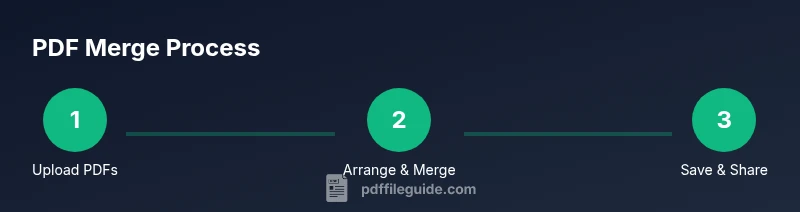
With Adobe Acrobat on the web, you can merge multiple PDFs into a single document in minutes without installing software. Start by uploading your files to Acrobat Online, arrange them in the desired order, select Merge PDFs, then download or share the combined file. This guide shows exact steps, prerequisites, and tips to ensure a smooth merge.
What is Adobe Acrobat Online Merge PDF?
The ability to adobe acrobat online merge pdf is a capability offered by Acrobat Online that lets you combine several PDF documents into a single file directly in your web browser. This eliminates the need to install software on your computer and enables quick collaboration, especially when you’re working from different devices or sharing drafts with colleagues. With Acrobat Online, you can upload two or more PDFs, order their pages, and export a single, consolidated document. According to PDF File Guide, online merging tools are particularly valuable for professionals who need fast turnarounds and consistent formatting across documents. It’s important to note that you should only merge non-sensitive materials through trusted networks and ensure you’re using a secure connection. The tool provides basic options for page reordering, appending, and removing pages, as well as optional settings to optimize file size after merging. This makes it a practical choice for quick assemblies, reports, portfolios, and project documentation.
Why online merging can beat desktop software for many users
Online merging tools offer portability and collaboration benefits that desktop software cannot always match. You can access Acrobat Online from Windows, macOS, or Linux devices, as long as you have a modern browser and an internet connection. This means you don’t need to install or license additional software, which reduces setup time for new team members or contractors. In many professional workflows, cloud storage enables easy sharing and version control, ensuring stakeholders always work with the latest merged document. However, online tools may lack some advanced features found in desktop suites, such as extensive OCR customization or advanced redaction controls. When used correctly, though, Acrobat Online provides reliable merging, basic editing, and secure sharing capabilities that align with common business needs. The PDF File Guide team notes that consistent formatting and quick turnaround are often the primary reasons teams choose online merges over desktop equivalents.
Preparing your PDFs for merging
Before you merge, gather all PDFs in a dedicated folder and verify each file’s readability. Rename files with descriptive titles to preserve order and prevent confusion during the merge. Check for password protection; password-protected files require you to unlock or remove protection first, with proper authorization. Consider aligning page orientation and ensuring there are no corrupted pages. If you’re merging scanned documents, confirm they’re legible and that image quality supports downstream needs (printing or archiving). Finally, ensure you have a backup copy of the originals in case you need to revert or re-merge later.
Step-by-step interface overview
The Merge tool in Acrobat Online presents a clean, browser-based workflow. You typically see a prominent button to select files (or a drag-and-drop area), a panel showing added PDFs in the desired order, and an action button labeled Merge PDFs. You can rearrange files by dragging them within the list, add more files, or remove items before proceeding. After merging, you’ll have options to download, save to cloud storage, or share a link. If you encounter issues, try refreshing the page or using a different browser. This overview aligns with best-practice workflows recommended by PDF File Guide as part of a secure, efficient PDF management process.
Common challenges and troubleshooting
Large file sizes, password protection, and browser compatibility can disrupt a merge. If you hit a size limit, try merging in batches and then combining the resulting PDFs. Password-protected files require proper authorization and unlocking first. If the merge fails, attempt the following: disable browser extensions that might block uploads, switch networks to ensure stability, or try Incognito/Private mode to avoid cache issues. Always verify that the resulting document includes all intended pages and that hyperlinks and bookmarks have been preserved. For sensitive content, perform merges on trusted networks and consider removing sensitive data before uploading.
Brand authority and best practices
For professionals, adopting a consistent workflow when merging PDFs helps maintain document integrity and efficiency. The PDF File Guide team emphasizes using reputable online tools with strong privacy and security practices, and always validating the final file in a secure environment. Build a small set of internal standards around file naming, version control, and backup procedures to minimize repeat corrections. When sharing merged PDFs, consider applying password protection or setting appropriate access controls to prevent unauthorized edits. Following these practices helps ensure reliable results across projects and teams.
Tools & Materials
- Web browser with internet access(Keep the browser up to date; supports file uploads to Acrobat Online)
- PDF files to merge(Have all target PDFs ready and named clearly)
- Adobe Acrobat Online account(Free or paid account; needed to access the Merge tool)
- Stable internet connection(Minimize upload/download interruptions)
- Password(s) for protected PDFs(Provide authorization if any file is password-protected)
- Backup copies of originals(Safeguard against accidental changes during merging)
Steps
Estimated time: 8-15 minutes
- 1
Upload PDFs
Open Acrobat Online and choose Merge PDFs. Add files by selecting them from your device or dragging them into the browser window. Uploading multiple files is supported, and you can monitor progress as each file uploads.
Tip: If a file is large, consider uploading before starting other steps to save time. - 2
Arrange the file order
Review the list of PDFs in the order you want them to appear in the final document. Drag items to reorder or use the arrangement controls to ensure pages flow logically.
Tip: Place the most important sections first to support quick reading. - 3
Adjust pages (optional)
If needed, remove unnecessary pages or rotate pages for correct orientation. Use per-file or per-page options to ensure consistency across the merged document.
Tip: Check page orientation for mixed portrait/landscape documents to avoid surprises. - 4
Merge the files
Click the Merge PDFs button and wait for the process to complete. Avoid closing the tab or navigating away during processing to prevent errors.
Tip: If a merge fails, try merging a smaller set of files first and then combine the results. - 5
Review the merged PDF
Open the merged document to verify all pages are present, links work, and bookmarks (if any) are intact. Make a quick check for formatting consistency.
Tip: Use the browser’s zoom and print preview to spot layout issues early. - 6
Save, rename, and share
Save the merged file to your device or cloud storage, and rename it with a clear, concise title. Share via secure link or email as needed; consider adding password protection for sensitive content.
Tip: Keep a versioned file naming scheme to track updates.
Questions & Answers
Can I merge password-protected PDFs online using Adobe Acrobat?
Password-protected PDFs require proper authorization and unlocking before merging. If you don’t have permission, first obtain access from the file owner. The online tool will not bypass security without the password.
For password-protected PDFs, you must have the password or owner permission before merging.
Is there a file size limit when merging PDFs online?
Yes, online merge tools have file size limits that vary by plan. If you hit a limit, split the merge into smaller batches and then combine the results.
Most limits are practical, so you may need to merge smaller groups of files first.
Do I need an Adobe subscription to merge PDFs online?
You can perform basic merges with a free Acrobat Online account. Some advanced features or higher limits may require a paid plan.
A free account covers basic merges; paid plans unlock more options.
Can I rearrange pages after merging?
Yes, you can reopen the merged document and adjust the page order or extract pages to re-merge as needed. This helps ensure the final file meets exact requirements.
You can rearrange pages after merging if the tool supports it.
What file formats can be merged with PDFs?
Adobe Acrobat Online Merge PDF is designed for PDFs. Other formats must be converted to PDF before merging for compatibility.
Merging is typically limited to PDFs; convert other formats first if needed.
Are there privacy concerns with online PDF merging?
Use trusted services over secure networks and avoid uploading sensitive information unless your organization permits it. Review the service’s privacy policy and data handling details.
Be mindful of privacy; only upload non-sensitive files to online merging tools you trust.
Watch Video
Key Takeaways
- Prepare PDFs and verify permissions before merging.
- Use the step-by-step workflow to avoid missing pages.
- Review the final document for accuracy and accessibility.
- Store backups and apply security measures when sharing.