Adobe Merger PDF: Merge PDFs with Acrobat Efficiently
Learn to merge PDFs using Adobe Acrobat with a practical, step-by-step approach. This educational guide from PDF File Guide covers tools, tips, and best practices for efficient PDF consolidation.


Using Adobe Acrobat, you can merge multiple PDFs quickly with the Combine Files tool. Add the PDFs, arrange their order, and click Combine to create a single document. This article covers Windows and macOS steps, file preparation tips, and how to preserve bookmarks, metadata, and security settings during the merge.
Why merging PDFs with Adobe Acrobat matters
In professional workflows, consolidating multiple PDFs into a single document reduces clutter, simplifies sharing, and preserves important structures like bookmarks and metadata. The phrase adobe merger pdf often appears in guides because Acrobat provides built-in tools designed for reliable consolidation. According to PDF File Guide, many teams rely on Acrobat’s Merge/Combine Files feature to streamline project deliverables, proposals, and client reports. When you merge, you choose the source order, decide whether to include attachments, and decide if security settings should carry over. The outcome is a single, portable file that maintains integrity, searchability, and accessibility. If you frequently assemble reports from disparate sources, mastering this capability can save hours per week and prevent version chaos. This section lays the groundwork for using Acrobat to merge PDFs accurately and efficiently.
Key features in Adobe Acrobat for merging
Adobe Acrobat offers a dedicated Merge tool, commonly accessed as Combine Files. You can add PDFs from your file system or cloud storage, order them with drag-and-drop, and preview the result before creating a new document. The tool preserves existing bookmarks and links when possible, and it can carry over metadata such as author and title. For scanned documents, Optical Character Recognition (OCR) can be applied prior to merging to ensure a searchable final file. Acrobat also supports password-protected inputs if you know the passwords, which is essential for collaborative workflows where some sources are secured. In addition to simple merges, you can insert entire PDFs into a running document, replace pages, or delete extraneous pages. These options make Adobe Acrobat a versatile solution for professional editors and administrators who routinely assemble client-ready reports.
Preparing your PDFs for merging
Before you start merging, collect all source PDFs in one folder and verify you have the right permissions to combine them. Rename files to reflect their order or content to reduce confusion during the merge. If any document has sensitive information, review permissions and redact or apply password protection after merging. For PDFs that include scanned images, decide whether OCR is needed; applying OCR before merging helps preserve searchability across the final file. Ensure that bookmarks and internal links will be meaningful after the merge, and check the accessibility status of each file. Finally, back up your originals in case you need to revert any changes or extract individual sections later.
Step-by-step scenarios: merging simple and complex files
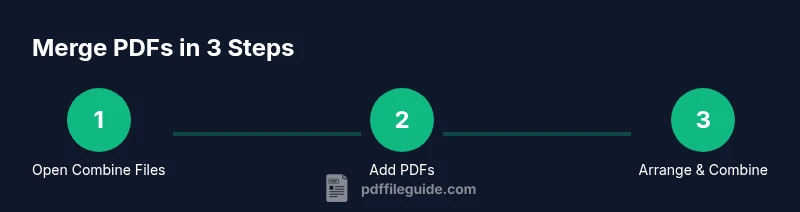
We’ll look at two typical scenarios to illustrate best practices. In the simplest case, select the Combine Files tool, add three PDFs, arrange them in the desired order, and click Merge to produce a single document. In a more complex scenario, you may be merging large multi-section reports with several attachments. In that case, consider splitting the task into batches, validate the bookmarks after each batch, and then perform a final merge. If some sources are password-protected, enter the passwords when prompted and confirm that access remains intact for readers. In all cases, use Save As to create a new merged file, leaving the originals untouched for auditing or future edits.
Quality checks after merging
Open the merged file and run a quick visual check for layout changes, broken links, and missing images. Use the Bookmarks panel to confirm that all sections are discoverable and correctly nested. Run a basic search to ensure keywords appear in the expected places and that metadata such as author and title reflect the merged content. If OCR was applied, re-run a text search to verify accuracy. Finally, compare the page count with the sum of the originals to catch any accidental page removals or duplicates. These checks help ensure a professional result that is ready for distribution.
Common issues and troubleshooting tips
If you encounter errors during the merge, first verify that all files are accessible and not locked by another program. Missing fonts, corrupted PDFs, or mismatched color spaces can cause unexpected results; re-export problematic sources before merging. Password prompts can halt automation—have passwords on hand or remove protection beforehand if allowed. If bookmarks or links don’t transfer, re-check source PDFs for advanced features (like nested bookmarks) and consider a two-step approach: merge first, then adjust structure with Organize Pages. For very large batches, close other applications to free memory and perform the merge in a single, uninterrupted session.
Advanced tips and best practices
To optimize performance, merge smaller batches first and then combine the resulting files. Use the Organize Pages tools to reorder, insert, or delete pages with precision; this helps keep the final document clean and navigable. If you routinely work with scanned documents, enable OCR settings that align with your language and layout to improve search results. For security-conscious environments, apply password protection and document restrictions after you have confirmed the final content; always keep a backup copy with fewer restrictions for internal review. Finally, consider creating a standardized naming convention and a reusable PDF merging template to speed up recurring workflows.
Accessibility and metadata considerations
Ensure that the merged PDF remains accessible to screen readers by preserving tagged structure and alt text for images. When merging, metadata like author, title, and subject can be updated to reflect the new document; avoiding stale metadata improves searchability within org systems. If you plan to share the final file publicly, verify that color contrast, reading order, and navigational aids meet applicable accessibility standards.
Tools & Materials
- Adobe Acrobat Pro DC (latest version)(Essential for Combine Files merge feature)
- PDF files to merge(Include a mix of file types if needed)
- Computer with Windows or macOS(Desktop workflow recommended)
- Backup copies of original PDFs(Protects originals during testing)
- Stable internet connection (optional)(For cloud features or updates)
Steps
Estimated time: Total time: 15-25 minutes
- 1
Open the Combine Files tool
Launch Adobe Acrobat, go to Tools, and select Combine Files. This is the central workflow for merging multiple PDFs into one document. Confirm your workspace has enough memory to handle the file sizes involved.
Tip: Close unrelated apps to speed up the merge and reduce memory pressure. - 2
Add files to merge
Click Add Files or drag and drop PDFs into the dialog. You can include files from your computer or cloud storage. Maintain a logical order by keeping related documents together.
Tip: Use the left panel to drag files into the desired sequence. - 3
Arrange order and options
Drag to reorder the PDFs until the sequence matches your intended flow. Decide whether to include or exclude attachments and whether bookmarks, links, and metadata should carry over.
Tip: Double-check critical sections to ensure bookmarks reflect the final structure. - 4
Preview and merge
Preview the merged result before creating the new file. This helps catch misplaced pages or broken links. Choose Save As to avoid overwriting originals.
Tip: Use the preview mode to verify navigational structure before merging. - 5
Save the merged PDF
Select a descriptive file name and destination. Saving as a new file preserves the original PDFs for reference or remerging later.
Tip: Include a date or version number in the filename for traceability. - 6
Post-merge checks
Open the merged document and verify bookmarks, metadata, and accessibility. Run a quick text search to confirm OCR or text extraction works as intended.
Tip: Run a basic accessibility check if the file will be shared publicly.
Questions & Answers
Can I merge password-protected PDFs in Adobe Acrobat?
Yes, you can merge password-protected PDFs if you know the passwords. Acrobat will prompt for them during the merge; without the passwords, merging is blocked for those files.
You can merge password-protected PDFs as long as you know the passwords; otherwise, you’ll need to unlock them first.
Is there a difference between Acrobat Pro DC and Acrobat Reader for merging?
Merging is available in Acrobat Pro DC; Acrobat Reader does not include the full Merge tool. For merging tasks, you’ll need the Pro version or a trial.
Only Acrobat Pro can merge files; Reader cannot.
How do I preserve bookmarks when merging?
Enable the Include Bookmarks option in the Merge tool and ensure source PDFs have usable bookmarks. If bookmarks don’t transfer, adjust one file at a time to identify the source issue.
Turn on bookmarks in the Merge settings and verify the source PDFs have bookmarks.
What if the merged file is too large?
After merging, use PDF optimization features to compress images and optimize file size. If needed, split the content into logical sections and merge in steps.
You can compress the merged file after merging or split the content if it’s too large.
Can I merge many PDFs at once?
Yes, you can add multiple files in the Combine Files dialog. Performance depends on system resources; for very large batches, consider batching and then merging the results.
Yes, you can merge many PDFs at once, but performance depends on your computer.
Watch Video
Key Takeaways
- Master the Combine Files workflow in Acrobat.
- Always confirm the file order before merging.
- Save a new file to protect originals.
- Review bookmarks and metadata for consistency.