Edit Text PDF Online: Step-by-Step Guide
Learn how to edit text pdf online using browser-based tools. This step-by-step guide covers selecting editors, preparing files, preserving fonts, and exporting a clean, professional PDF.


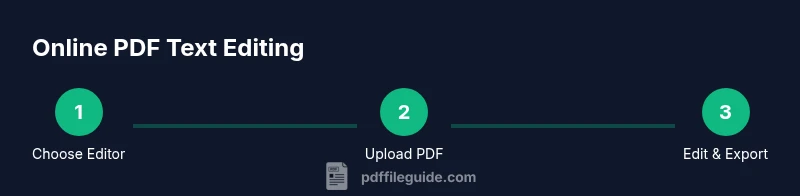
To edit text pdf online, choose a trusted browser-based editor, upload your document, modify the targeted text, and export a refreshed PDF. Ensure you have a backup of the original file, verify font compatibility, and review formatting after edits. This approach works for most standard PDFs and preserves basic layout across devices.
Choosing the Right Online PDF Editor
To edit text pdf online, you need a tool that supports true text editing, font handling, and reliable export options. When evaluating editors, look for in-line text editing (so you can click and type where text appears), support for common fonts, and a predictable preview of changes. It's also important that the editor preserves layout for tables, lists, and images, since misaligned content is a common pitfall. In addition, verify privacy protections, such as end-to-end encryption, and confirm whether fonts embedded in the PDF will stay intact after export. If you regularly work with forms or multi-column layouts, prioritize editors with robust alignment controls and the ability to compare the before/after view. Finally, check whether the service offers version history or an undo stack so you can revert if a edit doesn't go as planned. For teams, collaboration features like comment threads and shared links can save time.
Preparing Your PDF for Online Text Editing
Before you start editing, prepare the file to minimize formatting surprises. Create a local backup of the original PDF, then consider whether the document is text-based or image-based. If the PDF is text-based, confirm that fonts used in the document are available in the editor; if not, be prepared to adjust font choices and spacing. For scanned documents, OCR (optical character recognition) is often required to convert images of text into editable content. Ensure you are on a secure network and use a reputable editor; avoid uploading confidential documents on public Wi‑Fi. Finally, note any sections that rely on unusual fonts, special characters, or multi-column layouts, as these are the most likely to shift during editing.
Editing Text Online: Practical Techniques
Begin by selecting the exact text you want to modify; use the editor's text tool to highlight and replace, rather than deleting entire lines. Keep typography consistent by choosing fonts that match the original document; adjust size, weight, and spacing to preserve readability. When text spans multiple columns or wraps around images, check the surrounding layout as you edit to prevent accidental reflows. If you encounter characters that disappear or change, try switching to a different font or embedding the original font, if the editor supports it. If the PDF is not editable (for example, it is an image-based page), apply OCR or convert the file to an editable format, then re-import for final tweaks. After edits, use the editor's spell-check and find-and-replace features to correct errors and maintain professional polish.
Saving, Sharing, and Preserving Formatting
Once you are satisfied with the edits, save the document in the editor and export a new PDF. Choose the export settings that preserve fonts and embed them if possible, and avoid compressing images excessively to prevent quality loss. If you need to circulate the file for review, generate a share link with a preset access level (view or comment only) to protect the content. Always download a local copy and keep a backup of the original file; if you rely on cloud storage, verify that the edited version has replicated in all intended locations. Finally, run a quick visual check on a separate device to ensure the edited text renders correctly in different environments and screen sizes.
Tools & Materials
- Device with internet access (PC, Mac, or tablet)(Prefer a modern computer for precise text selection)
- Web browser(Latest version of Chrome, Edge, Safari, or Firefox)
- Source PDF file(Local file or cloud storage link with access rights)
- Account with chosen online editor(Some editors offer free tiers; sign up if required)
- Backup copy of the original PDF(Store separately in case you need to revert)
- Font reference (optional)(Helps preserve typography if the editor supports fonts)
Steps
Estimated time: 20-45 minutes
- 1
Choose your online editor
Identify a browser-based PDF editor that supports text editing, font handling, and secure export. Open the editor's homepage, review feature lists, and confirm that editing in place is supported. If possible, start with a free trial to ensure the tool meets your needs.
Tip: Check for HTTPS, a clear privacy policy, and a known vendor. - 2
Upload the PDF
Use the editor's upload button or drag-and-drop to load your file. Verify that the upload completed successfully and that the first page renders correctly before making edits. If the file is large, allow additional time for the upload.
Tip: Keep a local backup of the original file before editing. - 3
Select the text to edit
Activate the text tool and highlight the exact text you want to change. Ensure the editor highlights the correct region; mis-selected text can lead to unintended edits. If text cannot be selected, the PDF may be image-based and require OCR.
Tip: Zoom in to improve precision during selection. - 4
Edit text and adjust formatting
Type the new text and adjust font, size, weight, and alignment to match the original document. Check that line breaks and bullet points remain consistent. If the text wraps differently, rework surrounding elements for balance.
Tip: Prefer exact font matches or embeddings when available. - 5
Proofread and finalize
Run spell-check, review preceding and following lines, and ensure changes integrate smoothly with surrounding content. Compare the edited page to the original to confirm no unintended shifts occurred. Archive notes of any font substitutions used.
Tip: Use the editor’s compare or split-view feature if available. - 6
Export and save the edited PDF
Export the document as PDF with embedded fonts if available, and choose a descriptive filename. Download a local copy and store it alongside the original. If you use cloud storage, refresh the copy to verify the latest version is accessible.
Tip: Retain versioned filenames (e.g., document_v2.pdf) for easy tracking.
Questions & Answers
Can I edit a PDF online for free?
Many online editors offer free tiers with limits on features, file size, or the number of edits per day. For occasional edits, a free plan is often sufficient, while frequent editing may require a paid plan.
There are free plans, but expect some limits on features or file sizes.
Is it safe to edit PDFs online?
Use reputable editors with HTTPS and read their privacy policy. Avoid uploading highly sensitive documents on public networks, and consider using a VPN or trusted corporate networks for extra security.
Stick to trusted tools and secure networks when handling sensitive PDFs.
What if the text isn’t editable in my PDF?
If text cannot be edited, the PDF may be image-based. Apply OCR to convert images to editable text or convert the file to an editable format, then re-import for final tweaks.
OCR or conversion may be needed for image-based text.
How can I preserve fonts and formatting?
Choose tools that support font embedding or substitution with preview. Always check the final export with a quick visual check for alignment and spacing.
Font embedding and preview checks help keep formatting.
Can I edit password-protected PDFs online?
You must have permission to edit or know the password. Some editors require you to unlock the document first; never bypass protections without authorization.
You need the proper password or permission to edit.
Watch Video
Key Takeaways
- Choose a reputable online editor.
- Back up the original PDF before editing.
- Verify font compatibility and embed fonts when possible.
- Preview layout after edits to preserve formatting.
- Export with a clear, versioned filename.