How to Edit a PDF: A Complete Step-by-Step Guide
Learn how to edit a PDF with text, images, forms, and annotations while preserving layout. This comprehensive guide covers tools, workflows, and best practices for professionals.


Your goal is to edit a PDF without compromising formatting or integrity. You’ll learn to modify text, images, forms, and annotations, apply simple redactions, and export to other formats when needed. Start by selecting the right tool for your task, creating a backup, and checking permissions on the file. This guide from PDF File Guide walks you through actionable steps, tips, and common pitfalls.
What editing a PDF entails
Editing a PDF means changing its content without reshaping its visual structure. In practice, you might adjust a paragraph, replace an image, update a form field, or redact sensitive information. The challenge is to do these edits while preserving fonts, margins, line breaks, and clickable links. Different PDFs have different levels of editability, depending on how the file was created and whether permissions are set. According to PDF File Guide, mastering PDF editing requires choosing the right tool, planning edits carefully, and testing the results across devices and viewers. When you approach edits methodically, you keep the document’s integrity intact and avoid rendering issues that can occur when fonts or images are not embedded. This article from the PDF File Guide team walks you through a practical workflow, real-world examples, and safety considerations that help professionals edit with confidence while maintaining consistent quality.
Why most edits succeed when you plan in advance
A well-planned edit minimizes layout shifts and font substitution. Start by noting the fonts used, any embedded images, and whether the file is protected. If you plan to export to Word or images later, decide early which elements should be preserved as vector graphics versus raster images. Preferring documents with embedded fonts reduces the risk of text reflow in other viewers. PDF File Guide’s approach emphasizes testing edits in multiple viewers to confirm that the revised content renders consistently across platforms, screens, and printers. A small, deliberate change—like updating a caption or replacing a low-resolution image—can be done without triggering cascading formatting changes later in the document.
Understanding the different editable elements inside a PDF
PDFs can contain text layers, image layers, form fields, annotations, and layers used for accessibility or structure. Text edits typically alter the same font family and size, while image replacements may require re-compression to maintain file size. Forms can be filled and saved, but some editors restrict edits to maintain security. Annotations are often separate from the main content and can be toggled on/off when sharing, which affects how edits appear in other viewers. Recognizing what type of content you’re editing helps you choose the proper tool and workflow from the outset.
Tools at your disposal: desktop editors, free options, and online services
Desktop editors like Adobe Acrobat Pro, Foxit PDF Editor, and Nitro Pro offer robust capabilities for text edits, font embedding, redaction, and batch processing. Free tools such as LibreOffice Draw or Inkscape can cover light edits but may introduce formatting quirks when re-opening the file elsewhere. Online editors provide convenience for quick changes, but privacy and security risks exist for sensitive documents. For best results, use a trusted desktop editor with font embedding, OCR (for scanned PDFs), and reliable export options. Always test edits locally before sharing the file publicly to maintain document integrity.
Planning for fonts and typography to preserve consistency
Fonts play a critical role in preserving readability after edits. If the original font isn’t embedded, substituted fonts can alter line breaks and spacing. When possible, embed fonts or use widely available font families to reduce surprises after editing. If you must replace a font, test the result on a sample page to ensure alignment, kerning, and ligatures remain visually consistent. The goal is to keep typography consistent across all recipients and devices, minimizing reflow and unexpected spacing.
Step-by-step overview of a practical editing workflow
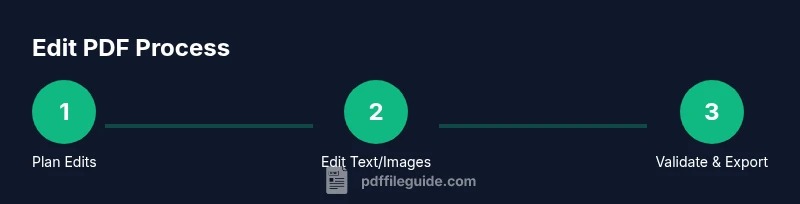
A reliable workflow starts with creating a backup copy, selecting the right tool, and outlining the exact edits. Then you’ll modify text, adjust images, manage form fields, apply redaction if needed, and finally verify accessibility and export options. This approach reduces errors and ensures your document remains faithful to the original structure. PDF File Guide recommends validating edits by comparing key pages side-by-side and by performing a quick accessibility check to ensure tagged content remains logical for screen readers.
Step preparation: backups, permissions, and test runs
Before touching the original, duplicate the file and save it with a distinct name. Verify you have edit permissions or the password if required. Create a small test page that mirrors typical content (text blocks, a resized image, a form field) to confirm that edits won’t disrupt layout. This preparatory phase saves time and prevents accidental loss of content. If the file is shared, coordinate edits with team members and consider using a version history-enabled workflow to track changes.
Step 1: Edit text in a PDF with a desktop editor
Open the PDF in a capable editor, select the text you want to modify, and type your changes. Pay attention to font consistency and line wrapping. After editing, reflow the surrounding text if needed to avoid orphaned lines. Save incrementally and compare changes with the original to ensure there are no unintended shifts. If you cannot select text (image-based PDF), you’ll need OCR first, or alternatively, replace the text as an image after converting to a compatible format. Pro tip: use a side-by-side view to confirm alignment and spacing.
Step 2: Replace or adjust images and objects
To change an image, delete the existing graphic and insert a new one of appropriate resolution. Verify the color profile and compression are suitable for your distribution channel. If an image contains text, ensure the replacement preserves legibility at the target display size. When replacing vector graphics, keep the resizing operations within the editor’s constraints to avoid rasterization artifacts. Pro tip: export a sample page with the edited image to compare against the rest of the document.
Step 3: Manage form fields: fill, validate, and export
If your PDF contains interactive forms, enable form editing and fill the fields as needed. Validate required fields, check tab order for accessibility, and test the form in a separate viewer to confirm that data can be saved and submitted. For archival copies, save the filled form data in a separate file if supported, so you retain the original editable content. Pro tip: test both “Save” and “Print to PDF” workflows to ensure data persistence.
Step 4: Redaction and protecting sensitive content
Redaction permanently removes sensitive information. Use the editor’s redaction tool to mark content, apply redaction, and verify that the redacted text cannot be recovered. If you’re replacing sensitive terms with redacted blocks, ensure the surrounding context remains readable. After redaction, run a quick content scan to confirm no hidden metadata or comments expose sensitive data. Pro tip: redact on a duplicate file to preserve the original.
Step 5: Accessibility and tagged structure after edits
Accessible PDFs rely on a logical reading order, tagged content, and descriptive alt text for images. After edits, check that headings maintain a logical sequence and that lists, tables, and figures are properly tagged. Verify that screen readers can navigate the document in a meaningful order. Pro tip: use built-in accessibility checkers to catch issues and adjust structure accordingly.
Step 6: Export, quality check, and distribution
Export options vary by tool but commonly include PDF/A, Word, or image exports. Choose the format that preserves layout and readability for your audience. Perform a final quality check: compare page layouts, confirm fonts are embedded, and verify hyperlinks work. If distributing widely, consider archiving with metadata and a short changelog so recipients understand what was edited.
Final verification: consistency and reliability
After edits, review the entire document for consistency in typography, spacing, and color. Open the edited PDF in multiple viewers (desktop app, browser, mobile) to confirm rendering is stable. Confirm that any interactive elements or forms function as intended, and that redactions remain secure. This last check minimizes post-distribution issues and strengthens professional credibility.
Tools & Materials
- PDF editing software (e.g., Adobe Acrobat Pro, Foxit PDF Editor, Nitro Pro)(Choose a tool with fonts embedding, OCR, and export options)
- Original PDF file(Keep a non-edited backup copy)
- Fonts or access to embedded font sets(Helps preserve typography during edits)
- Backup storage (external drive or cloud)(Enable version history if available)
- Test files or sample pages(Useful for previewing edits before applying to the full document)
- OCR-capable tool (if editing scanned PDFs)(Needed when text is not selectable)
Steps
Estimated time: 60-90 minutes
- 1
Prepare and backup
Create a non-destructive workflow by duplicating the original PDF and naming the copy clearly. Confirm you have the necessary permissions or passwords, and set up a quick test page that mirrors typical edits. This ensures you can revert easily if something goes wrong.
Tip: Keep a changelog of edits to track changes over time. - 2
Edit text in the PDF
Open the file in a capable editor, select the target text, and apply your changes. Preserve font, size, and spacing as much as possible. If text cannot be edited (scanned image), run OCR or convert to an editable format first.
Tip: Use side-by-side comparison with the original to catch unintended layout shifts. - 3
Replace or adjust images
Remove outdated images and insert high-resolution replacements. Maintain aspect ratio and check color profiles. Re-export to avoid lossy conversions that degrade clarity.
Tip: Test on a sample page to ensure image quality remains consistent. - 4
Handle form fields
Fill, validate required fields, and test saving or submitting. Ensure the tab order is logical for accessibility. Save a copy of filled forms when appropriate.
Tip: Verify that data persists across viewer applications. - 5
Apply redaction and security
Use the redaction tool to permanently remove sensitive content. Check for residual metadata. Review permissions and consider password protection if distributing broadly.
Tip: Always redact on a duplicate file first to avoid data loss. - 6
Accessibility and structure check
Ensure headings, lists, and figures are properly tagged. Add alt text for images and verify reading order with a screen reader. This makes the document usable by a wider audience.
Tip: Run accessibility checks provided by your editor.
Questions & Answers
What is the best way to edit a PDF without losing formatting?
Use a professional editor with font embedding and a tested workflow. Always embed fonts and verify layout after each change.
Use a professional editor with embedded fonts and test the layout after edits.
Can I edit a scanned PDF?
If the PDF is image-based, run OCR to convert it to selectable text before editing, or replace content using image-based edits after OCR.
OCR first to convert to text, then edit, or replace as an image if needed.
Is editing a password-protected PDF allowed?
Only if you have permission or know the password. Respect access controls and document security policies.
Only edit if you’re authorized to do so.
What about editing PDFs on mobile devices?
Many apps support basic edits on mobile, but complex layout changes are easier on desktop. Check font embedding and export options.
Mobile apps work for basic edits; use desktop for heavy edits.
What formats can I export after editing?
Export options typically include PDF, Word, images, and sometimes HTML. Choose the format that preserves content and layout for your audience.
Export to PDF or Word depending on your needs and audience.
How do I redact sensitive information correctly?
Use the editor’s redaction tool to permanently remove content, then verify no trace remains in metadata or visible content.
Redact with the tool and double-check metadata.
Watch Video
Key Takeaways
- Edit PDFs with the right tool to preserve layout
- Always back up before making changes
- Test edits across viewers and devices
- Plan typography and accessibility from the start