Where to Edit PDF: Your Complete Guide to Editing PDF Files
Learn where to edit PDF using desktop editors, online tools, and mobile apps. This educational guide covers best practices, tool selection, permissions, and how to preserve formatting while editing.


To edit a PDF, pick a suitable editor (desktop, online, or mobile), open the file, enable editing, and save a new version. Ensure you have permission and a backup. This guide explains where to edit pdf and how to choose the right tools for your task.
Where to edit pdf: choosing the right tool
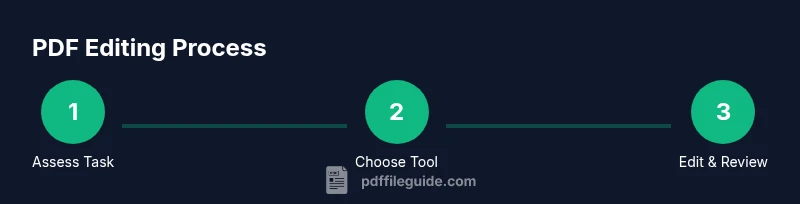
When you ask where to edit pdf, the answer starts with selecting the right tool for the job. The choice depends on your editing needs, security considerations, and whether you are working with a scanned image or a native text PDF. According to PDF File Guide, most users begin by distinguishing three broad categories: desktop editors for power users, online editors for quick changes, and mobile apps for on-the-go tasks. Each category has its strengths and caveats. Desktop editors typically offer stronger formatting control and offline access, while online editors excel for collaboration and file sharing. Mobile editors are convenient for light edits when you’re away from a computer. Regardless of the option you pick, ensure the file is backed up and that you have permission to edit. This early decision will influence how you work, how you verify changes, and how you export the final result.
The PDF File Guide team emphasizes starting with a clear goal: are you adjusting text, updating images, or filling a form? Identifying the exact task helps you pick a tool that minimizes steps and preserves formatting. By choosing the right environment—desktop for heavy edits, online for speed, or mobile for quick tweaks—you reduce rework and ensure a smoother workflow. Also remember to verify compatibility with downstream systems (printing, archiving, or sharing) before you begin. In short, the best answers to where to edit pdf come from matching your needs to a capable tool, then proceeding with discipline and backups.
Desktop editors versus online editors
For serious PDF editing, a dedicated desktop editor often provides the most precise control over fonts, images, and layout. You can work offline, apply batch edits, and export with full compatibility. Popular desktop options include general PDF editors that handle text edits, image replacement, and page rearrangement. In contrast, online editors are built for speed and collaboration: you can edit from any device with a browser, share a link, and track changes more easily. Online tools tend to impose size limits and may require a paid plan for advanced features. When choosing between them, consider data sensitivity; PDFs containing contracts or personal data benefit from a local solution to reduce exposure. If your workflow involves frequent updates or team reviews, a hybrid approach—edit offline, then upload for final review—can be efficient. Finally, mobile editors fill a niche for quick tweaks, but may lack advanced features. PDF File Guide recommends testing a small file to gauge performance.
Understanding editing tasks and appropriate tools
Different tasks require different capabilities. Simple text edits, copy updates, or numbering changes can be done with most editors, but changing fonts, spacing, or complex formatting may demand a tool with robust layout controls. If you work with forms, you’ll need support for form fields and data export. If you deal with images, choose tools that preserve image quality and allow high-resolution exports. For scanned documents, OCR (optical character recognition) is essential to convert images into editable text. When deciding, map your tasks to tool capabilities: searchable text, annotations, redaction, and security settings. Keep an eye on export formats; sometimes exporting to Word or Excel helps reflow content, then converting back to PDF with preserved layout. Align your choice with your team’s workflow and security requirements to avoid bottlenecks.
Permissions, backups, and version control
Before you edit, confirm you’re authorized to modify the document. Unauthorized edits can breach contracts or regulations. Create a backup copy with a clear version number and date, such as document_v2_2026-01-30.pdf. Consider enabling change-tracking or a comment layer if your tool supports it, so reviewers can see what changed. When saving, prefer a dedicated “Save as” operation rather than overwriting the original. If the editor supports password protection, note down the options to preserve security without locking yourself out of later edits. Keeping a version history is essential for rollback, audits, and accountability. PDF File Guide suggests naming conventions that encode the date and purpose of edits to simplify retrieval.
Editing text, images, and layout
Text edits require selecting the correct text block and preserving fonts and line breaks. Many editors offer font embedding options to keep typography consistent across devices. When swapping images, replace at the same resolution and aspect ratio to maintain layout integrity. If you’re adjusting page order, use the editor’s page management features to avoid shifting margins or headers. Keep a watchful eye on hyphenation, widow/orphan lines, and paragraph spacing; even small changes can cascade across pages. After edits, run a quick visual check by scrolling through the document and printing a test page if needed.
Editing form fields, signatures, and annotations
For fillable PDFs, use the tool’s form-editing features to modify existing fields or add new ones with consistent alignment. Validate that tab order and calculation scripts (if any) still work after edits. For signatures, use secure digital signing tools or add a scanned signature image if allowed. Annotations—comments, highlights, and sticky notes—are best kept on a separate annotation layer so original content remains unaffected. As you save, verify that form data remains exportable and that the PDF remains searchable. Plan reviews with stakeholders so form behavior is tested under real usage.
Handling scanned PDFs and OCR
Scanned PDFs behave like image files until OCR converts them to editable text. Before OCR, crop and deskew pages to improve recognition accuracy. Choose an OCR language pack that matches the document’s language. After OCR, proofread the converted text to correct misreads, then perform your edits as described above. Remember that OCR quality can vary; for long documents, batch OCR with quality checks yields better results. If the document contains handwriting or uncommon fonts, expect imperfect results and plan for extra proofreading.
Keeping formatting and fonts consistent
One of the biggest challenges when editing PDFs is preserving font families, font sizes, and line spacing. Use the same font set as the original document whenever possible. If you must substitute fonts, keep similar metrics to avoid layout shifts. Check margins and column widths after edits, especially in multi-column layouts. Export to a new PDF and compare side-by-side with the original to catch formatting drift. A final check after printing helps ensure the digital and physical versions align.
Security considerations when editing PDFs
Editing can expose content to unauthorized viewers if you upload to untrusted online services. Use trusted editors, enable HTTPS, and avoid editing sensitive documents on public networks. If a file contains confidential data, prefer offline editing or on-premises solutions. Be mindful of metadata in PDFs; remove or sanitize metadata when sharing publicly. Finally, review access controls after edits to ensure the final document remains as secure as the original. Treat edits as part of your document lifecycle and document deletion policies.
Mobile editing and cloud workflows
Mobile editors are great for quick tweaks on the go, but they rarely match desktop capabilities. Use cloud-enabled editors to sync edits across devices, but be aware of file versions and sync conflicts. On mobile, keep the document organized in a dedicated folder, and always download a local copy before making major changes. When you’re done, upload the latest version to your preferred cloud storage and share with the intended recipients using permissions that restrict edits. For finished documents, consider generating a PDF/A or archival version for long-term storage.
Cost, licensing, and choosing a tool
Costs range from free, feature-limited editors to professional suites with annual licenses. If you edit PDFs infrequently, a lightweight online tool or a limited desktop editor may suffice. For teams or enterprise needs, look for licensing that supports multiple users, secure sharing, and compliance features. Always trial a product before purchase and watch for hidden fees, such as OCR credits or export restrictions. Remember to evaluate support options, update cycles, and compatibility with your existing document management system.
Authoritative sources and further reading
To deepen your understanding of PDF editing, consult industry references and official documentation. For technical specifications and interoperability, see ISO standards related to PDF and widely accepted open standards. Adobe’s official PDFs and guidelines provide practical editing cues, while W3C accessibility guidelines help ensure edits remain accessible. These sources underpin best practices for editing without compromising document integrity.
Practical decision checklist: Where to edit pdf
A quick, repeatable checklist helps you decide which path to take: 1) Do you need offline editing or online collaboration? 2) Is the document sensitive or contract-bound? 3) Do you require form-field support or OCR? 4) How important is preserving fonts and layout? 5) What is your budget? Use desktop editors for heavy layout work, online tools for rapid changes, and mobile apps for on-the-fly tweaks, always keeping backups.
Tools & Materials
- Computer or mobile device with internet access(Needed to access online editors or install software)
- PDF editor software (desktop)(Supports text, images, and layout edits offline)
- Original PDF file(The file you intend to edit)
- Backup copy of the PDF(Preserve the original in case of errors or rework)
- Stable internet connection(Needed for online editors or cloud syncing)
- Pen or stylus for annotations(Optional for handwritten-style marks on tablets)
Steps
Estimated time: 45-60 minutes
- 1
Identify editing needs
Clarify whether you will edit text, images, forms, or layout. This determines the tool you’ll use and the approach to edits.
Tip: Write a simple plan listing required edits and expected outcomes. - 2
Choose the right tool
Select a desktop editor for heavy edits, an online editor for collaboration, or a mobile app for quick tweaks.
Tip: Test a small file first to gauge performance and reliability. - 3
Open the PDF in the editor
Launch the chosen app and import the file. Verify fonts and images load correctly.
Tip: Enable a backup create-ahead option if available. - 4
Make your edits
Perform the planned edits, preserving original layout and metadata whenever possible.
Tip: Work in a copy to avoid overwriting the original file. - 5
Review changes
Proofread text, check formatting, and ensure form fields or annotations behave as intended.
Tip: Use a side-by-side comparison with the original. - 6
Save a new version
Export or Save As a new file with a clear version name.
Tip: Avoid overwriting the original unless necessary. - 7
Validate across devices
Open the edited PDF on different devices or viewers to confirm compatibility.
Tip: Check for font rendering and margin consistency.
Questions & Answers
What is the best free editor to edit PDFs?
Free editors can handle basic edits, but they may have limits or watermarks. For professional work, a paid editor usually offers more reliable features and support.
Free editors can do basics, but paid tools are often better for professional tasks.
Can you edit scanned PDFs?
Scanned PDFs are images; you must run OCR to convert them to editable text before editing. Some editors include built-in OCR.
If it’s scanned, you need OCR before you can edit the text.
How do you edit form fields in a PDF?
Use a PDF editor that supports form fields. Click on existing fields to modify them, or add new ones if supported. Save changes and ensure data export remains functional.
Use a form-enabled editor, adjust fields, then save.
Is it safe to edit PDFs online?
Online editing can expose content. Use trusted providers, enable HTTPS, and avoid uploading sensitive documents to public services.
Online editing is convenient but use trusted sites for sensitive docs.
What about password-protected PDFs?
You need the proper password or permission. Without authorization, editing is blocked.
You’ll need the password or permission to edit.
How can I preserve formatting after edits?
Use consistent fonts, avoid font substitutions that affect metrics, and export to a compatible PDF. Compare with the original to catch drift.
Keep fonts consistent and verify formatting after edits.
Can I edit PDFs on mobile devices effectively?
Mobile editors are useful for quick tweaks, but may lack advanced features. Rely on desktop for heavy edits and use mobile for on-the-go adjustments.
Mobile editing is handy for quick tweaks, not complex edits.
Watch Video
Key Takeaways
- Choose the right editing tool for your task
- Always keep backups and track versions
- Proofread and test formatting across devices
- Respect permissions and security considerations