How to PDF Without Comments: A Practical Guide
Learn step-by-step how to save or export a PDF without comments, remove annotations, and verify a clean file using popular editors and online tools.


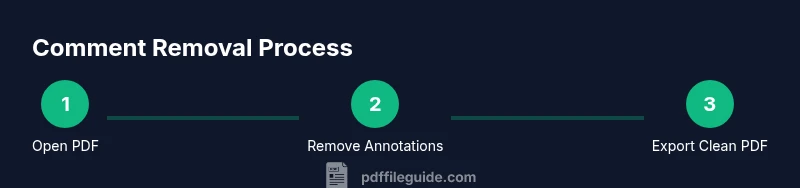
To PDF without comments, remove or hide all annotations and export or print to PDF with markup turned off. Use a desktop editor like Adobe Acrobat Pro, Foxit, or Nitro, or re-export from your source document after clearing comments. The result is a clean file ready for sharing or distribution.
Why you might want a clean PDF without comments
In professional workflows, a polished final document often means removing visible commentary. Whether you're sharing a contract, report, or proposal, comments can distract readers, reveal internal processes, or create misinterpretation. How to pdf without comments helps ensure consistency across devices and printouts, and it prevents accidental leakage of review notes. According to PDF File Guide, removing comments before distribution reduces noise and helps ensure the recipient focuses on content. This is especially important when publishing PDFs to clients, archiving for long-term access, or presenting in meetings. The approach you choose depends on where the comments live (in the PDF as annotations, or in the source document) and whether you want to permanently remove them or just hide them for viewing. The rest of this guide walks you through reliable methods for desktop editors, online tools, and source-app workflows, so you can deliver a clean, professional PDF every time.
Approaches to removing comments: native tools vs. online tools
There are several paths to a comment-free PDF. Desktop editors like Adobe Acrobat Pro, Foxit PhantomPDF, or Nitro Pro provide built-in controls to delete, hide, or flatten annotations. The advantage of desktop tools is privacy and reliability: your file never leaves your device, and you have precise control over what is removed. Web-based tools can be convenient for quick tasks but pose privacy risks for sensitive material. If you use Word processors or other programs, you can re-export to PDF after removing comments, or print to PDF with markup turned off. PDF File Guide analysis shows that most professionals prefer a local workflow for sensitive documents, then verify the result before sharing. When removing comments, decide between deleting them permanently (to reduce the file size and ensure no traces remain) and hiding them for review purposes. Finally, consider the document’s accessibility: ensure that removing comments does not strip necessary metadata or comments that inform readers about changes.
Step-by-step: how to remove comments in Adobe Acrobat Pro
-
Open the PDF in Acrobat Pro. Start by launching the application and loading the file you want to edit. This keeps your original intact while you review the comments. Tip: Always work on a copy to preserve the source.
-
Open the Comments tool to view all annotations. Use the Comments pane to see every mark, highlight, note, and drawing. You can filter by comment type to focus on text notes first. Tip: For a fast pass, switch the view to single-line summaries.
-
Delete or delete-and-hide the comments. Select all or specific comments, then delete. If you anticipate needing the notes later, consider Flattening rather than deleting, which permanently commits annotations into the content layer. Tip: Use the batch delete feature if available to save time.
-
Save as a new PDF or export. Use File > Save As to create a new file name, ensuring the original stays intact. Export formats may offer options to remove metadata and annotations during the process. Tip: Choose a version that preserves accessibility features if needed.
-
Verify that no comments remain. Search for annotation metadata or use a print-to-PDF check to confirm the output is clean. Tip: Open the new file in another reader to ensure no hidden annotations survive.
Step-by-step: how to remove comments in other editors (Alternative workflows)
-
Open the PDF in Foxit PhantomPDF. Access the Comment tools and select all annotations. Delete or flatten as needed. Tip: Use the 'Select All' command to speed up bulk removal.
-
Save a new copy. Use Save As to produce a clean PDF without changes to the original. Tip: Confirm there are no comments by re-opening the file and scanning the Comments list.
-
Try Nitro Pro for cross-compatibility. Locate the comments pane, remove all marks, and re-save. Tip: If the tool supports a ‘remove all annotations’ batch option, use it for efficiency.
-
If you rely on Print to PDF workflows, print a copy to PDF from any application with markup disabled. Tip: This method often yields robust results across devices and readers.
How to export to PDF without embedded comments from Word or Google Docs
If your source document contains comments, the cleanest path is to remove them before exporting. In Word, go to the Review tab, ensure Track Changes is off, hide or delete Comments, and then Save As PDF. In Google Docs, Download as PDF after turning off comments and review marks. Tip: Always perform a test export on a duplicate document to avoid losing review history in the source file.
For both Word and Google Docs, exporting to PDF after removing comments ensures the final document has no visible markup or notes. If you must preserve review history in another format, consider exporting a separate review copy and sharing the original PDF only.
Tips for preserving document integrity while removing comments
- Always back up the original document before any removal operation. This protects you from accidental data loss or metadata changes.
- Verify that metadata (author, creation date, revision history) remains appropriate for distribution.
- If your PDF includes forms or accessibility tags, test that these features remain intact after comment removal.
- For legal or compliance documents, retain a traceable version of the annotated file for internal records, while distributing the clean copy externally.
- Use a local workflow for sensitive content to minimize exposure to online tools. PDF File Guide recommends cautious handling of confidential data and keeps a local workflow when possible.
Common pitfalls and how to verify a clean PDF
- Pitfall: Some annotations survive in layers or as watermarks. Always perform a final search for common annotation types and run a self-check using multiple readers.
- Pitfall: Removing comments can alter accessibility if tags are not preserved. Run an accessibility check if your document relies on screen readers.
- Verification steps: Open the cleaned PDF in at least two different PDF readers, run a search for common markers like 'Comment' or 'Note', and compare page counts with the original to ensure no content was unintentionally removed.
Tools & Materials
- Computer with internet access(Needed to download editors or upload to online tools)
- PDF editing software (e.g., Adobe Acrobat Pro)(Essential for precise deletion and flattening of annotations)
- Alternative editors (Foxit PhantomPDF, Nitro Pro)(Useful for cross-checks and diverse workflows)
- Print-to-PDF driver or save-as-PDF feature(Often available in OS or editor installations)
- Backup copy of the original PDF(Always keep a pristine version before edits)
- Source document copies (Word/Google Docs)(Helpful when exporting after removing comments from the source)
Steps
Estimated time: 15-30 minutes
- 1
Open the PDF in your editor
Launch your chosen editor and load the target PDF. This preserves the original while you work on a clean copy. Ensure you are using a local environment for sensitive documents.
Tip: Use a duplicate file name to avoid overwriting the original. - 2
Access the Comments or Annotations pane
Locate the comments/annotations panel to view all marks in the document. Filtering by type can speed up the process by showing only highlights or notes first.
Tip: If your tool supports batch selection, use it to select all comments at once. - 3
Delete or flatten the comments
Delete the selected comments to remove them from the content. If you need to preserve them for reference, use flattening to permanently integrate annotations into the page without making them interactive.
Tip: Consider a quick check after deletion to ensure there are no stray notes left behind. - 4
Save as a new PDF
Save the edited document as a new PDF file. This keeps the original intact and produces a final, clean copy ready for distribution.
Tip: Choose a descriptive filename that indicates it is the comment-free version. - 5
Verify no comments remain
Open the new file and scan the document for any remaining annotations. Use a second reader to confirm that the final file shows no comments.
Tip: Perform a quick text search for common annotation terms like 'Note' or 'Comment' to catch hidden items. - 6
Test compatibility and accessibility
If the file will be shared broadly, test in multiple PDF viewers and run an accessibility check if needed. Ensure the layout remains intact after comment removal.
Tip: If issues arise, revert to the backup and try a slightly different tool or method.
Questions & Answers
Can I remove comments from a secured PDF without the password?
If a PDF is protected with editing restrictions, you typically need permission or the password to remove comments. Without access rights, attempts to modify can fail or be blocked by the protection. Always verify your rights before editing restricted content.
If a PDF is protected, you usually need permission or a password to remove comments. Without access, editing might be blocked.
Will removing comments affect the document’s accessibility?
Removing comments generally does not affect the textual content, but it can impact accessibility metadata if the comments were used to describe content for screen readers. Run an accessibility check after editing to ensure content remains navigable.
Removing comments usually doesn’t change the text, but it can affect accessibility metadata. Check with an accessibility tool afterward.
Can I remove comments on mobile devices?
Yes, several mobile apps support annotation removal, but functionality may be limited compared with desktop editors. For thorough cleaning, use a desktop tool when possible.
You can remove comments on some mobile apps, but features are often limited compared to desktops.
Why do comments reappear after exporting from Word or Google Docs?
Comments may reappear if they were not fully removed from the source application before exporting, or if a different export option re-embeds them. Remove from source first, then export.
They reappear if you didn’t remove them from the source document before exporting.
Does removing comments affect metadata or revision history?
Removing comments can alter metadata or revision history depending on the tool. Always review metadata after editing and preserve a version with comments if required for internal records.
Editing can change metadata; review and preserve versions as needed.
Is there a way to keep comments for internal review while exporting a clean copy for external sharing?
Yes. Create two versions: a clean PDF for external sharing and a separate annotated copy for internal review. This keeps sensitive notes away from external recipients while preserving internal workflows.
You can keep an annotated internal copy and share a clean external version.
Watch Video
Key Takeaways
- Remove all annotations to create a clean PDF.
- Use a local editor for sensitive documents when possible.
- Always back up the original before editing.
- Verify the final file across multiple readers.
- Choose the method that preserves accessibility and metadata.