How to Get Rid of PDF Comments: Step-by-Step Guide
Learn how to get rid of PDF comments across common editors and online tools. This guide covers safe deletion, flattening, verification, and best practices for archival PDFs.


You will learn how to remove PDF comments across major editors and viewers, including deletion and flattening techniques. The guide covers safe workflows, verification steps, and best practices for archival. According to PDF File Guide, start by backing up the original file to prevent data loss and ensure you can recover any removed content.
What are PDF comments and why remove them
PDF comments, also known as annotations or markup, are notes, highlights, or sticky notes added to a document to provide feedback or context without altering the original text. They are useful during review, but you may need to remove them before sharing a final version. Removing comments helps protect sensitive reviewer notes and reduces file size for distribution. The PDFs we edit at PDF File Guide often require clean, comment-free copies for final delivery, especially when publishing or archiving. Remember: always align removal with your organization’s policies on document history and approvals.
Methods to remove comments: overview
There isn’t a single universal button for every editor, but the core ideas are consistent:
- Delete individual comments or annotations.
- Flatten annotations to permanently remove reviews and notes.
- Use redaction if you also need to obscure content, though this is separate from comments.
- Save a new version to keep an auditable trail while delivering a clean file.
Each method has trade-offs: deleting preserves the option to restore in some tools, while flattening guarantees the notes cannot be extracted later. PDF File Guide recommends backing up first and testing the final file in multiple viewers to confirm complete removal.
Remove comments in Adobe Acrobat Pro DC
Adobe Acrobat Pro DC offers robust annotation controls. To remove comments, open the Comment tool, select the annotation you want to delete, and press Delete. For multiple comments, use the Comments list to select several items, then delete. To permanently remove all annotations, use the Flatten Tool or the option to “Delete All Comments” depending on the version. Save a new copy to preserve the original.
Tips:
- Use the Comments pane to locate all annotations quickly.
- Consider creating a second, sanitized version as a safe fallback.
Remove comments in Preview on macOS
Preview provides basic annotation management suitable for quick cleanups. Open the PDF, show the Markup Toolbar, and choose an annotation. Delete each comment individually or use the highlight tool to remove highlights if needed. If you want to remove all annotations in one go, you may need to export a new PDF without comments via the Print dialog and choosing Save as PDF.
Tips:
- Preview’s capabilities are sufficient for simple docs; for heavy reviews, use a dedicated editor.
- Always verify the result by reopening the file.
Remove comments in Foxit Reader or other readers
Foxit and other editors offer a similar approach: locate comments in the Comments panel, select one or multiple items, and delete. Some tools include a “Flatten Annotations” option to permanently remove all markup. After removal, run a Save As to create a new sanitized copy.
Tips:
- Use batch selection for speed when removing many comments.
- Check that no hidden annotations remain in the document layers.
Removing comments using online tools (risks and best practices)
Online PDF editors provide convenient removal workflows without installing software. Upload your file, delete comments, and download the sanitized PDF. However, online services pose privacy risks for confidential documents. Only use trusted providers, read the privacy policy, and avoid uploading sensitive materials. Always download a local backup before attempting online edits.
Tips:
- Prefer reputable, well-known services with clear data retention policies.
- Never rely on online tools for sensitive government or legal PDFs.
Best practices for permanent removal and archival
If you plan to distribute or archive the document, establish a reproducible process.
- Back up the original first and maintain a changelog of edits.
- Decide between deleting or flattening based on how the document will be used.
- Verify removal across multiple devices and PDF viewers to catch tool-specific artifacts.
- Consider exporting a separate archival version (e.g., PDF/A) for long-term preservation.
Following these practices helps ensure compliance, traceability, and consistent results across teams.
Tools & Materials
- PDF editing software (e.g., Adobe Acrobat Pro DC, Foxit PDF Editor)(Installed on your device; allows deletion and flattening of annotations.)
- Backup copy of the original PDF(Store in a safe location before editing.)
- Internet access (for online tools, if used)(Only use trusted services with strong privacy policies.)
- A second viewer for verification(Open the sanitized file in another app to confirm removal.)
- Clear naming convention for new files(Example: document_clean_signed_v2.pdf)
Steps
Estimated time: 20-40 minutes
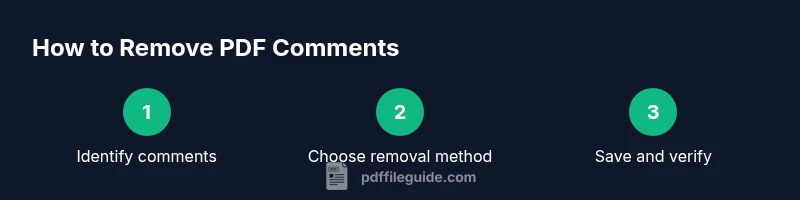
- 1
Open the PDF and locate comments
Launch your editor and open the document. Use the Comments or Annotations panel to list all active markers so you can review what needs removal.
Tip: Use the navigation pane to jump between comments quickly. - 2
Choose a removal method
Decide between deleting individual comments or flattening all annotations in one pass. Flattening permanently removes markup from the file layers.
Tip: Flattening reduces the risk of hidden annotations remaining in the document. - 3
Delete individual comments
Select comments one by one or in groups and press Delete. Confirm removal by reopening the Comments panel.
Tip: Check both sticky notes and inline highlights, as both are common sources of clutter. - 4
Flatten all annotations (if chosen)
Apply the Flatten or Commit Annotations command to permanently remove all markup from the document. Save a new version to preserve the original.
Tip: Keep a backup if you ever need to reference reviewer notes. - 5
Save the sanitized PDF with a new name
Use Save As to create a new file, avoiding overwriting the original. Include a version number or date in the filename.
Tip: A new name helps prevent accidental reuse of the unedited file. - 6
Verify the removal in multiple viewers
Open the final file in at least two PDF viewers to ensure no comments are visible and nothing unexpected remains.
Tip: Look for any reflowed text or hidden layers that might still show annotations.
Questions & Answers
What are PDF comments, and why might I remove them before sharing?
PDF comments are reviewer annotations like notes, highlights, and shapes. They’re helpful during collaboration but may need removal for final distribution or confidentiality. Removing them creates a clean final document.
PDF comments are reviewer notes. They’re great for collaboration, but you often remove them before sharing the final file.
Does flattening remove all traces of comments permanently?
Flattening merges annotations into the document content, making them unrecoverable in most viewers. It’s a definitive method for a clean, final file.
Flattening permanently blends the notes into the document so they can’t be extracted later.
Can I remove comments without altering the document’s text?
Yes. Deleting comments usually leaves the main text unchanged. However, some tools may adjust layout when removing many annotations, so always verify the final layout.
You can delete comments without changing the main text, but double-check the layout after edits.
Are online tools safe for removing PDF comments?
Online tools can remove comments, but they pose privacy risks for sensitive PDFs. Use trusted services and avoid uploading confidential documents whenever possible.
Online tools work, but be careful with private documents.
What’s the difference between removing and redacting comments?
Removing deletes the annotations, while redacting is about concealing content. Redaction is a separate process that affects actual document text.
Removing deletes notes; redacting hides content and requires separate handling.
What should I do if comments reappear after sharing?
If comments reappear, check recipient workflows and ensure you saved the latest sanitized version. Re-export if necessary and re-verify in a trusted viewer.
If comments show up again, re-check the latest sanitized file and re-verify in a viewer.
Watch Video
Key Takeaways
- Back up originals first
- Choose delete or flatten based on needs
- Verify removal across devices
- Save a new version for archival