How to Remove Highlight in PDF: A Step-by-Step Guide
Learn how to remove highlight in PDF across editors and readers. This in-depth guide covers native apps, full editors, bulk removal, accessibility tips, and best practices to keep annotations intact while producing clean, shareable documents.


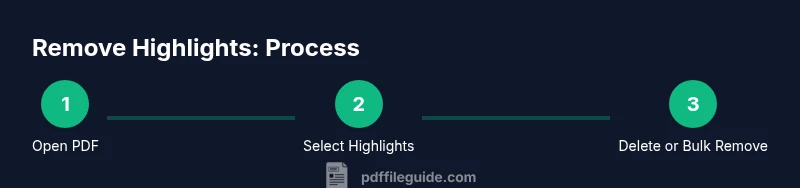
To remove highlight in a PDF, select the highlighted text and delete the annotation, or use a dedicated tool to clear all highlights in one pass. This guide walks you through native readers and full-feature editors, plus tips to preserve other annotations. You’ll finish with a clean, ready-to-share document for collaboration.
Why removing highlights matters
According to PDF File Guide, removing highlights can improve readability when sharing and ensure a clean document layout. The question of how to remove highlight in pdf often comes up for students, researchers, and professionals who need a polished file for submission or collaboration. Highlights can distract readers or misrepresent the intended emphasis when a document is circulated. This section explains the rationale behind de-highlighting, how highlights affect accessibility, and what happens when you remove them. You’ll learn why removing highlights should be deliberate, not automatic, and how to do it without harming other annotations. The goal is a clean baseline that preserves text quality, layout, and any necessary notes or comments, while eliminating the visual clutter of highlights. Throughout this guide, you’ll see practical methods for several popular tools, with tips for preserving essential marks like comments or glossaries.
Understanding how highlights work in PDFs
Highlights in PDFs are usually stored as annotations layered over the text. They can be color-coded and associated with specific passages. Depending on the tool, highlights may be independent annotations or linked to the document’s annotation layer. This means removing a highlight might involve deleting a single annotation, clearing all highlights of a certain type, or reflowing text if the highlight is embedded in the markup. Grasping this distinction helps you choose the correct approach and avoid inadvertently removing important comments or glossary terms. The goal is to maintain the document’s integrity while removing the visual emphasis you don’t need.
Native tools vs. full editors: knowing your options
If you only need to view or briefly edit highlights, built-in viewers can suffice. However, removing highlights often requires editing capabilities found in full-feature PDF editors. Native tools like Preview on macOS or some online viewers may support basic highlight deletion, but they typically lack bulk removal options. Full editors—such as Acrobat Pro, Foxit, or PDF-XChange—offer dedicated commands to delete single highlights or remove all highlights in one pass. The choice depends on your workflow, whether you need to preserve other annotations, and whether you must perform batch operations on large documents. The right tool saves time and minimizes the risk of accidental edits to text or other notes.
Removing highlights in Adobe Acrobat Pro and Acrobat Reader
Adobe Acrobat Pro provides both fine-grained delete options and bulk editing features. In contrast, Acrobat Reader typically supports only viewing and basic interactions with highlights. When removing, you’ll often start by selecting a highlight annotation and pressing delete, or by opening the Comment pane and removing items from the list. If you have many highlights, Acrobat Pro’s search and remove features can help you streamline the process. This section emphasizes maintaining other annotations, such as comments, while removing highlighting marks. PDF File Guide analysis shows that most users benefit from a targeted approach—remove only what you need, then verify the result before sharing.
Using Preview on macOS and other readers
Mac users can rely on Preview for quick edits, but its highlight removal tools are more limited than full editors. In some cases, you’ll delete a highlight directly by right-clicking the selection and choosing delete, or by clearing highlights through a dedicated tool if available. Other readers may present similar options in the annotation panel. As with any tool, the key is to understand whether the highlight exists as a separate annotation or as part of the text layer. This affects how you remove it without affecting the underlying content.
Bulk removal: clearing all highlights in one pass
For documents with numerous highlights, bulk removal saves time. Look for a dedicated option such as 'Remove All Highlights' or 'Clear Annotations' in the editor’s annotation tools. If your tool lacks a bulk command, you can use a search function to locate all highlight annotations and delete them in sequence. Be mindful of other annotations (comments, sticky notes) that might also appear in bulk selections. Bulk removal should always be tested on a duplicate file first to prevent accidental data loss.
Preserving other annotations while removing highlights
Highlights are just one form of annotation. When removing highlights, ensure that comments, sticky notes, bookmarks, and glossary notes remain intact if they’re needed for context. Some tools allow filtering to show only highlight annotations, making selective removal safer. If a highlight is part of a larger annotation (e.g., a comment that includes highlighted text), you may need to edit the annotation rather than delete the highlight alone. A careful approach helps you maintain essential notes for readers and reviewers.
Accessibility and document integrity after removal
After removing highlights, re-check the document’s accessibility and searchability. Highlights can aid or hinder screen readers depending on how the document is structured. Verify that search indexing still works and that the flow and layout of the text are preserved. If you rely on high-contrast visuals for readability, consider keeping relevant highlights out of sight but preserving the underlying structure for screen readers and assistive technologies. This ensures the final file remains usable for a broad audience.
Quick-start checklist and common mistakes
Before you begin, create a backup copy of the original PDF. Start with a single highlight or a small batch to verify your method. Avoid deleting non-highlight annotations by mistake; use the annotation pane to filter only highlight items. If you’re unsure whether an edit is safe, compare the edited version side-by-side with the original. This approach minimizes surprises when you share the document with colleagues or stakeholders.
Tools & Materials
- PDF editor with annotation controls (e.g., Adobe Acrobat Pro, Foxit Phantom, PDF Expert)(Choose a tool that supports both single and bulk highlight removal)
- Original PDF file (unlocked or with editing rights)(Keep a backup copy before editing)
- Optional: Regional language font pack for accessibility checks(Helpful if text reflow occurs after removal)
Steps
Estimated time: 10-20 minutes
- 1
Open the PDF in your editor
Launch your chosen PDF editor and open the document containing highlights. Ensure you have editing rights and a backup copy ready in case you need to revert changes.
Tip: Use a duplicate file for testing removals before applying changes to the original. - 2
Open the annotation or highlight view
Activate the annotation pane or enable highlight visibility so you can identify all highlighted sections. This helps you see exactly what needs removal without guessing.
Tip: Filter to show only highlight annotations to speed up the process. - 3
Delete a single highlight
Click the highlighted area to select its annotation, then press delete or choose the delete option in the context menu. Confirm the removal before moving to the next item.
Tip: If a highlight is linked to a comment, edit or delete the comment separately as needed. - 4
Remove highlights in bulk
If you have many highlights, use a bulk delete command such as 'Remove All Highlights' or a bulk selection followed by delete. Verify that only highlights were affected.
Tip: Always back up data before bulk operations to avoid accidental loss. - 5
Review and adjust
Scan the document to ensure no highlights remain and text formatting is intact. Check that important annotations still appear correctly.
Tip: Run a quick accessibility check to ensure no issues were introduced. - 6
Save the edited document
Save a new copy with a clear name indicating it’s the edited version. This preserves the original for comparison or rollback.
Tip: Use Versioned naming (e.g., Document_v2.pdf) for easy tracking. - 7
Final verification
Open the edited file in a second viewer to confirm consistency across platforms. Ensure search features still work and highlights are gone.
Tip: If any highlights persist, repeat the targeted removal on those sections.
Questions & Answers
How do I remove a single highlight versus all highlights in a PDF?
Most editors allow you to delete individual highlight annotations by selecting them, or remove all highlights via a bulk command or annotation pane. When removing all, double-check that other annotations like comments remain intact.
You can delete one highlight by selecting it, or use a bulk remove feature to clear all highlights at once; always verify the results.
Will removing highlights affect comments or other annotations?
Highlights are separate annotations from comments. If a highlight is linked to a comment, you may need to edit or delete the comment separately. Always review related notes after removal.
Removing highlights won’t delete standalone comments, but if a highlight is tied to a comment, check that item as well.
Can I remove highlights in a browser-based viewer?
Some browser viewers allow deletion of highlights, but many lack bulk removal options. For consistent results, use a desktop editor with full annotation controls.
Browser tools can work for quick fixes, but for bulk removals and accuracy, a desktop editor is better.
What should I do if highlights are part of a scanned or image-based PDF?
Highlights on scanned PDFs may be part of the image layer, making removal impossible without re-creating the PDF via OCR or editing the original source. Consider re-scanning or exporting to a text editor if necessary.
If the PDF is scanned, highlights might be part of the image; you may need OCR or re-creation to remove them.
Are there accessibility concerns after removing highlights?
Removing highlights can affect visual cues for readers who rely on contrast. After removal, ensure the document remains readable and searchable and adjust contrast or other formatting as needed.
Make sure the text is still readable and searchable after removing highlights.
Is bulk removal safer than removing highlights individually?
Bulk removal saves time but increases risk of removing unintended annotations. Use filters to limit changes to highlights only and test on a copy first.
Bulk removal is fast but be careful to target only highlights and test on a backup copy.
Watch Video
Key Takeaways
- Select the right tool for removal.
- Decide between single vs bulk highlight removal.
- Back up your original PDF before editing.
- Verify accessibility after edits.
- Preserve other annotations during the process.