How to Highlight a Protected PDF
Learn how to highlight a PDF when it is protected with proper authorization. This step-by-step guide covers legal considerations, suitable tools, and legitimate workarounds for annotating protected documents.


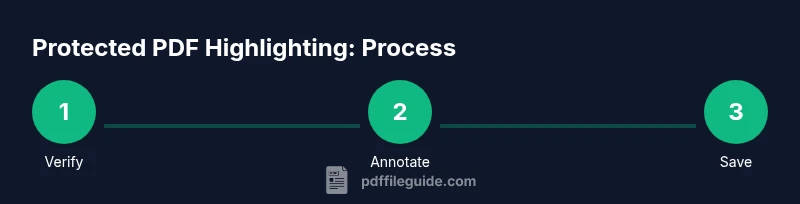
By following this guide, you can learn legitimate steps to highlight content in a PDF that is protected, as long as you have authorization. Open the document in a compliant viewer, verify permission, use the highlight tool, and save or export annotated copies. If you lack permission, request an unprotected version or use OCR where allowed.
Understanding this challenge and the goal
The phrase how to highlight pdf when it is protected captures a common workflow for professionals who must review and annotate documents they are authorized to use. Protected PDFs can restrict editing, copying, and even highlighting in some cases. The intent of this article is to explain legitimate pathways to annotate such files when you have explicit permission from the content owner or organization. Throughout this section, you will see practical guidance, ethical considerations, and how to choose the right tools to preserving the document’s integrity while you work. PDF File Guide authors emphasize responsible handling of secure documents and aim to help editors, students, and professionals with compliant practices.
Legal and ethical considerations when annotating protected PDFs
Annotating a protected PDF should always be accompanied by proper permission. If you do not have permission, attempting to bypass protections can violate laws and contractual terms. Always confirm your rights to annotate with the author, publisher, or administrator of the file. When permission is granted, keep a record of that authorization and use tools that honor the document’s security settings. PDF File Guide recommends documenting permission in your project notes and ensuring any annotations are clearly attributed to you as a reviewer. Ethical handling builds trust and avoids legal risk.
Types of protections you might encounter in PDFs
PDF protections vary in scope. Some files restrict editing or copying text, while others disable commenting or highlighting altogether. Password-protected PDFs require entering a password to open or modify, while permissions-based restrictions enforce limits on printing, editing, or annotating. In many cases, the owner configures these settings to prevent accidental modification or distribution. Understanding your exact protection type helps you choose the right compliant approach and avoid unintended breaches of security.
Legitimate ways to highlight when you have permission
When you have explicit authorization, use your PDF editor’s built-in annotation tools. Most modern viewers provide a Comment or Highlight feature that works even on restricted documents if the owner granted annotation rights. Begin by opening the file in a trusted app, verify that the Protect/Restrict settings allow commenting, and then select the highlighter. Apply your color choice and save a new annotated copy to document your review. Always save with a new filename to preserve the original.
How to highlight in popular PDF apps with protection (without breaching security)
Different applications expose slightly different interfaces, but the core workflow remains consistent. In Acrobat, Foxit, or PDF Expert, enable the Comment or Annotate toolbar, then select Highlighter and choose a color. If the app prompts for a password, enter it only if you are authorized. Ensure that the highlighted marks are saved to the file or to an exported copy. If your organization uses centralized document management, consider saving the annotated version to your secure workspace.
Alternatives when you cannot modify the document
If the file’s protections prevent highlighting and you lack permission to remove restrictions, use alternative legitimate methods. Create a separate notes document where you reference the exact passages and page numbers. Take screenshots of highlighted sections if allowed, or request a fresh copy from the owner. For scanned documents, OCR can help make text selectable so you can annotate indirectly, provided you have rights to do so. Always track your permissions and the purpose of annotations.
Step-by-step example workflow for a password you know
- Open the PDF in a compliant viewer with the password. 2) Switch to the Comment/Highlight tool. 3) Select the relevant text and apply your highlight color. 4) Save as a new annotated copy, keep the original intact. 5) Double-check that all highlights are preserved after closing. 6) If you must share edits, choose a secure export or PDF package. 7) Archive permission documentation alongside the annotated file for future audits.
Working with scanned PDFs and OCR considerations
Some PDFs are images rather than text, requiring OCR to become fully annotatable. Use a trusted OCR option within your editor or a dedicated OCR tool, then re-check the document for alignment and accuracy. If you are authorized, converting to a text-searchable format can make highlighting more precise and searchable. Remember: OCR results should be reviewed for errors before finalizing highlights.
Common mistakes and how to avoid them
Avoid applying edits without explicit permission, and never disable security features without authorization. Don’t overwrite the original file without creating a labeled backup. Always verify you’re editing the right document and that your highlights appear in the exported version. If you encounter issues, revert to the original copy and retry with a copy that preserves security settings.
Final tips and next steps: staying compliant while annotating
Keep a record of permissions, use edge-safe workflows, and prefer documenting changes rather than altering the source permanently. When in doubt, contact the document owner for clarification and request an explicit allowance for annotations. This approach minimizes risk and supports professional standards for document handling.
Tools & Materials
- Annotation-enabled PDF viewer/editor(Examples: Adobe Acrobat Pro, Foxit PhantomPDF, PDF-XChange Editor)
- Authorized access to the protected PDF (password or permission)(Have written permission or authorized password ready)
- Reliable computer with updated software(Ensure your OS and apps are current for security and features)
- OCR-capable tool (for scanned PDFs)(Use only if you are authorized to convert images to text)
- Notes/audit trail document(Keep a record of permission and the purpose of annotations)
Steps
Estimated time: 20-45 minutes
- 1
Verify your authorization
Confirm you have explicit permission to annotate the document. If a password is required, obtain it legally. Without permission, do not proceed. This step protects you and the content owner.
Tip: Keep written permission or email confirmation accessible during the work. - 2
Open the PDF in a compliant viewer
Launch a trusted PDF editor that supports annotations. Enter the password if prompted and ensure the rights to annotate are allowed by the document's security settings.
Tip: Work on a copy to preserve the original. - 3
Enable the highlighting tool
Switch to the Comment or Highlight tool. Check that the tool is active for the current document and that the color options meet your annotation standards.
Tip: Choose a color with high contrast against the text for readability. - 4
Apply highlights to the relevant text
Select the target passages and apply highlights. Avoid over-highlighting; focus on key passages you and teammates will reference.
Tip: Highlight in a consistent color scheme across the document. - 5
Save or export the annotated copy
Save as a new file to preserve the original, and verify that highlights persist after reopening. Consider exporting a version with a clear filename.
Tip: Use a naming convention like ProjectName_ProtectedAnnotated.pdf. - 6
If highlighting isn’t permitted, request an unprotected version
When highlighting is blocked, contact the owner and request a version that allows annotations or a permission brief outlining acceptable review methods.
Tip: Document your request and the owner’s response for compliance. - 7
For scanned PDFs, use OCR if allowed
If the document is an image, run OCR to convert to searchable text before annotating. Verify the OCR results for accuracy before applying highlights.
Tip: Review for misreads in critical terms or numbers. - 8
Document your workflow
Keep notes on permission, tools used, and relevant policies. This helps audits and ensures accountability in your annotation process.
Tip: Include date, project, and stakeholder contact in your log.
Questions & Answers
Is it legal to highlight a protected PDF?
Yes, if you have explicit permission from the owner or rights holder. Bypassing protections without authorization is not allowed. Always verify you have the right to annotate before proceeding.
Yes, you can legally highlight a protected PDF if you have explicit permission from the owner. Do not bypass protections without authorization.
What should I do if I don't have the password?
Contact the document owner to request permission or an unprotected version. Do not attempt to crack or bypass protections. If permission is granted, follow the approved workflow to annotate.
If you don’t have the password, reach out to the owner for permission or an unprotected copy, then annotate per policy.
Can OCR help me highlight a protected PDF?
OCR can convert scanned images to selectable text, enabling highlighting, but only when you’re authorized to edit or annotate. Verify rights before converting and annotating.
OCR helps when you’re allowed to create a text layer for highlighting, but confirm permission first.
Which tools support highlighting protected PDFs?
Most major PDF editors support highlights when permissions allow. Look for the Highlight or Comment tools and confirm the document’s security settings permit annotation.
Most editors work for marked-up PDFs if you’re authorized; use the built-in Comment tools.
What if the document is locked and I cannot annotate?
Request an unprotected version or permission in writing. Annotate only when you are authorized, and document any correspondence with the owner.
If it’s locked, ask for permission or an unprotected copy before annotating.
How should I store the annotated document?
Save as a new file with a clear name and store permission notes with it. Keep the original intact and maintain a record of approvals.
Save a new annotated copy and keep the original untouched, along with permission notes.
Watch Video
Key Takeaways
- Verify permission before annotating.
- Use a compliant viewer and built-in highlight tools.
- Save annotated copies separately from the original.
- If you can't annotate, request an unprotected version or use approved alternatives.
- Document permissions and process for accountability.