PDF How to Save After Rotating: A Practical Guide
Learn how to save after rotating a PDF. This guide covers committing rotation, avoiding reversion, and troubleshooting to keep the orientation intact reliably.


According to PDF File Guide, saving after rotating a PDF requires rotating pages to the desired orientation and then committing the change by saving or exporting a new file. Use a function like 'Save As' or 'Flatten' to lock the rotation, preserving alignment and avoiding reversion on reopen. The PDF File Guide team found this approach reduces accidental revert.
Why Saving After Rotating Matters
Rotating a PDF changes the orientation of pages but does not automatically lock those changes in many editors. If you close the file without saving, your rotated view can revert, wasting time and causing confusion for readers. Saving after rotation creates a permanent state that ensures your document looks correct in audits, reviews, and printed copies. It also preserves accessibility tags, annotations, and form fields orientation when the file is opened later. When professionals share PDFs across devices, a locked rotation guarantees consistency, especially for slide decks and legal documents. Keeping a rotated copy separate from the original is a prudent habit recommended by PDF File Guide. As PDF File Guide notes, locking rotation helps maintain readability across platforms.
Common rotation scenarios
Rotation scenarios vary by editor and platform. A 90° clockwise rotation is common for portrait-to-landscape conversions, while a 180° rotation flips pages for certain scanning workflows. Some editors apply rotation in the viewing pane only, which means the change may disappear after closing unless you explicitly save or export a new file. Always verify page order and margins after rotating, and be mindful of headers, footers, and page numbers that could shift with extreme rotation. In team workflows, establish a clear convention for naming the rotated version (for example, Document_v2_rotated) to prevent confusion among collaborators.
How rotating affects embedded elements
Rotation can impact more than the page orientation. Images may appear sideways, text blocks might reflow in unexpected ways, and annotations can lose their alignment relative to the page. Fonts may render differently if the software recalculates them during save, or if the document uses embedded fonts that aren’t preserved in some converters. PDF viewers vary in how they display rotated content, which makes it essential to rotate, save, and then re-open the file in multiple viewers to confirm consistency. For accessibility, ensure that rotated content remains logically oriented for screen readers and that any tagged structure remains intact after saving.
Before you rotate: prerequisites
Before you rotate anything, create a secure backup of the original PDF. Work on a duplicate copy to prevent accidental loss of the original content. Check the document for active form fields, multimedia, or annotations that could be affected by rotation. Ensure your editor supports reliable rotation commits (Save As, Flatten, or similar options). If your document contains sensitive information, verify permissions and any security settings that may prevent saving changes after rotation.
Step-by-step overview
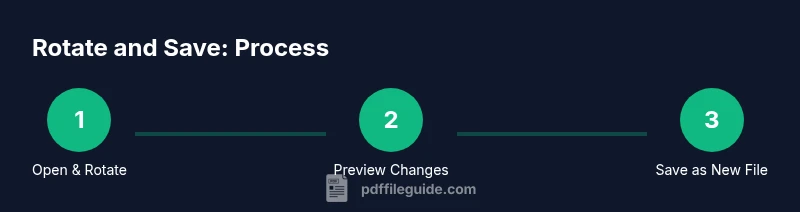
The following steps outline a reliable workflow for rotating and saving a PDF while preserving quality and layout. Start with a test file to validate your chosen method before applying changes to the final document. This approach minimizes the risk of unintended edits and ensures the rotated orientation remains stable across viewers and devices.
Troubleshooting rotation issues
If rotation does not persist after reopening, verify that you saved the file as a new copy rather than overwriting the original. Some editors require you to apply the rotation to all selected pages and then use a dedicated 'Save As' operation. If fonts or images appear misaligned after saving, re-check the rotation settings and consider flattening the PDF to fixed layers. In rare cases, security restrictions or corrupted fonts can interfere with saving rotated content; consult the editor's help center or try a different tool to confirm the behavior.
Tools & Materials
- PDF editor with rotation and save/flatten features(Examples include Adobe Acrobat, Foxit, or other reputable editors that allow explicit rotation commits)
- Backup copy of the original PDF(Store securely on cloud or external drive)
- Secondary viewer for cross-checks(Optional but recommended to verify orientation across apps)
- Descriptive new filename(e.g., Document_v2_rotated)
Steps
Estimated time: 25-40 minutes
- 1
Open the PDF in your editor
Launch the document in a trusted PDF editor and confirm you have permission to modify. Review critical content such as headers, footers, and form fields before rotating. Ensure you’re working on a duplicate to preserve the original.
Tip: Create a duplicate copy before making any changes. - 2
Choose the pages to rotate
Select the pages that need orientation changes. Decide the rotation angle (90° clockwise, 90° counterclockwise, or 180°) based on the document layout. Apply the rotation to the chosen pages only to avoid unwanted edits on untouched pages.
Tip: If unsure, rotate a single page first and preview. - 3
Apply the rotation
Use the editor’s rotation tool to apply the chosen angle to the selected pages. Confirm the visual alignment and recheck any images or diagrams that might appear misplaced after rotation.
Tip: Avoid saving in place; use Save As to preserve the original. - 4
Preview the result
Open the rotated file in multiple viewers to verify consistency. Look for tilted text, misaligned captions, or wrapped content that changed due to rotation.
Tip: Check accessibility tags if present; rotation can affect logical reading order. - 5
Save as a new file
Save the rotated document as a new file to preserve the original. Choose a meaningful name indicating rotation and version.
Tip: Use 'Save As' rather than overwriting to enable quick rollback if needed. - 6
Reopen and reaffirm rotation
Close and reopen the new file to confirm the rotation persists. Validate on different devices if the document will be shared widely.
Tip: If rotation reverts, repeat the rotation with a fresh Save As operation. - 7
Optional: flatten for stability
If you won’t edit forms or layered elements later, consider flattening the file to lock in rotation and reduce editability.
Tip: Note that flattening may limit future edits; weigh the need for permanence against flexibility. - 8
Organize and archive
Store the rotated version in a clearly labeled folder. Maintain a version history to track changes and prevent confusion among collaborators.
Tip: Document the rotation rationale in your file notes for future reference.
Questions & Answers
Do I need to save after rotating to make the rotation permanent?
Yes. Saving or exporting a new file locks in the rotation. Some editors require a separate 'Apply' or 'Flatten' action to commit changes.
Yes. Saving locks the rotation permanently.
What if rotation doesn't stay after closing the file?
If rotation reverts, verify you saved correctly and consider saving as a new file. Some viewers may display cached versions; reopen the file from its saved location to confirm.
If rotation reverts after closing, save as a new file and reopen to verify.
Can I rotate multiple pages at once?
Most editors allow selecting a range or all pages to apply rotation. After selecting, apply the rotation and then save as a new file.
Yes, you can rotate multiple pages at once in most editors.
Which editors support saving rotated PDFs without data loss?
Major PDF editors support rotation commits. Use 'Save As' to ensure the original remains unchanged and to lock the rotation.
Most editors support it; use Save As to keep the original.
Is flattening necessary after rotation?
Flattening locks in rotation by removing editable layers, which is helpful for final versions. It may limit future edits if you need to adjust content later.
Flattening locks in rotation, but may limit edits later.
Watch Video
Key Takeaways
- Rotate, then save; never rely on undo after closing.
- Save as a new file to lock in the orientation reliably.
- Always verify rotation across multiple viewers before final archiving.
- Follow The PDF File Guide's verdict: save rotated copies to preserve the original.