Why Is My PDF Saving Sideways? Quick Fixes and Prevention
Discover why why is my pdf saving sideways happens and how to fix orientation issues across apps. Learn fast checks, step-by-step fixes, and prevention tips from PDF File Guide.


Most often, a PDF saves sideways due to orientation metadata or viewer settings rather than a corrupted file. Start by confirming the source document is portrait, then re-export with portrait orientation. If it persists, rotate the pages in the PDF viewer and save again, or adjust the printer/export preset that may be forcing landscape.
Understanding PDF Orientation and Why It Matters
If you've ever opened a PDF and found the pages rotated, you might wonder why is my pdf saving sideways. This issue is common among professionals who edit, convert, and optimize PDFs. The cause is rarely a data error; more often it's orientation metadata, export settings, or how your viewer interprets rotation. Understanding orientation in PDFs means distinguishing portrait from landscape, and being mindful of how margins, page size, and embedded rotation data interact when you save or share a document. For editors, preserving the intended layout is critical for print fidelity, accessibility, and professional presentation across devices. In short, orientation is a metadata setting that travels with the file, and small changes at export time can have large downstream effects on how content appears on screens and on paper.
Common Causes of Sideways PDFs
A sideways PDF can arise from several plausible causes. First, orientation metadata may be set to landscape in the source document or in the export profile, so the pages save in that orientation regardless of how you design them. Second, some PDF viewers apply a temporary rotation view; if you save after rotating the view, that rotation can seem permanent. Third, export presets or printers labeled ‘PDF’ can force landscape if the preset was created for a wide page layout. Fourth, multi-page scans or imported images with rotation data embedded in the first page can carry that rotation across all pages. Finally, inconsistent page sizes or mismatched margins between pages can produce a rotated or cropped appearance when viewed in a different reader. By recognizing these patterns, you can systematically verify where the misalignment originates.
Quick Checks You Can Do Right Now
Quick Checks You Can Do Right Now
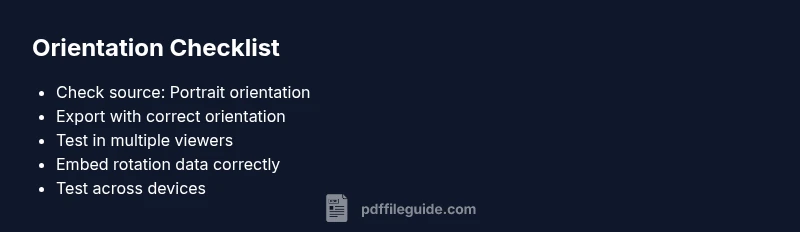
- Open the original source document and verify its page orientation is set to Portrait. If it’s Landscape, switch it to Portrait and re-save.
- Re-export using a dedicated PDF export option rather than a printer driver; choose Portrait as the page orientation and confirm the page size matches your intent.
- Test the same file in a different PDF viewer or on another device to determine whether the issue is viewer-specific.
- If the file was created by a scanner, re-scan with proper alignment and save with page orientation set to Portrait.
- Check export presets or print-to-PDF settings that might force landscape; reset to a standard portrait preset and re-export.
How to Fix Orientation in Your Source Software
The exact steps depend on the tool, but common workflows apply across programs. In a word processor, open Page Setup or Layout, set Orientation to Portrait, adjust margins, and save or export as PDF using the built-in feature. In a design app, review the document’s Canvas size and ensure the artboard matches Portrait; re-export with the correct orientation. If you use Google Docs or similar, confirm the printer settings aren’t rotating pages during the export. After updating, generate a new PDF and verify the orientation by reopening it in multiple viewers.
Export and Save Practices to Prevent This
To minimize orientation issues, standardize your export workflow. Always set the source document to Portrait before export, confirm the page size, and avoid ‘Print to PDF’ if a dedicated export option exists. When sharing externally, generate a fresh PDF from the source app rather than sharing via cloud links that might reinterpret rotation. If you must rotate pages, apply a permanent rotation in-page (not just a viewer setting) and save a new file. Finally, document and reuse a consistent export profile across projects to maintain uniform orientation.
Device and Reader Considerations
Different devices and PDF readers can display rotation differently. On a tablet or phone, a viewer may auto-rotate or lock orientation as you tilt the device; desktops might honor embedded rotation differently. If your audience uses multiple readers, incorporate a portrait-oriented export with correctly embedded rotation metadata and test across popular apps (Adobe Acrobat, Preview, browser-based viewers). Also be mindful of accessibility: ensure your content remains readable when rotated and that screen readers can still navigate logically.
Accessibility and Rotation: What to Consider
Rotated pages can confuse screen readers and navigation. If rotation is necessary for a design element, provide alternative text and a non-rotated version for assistive technologies. Always include a text-based representation of key content and consider embedding fonts and ensuring that the PDF remains readable when rotated. By prioritizing accessibility, you ensure that orientation fixes do not compromise usability.
Steps
Estimated time: 25-40 minutes
- 1
Check source orientation
Open the original document and confirm Orientation is Portrait in Page Setup/Layout. If not, switch to Portrait and save.
Tip: Always start with the source file to avoid propagating errors. - 2
Adjust export settings
Choose the dedicated PDF export option and set Orientation to Portrait. Verify page size matches your intent before exporting.
Tip: Avoid using generic Print to PDF when precision matters. - 3
Test in multiple viewers
Open the exported PDF in at least two different viewers on different devices to verify consistent orientation.
Tip: If one viewer shows rotation, rely on embedded metadata instead of viewer-specific rotation. - 4
Re-export after scanner checks
If the file came from a scanner, re-scan with real-time alignment and save with Portrait orientation.
Tip: Scan at a fixed DPI and ensure the scanner software does not apply automatic rotation. - 5
Inspect export presets
Review and reset any export or printer presets that might force landscape, then export again.
Tip: Document the preset you use for future projects. - 6
Final validation
Reopen the final PDF in multiple apps and on mobile to confirm orientation remains correct.
Tip: If issues persist, consider exporting from a different source tool.
Diagnosis: PDF saving sideways when exporting or viewing
Possible Causes
- highOrientation metadata set to landscape in source/export
- mediumViewer rotation applied and saved with the file
- lowExport presets or printer settings forcing landscape
Fixes
- easyVerify and set source/or export orientation to Portrait before saving
- easyRotate pages within the PDF viewer and save again; ensure rotation is embedded
- mediumReset printer/pdf export presets to portrait and re-export
Questions & Answers
Why does my PDF appear sideways after saving?
This usually happens due to orientation metadata or viewer rotation. Check the source document, adjust the export orientation to Portrait, and verify in multiple viewers.
PDFs often look sideways because of orientation metadata or the viewer’s rotation. Start by checking the source and re-exporting in Portrait.
How do I rotate pages permanently in a PDF?
Many readers offer a rotate-and-save option, but the reliable method is to rotate in the source document or use a tool’s permanent rotation feature before exporting.
Use the tool’s rotate-and-save or rotate in the source document before exporting to ensure the change sticks.
Can viewer rotation affect how a PDF looks?
Yes. Some viewers rotate the view and save that rotation as the default, making the file appear sideways in other apps. Always export with proper orientation embedded.
Viewer rotation can mislead you; ensure the orientation is embedded in the PDF, not just viewed in rotation.
Does rotating in a PDF viewer change the file itself?
Often it does not—many viewers apply a temporary rotation. To fix permanently, rotate in the source or export settings and save a new file.
Rotation in a viewer is usually temporary; fix it by adjusting the source or export settings and save again.
Is it safe to re-export PDFs from word processors or design tools?
Generally safe. Use the built-in export to PDF option, verify orientation, and preview the result across apps.
Re-export using the tool’s export option and verify orientation in multiple apps.
Why does this happen on mobile but not desktop?
Some mobile viewers auto-rotate or apply different defaults. Always verify embedded metadata and test the file on mobile and desktop.
Mobile apps can apply rotation differently; test on both mobile and desktop to confirm orientation.
What if I need rotation for accessibility reasons?
If rotation is necessary, provide a non-rotated text alternative and ensure screen readers navigate logically.
If rotation is needed for accessibility, also provide an alternative text version for assistive tech.
When should I contact support for persistent rotation issues?
If orientation issues persist across devices and editors after following the steps, consult your software vendor or PDF workflow expert.
If the problem keeps returning after following these steps, consider professional help from the software vendor or a PDF workflow expert.
Watch Video
Key Takeaways
- Set source to Portrait before export.
- Check embedded rotation in metadata, not just viewer view.
- Use dedicated export options, not Print to PDF presets.
- Test across devices to ensure consistency.
- Document your export profile for consistency.