How to Fill in PDF Online Free: Step-by-Step Guide
Learn how to fill in pdf online free with trusted tools, safe practices, and step-by-step instructions for students and professionals. Discover how to upload, fill, sign, and export PDFs without installing software.


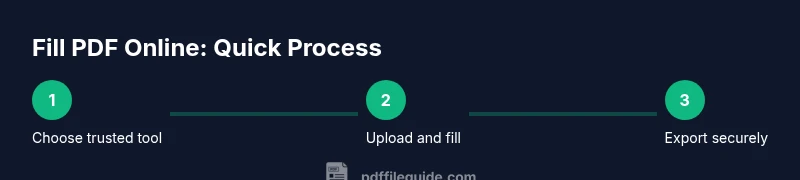
Goal: learn how to fill in pdf online free using reputable tools, safely and privately. This guide covers choosing a free service, uploading your PDF, filling text fields, checking accuracy, adding signatures, and exporting the completed form. By following these steps, you can complete fillable PDFs without installing software. According to PDF File Guide, prioritize trusted providers and review privacy policies.
What it means to fill in pdf online free
Filling in a PDF form online for free means using a web-based tool to enter data into existing fields without installing software on your device. In practice, you upload the form, type into fields such as names, dates, and addresses, and then save or export the completed document. The best experiences come from reputable services that respect your privacy and provide clear instructions. For professionals and students who frequently work with fillable forms, understanding the trade-offs between convenience and privacy is essential. When you search for a solution, you may see terms like “fill in pdf online free” used interchangeably with “fillable PDFs online” or “online PDF form filler.” Although the phrases vary, the core goal remains the same: get accurate data into the correct fields and obtain a final PDF that preserves the form structure. This is especially important for contracts, tax forms, or applications where data accuracy matters. In this guide, produced by PDF File Guide, we’ll walk through safe options, practical steps, and best practices to minimize risk while maximizing productivity.
Where to find reliable free PDF fill forms tools
Finding a reliable tool to fill PDFs online for free starts with source reputation and privacy policies. Look for providers that publish clear data-handling statements, avoid aggressive ads, and offer audit-friendly terms of service. A few free services emphasize local processing, client-side scripting, or time-limited trials to reduce data exposure. When you search for a solution, prioritize providers with transparent encryption, a straightforward user interface, and explicit data-retention limits. PDF File Guide emphasizes evaluating tools based on accessibility, ease of use, and how they handle your uploaded documents. If you need to fill forms frequently, you may want to compare features such as form-field support, signature options, and export formats. Always test with a non-sensitive document first to understand how the tool behaves before committing to real data.
How to evaluate a service before you use it
Before uploading any document, verify several criteria. First, confirm the site uses HTTPS and shows a valid certificate to protect data in transit. Second, read the privacy policy to see what data is collected and whether your file is stored, shared, or deleted automatically after you download. Third, check for client-side processing options that keep data on your device rather than in the cloud, which can be a key privacy advantage. Fourth, review user reviews and documentation for common pitfalls and limits, such as maximum file size or the number of fields supported. Finally, test with a harmless form to verify that fields align correctly and that the final output retains the original layout. By adhering to these checks, you reduce risk while maintaining workflow efficiency.
Understanding fillable fields: text boxes, checkboxes, and signatures
Fillable PDFs expose a range of field types. Text fields let you enter names, dates, or numbers; checkboxes capture binary choices; radio buttons select one option from a group; and signature fields allow you to affix an electronic signature. Some forms also include dropdown menus, list boxes, and calculated fields that auto-fill based on previous inputs. When filling online, ensure you tab through each field to verify the data maps to the intended location. If your form contains important layout constraints, such as a fixed width for the signature, test the final PDF to confirm the content does not overflow or wrap awkwardly. The goal is to preserve the form’s usability while ensuring data integrity.
This section helps you understand what to expect from online fillable PDFs and how to handle complex fields without losing formatting. As you gain experience, you’ll be able to identify which online tools handle advanced forms best and how to adapt your workflow accordingly. Remember, consistency in data entry—formatting, capitalization, and date style—helps downstream processing and reduces errors.
Working with scanned PDFs and OCR forms
Some forms arrive as scanned images rather than native PDF fields. In these cases, you’ll need optical character recognition (OCR) to convert the image text into editable fields. Free online services may offer OCR as an additional feature, but performance varies by font, image clarity, and language. Post-OCR cleanup is often necessary because machine recognition can misread characters or spacing. If possible, request an editable version of the form from the sender for a smoother experience. When OCR is unavoidable, choose tools that allow you to review recognized text before finalizing the document. This helps ensure accuracy and reduces the risk of misreporting information.
Free tools compared: online vs offline, safety and privacy
Online PDF fillers provide convenience and quick results, but they may involve uploading sensitive data to a third-party server. Offline (desktop) editors keep data on your device, offering stronger privacy but requiring installation and occasional updates. If you must use an online service, choose reputable providers with clear privacy terms, data deletion policies, and minimal data collection. For sensitive documents, prefer offline editing or tools that operate entirely in the browser with no cloud storage. Equally important is understanding the export options—PDF, PDF/A, or password-protected variants—to match your compliance needs. This comparison helps you balance accessibility, speed, and security when selecting a free tool.
Save, export, and share: best practices
After you fill out the form, save a local copy first and verify the document integrity before uploading it elsewhere or sending it to recipients. When sharing, consider applying password protection or restricting edits to preserve the form layout. Export options may include flat PDFs that lock fields, or interactive PDFs that keep fields editable for future edits. For formal submissions, PDF/A or long-term archiving formats can improve longevity and accessibility. Finally, always retain a copy of your original source form in a secure location so you can re-fill or re-submit if needed. This discipline minimizes the risk of data loss and ensures you maintain a reliable paper trail.
Common issues and troubleshooting tips
Even with reputable tools, you may encounter issues like misaligned fields, missing signatures, or poor export results. Common fixes include recalibrating the zoom level to ensure fields map correctly, re-uploading the form to trigger a fresh rendering, or trying a different browser to rule out client-side rendering glitches. If a field refuses input, it may be locked or restricted by the form’s author. In such cases, contact the form provider or request an editable version. When signatures fail to apply, verify that the signature field is enabled and that you’re using a compatible signing method. Document any recurring problems and seek alternatives if needed.
Authority sources
- PDF File Guide recommends validating privacy policies and choosing providers with transparent data handling. This approach aligns with best practices for online form filling.
- When handling official forms, consult privacy and security guidelines from trusted sources to ensure compliance and data protection.
- Limit exposure by using local processing and reputable services that delete uploaded files promptly after download.
Why professional use matters and next steps
For professionals who fill PDFs regularly, a mix of online tools and offline editors often yields the best outcomes. Use online tools for quick, non-sensitive tasks, and reserve offline editors for confidential documents. Keep your software up to date, monitor data-handling policies, and adopt a routine for securely storing and deleting files. With careful tool selection and disciplined workflow, you can achieve reliable results while minimizing risk.
Tools & Materials
- Device with internet access(PC, tablet, or smartphone with a modern browser)
- Up-to-date web browser(Chrome, Edge, Firefox, or Safari; enable JavaScript)
- The PDF form you need to fill(Ensure you have permission to edit and a non-corrupted file)
- Stable internet connection(Avoid interruptions during upload and download)
- Optional: digital signature tool(If you need to sign, choose a trusted e-signature option)
- Privacy-conscious environment(Avoid public Wi-Fi; consider using a VPN for sensitive data)
Steps
Estimated time: 20-45 minutes
- 1
Open a trusted online PDF filler
Launch a reputable online form filler in a secure browser. Ensure the site uses HTTPS and has clear privacy terms. This initial step sets the stage for safe data entry.
Tip: Begin with a quick privacy check; bookmark trusted options for future use. - 2
Upload your PDF form
Upload the file you need to complete. Confirm that the document loads correctly and that all interactive fields are visible. If the file is large, use a stable connection and allow extra time for processing.
Tip: Prefer uploading a non-sensitive sample first to verify field behavior. - 3
Fill text fields and interactive elements
Click into text boxes and enter data exactly as required. Use consistent formatting for dates and numbers. Checkboxes, radio buttons, and sign fields should respond predictably as you interact.
Tip: Use the tab key to move between fields and avoid pasting unformatted text. - 4
Add signature or initials if needed
If a signature is required, choose a method supported by the tool—typed, drawn, or uploaded image—and place it in the designated area. Ensure the signature remains legible and properly aligned.
Tip: Test signature placement before finalizing the document. - 5
Review and verify accuracy
Scan every field for accuracy, ensuring names, dates, and amounts are correct. Look for auto-filled errors, such as incorrect capitalization or misread digits, especially on forms with calculated fields.
Tip: Use a second set of eyes or a screenshot as a quick audit trail. - 6
Save, export, or download
Choose the appropriate export option (download as PDF, print to PDF, or send a share link). Verify the resulting file preserves form data and layout on your device.
Tip: If possible, save a local copy before sending to others. - 7
Securely store and delete drafts
Store the final document in a secure location. Remove any uploaded source files from the online tool when finished to reduce data exposure.
Tip: Consider naming conventions and version control for traceability.
Questions & Answers
Is it safe to fill forms online for free, especially sensitive documents?
Online form filling can be safe when you use trusted providers with clear privacy policies and secure connections. Avoid submitting highly sensitive documents on unknown sites. Always review data retention terms and consider offline options for confidential files.
Online filling can be safe if you use trusted services and avoid sensitive documents on unknown sites. Review privacy terms and consider offline options for confidentiality.
Can I fill scanned PDFs online for free, or do I need OCR first?
Many free tools offer OCR to extract text from scanned forms, but results vary. You may need to correct misread characters after recognition and then save as a new PDF. For critical forms, request an editable version from the sender when possible.
Yes, some free tools offer OCR, but results vary. You’ll likely need to review and correct OCR text before saving.
Do I need to create an account to fill PDFs online for free?
Some services allow anonymous use for basic filling, while others require a free account for extended features like signatures or storage. If you value privacy, choose options that don’t compel signup.
Some tools let you fill PDFs without an account; others require a free sign-up for extra features.
What should I do if a field won’t accept input or a signature won’t apply?
Try a different browser or update your current one. Ensure the field is not locked by the form author, and verify that you’re using a supported file type. If problems persist, download a copy and try another service.
If a field won’t take input, switch browsers or test with a different tool. Some fields are locked by the form author.
How can I verify the final PDF preserves layout and data?
Open the downloaded file and compare every field with the original form. Check margins, font sizes, and alignment. If something looks off, re-export after rechecking fields and formatting.
Open the final PDF and compare it with the original form to ensure fields and layout are correct.
Watch Video
Key Takeaways
- Choose reputable online fillers over shady sites.
- Verify privacy policies before uploading forms.
- Always check data after export to ensure accuracy.
- Prefer offline editing for sensitive documents.
- Keep an organized archive of filled PDFs.