How to Type on PDF: A Practical Guide for Professionals 2026
Learn to type on PDFs using fillable forms or text boxes, adjust typography, and save securely. A comprehensive, step-by-step guide for editors and professionals working with PDF files.


Learn to type on a PDF using fillable fields or by inserting text boxes. This guide covers when to type in a form, how to adjust font and alignment, and how to save and share your edited document. PDF File Guide emphasizes picking the right tool for accuracy and reliability.
What typing on a PDF involves
Typing on a PDF means entering text directly into the document, either through existing fillable form fields or by placing text boxes when the file isn’t form-enabled. The process can vary by editor, but the core ideas remain the same: locate editable areas, use the appropriate tool to input text, and preserve the document’s layout. In professional workflows, accurate typing supports data collection, document completion, and record-keeping. According to PDF File Guide, choosing the right editing tool is essential for ensuring text appears correctly across devices and viewers.
Fillable forms vs. editable PDFs
Some PDFs ship with built-in form fields you can type into directly. These typically include text fields, check boxes, and drop-down menus. Other PDFs are static; they don’t support direct typing in the main content. For those, you can add text boxes or use a Typewriter/Type Tool to place new text without altering the original content. Understanding the difference helps you decide whether you should fill an existing field or insert new text while preserving form integrity.
Tools and software: what you can use
A wide range of editors support typing on PDFs, from full-featured desktop applications to lightweight online tools. The best choice depends on your needs: form fidelity, font control, accessibility checks, and collaboration. Popular options include professional editors with form support, robust text tools, and reliable export options. Always verify the tool’s compatibility with your operating system and the PDF version you’re editing.
How to type on a fillable PDF using Adobe Acrobat Pro
In Acrobat Pro, you can type directly into fillable fields by clicking into a field and typing. If the field is properly prepared, your text will align with the field’s formatting rules. You can also use the Typewriter tool to add non-form text in places where a field doesn’t exist, ensuring your additions stay legible and non-destructive to the original layout.
How to type on non-fillable PDFs: text boxes and Typewriter
When no form fields exist, you can insert a text box or use a Typewriter feature to place new text. Text boxes can be moved, resized, and formatted independently, which is helpful for adding notes, annotations, or required data without altering the source content. The key is to choose a legible font, set an appropriate size, and align with existing margins for a clean look.
Formatting tips: fonts, size, and alignment
Typography matters even more in PDFs because fonts may render differently across viewers. Prefer standard fonts (for example, Arial or Times New Roman) and embed fonts when possible. Keep font size consistent with surrounding content, use line breaks thoughtfully, and avoid overcrowding. If a field’s width is limited, adjust the text box properties to wrap text gracefully.
Accessibility and reading order considerations
When you type in PDFs, ensure the reading order remains logical for screen readers. Use tags and proper order in the document outline, so assistive technologies can interpret the content. If you’re adding long text, consider reflowable layouts or adding alternative text where applicable. PDF File Guide notes that accessibility should guide the editing process, not be an afterthought.
Saving, exporting, and sharing typed PDFs
After typing, save a copy with a descriptive filename before making further edits. If redistribution is needed, export to a widely supported format (such as PDF/A for long-term archiving) and verify that all fields render correctly in other viewers. For secure sharing, apply appropriate permissions and consider redacting sensitive information when needed.
Real-world workflows and case studies
In professional settings, typists often work on templates, forms, and client deliverables. A common pattern is to fill repeatable fields in bulk, then insert notes or amendments in separate text boxes to preserve the original document’s structure. This approach minimizes layout shifts and preserves the document’s legal or formal integrity.
mainTopicQuery_nextAltPrompt”:null},
toolsMaterials eceptions
Tools & Materials
- PDF editor with text editing features (e.g., Adobe Acrobat Pro, Foxit PDF Editor, Nitro PDF)(Provides Typewriter/text box tools to enter text into PDFs)
- Access to the target PDF(The file should be opened in the editor and not read-only)
- Font considerations (embedded fonts)(Not all editors render fonts identically; use standard fonts if possible)
- Text box or Typewriter tool(Used to insert non-form fields text when the form isn't fillable)
- Printer-compatible PDF reader(Helps verify how the text prints)
Steps
Estimated time: 60-90 minutes
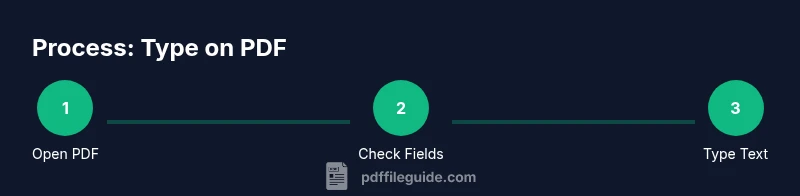
- 1
Open the PDF in your editor
Launch your chosen PDF editor and open the target document. Confirm you have editing rights and that the file is not password-protected. This first step prevents wasted effort later in the process.
Tip: If the file is protected, request permission or use a copy you are authorized to edit. - 2
Check for existing form fields
Scan the document to identify fillable fields. If fields exist, prioritize typing directly into them to preserve formatting and data structure.
Tip: Use the form navigation panel to jump between fields quickly. - 3
Type into a fillable field
Click into a text field and type your information. Ensure the text aligns with the field’s font and size settings.
Tip: If the field is long, use the tab key to move to the next field instead of scrolling. - 4
If no fields exist, switch to Typewriter/text box
Enable the Typewriter tool or insert a text box in the desired area. Start typing and place the box where it won’t obscure critical content.
Tip: Keep the box boundary within the page margins for printing accuracy. - 5
Format the inserted text
Adjust font, size, color, and alignment to match surrounding content. Use consistent styling to maintain a professional appearance.
Tip: Prefer standard fonts like Arial or Times New Roman to maximize compatibility. - 6
Review layout and wrapping
Check that the text wraps correctly and doesn’t overflow. Resize the text box if needed and adjust line breaks for readability.
Tip: Turn on print preview to catch layout issues before finalizing. - 7
Save a copy with a descriptive name
Save the edited file as a new version. Use a naming convention that helps you track edits and versions.
Tip: Even better, save separate copies for different edits or communities. - 8
Test the document in another viewer
Open the file in a different PDF viewer or device to ensure formatting holds. This helps catch viewer-specific rendering issues.
Tip: Ask a colleague to review the document for a second perspective. - 9
Share or export the final document
Export if needed (e.g., PDF/A for archiving) and share via secure channels. Confirm recipients can access and edit if required.
Tip: Include a note about any edits so recipients understand the changes.
Questions & Answers
Can you type on a non-editable PDF?
Yes, you can add text with a Typewriter or text box, but it won’t modify the original content. This is useful for annotations or filling in non-fillable templates. The result may vary by viewer, so testing is important.
Yes, you can add text with a Typewriter or text box, but the text isn’t embedded in the original content.
What if text doesn’t wrap properly in a text box?
Adjust the text box size to accommodate lines, or switch to a font with narrower metrics. Ensure the box stays within margins so prints align.
Increase the text box size or change the font to improve wrapping.
Are there legal concerns about editing PDFs?
Yes. Some PDFs are legally binding; verify you have rights to modify and that edits don’t compromise authenticity. Use approved templates when possible.
Yes, check rights and keep original content intact when required.
Which tools are best for beginners?
Start with a desktop editor that clearly labels Typewriter or text box tools. Some online editors are simpler but may have limitations for complex layouts.
Begin with a user-friendly desktop editor and basic text tools.
How do I verify accessibility after typing?
Ensure correct reading order, proper tagging, and that screen readers can access the added text. Reflowable layouts improve accessibility.
Check reading order and tags to ensure screen readers can access the new text.
Watch Video
Key Takeaways
- Type directly in fillable fields when available
- Use text boxes only when no form fields exist
- Embed fonts or use standard fonts for consistency
- Always save a copy before editing
- Test across viewers to ensure layout integrity