How to Encrypt a PDF File: A Step-by-Step Guide
Learn how to encrypt a PDF file with password protection and permissions. This comprehensive guide covers methods, best practices, tools, and troubleshooting to keep sensitive documents secure.


You will learn how to encrypt a PDF file by adding password protection or permissions. This quick guide covers common methods in popular software, what to consider, and best practices. To begin, ensure you have a PDF editor with security options and a strong password ready. You’ll also learn how to test access and safely share an encrypted document.
What encrypted PDF means and why it matters
According to PDF File Guide, encrypting a PDF means applying cryptographic protection so only authorized users can open or interact with the document. The core idea replaces open access with a controlled access mechanism, typically a password or a certificate. Encryption protects contents from being read if the file is intercepted, lost, or shared unintentionally. In practical terms, you are choosing who can view, print, copy, or modify the document, and you are locking those capabilities behind a barrier that only you (or your intended recipients) can remove. This is essential for confidential reports, legal documents, or client data. Even if the file is copied, without the correct credentials the data remains unreadable. Throughout this guide, you’ll see how to apply encryption across several common tools and what to consider when sharing encrypted PDFs. PDF File Guide emphasizes safe handling and consistent practices for professional workflows.
Encryption methods and standards
Encryption can range from password protection that guards access to more granular permissions that restrict printing, copying, or editing. The standard approach uses an algorithm to encode the document so that only someone with the correct password or certificate can decrypt it. Modern tools typically rely on AES-based encryption (AES-128 or AES-256) and support both user passwords (for reader access) and owner passwords (to control permissions). Certificate-based encryption is another option for organizations that distribute to many recipients without sharing a single password. For individuals, password protection is usually sufficient. PDF File Guide analysis shows that the choice between password-only and certificate-based encryption depends on the document sensitivity and your distribution model.
Choosing the right tool for encryption
Different applications implement security options a bit differently, but the core steps are similar: open the file, locate the protection settings, choose an encryption method, and set passwords and permissions before saving. Adobe Acrobat Pro provides Encrypt with options for password protection and restricting printing or copying. Microsoft Word lets you export as PDF with password protection from the File > Save As or Export dialogs in many versions. LibreOffice offers Export as PDF with security settings. For quick tasks, reputable desktop tools provide similar controls. In all cases, remember that strong passwords and clear permission settings improve security. If you are handling sensitive data, avoid browser-based online services for encryption unless you trust the provider and can verify privacy terms. This reduces exposure and ensures consistent results across devices.
How to encrypt using Adobe Acrobat Pro
Open the PDF in Acrobat Pro, go to File > Properties or Tools > Protect > Encrypt, then choose Password Security. Select 'Require a password to open the document' and enter a strong password. Configure permissions—what users can do (print, modify, copy). Save the document and re-open to verify access. If you need to share with multiple recipients, consider applying a separate user password for each or using a certificate-based approach for larger teams. Diagrams and screenshots can help map these options for training teams.
How to encrypt after exporting from Word (and why you might still need a PDF editor)
Word itself often lacks robust PDF passwording in export, so best practice is to export the document to PDF first, then apply encryption in a dedicated PDF editor. After saving as PDF, open the file in your editor and enable Password Security, setting a strong open password and permissions. This two-step approach ensures both the content and formatting remain intact, while access is properly controlled. If you routinely share sensitive Word documents, consider a workflow that includes certified encryption utilities to avoid drift between Word and PDF security.
Best practices for strong passwords and permissions
Use long, unique passwords that mix upper and lower case letters, numbers, and symbols. Avoid common words or predictable patterns. Use separate passwords for each document or project, and enable the strictest permissions appropriate for the recipient (e.g., disable copying and printing for confidential files). Consider enabling two-factor authentication on accounts used to generate or distribute encrypted PDFs. Keep a secured password manager entry for recovery and auditing.
Verifying encryption and testing access
After encryption, test the file by opening it on another device or with another user account to verify the password works and that permissions behave as expected. If you suspect issues, re-check the password strength and ensure the software version supports the encryption method chosen. Documentation from major editors often includes a test mode; use it to simulate access and roles before final distribution. This step prevents accidental data loss and ensures a smooth handoff to collaborators.
Troubleshooting common issues
If a password is forgotten, most tools offer password recovery or can only be reset if you used a backup key or certificate. If the file won’t open, verify you’re using the correct password, ensure you’re applying the right security settings to the final PDF (don’t password-protect the source document only), and check for compatibility gaps with older readers. Some online services claim to encrypt PDFs, but they may introduce privacy risks; prefer offline tools for sensitive materials and always verify that the encryption remains intact after re-saving.
Sharing encrypted PDFs securely
Share encrypted PDFs over trusted channels and avoid embedding passwords in the same message. Use separate methods to convey the decryption key or password (for example, in a secure password manager link or an encrypted chat). If you distribute to multiple recipients, consider using group encryption or certificate-based methods when possible. Maintain a record of who has access and periodically rotate keys or re-encrypt with updated protections. The goal is to minimize exposure while keeping legitimate readers unhindered.
The conclusion and next steps with PDF File Guide
The PDF File Guide team recommends adopting encryption as a standard step in handling sensitive documents. Start with password protection for most use cases, then evaluate certificate-based or enterprise-grade options as your sharing expands. Regularly audit access permissions and train teams on secure sharing practices. By following these steps, you establish a repeatable, auditable workflow that minimizes risk while preserving usability for authorized readers.
Tools & Materials
- Computer with a PDF editor (e.g., Adobe Acrobat Pro, Foxit, LibreOffice)(Software must include security/encryption options)
- Target PDF file(The document you want to encrypt)
- Strong password(At least 12 characters with a mix of letters, numbers, and symbols)
- Certificate or digital ID (optional)(If you plan certificate-based encryption)
- Backup copy of the unencrypted file(Safe storage in a separate location)
Steps
Estimated time: 20-40 minutes
- 1
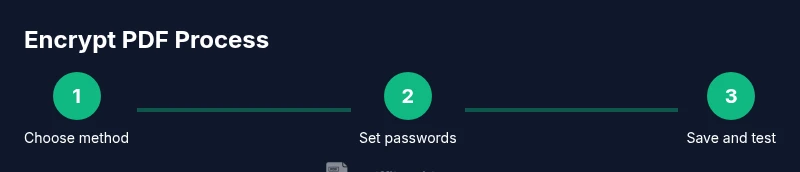
Open security settings in your PDF editor
Launch the PDF editor and open the document you wish to encrypt. Access security or protection features from the menu (often under File, Protect, or Security). This sets the foundation for password-based access control.
Tip: If you can’t find security options, consult the Help or Quick Start guide for your version. - 2
Choose the encryption method
Select password protection or certificate-based encryption. For most individuals, a strong password is sufficient. Certificate-based encryption is typically used in organizations with many recipients and no shared password.
Tip: Document which method you chose for auditability and training records. - 3
Set user and owner passwords and permissions
Enter a user password that must be supplied to open the file and configure permissions (print, copy, modify). If available, set an owner password with higher privileges. Carefully balance accessibility with restrictions.
Tip: Use separate, strong passwords for open access and for permissions. - 4
Save the encrypted document
Apply the security settings and save the document. Choose a new file name if needed to distinguish it from the unencrypted version, and verify that the file is saved with security metadata.
Tip: Keep the original unencrypted version in a secure backup until distribution is complete. - 5
Test access on another device
Open the newly encrypted PDF on a different device or user account using the password. Confirm that the password unlocks the file and that restricted actions behave as configured.
Tip: If access fails, re-check the password and permissions; some readers require updates to enforce new protections. - 6
Document sharing plan and password handling
Define how you’ll share the file and password separately (e.g., password via secure channel). Update your distribution list and keep records of who can access the file.
Tip: Avoid embedding the password in the same email or link as the file.
Questions & Answers
What is an encrypted PDF?
An encrypted PDF uses cryptographic protection to limit who can open and interact with the document. Access is granted only to those with the correct password or certificate. This protects contents from unauthorized reading and modification.
An encrypted PDF is a document protected by a password or certificate that limits who can open or change it.
How does password protection differ from encryption?
Password protection restricts access to the document by requiring a password. Encryption converts the content into an unreadable format, which can be unlocked with a key or certificate. In practice, password protection is common for individuals, while certificate-based encryption is favored in organizations.
Password protection requires a password to view the file, while encryption scrambles content so only a key or certificate can unlock it.
Can I recover a forgotten password?
Recovery options depend on the software. Some tools provide password hints or recovery via linked accounts, but true recovery typically requires the original password or a separate recovery key. Always store passwords securely.
If you forget the password, recovery depends on the tool and may require you to use a backup key or recovery plan.
Will encryption block printing or copying?
Yes, you can configure permissions to prevent printing, copying, or editing. Not all readers enforce these restrictions the same way, so always test across devices and readers.
You can restrict printing, copying, or editing through permissions, but test across readers to ensure it works.
Is password protection supported on mobile devices?
Most modern PDF apps on mobile support password-protected PDFs, but features and UI vary. Verify that the app you use can open password-protected files and honor permissions.
Yes, but check that your mobile app supports the protections you set.
How do I remove encryption later?
To remove encryption, you typically need the correct password or access to a master key within the editor. Open the file, disable security, and save a new, unencrypted copy.
You remove encryption by turning off security in the editor and saving a new copy without protections.
Watch Video
Key Takeaways
- Encrypt PDFs to control access and prevent data leakage
- Choose password protection for individual use or certificates for teams
- Use strong passwords and verify permissions before sharing
- Test access on other devices to ensure reliability
- Document sharing should be done through separate channels