How to Know If a PDF Is Protected: A Practical Guide
Learn how to identify if a PDF is protected, distinguish between password protection and permission restrictions, and verify protections with trusted tools—a step-by-step guide from PDF File Guide.


By checking a PDF’s security settings, you can confirm whether it’s protected and what you’re allowed to do. This quick check covers open-password protection, permitted actions (printing, copying, editing), and the general state of encryption. Using a trusted reader, you’ll learn how to identify protections without attempting to bypass them, aligning with best practices from PDF File Guide.
How to tell if a PDF is protected
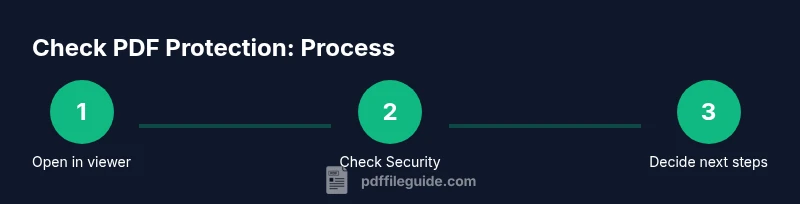
Determining whether a PDF is protected affects how you share, print, or extract data. The PDF File Guide team emphasizes that protection can sit at two levels: opening the file (password-protected) and performing actions inside (permissions). To begin, open the document in a trusted viewer and examine its Security or Properties panel. If the viewer shows encryption or indicates that certain features are disallowed, the document is protected. The quick test is to try basic actions: copy text, print a page, or save a copy. If any of those actions are blocked or require a password, you’re looking at protection. In addition to visible restrictions, some PDFs use digital rights management (DRM) or certificate-based encryption that may limit access on specific devices or apps. By understanding these distinctions, you can plan a compliant workflow, whether you’re a student, professional, or researcher. Throughout this article, PDF File Guide provides clear, practical steps to verify protection without attempting unauthorized bypasses. How to know if a pdf is protected is a common question, and the following sections break it down with concrete checks and safe practices.
Types of protections you might encounter
PDF protections fall into a few broad categories. Open password protection requires a password before the document can be opened. Permission restrictions control what you can do after opening the file (printing, copying, editing, or adding annotations). Some PDFs use certificate-based encryption or DRM, which restricts access to specific devices or software. Distinguishing between these types is crucial for choosing the right next steps. For editors and knowledge workers, knowing whether a file is merely restricted or truly encrypted helps you decide whether you can request access from the author or institution. PDF File Guide emphasizes testing with a trusted viewer to identify the exact restrictions without attempting to bypass protections. This clarity prevents accidental data leakage and guides compliant workflows for professionals. The practical upshot is: if you can open it but cannot edit or print, you’re likely dealing with modification restrictions rather than full encryption.
Checking protections with built-in tools
Most modern PDF readers expose protection details through a simple property panel. In Adobe Acrobat Reader, for example, open the file and navigate to File > Properties > Security to see the Document Restrictions Summary. Preview on macOS similarly shows a Security section with allowed actions. Web browser viewers may offer minimal insights but can still reveal whether printing or copying is disabled via the Print dialog or Copy options. The goal is to verify two things: is a password required to open the document, and which actions are restricted after opening? If you confirm both, you’ve established the protection profile. Always use a trusted tool to avoid misinterpreting protection levels. PDF File Guide recommends cross-checking in at least two viewers when possible to confirm results and avoid false negatives.
What to do if you have permission to remove protections
If you own the document or have explicit authorization, you can adjust security settings using the appropriate tools. In Acrobat, you may remove password protection if you know the owner password, or you may change permission settings to enable printing or copying. If you don’t have the password, contact the author or the issuing organization to request access or a version with appropriate rights. Do not attempt to bypass protections, as unauthorized access may violate laws and terms of use. This section emphasizes legal, ethical handling of protected PDFs and aligns with the guidance from PDF File Guide on safe verification and proper permission channels. Having documented permission ensures your workflow remains compliant and auditable.
Interpreting results and deciding next steps
A PDF can be protected in multiple ways, and interpreting the result requires nuance. If opening requires a password, you must obtain it legitimately. If you can open but cannot print or copy, you may still proceed with limited extraction under the granted permissions. When protection is DRM-based or certificate-encrypted, access may be device-specific. In all cases, the first step is to confirm you have legal access. If you don’t, request the needed rights or a shareable copy from the source. PDF File Guide notes that clear documentation of permissions is essential for teams, ensuring everyone knows what is allowed and what isn’t. In ambiguous cases, consult your organization’s policy or legal advisor before proceeding with any action that could violate terms.
Pitfalls to avoid and why protection matters
Misinterpreting a protection status leads to mistaken assumptions about what you can do with a PDF. Some readers show misleading cues or fail to display all restrictions, especially on mobile or limited-view apps. DRM and certificate-based encryption add complexity that basic viewers don’t reveal. Understanding protections matters because it protects sensitive data and maintains compliance with licensing, copyright, and privacy standards. PDF File Guide highlights that mastering these checks helps professionals avoid accidental data exposure when sharing documents, preparing reports, or collaborating across teams. The goal is to establish a clear, auditable process for determining when and how a PDF can be used.
Practical tips for editors and researchers
For professionals who work with PDFs regularly, adopting a consistent verification routine saves time and reduces risk. Use a trusted PDF viewer to inspect security, confirm permissions, and document outcomes in a short audit note. When you need to share or publish, prefer versions with clearly defined rights, or request a permissions-compliant copy from the source. Always respect minimum access rights and legal restrictions, and keep records of permissions and passwords (where allowed) for accountability. This approach aligns with best practices from PDF File Guide and supports responsible document handling across industries.
Tools & Materials
- Adobe Acrobat Reader DC (or other trusted PDF viewer with security details)(Open the PDF and check File > Properties > Security to view restrictions)
- Web browser with PDF support (Chrome/Edge/Firefox)(Useful for quick checks of basic protections via Print or Copy options)
- Notes or digital notebook(Record findings for audit trails and collaboration)
Steps
Estimated time: 15-25 minutes
- 1
Open the PDF in a trusted viewer
Launch the document in a reputable PDF reader and prepare to inspect properties. This establishes the baseline and prevents misinterpretation from less capable apps.
Tip: Use the same viewer you’ll use for downstream tasks to avoid inconsistencies. - 2
Check for a password to open
Look for a prompt asking for a password before the file can be viewed. If you’re asked for a password to open, the file is open-password protected.
Tip: Don’t attempt password guessing; obtain legitimate access instead. - 3
View document restrictions
In the Security or Properties panel, review allowed actions (printing, copying, editing). Note any entries like ‘allowed: none’ or explicit restrictions.
Tip: If the panel is grayed out, you may be dealing with DRM or certificate encryption. - 4
Test a basic action
Try printing a page, copying text, or saving a copy with a new name. If any action is blocked, you’re observing a permission restriction.
Tip: Run actions on a non-sensitive copy to avoid data loss. - 5
Check for encryption type
See if the protection is simple password-based or involves certificates/DRM. Certificate-based encryption may require device- or software-specific conditions.
Tip: Document the encryption type for future reference and policy alignment. - 6
Confirm access rights with the author
If you don’t have explicit permission, contact the document owner to request appropriate access or an unprotected version.
Tip: Keep a written record of permissions granted. - 7
Decide next steps based on rights
If you have permission and need to modify, proceed with the appropriate tool settings. If not, use the protected version or_requested rights instead.
Tip: Always document decisions and cited permissions. - 8
Document your verification
Log the date, viewer used, results, and permissions obtained. This helps future audits and team handoffs.
Tip: Include screenshots or notes for clarity. - 9
Keep security practices current
Regularly update your PDF software to ensure accurate protection detection and alignment with evolving standards.
Tip: Enable automatic updates if possible.
Questions & Answers
Can I tell if a PDF is password-protected without opening it?
Some PDFs expose protection status in their metadata or on the opening prompt. However, the most reliable method is to open the file in a trusted viewer and inspect the Security settings.
Yes. You can often see protection hints in the opening prompt or metadata, but the safest check is to view Security settings in a trusted viewer.
What is the difference between password protection and document restrictions?
Password protection hides the content until a password is entered. Document restrictions limit what you can do after opening, such as printing or copying, without requiring a password to view.
Password protection blocks opening; restrictions limit actions after opening.
Can I remove protections from a PDF?
Only if you have explicit permission or are the document owner. Without authorization, removing protections may be illegal.
Only remove protections if you have proper permission from the owner.
Why might a PDF allow printing but not copying?
The publisher may allow printing but restrict copying due to copyright, licensing, or confidentiality requirements; protections are configured separately for each action.
Permissions can protect different actions independently, like printing allowed but copying blocked.
How do I check protection on macOS Preview?
Open the PDF, choose File > Get Info or Security options in Preview to view restrictions. Look for details about printing, copying, and editing permissions.
In Preview, check the document's security settings to see what’s allowed.
What if I forgot the password for a protected PDF we own?
If you own the document, contact the issuer or use official channels to recover or reset access. Do not attempt to brute-force or bypass protections.
If you own it, contact the issuer to recover access; never bypass protections.
Watch Video
Key Takeaways
- Identify whether a PDF is password-protected or permission-restricted
- Use trusted tools to view Security settings, not guesses
- Obtain explicit permission before attempting to remove protections
- Differentiate between open-password protection and post-opening restrictions
- Document your verification process for audits