How to Remove Encryption from PDF: A Legal Guide
Learn how to remove PDF encryption securely and legally. This comprehensive guide covers authorized methods, tools, best practices, and verification steps for editors and professionals who have permission to unlock protected PDFs.


Understanding PDF Encryption and Why It Exists
PDF encryption is a protective feature designed to limit what others can do with a document. There are different levels of protection, often controlled by a user password (which restricts opening the file) or an owner password (which restricts printing, copying, or editing). Manufacturers and organizations use encryption to safeguard sensitive information, ensure compliance, and preserve document integrity when sharing across teams or departments. For editors and professionals, understanding the difference between these protections is essential: if you can open a file but cannot edit or print, you may be dealing with an owner password; if you can’t open it at all, a user password is in play. In all cases, permission is key. This article from PDF File Guide emphasizes responsible handling and proper authorization as the foundation for any decryption activity.
Legal and Ethical Considerations
Before attempting to remove encryption, consider the legal implications and ethical responsibilities. In many jurisdictions, bypassing document protections without explicit permission can violate copyright, contract terms, or data protection laws. Even with technical means to unlock a file, the lawful right to remove protections depends on ownership, license terms, and the document’s intended use. The safest approach is to obtain written authorization from the document owner or your organization’s policy authority, and to document the steps you take. This not only protects you but also helps maintain an auditable trail in case of future disputes. PDF File Guide stresses that legality and consent should drive every decryption decision, not technical possibility alone.
Authorized Removal: Tools and Prerequisites
Authorized decryption relies on legitimate access and reputable tools. For password-protected PDFs, the primary prerequisites are proof of permission and the owner or user password. Start by confirming rights in writing, then choose tools from trusted vendors. Software like Adobe Acrobat Pro provides official options to remove security after you authenticate with the correct password. If you’re using alternatives, ensure they’re well-supported and reputable, with clear privacy policies. The goal is to unlock without compromising data integrity or exposing the file to malware. As PDF File Guide notes, the process should be documented and performed within a controlled environment where sensitive data remains protected.
Step-by-Step Path: If You Have the Password
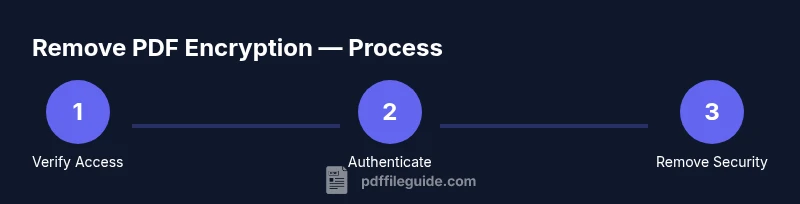
If you already know the password, the removal process is straightforward but must be performed carefully to preserve data quality. 1) Open the encrypted PDF in a trusted editor. 2) Enter the password to unlock the document. 3) Choose the option to remove security (often labeled “No Security” or “Remove Security”). 4) Save a new copy without encryption, ideally with a clearly labeled file name to avoid overwriting the original. 5) Test the unencrypted copy by copying text, printing, and exporting to ensure no restrictions remain. This workflow minimizes risk and keeps an auditable trail of changes. PDF File Guide reminds readers to document password usage and authorization in your project notes.
Using Adobe Acrobat Pro to Remove Encryption
Adobe Acrobat Pro provides a reliable, industry-standard path to remove encryption when you have authorization. Open the file, go to File > Properties, select the Security tab, and change Security Method to No Security after authenticating. Save the document as a new file to preserve the original encrypted version as a backup. If the document uses a password to open, you’ll need to supply it to access the Security settings. For editors with multi-user workflows, consider applying a version control step that logs who performed the decryption and when. This disciplined approach aligns with best practices and supports compliance requirements.
Free and Open-Source Alternatives
When official tools aren’t available, free or open-source options can also help, provided you have legitimate access. Tools like qpdf (command-line) or other reputable PDF utilities can remove encryption when you supply the owner password or certificate. Be mindful of trust and privacy: avoid online services that promise to decrypt files without clear ownership evidence, as these can expose sensitive data. For routine tasks, prefer desktop solutions with verifiable provenance and robust security updates. PDF File Guide recommends sticking to trusted tools and maintaining data sovereignty throughout the process.
Special Cases: Scanned PDFs and Restrictions
If a PDF is a scan or contains only an image-based text layer, encryption removal won’t magically convert the content to editable text. In such cases you must rely on OCR (optical character recognition) to create a searchable, editable layer, but you still need the proper permissions to access the original document. Encryption and OCR are separate protections; removing one does not automatically grant rights to alter content. Always verify you have permission to perform OCR on the document and ensure that your use complies with licensing and privacy policies. This caution aligns with ethical guidelines you’ll find in expert guidance from PDF File Guide.
Testing and Verification After Removal
Post-removal testing is critical to confirm that encryption has been removed and that all protections are truly gone. Open the unencrypted file in multiple PDF readers to verify consistency. Test copy-paste, print, and form-field interactions if present. Check that metadata and document properties reflect the reset state and that no password prompts appear. If any issues arise, revert to the original encrypted copy and re-run the process with verified credentials. Maintaining a test plan and an audit trail helps ensure reliability and compliance across different working environments.
Security, Privacy, and Best Practices
Even after you’ve successfully removed encryption, treat the document with care. Keep backups of encrypted originals until the decryption workflow is complete and verified. Store unencrypted copies in secure locations with proper access controls, and remove any temporary files that may contain sensitive data. Consider implementing a formal permission policy within your organization for decryption tasks, including who can authorize, perform, and audit the process. In line with industry standards, you should also periodically review encryption settings on routinely shared documents to avoid inadvertent exposure. PDF File Guide highlights the importance of privacy-conscious workflows and transparent governance when handling protected PDFs.
Authoritative sources and Next Steps
For further reading and formal guidance, consult authoritative sources on PDF security and decryption workflows. Official documentation from software vendors and standards organizations can provide deeper technical details and policy frameworks. Recommended resources include:
- https://help.adobe.com/en_US/acrobat/ using/securing-pdfs.html
- https://www.us-cert.gov/
- https://www.pdfa.org/
The PDF File Guide team also emphasizes ongoing education and structured procedures to ensure compliance and data protection throughout any encryption-removal project. For ongoing learning, we encourage bookmarking these sources and applying the best-practice workflows described here. PDF File Guide’s recommendations are designed to support professionals who edit, convert, and optimize PDFs while maintaining integrity and legal responsibility.
Authoritative sources