How to Remove PDF Security Password: Safe & Authorized Steps
Learn how to remove a PDF security password responsibly when you own the file or have written permission. This guide covers legal steps, best practices, and trusted tools from PDF File Guide.


Goal: remove a PDF security password only with proper authorization. If you own the file or have written permission, the quickest path is to verify ownership, obtain the owner password, and use trusted PDF software to unlock and save a copy without password protection. Never attempt to bypass encryption without consent, as that violates laws and ethics.
Why password protection exists
PDF security passwords are designed to guard sensitive information. They deter casual viewing and unauthorized copying, printing, or editing. This protective layer is built into the PDF format through encryption settings that can be configured by the author or administrator. For professionals who handle confidential materials—legal documents, HR records, or financial statements—passwords ensure that only authorized people can access content. The need for digital confidentiality has grown alongside remote work, cloud storage, and cross-border sharing, making robust access controls essential. The PDF File Guide team notes that effective password protection combines encryption strength, controlled distribution of passwords, and disciplined document lifecycle management. It’s not about hiding information; it’s about reducing risk when documents are stored, transmitted, or opened on shared devices. Understand that encryption is a policy decision as well as a technical one, and legitimate removal should occur only with explicit authorization or ownership rights. In 2026, organizations increasingly integrate password protection with broader security frameworks to meet regulatory requirements.
Legal and ethical considerations
Before attempting to remove a password, consider the legal and ethical implications. Removing protection without the owner's consent can violate contract law, copyright, privacy, and information security policies. Even when a file is stored on your own device, you may be bound by corporate guidelines or data protection laws. Always check the intended use of the unlocked document: if you plan to redistribute or publish, ensure you have rights to do so. PDF File Guide emphasizes that the only legitimate paths involve ownership, permission from the author, or a formal order from an administrator. In some cases, institutions maintain password management processes, including a central repository of keys or a secure request channel. If you are unsure, pause and seek guidance from your organization’s IT or legal team. The goal is to balance accessibility with accountability, not to bypass controls. In all cases, document the authorization and retain evidence of consent for future audits or compliance checks.
When you have authorization: verifying ownership
Start by proving ownership or authorization. Collect documentation such as the original purchase details, a written permission email, or a password-management policy reference. Confirm the password you have is the owner password, not merely a user password. If the file was provided by a client or colleague, obtain explicit consent to modify the document or save an unlocked copy. This step protects you from accidental or intentional misuse and provides a clear trail for accountability. After confirming rights, verify that the file is indeed encrypted with a password and identify whether you will remove the protection for editing, printing, or copying. In addition, consider whether a refreshed copy is required to reflect updates or version control. Document this decision and store it with your project notes so future collaborators understand why the protection was removed.
Step-by-step unlocking with owner password
Once authorization is confirmed, you can perform the unlock using trusted software. Open the PDF in a licensed editor, then supply the owner password when prompted. Navigate to the security settings (often labeled 'Security' or 'Encrypt' in the menu) and choose the option to remove or disable security restrictions. Save the document as a new file to preserve the original and ensure the changes take effect. Finally, reopen the new file to confirm that it opens without a password and that you can copy, print, or modify as required. If the interface asks for approval steps or to apply the changes universally, complete those steps and verify that the metadata reflects the new permissions. This approach avoids accidental data loss and preserves an auditable trail of actions for compliance. For extra caution, compare the unlocked copy against the original to ensure content integrity remains intact.
Alternatives if you don't have the password
Logically, you should contact the file owner or administrator and request access or an unlocked copy. Many organizations have a password reset process or a secure portal for such requests. If you’re working within a legal or compliance project, you may need to submit a formal access request or provide proof of authentication. Third-party password removal services exist, but only operate under strict authorization and documented permissions; avoid services that claim to bypass encryption or offer 'free' password cracking. If you’re dealing with a personal file that you legitimately own but forgot the password, try the account's password recovery tools or consult official help resources before attempting any other method. Remember that the goal is to regain access without violating rights, not to bypass protections.
Tools and software you can trust
Use reputable, licensed tools from reputable vendors. Examples include Adobe Acrobat Pro DC, Foxit PhantomPDF, Nitro Pro, or others that provide official password removal or decryption options when you supply the owner password. Always download software directly from the vendor's site and verify checksums or signatures. Ensure your system is up to date and that you have an unencrypted backup of the file in a safe location before starting. If you must work with sensitive data, enable additional security features like two-factor authentication for access to the editing tool and keep audit logs of any changes.
Best practices for password management and future protection
Adopt a password management approach that reduces the risk of future lockouts. Use strong, unique passwords for PDFs and store them in a reputable password manager. Maintain a clear record of which documents are password-protected and who has access. Establish a documented process for requesting access, including approval flows and retention policies. Consider implementing group policy controls, centralized key storage, and regular reviews of protected documents. When sharing PDFs, use secure channels and only provide passwords through authenticated methods. Periodically audit your repository for outdated protections and remove unnecessary encryption when project lifecycles require it.
Common mistakes and how to avoid them
Common mistakes include attempting to bypass encryption without authorization, overwriting the original file without a backup, or using untrusted tools that could introduce malware. Another error is assuming that removing a password is the same as removing encryption; some PDFs remain encrypted at the metadata level, which can affect printing and accessibility. Users often forget to check document metadata or permissions after unlocking, leading to inconsistent behavior across viewers. To avoid these pitfalls, start by verifying access rights, always save a duplicate, and test the unlocked file in multiple viewers. Keep logs of permissions and ensure that any shares reflect the corrected access levels.
What to do after unlocking: verification and sharing
After unlocking, perform final verifications: test all essential features (open, print, copy, annotate) and confirm the content remains accurate and complete. Update any internal records and communicate the change to team members with the correct guidelines for handling unprotected copies. If you will redistribute, ensure that your recipients understand the document's permissions and any applicable confidentiality requirements. Maintain a secure, auditable trail for future reviews. In 2026, PDF security practices emphasize accountability and proper governance; the process should be documented and aligned with your organization's risk management framework. The PDF File Guide notes that when permissions are updated, you should monitor usage and revoke access if needed to maintain data integrity.
Tools & Materials
- Licensed PDF editing software(e.g., Adobe Acrobat Pro DC, Foxit PhantomPDF; ensure you have a valid license)
- Owner password (or proof of authorization)(Password or documented permission from the file owner)
- Backup copy of the original PDF(Create before making any changes; store securely)
- Secure password manager (optional)(Store credentials securely for future access)
Steps
Estimated time: 15-25 minutes
- 1
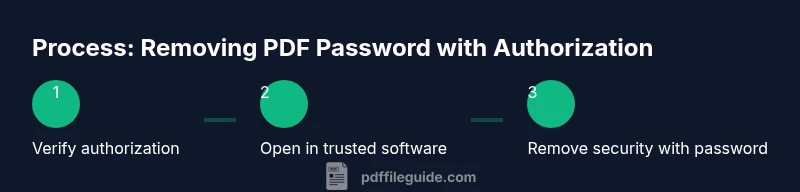
Verify authorization
Confirm you own the file or have explicit written permission from the owner. Collect supporting documents and record the authorization for auditability. Without this, proceed only if you have clear consent on file.
Tip: Keep a copy of the authorization in your project notes. - 2
Open the PDF in trusted software
Launch your licensed PDF editor and open the protected document. Ensure you are using the official vendor software to avoid malware or counterfeit tools.
Tip: Always work on a duplicate to preserve the original. - 3
Enter the owner password and remove security
When prompted, enter the owner password. Access the security or encryption settings and choose the option to remove security or disable encryption. Save the document as a new file to avoid altering the original.
Tip: Use Save As to create a separate unlocked file. - 4
Verify unlocked file
Close and reopen the new file to confirm it opens without a password. Test essential features (copying, printing, editing) to ensure permissions are removed as intended.
Tip: Compare the unlocked copy with the original for content integrity.
Questions & Answers
Is it legal to remove a PDF password?
Removal is legal only if you own the file or have written permission from the owner. Otherwise, it can violate privacy, contract, and data protection laws.
Removal is legal only if you own the file or have written permission from the owner.
What should I do if I forgot the password?
Contact the file owner or administrator to request access or an unlocked copy. If you are the owner, use official password recovery options.
If you forgot the password, reach out to the file owner for access.
Can I unlock a PDF without the password?
We do not provide methods to crack encryption. Use authorized channels and licensed software with proper permission.
We can’t help with cracking PDFs; use authorized methods with permission.
Which tools are trustworthy for unlocking?
Use reputable, licensed tools from recognized vendors, and obtain software directly from the vendor’s site.
Stick with trusted, licensed tools from reputable vendors.
What about strong encryption?
If you have authorization, you may need to coordinate with the owner to obtain the password or re-share an unlocked copy. Otherwise, involve IT or legal teams.
For strong encryption, ask the owner for access or a properly unlocked copy.
What should I do after unlocking?
Verify all features (open, copy, print, annotate) and update retention and sharing policies to reflect the new permissions.
After unlocking, test features and update records to reflect access changes.
Watch Video
Key Takeaways
- Verify ownership or authorization before starting
- Use trusted, licensed tools for unlocking
- Save a new unlocked copy rather than overwriting the original
- Document authorization and keep an auditable trail
- Practice secure password management for future files