How to Remove Lock from PDF: Legitimate Steps Guide
Learn legitimate methods to remove a PDF lock with proper authorization, including using a password and saving an unencrypted copy. This PDF File Guide tutorial covers ethics, safety, and practical steps for secure document handling.


Learn the legitimate, step-by-step approach to remove a lock from a PDF when you have authorization. This guide explains how to verify ownership, obtain permission, input an existing password, and save an unprotected copy using a trusted PDF editor. It also covers safe alternatives and legal considerations to avoid data loss or misuse.
Understanding PDF Locks and When Removal is Appropriate
PDF locks are encryption and permissions controls that prevent certain actions on a document. They exist to protect sensitive data or to enforce usage restrictions set by the author or the publisher. Legitimate lock removal hinges on authorization and clear ownership of the document. If you do not have permission, attempting to bypass protections could violate laws and contractual obligations and may expose you to liability. Always verify you have the right to modify the file before attempting any changes.
In practice, there are two broad categories of PDF protections: password-protected opening passwords (you cannot view the content without the password) and permissions passwords (you can view the file but certain actions are restricted, such as printing or editing). The former keeps unauthorized readers out; the latter controls what legitimate readers can do. If you need to work with a locked PDF for legitimate reasons—for example, archival, accessibility, or data extraction for analysis—start by confirming your rights to alter the document, then pursue authorized removal methods. Keep a copy of the original file for reference, and document who approved any changes.
Legal and Ethical Considerations
Removing a PDF lock without proper authorization can violate copyright, contractual terms, and data protection laws. The ethical path is to confirm ownership or obtain explicit permission from the author or owner of the document. When in doubt, consult your organization’s policy on document security and data handling. If you’re working in a professional setting, document the permission provided (email, ticket, or contract) and maintain a record of the changes you make. From the perspective of PDF File Guide, ethical handling of protected documents protects both you and your clients or employers and upholds trust in digital workflows.
Respect for privacy, data integrity, and auditability should guide every decision to alter protections. If the owner’s consent is uncertain, do not attempt to remove the lock; instead, seek a fresh, unprotected copy or a version that the owner has released for redistribution. When permissions are clear, proceed with approved methods and retain evidence of authorization for future reference.
Prerequisites: Confirm You Have Permission
Before attempting any change, gather evidence of permission and prerequisites. This includes a signed authorization from the owner, a documented request, and any relevant policy references. It’s also wise to collect the original file version and a backup copy in case something goes wrong during the deprotection process. A clear, auditable trail helps protect you from liability and ensures compliance with organizational guidelines. If you are an IT professional or administrator, verify your role and scope of authority in writing, and keep a log of actions taken on the document.
Additionally, identify the type of protection: whether it’s an open password (you know it) or a permissions password (you may need to request additional rights from the owner). Knowing the exact protection helps you select the appropriate legitimate method and reduces the risk of accidental data loss.
If You Know the Password (Owner Password)
If you have the owner password, you can typically remove restrictions using a trusted PDF editor. Open the file, enter the password when prompted, and choose the option to remove security or save as an unencrypted copy. After removing, verify that you can perform the previously restricted actions (printing, editing, or copying). Create a secure backup of the unprotected file and keep a record of the password handling for audit purposes. If you don’t want to retain the password in the file, ensure it’s stored securely elsewhere and that access remains restricted to authorized individuals.
Always use a reputable tool to avoid malware, preserve metadata, and maintain document integrity during the deprotection process.
Legitimate Methods to Remove Restrictions (With Permission)
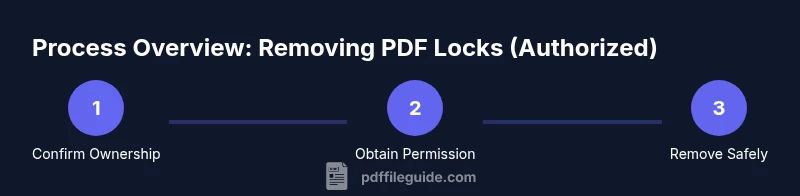
Authorized removal typically follows a straightforward workflow: obtain explicit permission, use a trustworthy PDF editor, and save a copy of the unencrypted document. Ensure you’re using a licensed or trusted tool that respects file integrity and metadata. After deprotection, recheck that all previous restrictions are lifted and that the content remains intact. Document the method used and the authorization source for future reference. If the document includes sensitive data, consider applying a new, organization-approved security policy to the unprotected copy to prevent unintended distribution.
If you manage a repository of PDFs, implement a policy that tracks permission statuses, versioning, and access controls. Regularly review permissions and remove or update access as needed to maintain compliance with internal security standards.
Safe Alternatives When You Lack the Password
If you do not have permission or cannot obtain the password, consider alternatives that respect ownership and rights. Request an unprotected version from the author or publisher, or ask for a version designed for sharing (such as a public-domain or license-permitted edition). If the document is part of a workflow, you may be able to extract required information by requesting excerpts or data extracts from the owner, rather than altering the file itself. In some cases, accessibility needs can justify creating an alternate, compliant copy that preserves content while honoring the source’s protections.
Best Practices for Managing PDF Security Going Forward
To reduce the need for later deprotection, organize a centralized policy for PDFs within your organization. Use role-based access controls, maintain a record of permissions, and limit who can modify security settings. Where feasible, publish versions intended for distribution with appropriate restrictions already applied by the author. Maintain backups of all original files, and implement a straightforward incident process if a password or permission is lost.
Document management systems can help by storing permissions alongside files and providing a clear audit trail. Periodic reviews of protected documents help prevent stale locks and ensure that legitimate changes are reflected in newer versions.
Quick Checklist Before You Start
- Confirm you have explicit permission from the document owner.
- Identify the type of protection (open password vs. permissions password).
- Gather the original file and a backup.
- Use a trusted, up-to-date PDF editor or enterprise tool.
- Document authorization and steps taken for future audits.
Tools & Materials
- Computer or workstation with internet access(For downloading software and verifying changes)
- Password (if known)(Only if you have authorization and the password)
- Authorization evidence (email, contract, or form)(Keeps a verifiable audit trail)
- Trusted PDF editor (licensed)(Choose a reputable tool from a legitimate source)
- Original file backup(Preserve before making changes)
- Proof of ownership or distribution rights(Helpful for audits, not always required)
Steps
Estimated time: 20-30 minutes
- 1
Confirm authorization and ownership
Secure explicit permission from the owner or your organization. Gather evidence such as emails, tickets, or contracts that prove authorized access to modify the PDF. This step protects you from potential legal issues and helps keep a clear audit trail.
Tip: Keep permission in a centralized reference folder with date stamps. - 2
Locate or obtain the password (if you have it)
If you possess the password, verify it against the correct document to avoid accidental changes on the wrong file. For shared environments, confirm that the password you have is the authorized one for this file.
Tip: Do not reuse passwords across documents; confirm you’re using the right one. - 3
Open the PDF in a trusted editor
Launch a reputable PDF editor and open the locked document. Check that the file displays correctly and that you can access the content as expected before performing any deprotection actions.
Tip: Use software from a trusted source and keep it updated. - 4
Remove protections with authorization
If the editor prompts for a password, enter it. Then choose the option to remove security or save as an unencrypted copy. Verify that the restrictions are lifted and no sensitive metadata was compromised in the process.
Tip: Always save a separate unencrypted copy to compare with the original. - 5
Save as a new unencrypted copy
Create a new file that is unencrypted and free of restrictions. Name the file clearly to indicate its unprotected status and ensure it’s stored in an approved location.
Tip: Avoid overwriting the original until you confirm the unencrypted copy works as intended. - 6
Verify and document the outcome
Open the unencrypted copy and test critical actions (print, copy text, edit). Document the changes, including who authorized them and when. Keep the original for reference.
Tip: Record a brief changelog in the file caption or project notes.
Questions & Answers
Is it legal to remove a PDF lock if I forgot the password?
Legal removal hinges on ownership or explicit permission from the document owner. If you lack authorization, do not attempt to remove the lock. Seek the owner or issuer’s guidance to obtain a compliant solution.
Legal removal requires ownership or explicit permission. If you don’t have authorization, don’t attempt to bypass protections.
What should I do if I can’t contact the owner?
Do not bypass protections. Try official channels to obtain a legitimate copy or proof of rights. If unresolved, consider requesting a version designated for sharing or archival use from the owner.
If you can’t reach the owner, don’t bypass protections. Seek official alternatives or await proper authorization.
What is the difference between an open password and a permissions password?
An open password prevents viewing content; a permissions password allows viewing but restricts actions like printing or editing. Removing each type requires different authorization and methods.
Open passwords block viewing; permissions passwords block actions like printing or editing.
Can I still edit or extract content if I have the password?
If you have the permitted password, you may remove restrictions and edit content, assuming you have the right to do so. Always verify scope and maintain an audit trail.
With the right password and authorization, you can remove restrictions and edit, but confirm your rights first.
What are safe ways to manage PDFs securely going forward?
Adopt centralized access control, versioning, and clear permission policies. Publish distributions with appropriate protections and store originals securely for audits and compliance.
Use centralized controls and clear policies to manage PDF security going forward.
I handle many PDFs for a department. Is there a scalable approach?
Coordinate with your IT or records team to establish approved workflows, and use batch processing only where you have documented authorization. Maintain logs and regularly review permissions.
Coordinate with IT for approved workflows and keep logs when processing many PDFs.
Watch Video
Key Takeaways
- Verify you have explicit permission before removing a lock.
- Use trusted tools and preserve the original file.
- Document authorization and changes for future audits.
- Explore legitimate alternatives if permission is unavailable.