How to Sign PDF Without Adobe: A Practical Guide
Discover safe, legal ways to sign PDFs without Adobe. This guide covers browser signing, online services, and OS tools with practical steps, privacy notes, and best practices for secure, verifiable signatures.


You can sign a PDF without Adobe by using your browser, a trusted online signer, or your device’s built-in tools. According to PDF File Guide, this approach can be secure and legally binding when you follow proper steps and verify the signer’s identity. Look for trusted certs, tamper-evident signatures, and clear verification records.
Why sign PDFs without Adobe matters
In many professional workflows, you don’t need to rely on Adobe to apply legally binding digital signatures. Signing a PDF without Adobe can save time, reduce vendor lock-in, and improve cross-platform compatibility. According to PDF File Guide, a growing ecosystem of browsers, operating systems, and online services now supports verifiable signatures. When you need to sign quickly on a PC, Mac, or mobile device, knowing your options helps you stay compliant and secure. In this guide, we’ll explore when to bypass Adobe, the best methods, and how to verify signatures so recipients can trust your documents. You’ll learn how to sign pdf without adobe using trusted tools and standard verification practices across devices, operating systems, and cloud services.
Signing methods at a glance
There are three broad approaches to signing PDFs without Adobe: browser-based signing, online signing services, and OS-native tools. Browser-based signing leverages built‑in certificate support or prompts you to import a signing certificate. Online services provide quick, cross‑device signing through a trusted provider, but require uploading your document and reviewing privacy terms. OS-native tools (such as macOS, Windows, and mobile platforms) let you sign locally with locally stored certificates. PDF File Guide analysis, 2026, shows that organizations increasingly rely on certificate-based signatures from trusted authorities as a baseline for legal acceptability. Each method has trade-offs in privacy, speed, and auditability, so select the approach that aligns with your document’s sensitivity and recipient expectations. Remember: the goal is to produce a tamper-evident signature that others can verify without needing Adobe.
How digital signatures in PDFs work
A digital signature attaches a certificate chain to your document, linking your identity to the content and creating a tamper-evident seal. When a signer uses a certificate from a trusted authority, recipients can verify the signer’s identity and confirm that the PDF has not been altered since signing. The certification path usually includes a root CA, intermediate CAs, and the signer’s certificate. Verification relies on revocation checks, current certificate validity, and a trusted set of root certificates on the recipient’s device. Verification also depends on the integrity of the signing process and the ability to view the certificate chain. By understanding these fundamentals, you can choose signing options that meet both legal requirements and day‑to‑day usability while avoiding reliance on proprietary editors.
Criteria for choosing a signing method
Security, legality, and compatibility should guide your choice. Consider: 1) Certificate type and trust chain: Is the signer using a reputable CA, and is the certificate properly embedded? 2) Tamper-evidence: Does the method lock the document’s content after signing? 3) Verification: Can recipients view a clear signature status and certificate path without extra software? 4) Privacy and data handling: Does the service state how your document is stored, processed, and retained? 5) Accessibility and workflow: Will the signer, recipient, and reviewer be able to access and verify signatures on common devices? Prioritize methods that provide auditable trails and easy verification to avoid second guessing later.
Browser-based signing at a glance (example workflow)
Browser signing typically uses your browser’s certificate store and an in‑browser signer UI. Start by loading the PDF, choosing the signature tool, and selecting the certificate you wish to use. Place the signature field on the document; decide whether to display your name, timestamp, and reason for signing. Confirm the signature, and save a new, signed copy. The process is quick, but ensure you’re on a trusted network and using a reputable certificate. This overview helps you see what to expect before you begin a full tutorial for how to sign pdf without adobe in a browser.
Online signing services: what to watch for
Online signing platforms can simplify cross‑device signing, but they require uploading your file to a third‑party. Look for privacy policies, data retention terms, and whether the signature is tamper-evident. Prefer services that support certificate-based signatures and allow you to export the final signed PDF with the complete certificate chain. Be mindful of document sensitivity and regulatory requirements; if data is highly confidential, a local or OS-based signing method may be preferable. The goal is to obtain a trusted, auditable record without sacrificing privacy.
Signing with OS tools: macOS, Windows, iOS, and Android
Each major platform offers native options. macOS users commonly use Preview with annotations and digital signatures backed by Keychain certificates. Windows users can rely on the Edge browser or installed PFX certificates to sign PDFs locally. Mobile devices often use native markup tools or trusted apps that tap into hardware-backed keys. On iOS and Android, look for apps that integrate with the device’s secure enclave and certificate store. These tools provide privacy-preserving, offline-capable signing options, often with minimal setup. Cross‑device consistency matters, so verify that signed documents retain a valid signature across platforms.
Verification and tamper-evidence: how to prove a signature is valid
After signing, confirm that the signature appears green or shows a success status in your PDF viewer. Verify the certificate chain, expiration dates, and revocation status. If you can, export or view the signature properties to confirm the signer identity and the signing time. Share the signing certificate chain with recipients as appropriate so they can independently verify authenticity. Always retain the unsigned original for comparison and keep a record of the signing method used, especially in regulated environments.
Common pitfalls, safety tips, and best practices
Avoid using unsigned or questionable tools that claim to sign without a certificate; such solutions may compromise integrity. Never sign PDFs on public networks without encryption or on devices that lack up‑to‑date security. Keep certificates up to date and revoke invalid ones promptly. Maintain a clear audit trail, including the signing time, method, and certificate details. Finally, test the process with a sample document to ensure compatibility with recipients’ software before sending sensitive contracts or filings.
Tools & Materials
- Computer or mobile device with internet access(Ensure your device is up to date with the latest security patches.)
- Web browser with updated security and certificate support(Chrome, Edge, Safari, or Firefox with current versions.)
- Digital certificate or access to a signing service(Use a trusted CA-issued certificate if certificate-based signing is required.)
- PDF viewer capable of showing signatures(Must display signature status and certificate path clearly.)
- Backup unsigned copy of the document(Keep an original copy for comparison and audit.)
Steps
Estimated time: 20-30 minutes
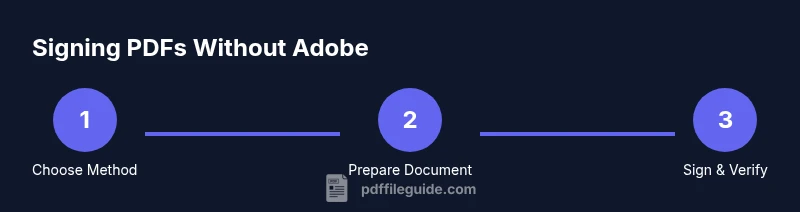
- 1
Choose signing method
Select whether you will sign in-browser, via an online service, or with an OS tool based on document sensitivity and recipient expectations.
Tip: If in doubt, start with a browser-based method to minimize data exposure. - 2
Prepare the document
Open the PDF and ensure it is the final version. Remove unnecessary pages and check for pre-existing signatures that could complicate new signing.
Tip: Always keep a backup of the unsigned version for reference. - 3
Import or verify signing credentials
If your method uses certificates, import or verify them in the chosen tool's certificate store or signer's wallet.
Tip: Use certificates from trusted authorities and avoid exposing private keys. - 4
Apply the signature
Place a signature field, choose visibility (visible vs invisible), and apply the signature using the selected credential.
Tip: A visible signature helps recipients quickly verify authenticity. - 5
Save and document the signature
Save a new copy with a clear filename; document the signing method and timestamp for audit purposes.
Tip: If using an online service, export the certificate path when possible. - 6
Verify the signature
Open the signed PDF in a viewer and check the signature status, certificate validity, and revocation status.
Tip: Verify on the recipient's device if possible to confirm cross-platform compatibility.
Questions & Answers
Is it legally valid to sign a PDF without Adobe?
Yes, digital signatures are legally valid when you use compliant signing methods and certificate-based signing, and when the signature can be verified by recipients. Always follow local laws and ensure the signer identity is proven.
Yes, it can be legally valid if you use proper digital signatures and verifiable certificates per local regulations.
Do I always need a digital certificate to sign?
Not always. Some tools offer signature without a certificate, but certificate-based signatures provide higher trust and broad compatibility for verification.
Usually a certificate is preferred for higher trust, though some methods work without one.
Can I sign PDFs on my phone without Adobe?
Yes. Many mobile apps and built‑in features support signing. Choose trusted apps with strong security and clear verification records.
Yes, you can sign on mobile using trusted apps and secure methods.
What should I look for in an online signing service?
Look for privacy policies, data handling terms, support for certificate-based signatures, and an auditable signature trail.
Seek services with clear privacy terms and verifiable signatures.
Are browser-based signatures secure for professional use?
They can be secure when they use trusted certificates, proper revocation checks, and secure networks. Verify compatibility with recipients.
Generally secure if built on trusted certificates and secure networks.
How can I verify a signature after signing?
Use the PDF viewer’s signature verification features, check the certificate chain, and confirm the signing time and integrity.
Check the signature status and certificate chain in the viewer.
Watch Video
Key Takeaways
- Choose signing method balancing security and convenience.
- Verify signatures with trusted authorities and certificate paths.
- Maintain an auditable trail of signing events and methods.
- The PDF File Guide team recommends certificate-based signing for higher trust.