How to Remove PDF Password Protection: A Legal, Step-by-Step Guide
Learn how to remove PDF password protection legally when you own the file or have explicit permission. This comprehensive, step-by-step guide covers password types, legitimate methods, and best practices for secure, compliant document access.


To remove PDF password protection legally, you must own the file or have explicit authorization. This guide explains the difference between user and owner passwords and outlines safe, approved methods to regain access using authorized software.
Legal and Ethical Considerations
Legal and ethical considerations set the stage for removing password protection. The PDF File Guide team emphasizes responsible handling of document security. When you remove protections, you are changing access controls that protect sensitive information. Always ensure you have explicit written authorization from the document owner, or that you own the document outright. Violating access controls can expose you to civil or criminal penalties, depending on jurisdiction and the document’s sensitivity. In enterprise settings, follow your organization’s data governance policies and obtain sign-off from your compliance office before attempting any removal. PDF File Guide recommends documenting permissions and keeping a copy of authorization for future audits or investigations.
When in doubt, pause and verify. If you lack permission, do not attempt to bypass protections. Instead, pursue legitimate avenues such as requesting access from the author or publisher. This approach protects you, your organization, and the content creator’s rights, and it aligns with industry best practices for information security.
Understanding PDF Password Types
PDFs can be locked with two primary password types: user passwords and owner passwords. A user password typically prevents opening the document. An owner password governs what you can do inside the file (printing, copying, editing). Some PDFs combine both, which means you may need two different credentials to perform different actions. The key takeaway for legitimate removals is that you generally need the owner password or explicit permission to alter protections. If you only have the user password, you can remove it only if the creator provided permission or the file’s policy allows it and you can open the document; otherwise, you must obtain the owner password or authorization from the creator. Understanding which password you’re dealing with helps you choose the correct, ethical path to access.
Legitimate Scenarios for Removing Protection
There are legitimate reasons to remove PDF password protection: you own the document, you have explicit written authorization from the owner, or you’re acting on behalf of an organization with a documented need to access the content. In educational or corporate settings, password removal may be part of accessibility initiatives or workflow automation, but it must be governed by policy and legal agreements. When permissions exist, you should use official tools provided by reputable vendors to remove restrictions. Avoid any third-party tools that claim to crack or bypass encryption, as these can violate laws and expose you to malware. Always document the permission and the software used for removal, including version numbers and dates.
Identifying Your Access Rights and Documentation
Before attempting removal, assemble documentation that proves your right to access or modify the document. This can include written authorization from the author, contract terms, a license granting modification rights, or proof of ownership. If you’re supporting a workflow in a company, obtain a signed policy or ticket that authorizes the action. Keep digital or printed copies accessible during the process in case you’re asked to demonstrate legitimate access. When in doubt, contact the document owner directly and verify the scope of allowed actions. This upfront diligence reduces risk and ensures you stay compliant.
Step-by-Step Overview and What to Expect
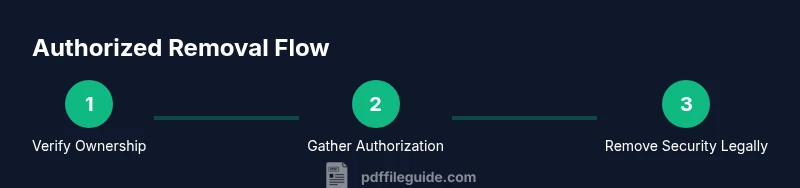
The legitimate removal process involves verifying permissions, selecting the right tools, and carefully producing an unsecured copy that preserves content integrity. Expect that some PDFs cannot be removed without the owner password or explicit consent. If you do have permission, you’ll follow a predictable sequence in trusted software, then save a new copy without password protection. The steps are designed to minimize data loss and preserve readability. PDF security policies can vary, so what works for one document might not be applicable to another; always adapt to the specific permissions granted by the owner.
Tools and Workflows for Authorized Removal
Use reputable, licensed software designed for PDF editing and security management. Popular options include Adobe Acrobat Pro, Foxit PDF Editor, Nitro Pro, and similar tools from trusted vendors. In enterprise scenarios, rely on the IT department’s standard tools to ensure compatibility with your workflow and compliance requirements. Web-based services may offer password removal only if you provide authentication that proves you’re authorized; however, be cautious about uploading confidential documents to online services unless your policy explicitly permits it. Always work on a copy of the original and keep a record of the steps taken.
Recovery Scenarios and Alternatives
If you cannot locate the password or obtain permission, explore alternatives rather than attempting to bypass protections. Contact the document creator for the password or request an unsecured copy. Some organizations provide a redacted or reissued version for accessibility or collaboration purposes. If the document is part of a broader project, consider sharing the necessary information through an approved channel rather than altering the file’s security settings. Remember, attempting to defeat encryption without authorization can violate laws and expose you to liability.
Best Practices for Future Security
After you complete a legitimate removal, implement best practices to prevent future access issues. Use a password manager to store credentials securely, document permission statuses, and set up clear data governance policies for PDFs. When possible, consider encrypting PDFs with a documented expiry or revocation policy and avoid embedding passwords in emails or Slack messages. For long-term accessibility, maintain backups of both the original secured version and the new unsecured copy, while ensuring the unsecured copy remains protected according to your organization’s security standards.
Tools & Materials
- Computer or laptop with Internet access(For downloading software, verifying permissions, and saving copies)
- Licensed PDF editor (e.g., Adobe Acrobat Pro, Foxit PDF Editor, Nitro Pro)(Use official versions with active licenses)
- Authorization documentation(Written permission or proof of ownership)
- Backup copy of the PDF(Preserve the original in case of data loss)
- Password recovery utility (if allowed by license)(Only use if permitted by the owner and software license)
- Secure storage for the unlocked PDF(Protect against unauthorized access)
- Reliable backup plan(Document permissions and actions for audits)
Steps
Estimated time: 45-60 minutes
- 1
Verify ownership and permissions
Obtain written authorization or confirm you own the document. Check your organization's data governance policy and ensure the action is permitted under applicable laws. This step prevents legal issues and sets expectations for the rest of the workflow.
Tip: Keep a dated copy of the authorization for future audits. - 2
Identify password type and access rights
Determine whether you’re dealing with a user password (opens the file) or an owner password (controls permissions). If you don’t know which one applies, you cannot proceed legally without permission from the owner. Clarify what actions are allowed once access is gained.
Tip: Document the exact permissions granted by the owner password or policy. - 3
Open the PDF in authorized software and enter credentials
Launch your licensed PDF editor and open the file. Enter the required password if you have it. Ensure you are using the official feature to remove security, not a third-party tool that claims to crack protections.
Tip: Always work from a copy to avoid affecting the original file. - 4
Remove security restrictions with the official tool
Within the software, locate the option to remove security or change security settings from the protection tab. Follow the tool’s recommended steps and verify that you have removed restrictions on viewing, printing, and editing if permitted.
Tip: Record the exact menu path and the software version for reproducibility. - 5
Save a new unsecured copy
Save the file under a new name or in a separate folder to clearly distinguish it from the original. Confirm that the new copy opens without a password and preserves visual content and metadata.
Tip: Avoid overwriting the original; this preserves the ability to revert if needed. - 6
Validate permissions and secure handling
Open the unsecured copy and test critical functions (search, copy, print) as allowed by the authorization. Ensure sensitive content is handled according to your policy and that you maintain a secure audit trail of the actions performed.
Tip: If anything looks off, revert to the secured version and re-consult the owner.
Questions & Answers
Is it legal to remove PDF password protection?
Removal is legal only when you own the document or have explicit written permission from the owner. Always follow local laws and organizational policies.
Removal is legal only if you own the document or have explicit permission from the owner.
What if I forgot the password to a PDF I own?
If you own the file, use the official password recovery options provided by your PDF software or contact the author for access. Do not attempt to bypass protections without authorization.
If you own the file, use official recovery options or contact the author for access.
Can I remove protection from a PDF I didn’t create?
No. Removing protections from a file you did not create requires explicit authorization; bypassing protections can be illegal and punishable.
No—only with explicit authorization from the owner.
What is the difference between user password and owner password?
A user password restricts opening the document, while an owner password controls permissions like printing or editing.
User password stops opening; owner password controls what you can do inside the file.
Which tools are safe to use for legitimate removal?
Use reputable, licensed PDF editors. Avoid cracked or untrusted tools that promise to break protections.
Stick to reputable software with proper licenses.
What should I do after removing protection?
Back up the unsecured copy, review permissions, and re-secure or document access policies as needed.
Back up, review permissions, and keep things secure.
Watch Video
Key Takeaways
- Verify ownership or authorization before removal.
- Use licensed tools and official methods only.
- Document permissions and steps for compliance.
- Create an unsecured copy responsibly and securely.
- Plan for future password management to avoid repeats.