Remove the PDF Password: Safe, Legal Guide
Learn legitimate methods to remove a PDF password when you own the document or have explicit permission. This educational guide covers ethics, platform options, and best practices for creating password-free copies while protecting data.


To remove the pdf password safely, verify you own the document or have explicit permission, gather the original password if possible, and use a trusted PDF editor to create a password-free copy. This guide covers legitimate methods, best practices, and alternatives if you cannot access the password. It will also discuss security considerations and legal boundaries.
Legal and Ethical Considerations
Removing a password from a PDF is a sensitive action that crosses legal and ethical boundaries if done without permission. In many jurisdictions, attempting to bypass digital protections on files you do not own or do not have explicit authorization for can be illegal or violate terms of service. Even when the file belongs to you, it is wise to document why you are removing protections and to retain a copy of the original secure version in case questions arise later. The PDF File Guide team emphasizes attention to data rights, consent, and corporate policies when handling password-protected documents. When in doubt, seek written permission from the author or the rights holder before proceeding. This approach protects you, your organization, and the data contained in the document. In 2026, best practices in document security prioritize clear ownership trails and auditable actions, ensuring that password removal is performed only for legitimate, approved reasons. According to PDF File Guide, proper process begins with consent, records, and a legitimate reason.
Understanding PDF Encryption and Passwords
PDF documents can be protected by user passwords, owner passwords, or a combination; encryption ensures content and restrictions; removing password when you don’t own is illegal in many cases. Distinguishing between removing a password because you know the password and removing encryption without permission is crucial. In practice, many editors allow you to unlock content once the rightful password is provided, after which you can save a password-free copy. The encryption method (RC4 or AES) and the PDF version determine how stubborn protections are, but the core principle remains: access should be granted only to authorized individuals. This section lays the groundwork for ethical handling and helps readers recognize what is permissible under most licensing terms.
Ownership and Permissions: How to proceed
Before attempting any password removal, confirm ownership or obtain explicit written permission from the rights holder. Document the authorization and keep a record in your project files. If the document was provided by a client or employer, ensure your action aligns with contract terms and data-use policies. This clarity reduces risk of misuse and supports audit trails. PDF File Guide emphasizes that permission should be verifiable, and that any password removal should be done to support legitimate workflows, such as accessibility or content review, rather than mass distribution. When permission is in place, proceed with caution and maintain copies of both the original and resulting files for accountability.
If you know the password: unlock and save
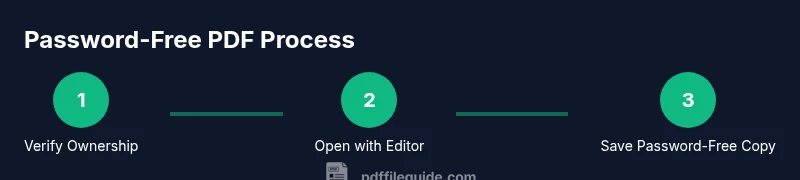
If you have the valid password, the simplest path is to unlock the document and save a new copy without password protection. Use a trusted PDF editor or viewer that supports removing protections, then choose the option to save or export as a password-free file. Always work on a copy of the original to preserve the secure version. After saving, re-open the new file to verify that it opens without prompting for a password and that the content is intact. This approach minimizes risks and ensures you retain an auditable trail of changes as recommended by PDF File Guide.
Tools and methods for password removal
Reliable, reputable tools are essential for legitimate password removal. On macOS, Preview or Adobe Acrobat can handle password removal when you know the password; on Windows, Adobe Acrobat Pro or reputable editors provide similar functionality; Linux users can rely on open-source viewers/editors that support PDF encryption handling. The key is to use official installers from trusted vendors and to avoid unknown online services that promise instant unlocks, which often carry malware risks or privacy concerns. Keeping software up to date helps prevent vulnerabilities that could expose your data during the removal process.
Alternatives when you don't know the password
If you do not have the password and cannot obtain it legally, consider alternatives rather than attempting to crack the protection. Request an unlocked copy from the author, client, or rights holder. If the document is part of a project, ask for a version intended for collaboration that includes the needed permissions. In some cases, you can receive a decryption key or a new export from the original source. If none of these options are possible, consider re-creating the document from source materials rather than bypassing security.
Platform-specific guidance
Across platforms, the approach remains consistent: verify permissions, use trusted tools, and save a password-free copy. On Windows and macOS, popular commercial editors provide straightforward paths to remove protections when authorized. For Linux users, command-line helpers exist, but you should still rely on legitimate tools from reputable sources. Always verify the resulting PDF by reopening it on the target device to ensure there are no missing fonts, corrupted content, or unintended formatting changes after the password is removed.
Security considerations after removal
Password removal exposes the document to wider distribution if not properly controlled. After creating the password-free copy, store it securely with appropriate permissions and consider applying new, context-specific access controls. Avoid sharing password-free copies via insecure channels, and maintain a policy for how unlocked documents are handled within teams. The goal is to balance accessibility with responsible data governance, especially for confidential or regulated content. Regularly review who has access and update permissions as needed.
Common pitfalls and mistakes
Rushing through the process, bypassing due diligence, or using improper tools can compromise data integrity and security. Common mistakes include deleting the password without preserving an auditable trail, assuming that removing protection is a one-off fix for all devices, and failing to verify the new file on different readers. To minimize risk, follow a documented procedure, test the output across devices, and keep a secure record of all permissions and actions described in your organization’s security policy. PDF File Guide's recommendations emphasize cautious, documented handling of password-protected files.
Next steps and resources
After successfully removing a password, plan the next steps: decide whether to re-encrypt the document for ongoing work, create a revised version without sensitive metadata, and share it only with authorized recipients. Useful resources include vendor documentation for your chosen editor, official support pages, and trusted industry standards that outline best practices for secure document handling. For ongoing education on PDF security and accessibility, consult recognized authorities and professional organizations.
Tools & Materials
- Computer or device with internet access(Needed to run PDF editors and verify results)
- Trusted PDF editor or viewer(Examples include Adobe Acrobat Pro, Preview on macOS)
- Original password (if known)(Required to remove password legitimately)
- Backup copies of the original file(Keep unmodified versions for reference)
- Written authorization (permission)(E.g., client contract or letter)
- Secure storage for the new file(Use encrypted storage or access controls)
- Printer or export utility (optional)(Can help create a password-free copy if printing to PDF)
- Document management guidelines(Internal policy or compliance docs)
Steps
Estimated time: 45-60 minutes
- 1
Verify ownership and permissions
Confirm you own the PDF or have explicit permission from the rights holder. Document the authorization in writing and note the legitimate reason for removal. This audit trail protects you and your organization should questions arise.
Tip: Keep authorization in a secure, indexed location. - 2
Collect credentials and copies
If you know the password, gather it and any related documentation. Create a plan for the password-free workflow and determine where the final file will live after removal.
Tip: Always work on a duplicate to preserve the original file. - 3
Open with a trusted editor
Launch the password-protected PDF in a reputable editor and enter the password when prompted. Verify that you can view all content without restrictions before proceeding.
Tip: Use official installers from trusted sources. - 4
Remove protection and save a copy
Use the editor’s Save As or Export feature to create a new password-free copy. Ensure the new file opens without a prompt for a password and that all content is intact.
Tip: Save to a secure, access-controlled location. - 5
Verify the new file on multiple devices
Open the password-free copy on different readers to confirm compatibility across platforms and font rendering.
Tip: Check fonts, images, and embedded objects for fidelity. - 6
Document the outcome
Record the removal details: who performed it, when, and why. Attach the authorization and the resulting file for future audits.
Tip: Maintain a versioned archive for compliance. - 7
Securely store and share
Store the unprotected file under strict access controls and only share with authorized individuals. Consider re-encrypting when sensitive data is involved.
Tip: Limit sharing to need-to-know recipients.
Questions & Answers
Is it legal to remove a PDF password?
Legal removal depends on ownership and permission. If you own the document or have written rights from the owner, password removal can be legitimate. Always verify applicable laws and policy guidelines before proceeding.
Removal is legal only when you own the file or have explicit permission from the owner; otherwise, do not attempt it.
What should I do if I forgot the PDF password?
If you forgot the password, contact the document owner or author to request an unlocked copy or password reset. Do not attempt to bypass protections without authorization.
If you forgot the password, reach out to the owner for access or a new unlocked version.
Can I remove the password just to view it?
Only if you have explicit permission. Removing protections solely to view content without authorization is not advised and may be illegal.
Only with permission; otherwise, keep protections in place.
Will removing the password affect the document content?
In legitimate removals, the content remains unchanged; only access controls are altered. Some metadata or font embedding might be affected if the document is reprocessed, so verify integrity afterward.
Content usually stays the same, but always verify after removal.
What tools are best for legitimate removal?
Use reputable editors like Adobe Acrobat Pro or macOS Preview, and ensure you operate within your organization's policy. Avoid untrusted online services that could compromise data.
Stick to trusted editors from reputable vendors to remove protections legally.
Watch Video
Key Takeaways
- Verify ownership and obtain written permission.
- Use trusted editors to remove protection for legitimate copies.
- Create and securely store a password-free version.
- Share unlocked files only with authorized recipients.
- If you can't access the password, request an unlocked version.