PDF Text to Voice: Read PDFs Aloud with Text-to-Speech
Learn to convert PDF text to voice with built-in TTS or third-party tools. This educational guide covers accessibility, OCR for scanned PDFs, voice selection, and best practices for listening and exporting audio.


Learn how to convert PDF text to voice using built-in text-to-speech (TTS) features or dedicated software. Ensure your PDF text is selectable (OCR if needed), pick a voice and language, and adjust speed and pauses. This guide covers free and paid options, plus accessibility considerations.
What reading PDFs aloud can do for you
Reading PDFs aloud using text-to-speech (TTS) can boost accessibility, improve comprehension, and save time when skimming long documents. For professionals and students, voice-assisted review helps when multitasking or studying on the go. According to PDF File Guide, a thoughtful setup—choosing the right voice, tuning speed, and ensuring accurate text extraction—can dramatically improve retention. This section explores why TTS works well for PDFs and what to expect from different tools. You’ll learn how TTS handles headings, lists, and tables, and how to adapt the experience to your workflow. By combining high-quality voices with clear PDFs, you can create a reliable listening experience that parallels reading.
Core methods to convert PDF text to voice
There are four common approaches to turning PDF text into voice:
- Built-in OS TTS: Windows, macOS, and mobile devices offer native read-aloud features that work well for standard PDFs.
- Dedicated PDF readers with read-aloud: Many readers include a built-in read-aloud function with better document navigation.
- Online services and extensions: Cloud or browser-based tools can be convenient for quick tasks, especially when handling many PDFs.
- OCR-enabled tools for image-based PDFs: If your PDF is scanned or image-based, OCR software is required to extract text before TTS can read it aloud. This method is essential for accessibility and accuracy.
The PDF File Guide emphasizes testing multiple options to find a stable default voice, since voice quality and language coverage vary across platforms. You’ll want to balance convenience with privacy and data handling when using online services.
Understanding PDF text vs image-based PDFs
A PDF can either contain selectable text or be a collection of images (scans). Text-based PDFs let TTS engines read content directly, preserving punctuation and structure. Image-based PDFs require OCR (optical character recognition) to convert images into searchable, readable text. OCR accuracy depends on print quality, font, and page layout. The best practice is to run OCR on image-based PDFs before enabling TTS, then proofread the extracted text for obvious mistakes. For accessibility, ensure the PDF includes real text and proper tagging so screen readers and TTS can navigate efficiently. PDF File Guide notes that poor text extraction leads to misread numbers, dates, and headings, which can disrupt comprehension.
Selecting voices and languages for natural reading
Voice quality matters as much as language coverage. Modern TTS engines offer multiple voices with distinct accents, speeds, and emotional tones. When choosing a voice, consider the document genre: formal reports benefit from neutral, clear speech, while narrative content can leverage warmer, slightly slower tones. Language support should match the document’s primary language, including punctuation handling and pronunciation of technical terms. If your PDF includes multilingual sections, test how the TTS handles language switches. You’ll often find options to adjust speaking rate, pitch, and emphasis, enabling you to tailor the experience to your listening habits. The goal is a natural cadence that minimizes fatigue over long listening sessions.
Reading aloud on Windows: practical steps
Windows offers built-in TTS via Narrator and Edge’s Read Aloud feature. Start by opening your PDF in a reader or browser, then enable Read Aloud or Narrator, choose a voice, and adjust the speed. If your document includes complex tables or diagrams, use the reader’s navigation features to jump between sections and maintain context. Keyboard shortcuts speed up your workflow: for example, toggling read-aloud, pausing, or resuming with a single keystroke. If you frequently return to the same documents, save your preferred voice settings as a profile to reduce setup time during future sessions.
Reading aloud on macOS: VoiceOver and built-in options
macOS provides VoiceOver and Siri for accessible reading. Open the PDF with Preview or any compatible app, then activate VoiceOver to start reading. You can customize the voice, rate, and pronunciation through System Preferences > Accessibility > Spoken Content. For longer PDFs, enable Bookmarks or a table of contents to navigate quickly. If you’re creating a workflow for repeated tasks, consider automating the setup with automation tools to apply your preferred voice and pace consistently across documents. The macOS approach tends to blend well with other Apple devices, ensuring a smooth cross-device listening experience.
Browser-based and mobile options
On-the-go reading often relies on browser-based read-aloud extensions or mobile apps with OCR support. Extensions can read PDFs directly in the browser, while mobile apps allow listening without transferring files to a computer. When using these tools, check privacy policies since PDFs may contain sensitive information. For iOS and Android, built-in TTS settings let you adjust reading speed and voices, and many apps support offline reading to avoid data usage. If your document includes images with embedded text, ensure the app can perform OCR or that you’ve pre-processed the PDF to extract text.
Free vs paid tools: pros and cons
Free tools offer quick starts and zero cost but may have limited voices, fewer control options, or privacy concerns with online services. Paid tools often provide higher-quality voices, more language options, advanced navigation, and better OCR accuracy. When evaluating, consider the volume of PDFs you work with, the need for offline access, and whether you require export to audio formats like MP3. The right balance between cost and capability will depend on your use case, but many professionals find that a combined approach—free options for casual listening plus a paid tool for critical documents—provides the best overall value.
Accessibility best practices when using TTS
To maximize accessibility, ensure your PDF is properly tagged and text-based. Use headings consistently so the TTS engine can convey structure, and avoid heavy formatting that can confuse navigation. Include alternative text for images where possible, as screen readers rely on alt text. When sharing PDFs intended for listening, provide a transcript or an accompanying document to support users who rely on assistive technologies. Regularly test your work with both headphones and speakers to verify clarity, pacing, and pronunciation. The goal is an inclusive experience that makes content accessible to a broad audience.
Saving audio and rights considerations
Some tools allow exporting spoken audio as MP3 or WAV files, which can be useful for training materials or revisiting long manuals. Check licensing terms of the TTS voice you select, especially for commercial documents. If you’re distributing audio versions of paid or restricted PDFs, ensure you have permission from rights holders. For internal use or personal study, locally saved audio tends to be more private and secure. Always review user agreements for the specific tool to understand how your data is processed and stored.
Troubleshooting common issues
If TTS misreads terms or skips sections, verify source text accuracy and re-run OCR if necessary. Update your TTS voice pack to the latest version, and ensure the document’s font is widely supported. Some PDFs with complex layouts may confuse navigation; in these cases, extract text with an OCR tool first, then re-import the text into a reader that supports read-aloud. If you experience lag or stuttering, try lowering the reading rate or using a more lightweight tool. Regular troubleshooting will help maintain a smooth listening experience.
How to implement pdf text to voice: a practical wrap-up
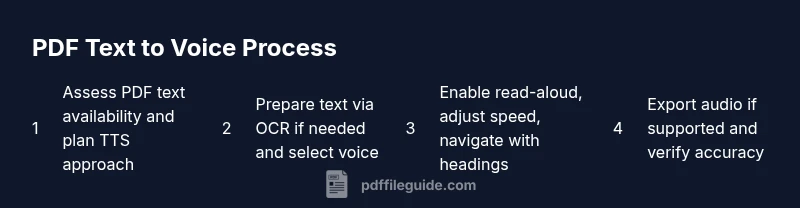
The process combines document preparation, tool selection, and listening optimization. Start with a quick assessment of the PDF’s text quality, choose a TTS approach that fits your workflow, and then tailor the voice, speed, and pronunciation to your preferences. As the PDF File Guide Editorial Team notes, a thoughtful setup improves comprehension and retention. With consistent practice, you’ll be able to convert most PDFs into clear, enjoyable audio content that complements your reading routine.
The PDF File Guide recommendation: practical takeaways
The PDF File Guide Editorial Team recommends testing multiple tools to identify the best fit for your documents and accessibility goals. Prioritize text extraction accuracy, voice clarity, and navigation controls when evaluating options. Consider building a simple template that covers your preferred setup for common document types (manuals, reports, presentations). By standardizing your workflow, you’ll reduce setup time and improve consistency across projects.
Tools & Materials
- Computer or mobile device with internet access(Needed to run TTS software or browser-based readers)
- Text-to-speech software or built-in TTS(Windows Narrator, macOS VoiceOver, iOS/Android TTS, or third-party apps)
- PDF viewer with read-aloud support(Edge, Preview, Adobe Reader, or browser extensions)
- OCR software (for image-based PDFs)(Tools like Abbyy, Tesseract, or built-in OCR in many readers)
- Headphones or speakers(For clear listening; optional but recommended for smartphones)
- Privacy-conscious setup (optional)(Local/offline processing preferred to avoid data transmission)
Steps
Estimated time: 30-60 minutes
- 1
Assess your PDF
Open the PDF and check if text can be selected. If you can copy text, you can likely read aloud directly. If not, run OCR to extract text before enabling TTS.
Tip: If in doubt, try selecting a few sentences to confirm text is recognized. - 2
Choose your TTS method
Decide between built-in OS TTS, a browser extension, or a dedicated app. Consider privacy, offline capability, and voice quality for your document type.
Tip: Test a couple of voices to avoid fatigue during long listening sessions. - 3
Prepare the text
If OCR is needed, run it and fix obvious errors. Ensure headings, lists, and tables are preserved to the extent possible for better navigation.
Tip: Export the OCR result to a clean text file before loading into the reader. - 4
Select language and voice
Pick the document language and a voice with clear articulation. For multilingual PDFs, choose voices appropriate to each section.
Tip: Document language consistency improves pronunciation accuracy. - 5
Start read-aloud
Open the PDF in your reader and enable read-aloud. Adjust speed and pitch to reduce cognitive load and improve comprehension.
Tip: Begin at a slower speed and gradually increase as you adapt. - 6
Navigate effectively
Use bookmarks, headings, and the reader’s navigation tools to jump between sections without losing context.
Tip: Create a quick-access list of critical sections for long manuals. - 7
Capture and save audio (if supported)
If your tool offers audio export, save a clean copy for offline listening or distribution to stakeholders.
Tip: Check licensing for commercial reuse of AI-generated voices. - 8
Quality check
Listen to a representative sample of pages to verify pronunciation and pacing, then adjust as needed.
Tip: Note any recurring misreads and tweak vocabulary settings or voice choices. - 9
Accessibility considerations
Ensure the final audio version makes sense with simple layout, alt text where applicable, and accessible document structure.
Tip: Provide a transcript alongside the audio for users who prefer reading. - 10
Document best practices
Keep a log of settings used for each document to speed up future work and ensure consistency.
Tip: Use templates to standardize voice, speed, and navigation across documents.
Questions & Answers
Is my PDF text-based or image-based, and why does it matter for TTS?
Text-based PDFs allow direct reading by TTS engines, preserving structure and punctuation. Image-based PDFs require OCR to extract text before reading aloud; otherwise, the TTS won’t work. Always verify text selection first.
Text-based PDFs read aloud directly; image-based PDFs need OCR to extract text for TTS.
Can I save the spoken audio from a PDF for later use?
Many tools support exporting to MP3 or WAV. Check the software’s export options and licensing terms for any voice data usage restrictions.
Export to MP3 or WAV if your tool supports it; verify licensing for commercial use.
What should I do if the TTS misreads a term?
Add the term to a pronunciation dictionary if your tool supports it, or choose a different voice with better pronunciation. You can also adjust the speech rate to improve clarity.
Update pronunciation rules or try another voice to improve accuracy.
Are online TTS services secure for sensitive PDFs?
Online services can pose privacy risks for sensitive documents. Prefer offline or local processing when handling confidential material.
Be cautious with sensitive PDFs; offline options are safer.
Can TTS handle multilingual PDFs?
Supported languages vary by tool. If your document switches languages, test each section and adjust the voice language accordingly for accurate pronunciation.
Test language settings per section for best results.
What if my PDF contains complex tables or images?
OCR the text, then extract the readable text for TTS. For tables, rely on the reader’s navigation features to maintain context.
OCR first, then read aloud; use navigation to stay in context.
Watch Video
Key Takeaways
- Verify text availability before enabling TTS.
- Choose voices and languages that match document content.
- OCR is essential for image-based PDFs to enable reading aloud.
- Test across platforms to find the most natural, accurate setup.
- Prioritize accessibility by offering transcripts alongside audio.