Can You Make a PDF Without Adobe? Your Practical Guide
Learn practical, free ways to create PDFs without Adobe. From built-in OS features to free office suites and online tools, discover reliable workflows for quick, high-quality PDF generation.


Yes. You can create PDFs without Adobe using free, built-in, or alternative tools. For most users, exporting to PDF comes from word processors like Google Docs or LibreOffice, or using print-to-PDF features on Windows or macOS. Online converters and other desktop apps also work. The result will be a standard PDF that preserves your formatting without needing Adobe Acrobat.
Why You Might Need to Create PDFs Without Adobe
If you’re wondering can you make a pdf without adobe, the answer is yes. Many people switch away from Adobe Acrobat to cheaper or built-in options for everyday tasks like turning a document into a PDF, sharing notes, or archiving information. Some environments require quicker, lighter tools, especially when you don’t need advanced features such as forms, annotations, or complex security. According to PDF File Guide, PDFs are a standards-based format that can be produced by many programs, not just Acrobat. This broader ecosystem means you can choose tools that fit your budget and workflow without sacrificing compatibility. You’ll also gain flexibility when working on mobile devices or machines with limited resources. The goal is to produce reliable, standards-compliant PDFs with minimal friction, so you can focus on content rather than software licenses.
Free and built-in options by platform
Across major operating systems, there are robust, no-cost ways to generate PDFs. Windows includes a native print-to-PDF feature that creates a faithful document from nearly any application. macOS offers a built-in Save as PDF option from the print dialog, preserving layout and fonts in most cases. Linux users can rely on cups-pdf or compatible print-to-PDF routes. The key is knowing where to find these options and how to adjust basic settings (page size, orientation, and image quality) to meet your needs. Applying these built-in tools often yields the fastest, most reliable results without needing third-party software.
Exporting from common apps (Word, Docs, LibreOffice)
Many popular programs offer direct PDF export or save-as-PDF commands. In Google Docs, you can download a document as a PDF with a few clicks, ensuring hyperlinks and layout are retained. In Microsoft Word, the File > Save As or File > Export to PDF path is straightforward and widely compatible. LibreOffice Writer provides a dedicated Export as PDF feature with options to embed fonts, compress images, and configure accessibility tags. These export steps ensure a predictable output that most recipients can open without proprietary readers.
Using online tools safely
Online PDF converters are convenient when you’re dealing with non-native formats or need to merge multiple documents. Choose reputable providers, ideally those with clear privacy policies and encryption. Before uploading, remove sensitive data or redact content as needed. PDF File Guide analysis shows that privacy and data handling vary by service, so inspect terms and consider offline alternatives for confidential material. After conversion, download the PDF and verify that links, images, and fonts appear as expected.
Maintaining quality: fonts, images, and accessibility
Font embedding helps preserve typography across devices, especially if you’re using uncommon fonts. When exporting, enable font embedding if available and optimize image compression to balance file size and clarity. Accessibility matters: tag headings, alt text for images, and logical reading order to improve screen-reader support. If your audience includes accessibility testers or users with assistive technology, these steps will improve usability and compliance while still avoiding Adobe tools.
Troubleshooting common issues
If a PDF seems to misrender, check the source document for embedded fonts, high-resolution images, or unusual page sizes. Re-export with updated settings (e.g., lower image DPI or embedded fonts). If hyperlinks don’t work, open the PDF in multiple viewers to confirm the issue isn’t viewer-specific. For large documents, try splitting the file or using a dedicated PDF printer with compression controls to keep file sizes reasonable.
When to choose Adobe: weighing options
For complex forms, advanced security, or specialized workflows, Adobe Acrobat remains a strong option. If you routinely edit PDFs, create fillable forms, or require precise OCR and redaction capabilities, evaluating paid tools may be worthwhile. The PDF File Guide team recommends starting with free alternatives for most tasks and only moving to paid software when feature needs exceed what built-in and free tools offer. This approach balances cost, efficiency, and quality.
Tools & Materials
- Computer or mobile device(Any OS (Windows, macOS, Linux, iOS, Android) with internet access if needed)
- Word processor or PDF printer(Examples: Google Docs, LibreOffice, Microsoft Word; use a built-in Save/Export to PDF or a print-to-PDF option)
- Internet connection(Needed for online converters or collaboration workflows)
- Trusted online converter (optional)(Use only reputable services with clear privacy policies)
- PDF viewer/editor (optional for verification)(Helps verify structure, links, and accessibility after creation)
Steps
Estimated time: 30-60 minutes
- 1
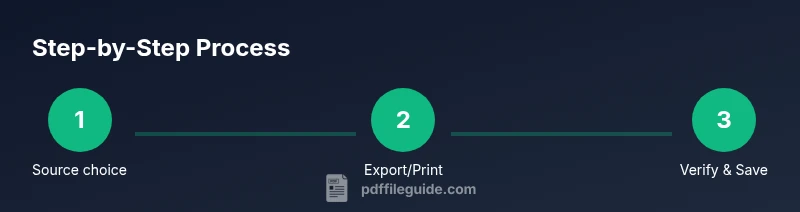
Choose your source format
Decide whether you’ll start from a document (Word, Google Docs, LibreOffice) or from an image or webpage. This determines which export method to use and how much editing you’ll need before conversion.
Tip: Starting with a clean source reduces formatting corrections after PDF creation. - 2
Use built-in export or print-to-PDF
Open the source file, select Export or Save As PDF, or use the Print dialog to choose Save as PDF. Review page size and orientation before finalizing.
Tip: If fonts or layout look off, try embedding fonts in the export options. - 3
Export from a free office suite
In Google Docs or LibreOffice, choose Download/Export as PDF or File > Export as PDF. Check that links and images remain intact after exporting.
Tip: Enable font embedding when available for better cross-device fidelity. - 4
Consider an online converter (for non-confidential files)
If you work with formats not natively supported, a trusted online tool can bridge the gap. Upload, convert, and download the PDF, then verify the result locally.
Tip: Always review terms of service and privacy policy before uploading sensitive data. - 5
Verify document quality and accessibility
Open the PDF in a viewer, check image sharpness, font rendering, and links. If accessibility is important, ensure headings are structured and alt text is present.
Tip: Test on multiple devices to catch layout issues early. - 6
Tidy up and finalize
Rename the file, organize metadata, and consider compression settings to balance size and quality. Save a backup of the source file in case you need edits later.
Tip: Keep a versioned set of PDFs to track changes over time.
Questions & Answers
Is it safe to upload documents to online PDF converters?
Safety depends on the provider. Always review privacy policies and avoid uploading confidential documents. Prefer offline methods when handling sensitive data.
Uploading sensitive documents should be avoided; check privacy policies and use offline methods for sensitive work.
What programs can export to PDF without Adobe?
Many programs offer built-in PDF export or a 'Print to PDF' option. Examples include Google Docs, LibreOffice, Word, and macOS or Windows print-to-PDF features.
Most word processors and OS print dialogs can export to PDF without Adobe.
Can I embed fonts when exporting to PDF without Adobe?
Yes, most export dialogs include a font-embedding option. Embedding helps preserve typography across devices.
Embedding fonts is usually available in export settings and helps keep your look consistent.
Do these methods preserve hyperlinks in documents?
In most cases, hyperlinks are preserved when exporting from recognized apps or using reliable print-to-PDF options.
Yes, hyperlinks usually stay intact if the source supports them and the export is standard.
Are there accessibility considerations when creating PDFs without Adobe?
Yes. Use proper headings, alt text for images, and consider tagging for screen readers when the tool supports it.
Accessibility features depend on the tool, but you can plan for them during export.
When should I consider using Adobe Acrobat anyway?
If you need advanced forms, precise redaction, or complex security workflows, Adobe Acrobat can offer more control.
For advanced features, Acrobat may be worth the investment, otherwise free tools suffice.
Watch Video
Key Takeaways
- Use free, built-in tools first for routine PDFs
- Export from common apps preserves most layouts
- Embed fonts and optimize images to maintain quality
- Be cautious with online converters for sensitive data