Convert PDF to PPT: A Practical Step-by-Step Guide
Learn how to convert PDF to PPT with desktop and online tools, preserve layout, fonts, and images, and perform targeted edits to deliver polished, presentation-ready slides.


Quickly transform a PDF into a fully editable PowerPoint presentation while preserving layout, images, and text. This quick win guide covers when to use desktop software versus online converters, highlights typical formatting caveats, and outlines a reliable, step-by-step process to produce clean, presentation-ready slides with minimal cleanup. You’ll learn practical choices, expected results, and how to verify accuracy after conversion.
What converting pdf to ppt involves
Converting a PDF to a PPT is about translating a fixed-layout document into a flexible slide deck. The goal is to preserve typography, images, charts, and overall formatting while granting the PowerPoint editor full control over slide design. In practice, you may import the PDF into PowerPoint, use a conversion tool to extract elements, or rebuild slides from scratch based on the PDF content. According to PDF File Guide, successful conversions balance fidelity with editability, and the best method depends on the source's complexity, whether fonts are embedded, and whether the PDF contains native vector objects or scanned images. When done correctly, you end up with a PPTX that looks close to the original but remains fully editable for your presentation needs. The process can vary from a quick import with minimal cleanup to a multi-step workflow requiring manual reformatting, depending on the tool and the PDF's structure.
Why converting pdf to ppt is valuable for presenters
Professionals often need to convert PDFs to PPT to repurpose existing content into slides, adjust visuals to fit a template, or extract data for charts and tables. A successful conversion reduces manual re-entry, speeds up production timelines, and helps maintain a consistent brand appearance across a deck. However, the fidelity of fonts, spacing, and image quality can vary across tools, so it’s important to choose an approach that aligns with the PDF’s complexity and your quality expectations. The PDF File Guide emphasizes balancing fidelity with editability, especially in corporate environments where slides must be readily customizable by different teams.
Methods to convert: desktop apps, online tools, and built-in options
There are three broad approaches to convert pdf to ppt: (1) Desktop software with export or import functions (e.g., Acrobat, Nitro, or PowerPoint’s own import features), (2) Online conversion services that claim to extract slides from a PDF, and (3) Built-in or hybrid workflows that leverage PowerPoint and simple PDF viewers. Desktop tools generally offer more reliable formatting preservation and offline privacy, while online tools can be faster for small PDFs or quick turns. Built-in options vary by platform (Windows vs macOS) and may require intermediate steps like exporting to images or a different format first. For most professional use, a desktop or hybrid approach provides the best balance of control and accuracy.
Common formatting issues and how to mitigate them
Even with careful tool selection, you may encounter font substitutions, misaligned text boxes, or blurred images after conversion. To mitigate issues, start with PDFs that embed fonts, or plan to replace fonts in PowerPoint with standard system fonts. Check that vector graphics remain crisp and that charts retain data integrity. If images become blurry, reinsert high-resolution originals or replace problematic graphics with clean vector equivalents. For complex layouts, you may need to re-create slides rather than rely on automatic conversion.
Preparing your PDF for a smoother conversion
Preparation saves time at the transform stage. Ensure the PDF isn’t password-protected, especially when using offline tools. For scanned documents, enable Optical Character Recognition (OCR) in your converter if available, but be prepared for potential text correction. Clear page ordering and consistent margins help the converter map content to slides more predictably. Have a target PPT template ready with your brand fonts and layout rules so you can apply them during or after the conversion.
Post-conversion adjustments you should perform
After conversion, review slide-by-slide for fidelity and readability. Reflow text, adjust font sizes, and fix any slide-level inconsistencies. Reinsert or redraw charts, tables, and diagrams that didn’t translate well. Apply your presentation template, align bullet points, and ensure color contrast meets accessibility standards. Finally, run a quick spell check and run a consistency pass to align slide transitions with your narrative flow.
Privacy and security considerations when using online converters
Online converters can be convenient, but uploading sensitive or proprietary PDFs may expose data to third-party servers. If you must use an online tool, choose reputable services with clear privacy policies, and consider removing any sensitive content before upload. For confidential materials, prefer offline desktop tools and keep your data behind a firewall. This approach reduces risk and helps protect intellectual property.
When to avoid online converters and choose offline options
If your PDF contains confidential information, contains proprietary charts, or relies on precise branding, offline methods are generally safer and more reliable. Offline workflows also offer greater control over fonts and layout, which is critical for professional presentations. If speed is paramount and you’re dealing with simple PDFs, a trusted online tool may suffice, but always verify the final slides for fidelity.
Authority sources and best practices
For structural guidelines and best practices on document formats and accessibility, consult official resources. The U.S. National Archives and Records Administration (NIST) provide standards for digitization and document integrity, while Adobe offers authoritative PDFs and presentation workflows. See the following sources for guidance: NIST – https://www.nist.gov; National Archives – https://www.archives.gov; Adobe – https://www.adobe.com.
Tools & Materials
- PDF source file(Have the original file you intend to convert, not a screenshot.)
- PowerPoint (desktop or online)(Needed for editing and final tweaks.)
- Conversion tool (desktop or online)(Choose a reputable tool that matches your PDF complexity.)
- Web browser(Needed for online converters if you choose that path.)
- Stable internet connection(Crucial for online options and cloud storage syncing.)
- OCR software (optional)(Use if the PDF is a scanned document; may require manual cleanup.)
- Branded PowerPoint template(Helps apply your corporate look after conversion.)
Steps
Estimated time: 45-120 minutes
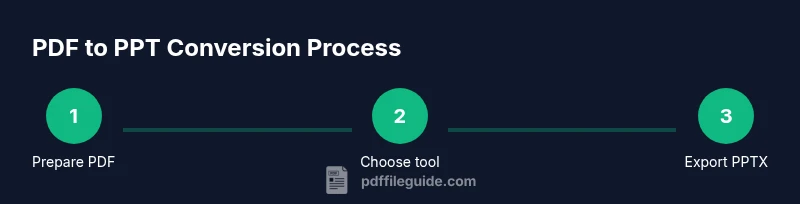
- 1
Prepare your PDF for conversion
Check for password protection and run OCR if the document is scanned. Confirm fonts are embedded or accessible, and note any pages with complex layouts that will need manual adjustment later.
Tip: If possible, keep a backup of the original PDF before starting. - 2
Choose the conversion method
Decide between desktop software, online converters, or a hybrid approach. Consider sensitivity of data and the complexity of formatting when choosing the path.
Tip: Offline methods generally preserve formatting more consistently for complex documents. - 3
Import or convert to PPT
Run the converter on the PDF and import the result into PowerPoint, or use PowerPoint’s built-in import tools if available. If the tool yields segmented slides, be prepared to merge and adjust.
Tip: Verify that slide order matches the original document before editing. - 4
Review slide content
Inspect typography, images, and charts for fidelity. Replace any missing fonts with system fonts and adjust image quality as needed.
Tip: Start with a few slides to gauge accuracy before converting the entire document. - 5
Tweak layouts and visuals
Align text boxes, tweak bullet spacing, and ensure consistent margins. Recreate complex visuals if necessary to preserve clarity.
Tip: Apply your brand template to ensure consistency across slides. - 6
Add final edits and checks
Perform a final pass for spelling, color contrast, and accessibility. Run through the deck with a sample audience to catch any remaining issues.
Tip: Enable PowerPoint’s accessibility checker for quick wins. - 7
Export the final PPTX
Save or export as PPTX, confirming file compatibility with your presentation environment. Keep a backup copy of the converted file.
Tip: Use a descriptive filename that includes date and project name. - 8
Document the workflow
Note which tool and settings you used for future reference and create a reusable template for similar PDFs.
Tip: Create a short checklist to speed up future conversions. - 9
Validate final deliverables
Test the PPTX on the intended devices or platforms to ensure fonts display correctly and animations run smoothly.
Tip: Test on a secondary device to catch unexpected rendering differences.
Questions & Answers
Can I convert a password-protected PDF to PPT?
Only if you have the password or remove protection using proper authorization. Many converters won’t work on locked files, so obtain access rights before attempting conversion.
If the PDF is locked, you’ll need the password or proper authorization to unlock it before you can convert.
Will formatting stay the same after conversion?
Not always. Preservation depends on the tool, the PDF's complexity, and whether fonts are embedded. Be prepared to adjust layouts, fonts, and spacing after conversion.
Formatting can vary; expect some tweaks to fonts and spacing after conversion.
What is the difference between PPT and PPTX in this process?
PPTX is the modern, XML-based format that supports more features and better compatibility. Most conversion workflows produce PPTX files by default, but some older tools may save as PPT only.
Most converters output PPTX for better compatibility.
Can I batch convert multiple PDFs to PPT at once?
Some desktop tools offer batch processing, but many online services limit concurrent jobs. If you have many PDFs, consider a desktop workflow that supports batching with minimal manual steps.
Batch conversion is possible with some desktop tools, but check tool limits.
Are offline tools better for sensitive documents?
Yes, offline tools reduce exposure for sensitive data. Use trusted desktop software and avoid uploading confidential PDFs to questionable online services whenever possible.
Offline tools are safer for sensitive files.
What if the PDF is a scanned image?
You’ll need OCR to extract text before a clean conversion. OCR may require post-processing to correct recognition errors and formatting.
OCR helps extract text from scanned PDFs but may need cleanup.
Watch Video
Key Takeaways
- Plan before you convert to minimize downstream edits.
- Choose the method that best balances fidelity and editability.
- Verify fonts, images, and charts after conversion.
- Apply a branded template for consistent professional output.