Extract Text from PDF: A Practical How-To
Learn safe, efficient methods to extract text from PDF files, from copy-paste to OCR and automated scripting, with best practices for accuracy, privacy, and workflow optimization.


By the end, you’ll be able to extract text from PDFs using quick copy-paste for text-based files, built-in export options, and OCR when dealing with scanned documents. This guide also covers preparing PDFs, choosing the right tool, and validating results to ensure clean, usable text for editing, indexing, or data analysis.
Understanding text extraction from PDFs
Text extraction from PDFs is the process of converting the visible content of a PDF into editable, searchable text. It matters whether the PDF was created from actual text or scanned as an image. If text is selectable, you can copy and paste or export directly; if not, you need OCR to recognize characters. In this guide, we’ll cover both scenarios and outline practical workflows for professionals and beginners. By the end, you’ll know when to use which method and how to validate results for accuracy. The goal is to produce clean, usable text that preserves important structure such as headings and bullet lists. In practical terms, you’ll learn how to extract text from pdf across common workflows.
Methods for extracting text from PDFs: overview of options
There are several pathways to extract text, depending on the PDF’s origin and your needs. The simplest is copy-paste directly from a text-based PDF when the document allows text selection. If the content comes as an image, optical character recognition (OCR) is required. Some PDFs offer built-in export options (to TXT, RTF, or Word), which preserves formatting better than plain text copy-paste. For developers, libraries and command-line tools enable batch processing and automation. Think about accuracy, privacy, and the intended use of the extracted text when choosing a method.
Text-based vs scanned PDFs: know which you have
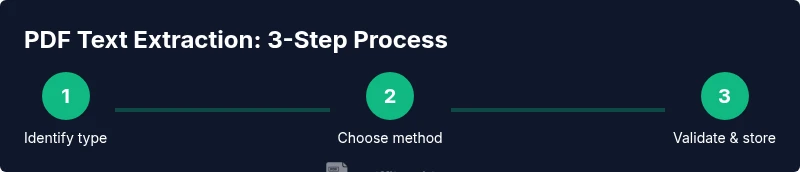
To determine whether your PDF contains real text or just images, try selecting text with your cursor. If you can highlight and copy, the document is text-based and you can extract text with minimal friction. If text cannot be selected, the file is likely a scanned image; in this case OCR is necessary. You can also check document properties or use a quick one-page test to see if the font appears as individual characters rather than as encoded text. Understanding the type upfront saves time and informs your workflow choices.
Non-developer workflows: built-in tools and browser options
Many everyday tasks can be completed without coding. On Windows or macOS, you can open the PDF in a viewer and use copy-paste or the export function to retrieve text. Browsers like Chrome or Firefox often offer print-to-PDF options that include selectable text after printing to PDF, or you can upload the file to a trusted service to extract text (with privacy considerations). For occasional needs, dedicated online extractors can be convenient, but avoid uploading sensitive documents to untrusted sites. Finally, some office suites can import PDFs and export text while preserving some structure.
Developer workflows: libraries, scripts, and automation
For engineers and data professionals, programmatic extraction unlocks automation. Python libraries such as PyPDF2 or pdfminer.six can read PDFs and pull text from pages, while OCR engines like Tesseract can convert scanned pages into text. A minimal workflow looks like: load the PDF, extract text from each page, and concatenate results. If a document includes tables or multi-column layouts, you may need additional steps to analyze layout, detect columns, and post-process the text. When scripting, always ensure proper error handling and logging so you can audit results later.
Handling tables and structured content
Tables and headers often lose structure during extraction. To preserve rows and columns, use tools designed for tabular extraction (e.g., camelot-py or tabula-py) or extract text with layout-aware libraries. Post-process results by splitting lines on whitespace or actual delimiters, then map columns to a structured format such as CSV or JSON. If your PDF has complex formatting (multi-row headers, merged cells), you may need manual validation or a hybrid approach combining multiple extraction methods.
Quality and accuracy checks
Extracted text should be validated against the source to catch errors like misrecognized characters or broken lines. Compare a sample of paragraphs, verify dates and numbers, and check for inconsistent spacing. Use automated diffing tools to highlight changes between the original and the extracted text. Consider running the extraction multiple times with different OCR settings if accuracy is critical. Document any corrections and maintain a versioned text dataset for traceability.
Privacy and security considerations when using online tools
Online extraction services can be convenient but pose privacy risks. Only upload documents that do not contain sensitive information, or use offline tools and local processing where possible. When using cloud-based OCR, review the provider’s data handling and retention policies, and avoid storing sensitive PDFs longer than necessary. For enterprise workflows, implement access controls and secure storage to prevent data leakage.
Common mistakes to avoid and quick wins
Common mistakes include assuming OCR is perfect, neglecting pre-processing of scanned images, and overlooking multi-column layouts. Quick wins include selecting the correct language pack for OCR, preprocessing images (deskew, denoise), and exporting to a format that preserves structure (CSV or JSON) for downstream analysis. With careful checks and a small set of repeatable steps, you can achieve reliable extractions quickly.
Tools & Materials
- Computer or laptop(Modern OS (Windows/macOS/Linux))
- PDF viewer/editor with text export or selection(e.g., built-in export or copy-paste)
- OCR software or OCR engine(e.g., open-source or commercial OCR; ensure language packs installed)
- Command-line tools or scripting environment(Python 3.x or shell scripting for batch tasks)
- Text editor or notebook for post-processing(Notepad++, VSCode, or similar)
- Quality-check documents or sample PDFs(Helpful for accuracy verification)
- Secure storage for sensitive documents(Offline processing preferred for privacy)
Steps
Estimated time: 60-120 minutes
- 1
Identify PDF type
Open the file and attempt to select text. If characters can be highlighted, the PDF is text-based and you can extract text with minimal effort. If selection fails, the content is likely an image and OCR will be required. This step saves you from applying the wrong method to the entire document.
Tip: Test with a few lines of text; if in doubt, assume OCR is needed and proceed to confirm later. - 2
Try copy-paste or export for text-based PDFs
For text-based PDFs, highlight a paragraph and copy it to your clipboard, then paste into a plain text editor to inspect formatting. If export options exist (TXT, RTF, DOCX), use them to preserve layout better than plain copy-paste. Compare the exported text against the source to gauge fidelity.
Tip: Paste into a monospaced editor to spot irregular line breaks and hyphenation quickly. - 3
Use built-in export options when available
Many PDFs offer export-to-text or export-to-Word features. This often yields cleaner structure and preserves headings and lists. Choose the format that aligns with your downstream workflow (TXT for plain text, CSV/JSON for structured data).
Tip: If headings are lost, consider post-processing to reintroduce logical structure. - 4
Set up OCR for scanned PDFs
Install or configure an OCR tool and select the document language. Preprocess the pages (deskew, de-noise) to improve character recognition. Run OCR on a test page to verify accuracy before batch processing.
Tip: Choose language packs that match the document; incorrect language settings drastically reduce accuracy. - 5
Run extraction and concatenate results
Process each page and combine text into a single file or a structured dataset. For multi-column pages, run layout-aware extraction when possible to preserve column boundaries. Handle non-text elements by noting positions for later manual review.
Tip: Maintain a log of pages that required manual correction for auditability. - 6
Clean, post-process, and validate
Run post-processing to fix extra line breaks, spaces, and hyphenations. Validate against a subset of the source document to confirm accuracy. Normalize line endings and consider converting to CSV/JSON for downstream data tasks.
Tip: Automate common cleanup rules and run a diff against the source where feasible. - 7
Save, organize, and review results
Store extracted text in the desired formats (TXT, CSV, JSON) and organize by document. Perform a final quality check and archive the original PDF with metadata describing the extraction method used. Schedule periodic re-processing if the PDFs are updated.
Tip: Use versioning to track updates and keep backups of intermediate results.
Questions & Answers
What is the easiest way to extract text from a PDF?
If the PDF is text-based, copy-paste or export to a text-friendly format. For scanned PDFs, use OCR. Start with the simplest method and escalate to OCR only if needed.
The easiest way is to try copy-paste first, then use OCR only if you can't select text.
Can I extract text from password-protected PDFs?
You need the password to unlock the document. Some tools allow extraction after unlocking; if you don’t have it, you must obtain access from the owner.
You’ll need the password to unlock the file before extraction.
What if extracted text has broken formatting?
Use layout-aware export or OCR with post-processing to restore headings and lists. You may need manual cleanup for complex layouts.
Formatting can break; you might need to tidy it up after extraction.
Are there free tools to extract text from PDFs?
Yes, many free options exist for both text-based and scanned PDFs. Offline tools are generally safer for sensitive documents.
Yes, there are free options, but choose offline tools for sensitive work.
How do I handle huge collections of PDFs efficiently?
Adopt batch processing with scripting and use command-line tools or libraries to automate repeated tasks. Organize outputs systematically.
For many files, automate with scripts and keep organized outputs.
What is OCR and when should I use it?
OCR converts images to text; use it for scanned PDFs or PDFs with embedded images. It’s not perfect, so expect some cleanup.
OCR turns images into editable text; use it for scanned documents and then clean up.
Watch Video
Key Takeaways
- Identify PDF type before extraction to choose the right path.
- OCR is essential for scanned documents; verify accuracy with checks.
- Batch automation improves efficiency for large tasks.
- Always consider privacy when using online extraction tools.