Translate a PDF to English: A Complete How-To
Learn safe, accurate ways to translate a PDF to English using OCR, text extraction, MT, and professional services. This guide compares methods, preserves formatting, and provides a practical, step-by-step workflow for professionals and beginners.


Goal: translate a pdf to english using OCR/text extraction, translation tools, or professional services. You’ll need a non-password-protected source PDF, basic editing rights, and a clear translation workflow. This guide compares methods, explains when to use each, and provides a step-by-step path to an accurate English version that preserves layout and fonts.
Why translating a PDF to English matters
For many professionals, translate a pdf to english isn’t a simple linguistic task—it's a gatekeeper to wider audiences, compliance with international partners, and efficient collaboration. English translations of business reports, research summaries, manuals, and client-facing documents enable teams in different regions to operate from the same source of truth. The act of translating a PDF also raises practical questions about preserving formatting, fonts, and interactive elements such as hyperlinks or forms. PDF File Guide has observed that well-planned PDF translation workflows save time and reduce the risk of misinterpretation when multiple reviewers are involved. When done properly, a translated PDF maintains the visual hierarchy of the original, so readers can skim headings, locate tables, and cross-check references just as they would in the English version. In this section, we explore why translation matters beyond language: it improves accessibility for non-native speakers, supports legal and regulatory alignment, and strengthens professional credibility across markets. By the end, you’ll know which method best fits your document type and quality requirements.
Common methods to translate a PDF to English
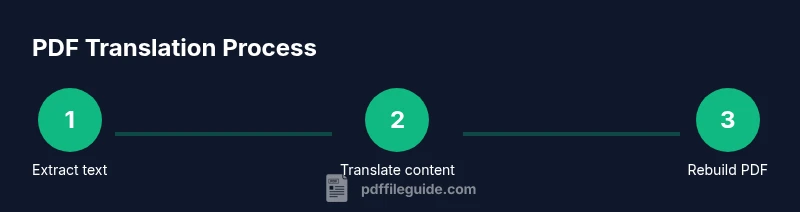
There are three broad routes: direct text translation when the PDF contains selectable text; OCR-based translation for scanned or image-based PDFs; and a hybrid approach that combines extraction, translation, and reassembly. Direct translation is fastest when text is accessible, but fonts and layout can drift if you copy-paste into a translation tool. OCR produces editable text from images, but accuracy depends on print quality and language; post-OCR cleaning is often necessary. Hybrid workflows balance speed and fidelity by extracting text with OCR only where needed and using professional editing for complex sections. This block also discusses when to use machine translation versus professional services, and how to evaluate translation quality with side-by-side checks. PDF File Guide recommends validating translated content with native speakers for critical documents. The decision matrix should consider whether you require exact formatting, legal terminology, or sector-specific vocabulary, and how much time you can allocate to proofreading.
Pre-translation checks and accessibility considerations
Before translating a PDF, verify permissions, licensing, and any contractual limitations to reuse content. Ensure you have access to the original fonts or plan to embed fonts in the new document to preserve appearance. Accessibility matters: if the PDF is intended for screen readers, maintain tagged structure and meaningful alt text. If your audience includes assistive technology, you may need to generate a tagged English PDF from the start or perform post-processing to restore semantic structure. Create a short glossary for recurring terms to keep translations consistent, and decide whether you will maintain the original page order or adopt a new reading flow. Planning these steps ahead reduces surprises during translation and makes QA much more efficient.
Handling different types of PDFs: native text vs scanned images
Native text PDFs store characters in a selectable form; translating them typically involves exporting or copying content into a translation tool, then returning the translated text to the document. Scanned PDFs require OCR (optical character recognition) to produce editable text before translation. OCR quality varies by language, font, and scan clarity; plan for manual post-editing to correct misrecognized characters, punctuation, and layout. For scientific or technical PDFs, verify that specialized terminology is translated consistently and that units of measure are preserved. If the source uses complex tables, you may need to reconstruct the table in your editor before re-embedding it into the final PDF to maintain readability. Finally, ensure font support for the target language to avoid boxes or misrendered characters.
QA practices to ensure accuracy and formatting
Quality assurance is essential when you translate a pdf to english. Compare the translated document against the source to check for mistranslations, missing sections, and broken formatting. Validate numbers, dates, and names across languages, and test navigation features like bookmarks and hyperlinks. Verify that fonts render correctly and that the new document preserves columns, headers, and footers. If the PDF includes images with captions, translate the captions and update alt text where appropriate. Involve a second reviewer, ideally a native English speaker, to catch context and tone issues. Create a checklist that covers terminology consistency, layout fidelity, and cross-reference accuracy, and perform a final pass focusing on punctuation, capitalization, and hyphenation.
Practical workflow options for different needs
For quick turnarounds, use direct text translation with a light post-edit and minimal formatting adjustments. For complex documents with tables, graphs, and multilingual elements, combine OCR for nontext elements with careful manual editing, then rebuild the PDF to preserve fidelity. If you must meet strict branding or regulatory requirements, consider a professional translation service with a documented QA process. Always maintain an auditable trail of changes and preserve original metadata where possible. The choice of workflow should reflect your quality requirements, timeline, and budget, and should be testable on a small sample first. When in doubt, start with a small, representative page to validate formatting and terminology before expanding to the full document.
Authority sources
- Library of Congress: PDF accessibility and OCR basics. https://www.loc.gov
- National Library of Medicine: Translating and preserving medical documents. https://www.nlm.nih.gov
- Nature: Language and scientific communication standards. https://www.nature.com
Tools & Materials
- Computer or workstation with internet access(For running OCR, translation tools, and PDF editing software)
- Original PDF file(Keep a non-password-protected copy for editing)
- OCR software or service(To convert image-based PDFs into editable text)
- Translation tool or service(Machine translation or professional translation platform)
- PDF editor or typesetting tool(For recreating the translated document and preserving layout)
- Glossary template(Helps maintain term consistency across the document)
Steps
Estimated time: 60-120 minutes
- 1
Identify content type
Examine the source PDF to determine whether it contains selectable text or if it is image-based. This decides whether you can translate directly or need OCR first. If the document includes tables or graphics, map their locations for later re-creation.
Tip: If unsure, copy a sentence to confirm text selectability before choosing a workflow. - 2
Prepare the file for translation
Remove passwords or restrictions, confirm licensing, and gather fonts or font substitutions needed for the target language. Create a glossary of key terms to ensure consistency during translation.
Tip: Keep a backup of the original file in a separate folder to protect against data loss. - 3
Extract or OCR the text
If text is selectable, export or copy the text into a translation environment. If not, run OCR to generate editable text and then correct obvious misrecognitions before translating.
Tip: After OCR, run a quick spell-check to catch common recognition errors. - 4
Translate the content
Translate the extracted text using your chosen MT tool or professional service. Preserve headings, labels, and figure captions; keep numbering intact where relevant.
Tip: Spot-check critical terms with your glossary to avoid drift in meaning. - 5
Rebuild the PDF with translated text
Import translated text into a PDF editor, reassemble layout, adjust fonts, and restore navigation aids like bookmarks and links. Ensure spacing and alignment resemble the original as closely as possible.
Tip: Use consistent font sizes and line spacing to maintain readability. - 6
QA and final delivery
Compare translated output with the source for accuracy, verify numbers and dates, and test interactive elements. Have a native English reviewer proofread, then finalize the document for delivery.
Tip: Document changes and maintain an audit trail for regulatory or branding needs.
Questions & Answers
What does it mean to translate a PDF to English?
Translating a PDF to English involves converting all text content from the source language into English while preserving formatting, layout, and navigational elements as much as possible.
Translating a PDF to English means turning the text into English while trying to keep the look and feel of the original.
Can I translate a PDF without OCR if it has selectable text?
Yes. If the PDF text is selectable, you can extract it directly and translate. OCR is only needed for image-based PDFs.
If the text is selectable, you don’t need OCR—just extract and translate.
How can I preserve layout after translation?
Rebuild the translated text in the PDF editor, keeping font choices, spacing, and column structure. Use a stylesheet or template to maintain consistency.
Rebuild the text in a PDF editor, matching fonts and layout closely.
Is machine translation reliable for legal or medical PDFs?
Machine translation alone is rarely sufficient for high-stakes documents. Always involve a domain expert or professional editor for accuracy.
MT alone isn’t enough for legal or medical PDFs; get a professional editor involved.
What tools should I use for OCR?
Choose OCR tools that support your language, have good accuracy, and offer post-editing features. Test on a sample page first.
Pick a language-supporting OCR tool and test it on a sample page.
How long does a typical PDF translation take?
Time varies by document complexity, length, and required QA. Plan for a staggered approach: extract, translate, rebuild, and review.
It varies, but expect a few hours for a sizeable document with QA.
Watch Video
Key Takeaways
- Plan a clear translation workflow before starting
- Choose methods based on content type (native vs scanned)
- QA with native speakers to ensure accuracy
- Preserve layout and typography during rebuild
- Maintain an auditable change trail for compliance