How to Convert Documents into PDF
Learn how to convert documents into PDF across desktop, mobile, and web. This guide covers built-in export features, print-to-PDF options, and third-party tools, with best practices for preserving layout, fonts, and accessibility. PDF File Guide provides clear, step-by-step instructions for professionals.


By the end of this guide you'll be able to convert any document to PDF using desktop software, mobile apps, or web tools. You’ll learn when to use built-in export, printer-based conversion, or dedicated converters, plus best practices for preserving layout, fonts, and accessibility. No special hardware required—just a file to convert and the right tool.
Why Convert to PDF (for Professionals)
According to PDF File Guide, PDFs are the most reliable format for sharing, printing, and archiving documents across devices and operating systems. They preserve layout, fonts, and imagery, ensuring your work looks the same whether opened on a phone, tablet, or desktop. For legal, academic, and business workflows, PDFs enable consistent review, commenting, and long-term accessibility. PDF File Guide’s analysis highlights that teams save time when they standardize on PDF for external communications, proposals, and finalized reports. When you convert a document to PDF, you reduce versioning chaos and improve compatibility with downstream systems like document management, e-signatures, and archiving.
Beyond mere readability, PDFs support accessibility features, metadata, and search indexing. Planning your conversion approach—considering source format, required fidelity, and downstream use (print, web, or e-signature)—will reduce rework. In practice, you’ll often blend several methods: export from the source app for fidelity, then use a PDF printer for convenience or batch processing. The goal is a reliable, repeatable process that minimizes font substitution, layout shifts, or color misrepresentation across devices.
Core Methods to Create PDFs
There are three core pathways to creating PDFs: (1) built-in export from the source app, (2) printing to a PDF using a virtual printer, and (3) dedicated PDF conversion tools or online services. Built-in export is ideal for preserving document structure like headings, tables, and images. Print-to-PDF is universally available on modern operating systems and is great for quick captures from any printable document. Dedicated tools offer advanced features such as batch processing, OCR for scanned documents, color management, and PDF/A archival options. PDF File Guide analysis shows that most professional users rely on a combination of these methods depending on the document type, security requirements, and whether they need OCR or accessibility tagging.
Desktop Tools: Built-in Export from Common Apps
Many word processors and office suites include a native Save as PDF or Export to PDF option. In Microsoft Word, you can go to File > Save As and choose PDF, selecting whether to export the entire document or a selection. Google Docs provides Download > PDF Document, which preserves basic formatting and hyperlinks. For spreadsheets, slides, or multi-page reports, the same Export workflow generally applies, with attention to page size, margins, and embedded fonts. macOS users can also use the system-level Print dialog and click Save as PDF to create a PDF from any printable file, ensuring a simple, universal approach without additional software. Always verify the resulting PDF in a separate viewer to confirm fonts, images, and layout remained intact.
Mobile Conversions: iOS and Android Workflows
On iOS devices, many apps expose a Share option that includes Print; from the Print dialog, you can pinch-out to reveal a PDF and then Save to Files or share the new PDF. Android devices typically offer a Print or Save as PDF option within the app’s print dialog or through the system printer settings. These mobile workflows are invaluable for travelers or fieldworkers who need quick, paperless copies. When possible, keep fonts embedded and use standard fonts to improve cross-device fidelity. If you work with sensitive data on mobile, prefer offline conversions to avoid cloud processing.
Web-Based Converters: Convenience with Privacy Considerations
Online converters can be fast and simple for ad-hoc needs, especially when you don’t have the source software installed. Drag-and-drop a document, choose PDF as the output, and download the result. However, privacy and data handling are crucial: avoid uploading confidential information to unknown services, and review the site’s privacy policy and retention practices. For regular conversions, prefer reputable services or offline desktop apps. Online tools can also offer OCR, but ensure you understand the data flow and potential access permissions before use.
Best Practices for Preserving Layout, Fonts, and Accessibility
To maintain fidelity, embed fonts when possible, enable color management, and select appropriate image compression settings. For archival and long-term access, consider PDF/A-2 or PDF/A-3 standards and use metadata to describe document content. Accessibility considerations include tagging document structure (headings, lists), providing alternative text for images, and ensuring keyboard navigability. If you plan to share externally, run accessibility checks or a short WCAG audit to identify potential issues. PDF File Guide emphasizes that a thoughtful preparation stage—choosing the right method and settings—reduces later rework and improves user experience.
Troubleshooting Common Issues in PDF Conversion
If fonts substitute unexpectedly, try exporting with embedded fonts or selecting a higher-quality font subset. When layout shifts occur, adjust page size, margins, and DPI settings before exporting. For scans and images, OCR can improve searchability and accessibility, but accuracy depends on image quality; clean scans or adjust brightness and contrast before conversion. If hyperlinks or bookmarks don’t carry over, verify that the export option preserves interactive elements and, if needed, manually recreate them in the destination PDF.
Security and File Integrity: Keeping Your PDFs Safe
Security-conscious professionals often password-protect PDFs and enforce permission restrictions (printing, copying, editing). When sharing sensitive files, consider applying encryption, redaction for confidential content, and storing PDFs in a trusted location with proper access controls. For version control, include metadata like author, creation date, and document status. If you need tamper-evidence or long-term preservation, explore using signatures and PDF/A compliance to ensure document authenticity and legibility across generations.
Quick-Start Checklist to Convert Documents to PDF
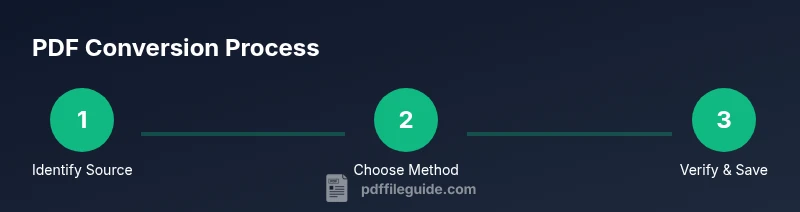
- Identify the source document and determine the required fidelity. - Choose a conversion method (export, print-to-PDF, or online tool). - If needed, enable OCR for scanned documents. - Embed fonts and select appropriate image quality. - Verify the resulting PDF on multiple devices. - Apply security settings if sharing sensitive data. - Save with a clear, versioned filename and metadata.
Tools & Materials
- Source document (e.g., .docx, .xlsx, .pptx, .txt, image files)(Keep an original copy to avoid data loss during experimentation with settings.)
- Device with PDF creation capability (Windows, macOS, iOS, Android)(Any device that can run the source app or a PDF printer/export feature.)
- PDF printer or built-in export feature(Examples: Save as PDF, Print to PDF, or Export to PDF.)
- Optional OCR tool for scanned documents(Use when source is an image or scan without selectable text.)
- Web browser or dedicated PDF converter app (optional)(Use for quick online conversions or when local tools aren’t available.)
- Internet connection (for online converters)(Needed only if using cloud-based services.)
Steps
Estimated time: Estimated total time: 25-60 minutes
- 1
Identify the source document
Locate the file you need to convert and confirm it is the final version. If you anticipate changes, work on a copy to preserve the original. Verify that the content is complete and properly formatted before starting the conversion process.
Tip: Use a clearly named file and note the conversion date for version control. - 2
Choose the conversion method
Decide whether to export from the source app, print to PDF, or use a dedicated converter. Export preserves structure better in word processing apps; Print-to-PDF is universal across apps; Online converters are convenient but require caution with private data.
Tip: If preserving hyperlinks and bookmarks matters, start with the app’s built-in export option. - 3
Prepare the document settings
Set page size, margins, and orientation. Ensure fonts are embedded if available, and select a resolution suitable for your target use (screen viewing vs. print). For scanned documents, enable OCR when needed.
Tip: Aim for a consistent page size (e.g., A4/Letter) across the document to avoid reflow. - 4
Perform the conversion
Execute the export or print-to-PDF action. If using OCR, run it after the initial conversion if the app supports it; otherwise, use a dedicated OCR tool on the resulting PDF.
Tip: Review the export settings: include metadata and bookmarks if available. - 5
Verify the output
Open the PDF in a different viewer to check fonts, images, hyperlinks, and layout. Confirm that selectable text is accurate if OCR was applied. Check accessibility tagging if required.
Tip: Test on multiple devices (desktop, tablet, phone) to spot device-specific rendering issues. - 6
Apply security and metadata
If sensitive, apply password protection or restrictions. Add metadata (title, author, keywords) for easier indexing and retrieval.
Tip: Limit permissions to prevent copying or editing when used for distribution. - 7
Save with a clear naming convention
Use a consistent, versioned filename (e.g., ProjectName_v2_2026-03-15.pdf). Save a backup copy if the document will undergo revision.
Tip: Keep a separate folder for final versions and drafts to avoid confusion. - 8
Archive or share
Store the PDF in a secure location or share via a trusted channel. If archiving, consider PDF/A compliance for long-term accessibility.
Tip: When sharing, include a short note about permissions and purpose.
Questions & Answers
What is the simplest way to convert a document to PDF on Windows or macOS?
Most apps offer a built-in 'Export as PDF' or 'Save as PDF' option. You can also use the system Print dialog and choose 'Save as PDF' as a universal method. This approach works across many file types and preserves basic formatting.
Use Save as PDF or Print to PDF in your app or OS. This works for most document formats.
Which method preserves layout and hyperlinks best?
Exporting from the original application (e.g., Word, Google Docs) typically preserves layout and links better than some online converters. Verify the final PDF by checking bookmarks and hyperlinks in a PDF viewer.
Export from the original app to keep layout and links intact; always verify in a viewer.
Do I need to pay for PDF conversion tools?
Many applications offer free built-in PDF exports. Paid tools exist for batch processing, OCR, and advanced features, but for most everyday tasks, free options suffice. Assess your needs before purchasing.
Free exports work for common tasks; paid tools add batch processing and OCR if needed.
Is it safe to upload documents to online converters?
Online converters can be convenient but pose privacy risks for sensitive documents. Use reputable services and avoid uploading confidential material unless you trust the provider. Offline tools are safer for sensitive content.
Be cautious with sensitive data; offline tools are safer.
Can I convert scans to searchable PDFs?
Yes, with OCR enabled. OCR recognizes text in images and turns it into selectable, searchable text. The accuracy depends on image quality and language settings.
Yes, enable OCR to make scanned documents searchable.
How can I convert multiple files to PDF at once?
Many desktop apps and some online services offer batch conversion. Use a batch workflow to save time, but review each output for consistency, especially fonts and images.
Look for batch conversion options to save time, then verify results.
Watch Video
Key Takeaways
- Choose the right conversion method for fidelity.
- Embed fonts and check metadata for discoverability.
- Test across devices to verify consistent rendering.
- Apply security measures for shared PDFs.