How Do You Make a PDF? A Complete 2026 Step-by-Step Guide
Learn practical, step-by-step methods to make a PDF from any document in 2026. Export, print to PDF, or convert images and webpages with best-practice settings for reliable sharing.


To make a PDF, start from your source document in any app, then export or print to PDF, or use a dedicated converter. You can also convert images, webpages, or other formats. Before saving, adjust settings like page size, orientation, and quality, name the file, and choose a destination to finalize the PDF.
What is a PDF and why make one?
A PDF, or Portable Document Format, preserves fonts, layouts, and images across devices. It’s ideal for sharing final versions of reports, manuals, forms, and e-books. According to PDF File Guide, PDFs streamline collaboration because the file looks the same whether opened on a phone, tablet, or desktop. This consistency reduces back-and-forth adjustments and keeps your content professional across platforms. From a professional standpoint, PDFs ensure that your work is viewed as intended, regardless of software differences. For people who edit, convert, and optimize PDFs, understanding when to generate a PDF—and which method to use—can save time and avoid rework in the long run.
Methods to create a PDF: exporting, printing, and converting
There are several reliable methods to create a PDF, depending on the source material and tools you have. Most word processors (Word, Google Docs) offer a built-in Export or Save as PDF option. You can also use Print to PDF as a universal method when a direct export isn't available. For images, webpages, or unsupported formats, conversion tools (or browser-based converters) can generate a PDF swiftly. PDF File Guide analysis shows that embedding fonts and preserving layout consistently yields the most reliable results across devices and apps. Regardless of method, always preview the result to confirm margins, fonts, and image fidelity before finalizing. For teams and individuals who frequently produce PDFs, having a consistent workflow matters as much as the tool you choose.
Practical workflow: from source to final PDF
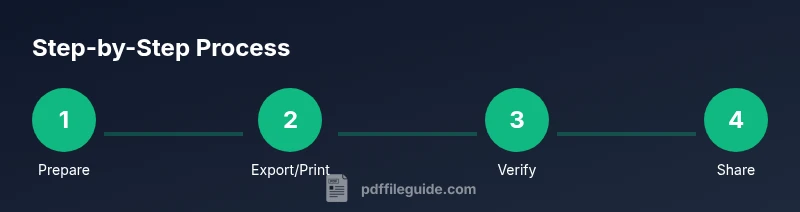
Most professional documents begin as a source file in a word processor or as a collection of images. The general workflow to produce a clean, shareable PDF involves selecting a creation path, configuring the document properties, exporting or printing to PDF, and validating the result across devices. In practice, you will often start with a draft in Word or Google Docs, then switch to a PDF workflow for final distribution. According to PDF File Guide, the strongest PDFs preserve typography and layout when fonts are embedded and color profiles are preserved. Keep a standard folder structure for outputs and version control to avoid overwriting previous revisions. This approach ensures a consistent appearance in print and digital channels, reduces back-and-forth corrections, and makes collaboration smoother.
Tools & Materials
- Word processor (e.g., Microsoft Word, Google Docs)(Create and format the source document before export.)
- Built-in PDF export/Save as PDF option(Use File > Export or File > Save as PDF when available.)
- PDF printer driver (optional)(Install if your app lacks a built-in export.)
- Web browser(Useful for saving webpages as PDF.)
- Image editor or viewer (optional)(Helpful for preparing images before converting to PDF.)
- Secure sharing tool (optional)(If needed, plan password protection or permissions.)
Steps
Estimated time: 45-60 minutes
- 1
Open the source document
Launch the file you want to convert and review the content for accuracy. Check that fonts are legible and images are properly cropped before exporting. If you’re starting from multiple sources, gather all assets in a single folder to streamline the workflow.
Tip: Close unnecessary apps to minimize distractions and reduce the chance of missing content. - 2
Choose the creation method
Decide whether to export, print to PDF, or convert from another format. Exporting from the source app preserves most formatting; printing to PDF is a universal fallback; conversion is best for mixed content. Consider your audience and device compatibility when choosing a method.
Tip: If your app offers a “PDF/A” or “high-contrast” option, enable it for archival or accessibility needs. - 3
Configure document settings
Set page size (A4 or Letter), orientation, margins, and image quality. If images are embedded, ensure compression keeps readability without inflating file size. Consider embedding fonts to preserve typography across devices.
Tip: Embed fonts whenever possible to prevent font substitution on readers’ devices. - 4
Preview and adjust
Review the PDF preview for layout, hyperlinks, and image fidelity. Test print settings if the document will be printed. Make any necessary tweaks before final saving to avoid rework later.
Tip: Use a second device to verify how fonts and images render on different screens. - 5
Save, name, and organize
Choose a descriptive filename and a logical folder path so others can locate the file easily. Save a copy for archival purposes and consider creating a version number for revisions.
Tip: Use a consistent naming convention like ProjectName_VersionDate.pdf. - 6
Test across devices and share
Open the PDF on at least two devices or apps to ensure compatibility. If sharing publicly, consider accessibility tagging and secure sharing options.
Tip: Check links and interactive elements on mobile devices as well as desktop.
Questions & Answers
What is a PDF and why should I use it?
A PDF is a Portable Document Format that preserves layout, fonts, and images across devices and apps. It’s ideal for distributing final versions of documents without altering formatting.
A PDF keeps your formatting intact, no matter what device or program someone uses to view it.
Can I create a PDF from almost any app?
Yes. Most apps offer a built-in export-to-PDF option, and many support Print to PDF or conversion workflows for mixed content.
Most apps can create PDFs via export or print-to-PDF, or by converting content.
What’s the difference between exporting to PDF and printing to PDF?
Export to PDF saves the file with the app’s native handling of fonts and layout, while Print to PDF uses the system printer driver to generate the document. Both produce a PDF, but fidelity can vary by tool.
Exporting typically preserves fonts and layout, while Print to PDF relies on system drivers; test both if fidelity matters.
How do I password-protect a PDF?
Many editors and PDF tools offer password protection and permission controls. Set a strong password and define what recipients can do (view, edit, print).
Yes, you can password-protect PDFs and set permissions to control access.
How can I make a PDF accessible for screen readers?
Tag the document, provide descriptive alt text for images, and ensure reading order is logical. Accessibility features improve usability for all readers.
You can make PDFs accessible by tagging content and providing alt text and proper reading order.
Watch Video
Key Takeaways
- Identify the best PDF creation method for your source.
- Verify page size, orientation, and quality before saving.
- Embed fonts to preserve typography
- Password-protect or restrict sharing when needed
- Test the PDF on multiple devices before distribution