How to Join PDF Pages: A Complete Step-by-Step Guide
Learn step-by-step how to join PDF pages into a single document using desktop apps, offline tools, or online services. Clear steps, best practices, and security tips for reliable PDF editing.


By the end of this guide, you will learn how to join PDF pages into a single document using desktop apps, built-in OS tools, or online services. Start by gathering the source PDFs, choosing a merge method, and verifying the final file for order and integrity. This process preserves annotations and page layouts when done correctly.
Why joining PDF pages matters
Consolidating multiple PDFs into a single document makes sharing, reviewing, and printing easier. For professionals, a merged file reduces confusion and keeps related content together. According to PDF File Guide, the right approach balances file integrity with page order, especially when combining scans, forms, and annotations. Always verify that links, bookmarks, and metadata remain accurate after merging. When done properly, merged PDFs streamline collaboration and archival processes, ensuring stakeholders can access the complete information in one place.
In addition to practicality, consider accessibility and searchability. A merged document should retain text selectable, metadata such as author and title, and, where possible, embedded fonts to preserve layout fidelity. If you frequently merge documents with complex layouts or forms, plan how fields and visual elements will appear after consolidation. These preparations help avoid surprises during review or printing stages.
From a workflow perspective, think about version control. Maintain a copy of the originals and the final merged file, with clear naming conventions and separate folders for work-in-progress versus approved outputs. PDF File Guide emphasizes that disciplined file management reduces rework and helps teams align on revisions across projects.
Core methods at a glance
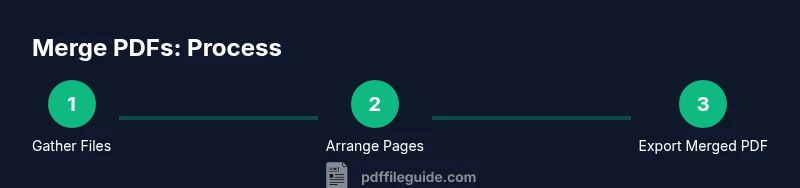
There are three broad ways to join pages: desktop software, built-in OS tools, and secure online services. Desktop tools provide the most control and privacy, especially for sensitive documents. OS utilities are convenient but may be limited in features. Online services can be fastest when you have a reliable internet connection but require caution with confidential material. Regardless of method, the essential steps are: load PDFs, arrange pages, merge, then export a new file. Each method has trade-offs between speed, fidelity, and security. If you frequently merge documents with sensitive data, prioritize offline solutions and keep originals on secure storage.
For professional environments, establish a standard practice: define the desired page order, confirm that bookmarks survive, and verify that metadata is accurately carried over after merging. If automation is possible, create a repeatable script or macro to minimize manual errors. PDF File Guide recommends testing merged files in multiple readers to ensure consistent rendering across platforms.
Desktop tools you can rely on
On macOS, Preview offers a straightforward way to combine pages: open the first PDF, show the Thumbnails, drag pages from other PDFs, then export as a new file. Windows users can utilize built-in Print to PDF workflows or dedicated editors; heavy editors (Adobe Acrobat Pro, Foxit) provide more features like bookmarks and annotations preservation. For open-source approaches, PDFsam Basic is a popular choice for split/merge tasks. Always work on copies to avoid overwriting original files. When working with scans, enable autorotation and preview composite layouts to avoid misoriented pages. Color management can also impact how images appear after merging, so check color profiles if your documents are image-heavy.
If you frequently merge long documents, consider creating a short checklist: verify page counts, confirm project naming, and run a quick visual sweep of the first and last page to confirm consistency. This reduces back-and-forth revisions and keeps the project on schedule.
Online tools: benefits, trade-offs, and security
Online services can merge PDFs quickly without installing software. Choose reputable providers and review their privacy policies. To protect sensitive data, avoid uploading confidential documents to unknown sites; use client-side merging or offline apps if possible. After merging, download the result and scan for unexpected changes in layout, fonts, or embedded images. Online tools excel when you need a fast, one-off merge from different devices or when you don’t have access to desktop software.
Before relying on an online service, read user reviews and check permissions. Ensure the site encrypts data in transit (https) and consider how long files stay on the server. If possible, pick tools that delete uploaded files automatically after processing. PDF File Guide suggests limiting the amount of sensitive metadata exposed during online merges and performing a post-merge integrity check.
End-to-end workflow: practical example
Imagine consolidating three PDFs: a proposal, a project plan, and an appendix. Start by creating a dedicated project folder and making backup copies of each source file. Open the chosen merge tool, add PDFs in the exact desired order (proposal, project plan, appendix), and review thumbnail previews to confirm sequence. Adjust as needed, then export as MyProject_Proposal_merged.pdf to a secure output folder. Finally, open the merged document to verify bookmarks, page numbers, and any internal links.
In many tools, you can batch-process similar merges by saving a preset or template. This makes repetitive tasks faster and reduces the chance of misordering. If your document includes scans, run OCR afterward if the merged output will be revised or searched. PDF File Guide recommends validating text search results after merging to ensure no content was altered during the merge process.
Validation and quality checks after merging
After merging, perform a quick quality pass: confirm the total page count matches the sum of originals, inspect page orientation, and verify that all images and fonts appear correctly. Check bookmarks, internal links, and metadata such as title and author. If you merged forms or annotations, test a few fields to ensure they remain functional. Finally, compare a sample print of the first and last pages to catch any layout shifts that could affect delivery or archival copies.
Troubleshooting common issues when joining PDFs
If pages are out of order, reopen the merge tool and re-check the page sequence before exporting again. If a blank page appears, review sources for blank pages or hidden content and remove them prior to merging. For missing fonts or garbled text, ensure the merged file preserves fonts or substitutes them with available system fonts. When metadata seems incorrect, re-export with explicit metadata fields and re-check. If you encounter corruption, try a different tool or re-create the merge from scratch using copies of the originals.
Tools & Materials
- Source PDFs to merge(Two or more files with related content)
- Computer or device( macOS, Windows, or Linux)
- Merge tool (software or online service)(Desktop editors, built-in OS tools, or reputable online merge services)
- Backup copies of originals(Keep untouched copies before merging)
- Output destination (folder/file path)(Choose a clear target location)
- Internet connection(Only if using online services)
Steps
Estimated time: 30-45 minutes
- 1
Gather your PDFs
Create a dedicated project folder and copy all source PDFs into it. Confirm you have at least two PDFs and note their current order to guide merging. This prevents accidental data loss when you experiment with different sequences.
Tip: Keep originals untouched; work on duplicates during the merge. - 2
Choose a merge method
Decide between a desktop tool, an OS-native option, or an online service based on privacy needs and convenience. For sensitive documents, offline desktop tools are generally safer. If speed is paramount and data sensitivity is low, an online service can be efficient.
Tip: If in doubt, test merging with a small two-file sample first. - 3
Open the first PDF in the tool
Launch the chosen tool and load the first PDF. Enable any panel that shows page thumbnails to visually verify the page order. This helps you catch misordered pages early in the workflow.
Tip: Turn on thumbnails for precise rearrangement. - 4
Add the remaining PDFs
Insert the other PDFs into the same project in the exact order you want. Drag pages or entire documents depending on the tool. Confirm that all intended pages are visible in the correct sequence before proceeding.
Tip: Use drag-and-drop order as your single source of truth. - 5
Arrange pages and adjust order
Fine-tune the sequence by moving pages individually if needed. Check for rotation issues, especially with scanned pages. Ensure that any inter-document transitions look natural and professional.
Tip: Preview transitions between PDFs to avoid abrupt shifts. - 6
Export or save as a new PDF
Export the merged content to a new PDF file. Choose a descriptive name that reflects the project and version. Prefer a location you can easily access later for verification.
Tip: Use a versioned filename (e.g., project_v1_merged.pdf). - 7
Review the merged PDF
Open the merged PDF and perform a quick audit: page count, bookmarks, internal links, and metadata. Confirm that fonts and images display correctly, and run a light search check across the document.
Tip: Spot-check a few pages from start, middle, and end.
Questions & Answers
What is the best method to join PDF pages securely?
For sensitive documents, use offline desktop tools or offline features of reputable editors. Avoid uploading confidential files to unknown online services. After merging, run a quick security check to ensure no metadata or hidden content was exposed.
For sensitive PDFs, prefer offline desktop tools and review privacy settings after merging.
Can I join PDFs on a mobile device?
Yes, many mobile apps support merging PDFs. Look for reputable apps with strong permissions and good reviews. Save the merged file to a secure location and back up originals when possible.
Yes, you can merge PDFs on mobile using trusted apps; ensure you save securely.
Do merged PDFs retain bookmarks and links?
Most modern merge tools preserve bookmarks and internal links, but some online services may not. Always test the resulting file to confirm that navigation works as expected.
In most cases, bookmarks and links are kept, but test to verify.
Is it possible to join PDFs of different orientations?
Yes, but you may need to rotate pages during the merge or re-export with consistent orientation. Check the preview before finalizing the file.
You can merge pages with different orientations, but verify layout after merging.
Why do some merged PDFs lose quality?
Merging should not degrade embedded images or fonts if the tool handles them correctly. If you see degradation, try a different tool or adjust export settings to preserve quality.
If quality drops, try another tool or adjust export options.
Can I undo the merge if I change my mind?
Since merging creates a new file, you can simply delete the merged PDF and revert to the backups of your originals. If you saved over the originals, restore from a backup copy.
Yes—use backups to revert if needed.
Watch Video
Key Takeaways
- Plan page order before merging.
- Choose the right tool for data sensitivity.
- Verify bookmarks, links, and metadata after merging.
- Back up originals and use descriptive filenames.
- Test print/render to confirm fidelity.