How to Remove Pages from PDF: A Complete Step-by-Step Guide
Learn how to remove pages from PDF efficiently using desktop editors, macOS Preview, and online tools. This comprehensive guide covers best practices, safety tips, and troubleshooting.


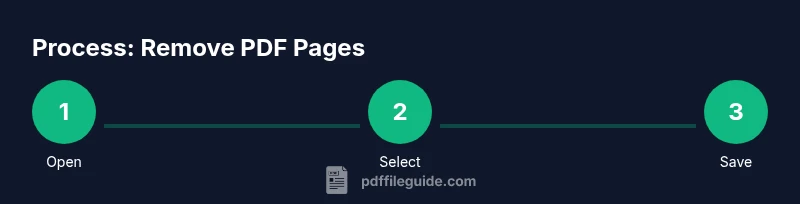
You can remove pages from a PDF by deleting or extracting them in a PDF editor or converter, then saving a new file. Start by selecting the pages to delete, confirm the action, and save a fresh copy. According to PDF File Guide, always back up the original before editing.
Why removing pages from a PDF is a common task
Removing pages from PDFs is a routine operation in professional document workflows. You might need to strip out blank pages, irrelevant sections, or pages containing sensitive data before sharing a file. The goal is to produce a clean, focused document that communicates exactly what you intend. This task appears across legal, education, finance, and publishing contexts, where concise PDFs support faster review and distribution. When done correctly, page removal preserves formatting, layout, and readability while reducing file size and improving navigability. For those learning how to remove pages from pdf, the logic is simple: identify the pages you don’t need, eliminate them, and verify the result. This approach helps maintain a professional impression and minimizes confusion for readers.
Understand the different methods: browser-based viewers, desktop editors, and online tools
There are multiple pathways to remove pages from a PDF, and the best choice depends on your file type, security needs, and the tools you have access to. Browser-based viewers are quick for small edits but often lack robust page-management features. Desktop editors (such as Adobe Acrobat Pro, Foxit, and Nitro) offer reliable, precise control and preserve internal structures like bookmarks and hyperlinks.
Step-by-step: removing pages in Adobe Acrobat Pro DC
Adobe Acrobat Pro DC is a common choice for professionals. Open your PDF and navigate to the Organize Pages tool. You’ll see page thumbnails; click to select the pages you want to remove. Use the Delete option, or choose Extract to create a new document containing only the selected pages. Save As to create a fresh copy instead of overwriting the original. After removal, re-check page numbers and ensure that any linked navigation remains accurate. If your PDF has security restrictions, you may need the document password or appropriate permissions to modify it. This workflow benefits from a careful backup and a test run on a duplicate file.
Step-by-step: removing pages with
Step-by-step: removing pages with free online tools
Online tools can quickly remove pages from PDFs without installing software. Upload your file, select the pages to delete, and download the edited document. For sensitive content, avoid cloud editors unless you trust the service and understand its privacy policy. After editing, download the new PDF and compare it side-by-side with the original to confirm that only the intended pages were removed and that the remaining pages are intact.
How to remove multiple pages efficiently using batch processing
If you need to remove many pages, batch processing can save time. Many editors support specifying a page range (for example, 3-7, 10-12) to delete or extract. In batch mode, you can often apply the same operation to several documents in a single queue. This approach is especially helpful for compiling clean project briefs, reports, or legal documents where consistent page removal across multiple files is required. Always verify the integrity of each resulting document after batching.
Special cases: removing pages from scanned PDFs, OCR, and preserving metadata
Scanned PDFs are often images rather than text, which means removing a page may require different handling. If a page is part of an OCR-processed document, ensure that the OCR layer remains accurate after removal. In all cases, preserve metadata such as bookmarks, annotations, and accessibility tags when possible. If bookmarks reference removed pages, you may need to update the outline
How to avoid common pitfalls: accidentally deleting content, links, or bookmarks
Back up before editing and work on a duplicate file. Be mindful that removing pages can disrupt internal links, cross-references, or navigation panes. If your PDF contains forms or interactive elements, test that they still function after removal. When in doubt, remove pages incrementally and validate the document after each step to prevent large rework.
Verify the results: how to confirm the PDF is correct after removal
After removing pages, verify the document by counting pages, searching for key terms, and checking links and bookmarks. Ensure the page order makes sense and that no essential content was accidentally removed. If you have accessibility requirements, re-check that structure and tagging remain intact. A quick sanity check can catch issues before sending or archiving the file.
Security and privacy considerations when using online tools
If you opt for online services, choose reputable providers with strong privacy policies and data handling practices. Avoid uploading highly sensitive documents unless there is a trusted enterprise solution with end-to-end encryption. If possible, perform page removal offline and keep a local backup to minimize risk.
Alternatives and troubleshooting: when removal isn’t straightforward
If removing pages isn’t feasible, consider alternatives such as splitting the PDF into two files (one with the desired content, one with the rest) or creating a new PDF that assembles only the needed pages. If pages cannot be removed due to restrictions, you may need to remove the password, adjust permissions, or consult your document administrator. Troubleshooting steps include trying different tools, updating software, and ensuring the file isn’t corrupted.
Tools & Materials
- A PDF editor with page-management features (delete/extract/organize pages)(Examples: Adobe Acrobat Pro DC, Foxit PhantomPDF, Nitro Pro)
- Backup storage(External drive or cloud storage to preserve the original file)
- Web browser or internet connection (for online tools)(Only if you choose online services; ensure privacy settings are acceptable)
- Password access (for protected PDFs)(Needed if the PDF has restrictions or is password-protected)
- A note-taking method (optional)(Record the page ranges you removed for audit purposes)
Steps
Estimated time: 30-45 minutes
- 1
Open the PDF in your editor
Launch your chosen tool and load the document you want to edit. If the file is large, give it time to fully render before making changes.
Tip: Ensure you have permission to modify the document; for password-protected PDFs, enter the password if prompted. - 2
Access page management
Navigate to the page management area (often labeled Organize Pages, Page Thumbnails, or Tools > Pages).
Tip: If thumbnails aren’t visible, enable the pane that shows page previews to simplify selection. - 3
Select the pages to remove
Click or drag to select the pages you want to delete or extract. For ranges, use the range selection feature if available.
Tip: Double-check the selected pages to avoid removing content you need. - 4
Delete or extract the pages
Choose Delete to remove pages in place or Extract to create a new PDF containing the selected pages.
Tip: If you extract, save the new file with a clear name to distinguish it from the original. - 5
Save a new copy
Use Save As to preserve the original file and create a fresh version with the changes.
Tip: Avoid overwriting the original during the learning process. - 6
Check page order and navigation
Review the remaining pages to ensure proper order and that links, bookmarks, and captions still make sense.
Tip: Test navigation manually by clicking on bookmarks or table-of-contents entries. - 7
Verify content integrity
Search for key terms and visually scan for missing content that should remain, especially around section breaks.
Tip: If content appears misplaced, revert to the backup or re-run the operation on a copy. - 8
Handle metadata and accessibility
Check that metadata, tagging, and accessibility features are still intact or adjust as needed.
Tip: Some editors offer an Accessibility checker—run it to catch issues. - 9
Finalize and document changes
Record what pages were removed and keep the original for audit trails. Share the edited file only when appropriate.
Tip: Keep a changelog for compliance and future reference.
Questions & Answers
Can I remove pages from a password-protected PDF?
Yes, if you have the password and permission to modify the document. Use a tool that supports unlocking or editing protected PDFs, or remove the password if allowed.
Yes, you can, as long as you know the password and have permission to edit.
Will removing pages affect bookmarks or hyperlinks?
Removing pages can shift bookmarks and links. After removal, review and repair any broken navigation in the document.
Yes, check and adjust bookmarks and links after pages are removed.
What if the document is a scanned PDF?
For scanned PDFs, ensure you’re removing the correct page as it may be an image. If OCR layers exist, verify text search still works after removal.
For scanned PDFs, confirm you removed the correct page and verify OCR remains valid.
Is it safer to remove pages offline rather than online?
Offline editing avoids uploading sensitive data. Use trusted desktop software for sensitive documents, and reserve online tools for non-confidential edits.
Offline tools are generally safer for sensitive documents.
What are practical alternatives if I can't remove pages?
Consider splitting the PDF into needed pages or creating a new document that compiles the required content, then discard or archive the rest.
If removal fails, split or reassemble the document to keep only needed content.
Key Takeaways
- Back up the original PDF before editing
- Choose the right removal method for your file type
- Verify bookmarks/links after removal
- Consider batch removal for large documents
- Respect privacy when using online tools