How to Make an Image a PDF: Step-by-Step Guide
Learn practical methods to convert any image to a PDF, using built-in tools, offline software, or online converters, with quality tips and troubleshooting to ensure crisp, correctly sized PDFs.


You can turn an image into a PDF in a few straightforward ways: use built-in OS features like Print to PDF, choose a dedicated converter app, or use online services. Start with selecting the image, ensure correct orientation and resolution, then save or export to PDF. This guide covers offline, online, and automated options.
Understanding image-to-PDF conversion
Converting an image to a PDF is a common workflow for archiving, sharing, and printing. A PDF preserves layout and appearance across devices, which is especially helpful when images come from cameras, scanners, or design apps. When you convert, you effectively embed the image(s) into a fixed-page container with a defined page size and orientation. The result should look the same whether opened on a smartphone or a desktop monitor. According to PDF File Guide, the most important levers are image resolution, color depth, and page size. If you start with a high-resolution source (for photos, 300 DPI or higher is typical), you’ll retain sharpness in the PDF. If you’re converting text-heavy images or scans, consider OCR capabilities and searchable text options to improve accessibility. In short, the goal is to balance fidelity with file size, while ensuring the final document is easy to view and print.
Why converting images to PDF improves sharing and archiving
Images saved as PDFs ensure consistent formatting, which reduces surprises when the file is opened on another device or shared with colleagues. PDFs maintain page layout, avoid font substitutions, and support compression settings for file size control. For professionals who manage large document sets, converting to a single PDF per batch or per project simplifies organization. PDFs also enable easier integration with workflows that rely on document security, annotations, and digital signatures. When done well, an image-to-PDF file becomes a portable artifact that preserves the integrity of the original image while streamlining distribution. PDF File Guide analysis shows that using the correct page size and orientation early in the process minimizes the need for later edits and re-exporting.
Methods at a glance
There are three broad paths to convert an image to PDF: built-in tools (operating system features), offline software (dedicated applications), and online converters (web-based services). Built-in tools are quick for single-image tasks and don’t require extra software. Offline tools offer more control over output settings and batch processing, which is helpful for multi-image projects. Online converters provide convenience when you’re away from your own device or need to generate a PDF from multiple images without installing software. Each method has trade-offs in terms of speed, privacy, and quality. The rest of this article dives into each approach with best practices and practical tips.
Using built-in OS tools: Print to PDF on any platform
Most modern operating systems ship with a native way to export content as PDF. On Windows, you can use the Print dialog and choose 'Microsoft Print to PDF' or a similar option.
Offline software options for image-to-PDF
Offline software gives you more control over the final PDF. Look for features like batch processing, page order, margins, compression, and color management. Free programs often support single-image exports to PDF, while paid tools may offer advanced optimization, OCR, and font embedding. Before exporting, preview the PDF at 100% zoom to verify how pixels map to printer dots and adjust the DPI if necessary. If you’re converting screenshots or screen captures, consider disabling unnecessary color profiles to reduce file size without noticeably affecting quality. In practice, a well-configured offline workflow reduces the risk of privacy breaches associated with online converters.
Online converters: convenience with caveats
Online tools are convenient when you’re away from your devices or need a quick single-file solution. They generally accept common image formats (JPG, PNG, TIFF) and return a PDF file you can download. Important considerations include privacy, data retention, and file size limits. If the image contains sensitive information, avoid uploading it to public servers or use a trusted service with clear privacy terms. For best results, choose an online tool that allows you to specify page size, orientation, and quality. After download, verify the PDF’s integrity by opening it with a viewer and checking that the image covers the entire page without cropping.
Quality settings and best practices for image-to-PDF exports
Quality hinges on DPI, page size, and compression. A standard print-quality PDF uses around 300 DPI for photographic content and 150-200 DPI for simple graphics to balance size and clarity. Choose a page size that matches the source image (A4 or Letter are common choices). When compressing, avoid overly aggressive settings that cause banding or blockiness. If color accuracy matters, ensure the color profile is preserved, or convert to
Automating the process with simple scripts for repeatable results
Automating the workflow helps maintain consistency across large batches. A lightweight approach uses scripting languages like Python with libraries such as Pillow or img2pdf to convert images into PDFs programmatically. You can set defaults for page size, margins, and image order, then run the script on a folder full of images. This minimizes manual steps and reduces human error. For teams, storing the script in version control and adding a small command-line interface makes the process scalable and auditable. Remember to test on a sample set before processing your entire library.
Troubleshooting common issues and quick fixes
If your PDF shows black bars or unexpected margins, re-check the page size and image orientation before export. Rotations and crops in the original image may persist in the PDF; fix orientation beforehand. For color issues, ensure the source image is in the correct color space (
A practical end-to-end workflow: from image to final PDF
Imagine you have two photographs and a screenshot that you want in one PDF for a client presentation. Start by ensuring all images are oriented correctly and cropped consistently. Choose your method (OS tool, offline app, or online service) and set the page size to a standard like A4. Import the images in the desired order, adjust orientation and margins, and export as a single PDF. Open the result to verify alignment, color, and compression. If you need to share publicly, consider applying mild compression and removing any metadata that isn’t essential. This end-to-end workflow keeps the process predictable and repeatable for future projects.
Tools & Materials
- Device with access to the source image(Computer, tablet, or smartphone)
- Image file(s) in common formats (JPEG, PNG, TIFF)(Prefer non-compressed sources for best quality)
- Web browser or PDF export tool(Needed for online tools or built-in OS functionality)
- Optional: dedicated PDF software(For advanced settings like OCR and font embedding)
Steps
Estimated time: 15-25 minutes
- 1
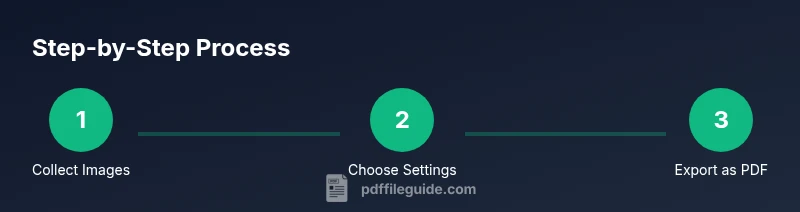
Collect and organize images
Gather all images you want in the PDF and place them in the desired order. Check orientation and cropping to ensure a clean page presentation.
Tip: Create a temporary folder named 'Images for PDF' and sort by intended page order. - 2
Choose your target settings
Decide on page size (A4 or Letter), orientation (portrait/landscape), and desired image quality before exporting.
Tip: If in doubt, start with A4 portrait and adjust later. - 3
Open your conversion tool
Launch the chosen method (OS Print to PDF, offline app, or online converter).
Tip: Verify the tool supports batch export if you have many images. - 4
Import or load images
Add images in the order you want them to appear in the final PDF. Ensure no images are skipped.
Tip: Use a single document for multi-image exports to keep order intact. - 5
Adjust page and image settings
Set margins, alignment, and any color management options. Preview each page to catch layout issues.
Tip: Enable 'fit image to page' only if you want no borders. - 6
Export or save as PDF
Choose a clear filename and destination. Select the appropriate PDF quality/size option.
Tip: Keep an uncompressed master copy of the images for future edits. - 7
Review the final PDF
Open the PDF in a viewer, check page order, orientation, and image sharpness. Correct any issues if needed.
Tip: Zoom to 100% to inspect detail and compression artifacts. - 8
Archive and share
Store the PDF alongside related documents and share securely if required.
Tip: If sensitive, avoid uploading to untrusted online services.
Questions & Answers
What image formats can be converted to PDF?
Most common formats like JPEG, PNG, TIFF, and BMP can be converted. Some tools also accept GIF and RAW images. Check your tool’s supported formats if you have an unusual file type.
Most common image formats can be converted, including JPEG, PNG, and TIFF. If you have an unusual file type, verify support in your chosen tool.
Can I combine multiple images into a single PDF?
Yes. Most methods let you arrange images in a specific order and export them as one PDF file with each image on its own page or combined as a collage per page.
Yes, you can combine multiple images into one PDF, controlling the order and page layout.
Is online conversion safe for confidential images?
Online tools offer convenience but pose privacy risks. For confidential material, use offline tools or services with strong privacy policies and data retention controls.
Online converters can be convenient, but avoid uploading sensitive images; use offline tools for confidential material.
Will the resulting PDF preserve image quality?
Quality depends on DPI and compression settings. Higher DPI and careful compression preserve detail, but may increase file size.
Quality depends on resolution and compression; higher DPI preserves detail but yields larger files.
Can I convert a PDF back to an image?
Yes, most tools provide export or save-as-image options for individual pages, useful for sharing excerpts.
Yes, you can convert PDF pages back to images using export features in many tools.
What page size should I choose for images?
Choose a standard size like A4 or Letter that matches your printing needs and source images to avoid extra margins.
Pick A4 or Letter as the standard page size to align with printing needs.
Key Takeaways
- Choose the right method for your needs (offline vs online).
- Set page size and DPI before exporting to control quality and file size.
- Always review the final PDF to catch layout or color issues.
- Security matters: avoid uploading sensitive images to unknown online converters.