How to Make HTML to PDF: A Practical Guide
Learn reliable methods to convert HTML to PDF, covering client-side printing, server-side rendering, and headless browser approaches. This educational guide walks you through setup, print-friendly CSS, tooling, and troubleshooting for crisp, publication-ready PDFs.


You can convert HTML to PDF by choosing a method that suits your environment: client-side printing, server-side rendering, or headless browser techniques. The most reliable results come from controlled print styles and a capable renderer. This guide outlines practical steps, tools, and best practices to produce high-quality PDFs for professionals.
Why HTML to PDF matters
HTML to PDF is a fundamental task for sharing, printing, and archiving web content. When you convert, you preserve layout, typography, and links, which is essential for official documents, invoices, and reports. According to PDF File Guide, careful planning of the output—choosing a method, setting print rules, and validating results—improves fidelity and reduces rework. In real-world projects, you’ll encounter quick one-off conversions and large-scale pipelines; the approach you choose should scale and stay predictable across devices. A thoughtful strategy also considers accessibility, semantic structure, and the ability to reproduce the same result with updated content. By the end of this section, you’ll understand when to use which path and what constraints to expect, so you can proceed with confidence.
Core approaches to HTML-to-PDF conversion
There are three broad approaches to HTML-to-PDF conversion, each with trade-offs in fidelity, speed, and complexity. The client-side approach relies on the browser's print rendering and CSS print rules, which keeps logic on the user's machine and requires minimal server setup. Server-side rendering moves the work to the backend, enabling centralized control, batch processing, and automation. Headless browsers—such as Puppeteer or Playwright—combine the flexibility of server-side control with the ability to emulate real browsers. PDF output quality depends on the rendering engine, font embedding, image handling, and how you apply print-specific CSS. PDF File Guide emphasizes testing across scenarios and keeping your CSS print-friendly to minimize surprises when the document is rendered as a PDF.
Client-side printing: when it makes sense
Client-side printing uses window.print() or similar browser APIs to generate a PDF via the native print dialog. This method is quick for ad-hoc jobs and small content sections, and it leverages the browser's rendering pipeline. To improve results, you should provide a dedicated print stylesheet with @media print rules that hide nonessential UI, adjust margins, and ensure images scale correctly. If your audience frequently prints from diverse devices, keep the CSS robust and avoid relying on external fonts that might not embed in all environments. PDF File Guide notes that fidelity often hinges on precise print CSS and predictable font rendering.
Server-side rendering: when to use it
Server-side rendering centralizes the conversion process, allowing you to process many HTML documents in a single workflow. This path is ideal for automated pipelines, branded documents, and archives. You typically expose an API or batch queue that feeds HTML into a rendering service or library, which outputs a PDF. The server can apply consistent print settings, fonts, images, and headers/footers. If you need automation, consider building a small microservice with a rendering library or an off-the-shelf solution. PDF File Guide Editorial Team suggests validating outputs against a reference and maintaining versioned templates for consistent results.
Headless browsers: Puppeteer, Playwright, and friends
Headless browsers give you full programmatic control over rendering, allowing fine-grained options for page size, margins, headers/footers, and font embedding. They are powerful for complex documents and automated workflows, yet require scripting and environment setup. Start by installing a headless tool, then write a script that loads your HTML, waits for resources to finish, and exports to PDF with explicit options (format, margins, scale). For teams, this approach combines reliability with automation potential. PDF File Guide Editorial Team highlights that the best setups test with representative pages to catch layout or font issues early.
Print-friendly HTML: crafting CSS for PDF output
To achieve predictable PDFs, design HTML with a print-focused mindset. Use a dedicated print stylesheet or @media print blocks to hide navigation, adjust layout, and control typography. Tip: define page margins with @page, set font embeddings, and ensure images use max-width: 100% so they render cleanly. Avoid screen-driven effects like fixed positioning that can translate awkwardly to print. When done well, a single HTML source renders cleanly across browsers and rendering engines, reducing surprises in the PDF stage.
How to test and verify PDF quality
Testing is essential to ensure the HTML-to-PDF conversion meets expectations. Validate layout fidelity, font embedding, image quality, and link integrity. Compare PDFs against a reference document and check accessibility attributes where appropriate. Use both automated checks and human review for a robust quality gate. PDF File Guide Analysis, 2026, also recommends documenting test cases and keeping versioned outputs to track regressions over time.
Automating the workflow for repeatable tasks
For repeated conversions, automate the pipeline with scripts, templates, and scheduled jobs. Create a repeatable sequence: gather HTML, apply print CSS, render with your chosen method, and save the PDF with a meaningful name convention. Version-controlled templates help maintain consistency as content evolves. Automation reduces manual errors and accelerates delivery in production environments.
Common pitfalls and how to avoid them
Common issues include missing fonts, low image resolution, and content shifting between HTML and PDF. Ensure fonts are embedded or subsetted, images are high-resolution and properly scaled, and that long pages wrap correctly. Avoid relying on dynamic content loading at print time without proper waiting logic in your rendering step. Regularly test edge cases, such as long tables or nested lists, and fix upstream HTML/CSS before converting.
Accessibility considerations for PDFs from HTML
Accessible HTML often translates better into accessible PDFs. Use semantic HTML, meaningful heading structures, alt text for images, and proper table markup. When rendering, verify that the PDF preserves heading order and alt text, and consider tagging for screen readers. This alignment helps ensure your PDFs are usable by a wider audience and compliant with accessibility standards.
Choosing the right toolchain for your project
Your toolchain should reflect the project size, delivery speed, and team expertise. Small teams may benefit from client-side or simple server-side solutions, while larger organizations often rely on headless browsers or enterprise rendering services for consistency. Start with a concrete test page, document the chosen method, and iterate based on feedback. In all cases, a print-friendly HTML baseline is the foundation for reliable PDF outputs.
Tools & Materials
- Web browser capable of printing (Chrome, Edge, Firefox)(Ensure print to PDF option is available and consistent across tested browsers)
- HTML/CSS source files(Fully styled page with clear print rules)
- Local web server or file access(Needed for server-side or headless rendering workflows)
- Headless browser tool (e.g., Puppeteer, Playwright)(Install via npm; supports programmatic rendering)
- PDF rendering library or tool(Examples include Puppeteer, wkhtmltopdf, PrinceXML)
- Print stylesheet (CSS) with @page rules(Controls margins, headers/footers, and font handling)
- Optional: command-line or package manager(For automation and scripting)
Steps
Estimated time: Estimated total time: 60-120 minutes
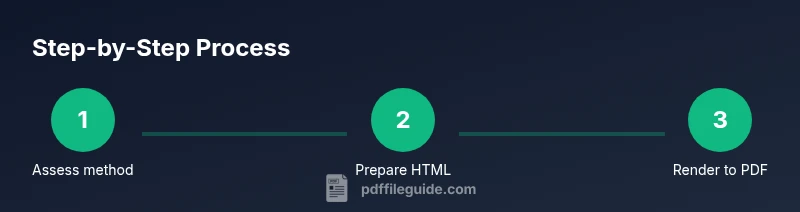
- 1
Assess method
Evaluate whether client-side printing, server-side rendering, or a headless browser best fits your project scope and deployment constraints. Consider factors like automation needs, audience, and environment access.
Tip: Start with a small pilot page to compare fidelity across methods. - 2
Prepare HTML
Ensure your HTML is well-structured with semantic elements and clean CSS. Create a print-specific CSS block that hides navigation and optimizes typography and spacing for print.
Tip: Use @media print to isolate print styles from screen styles. - 3
Create print CSS
Develop a dedicated print stylesheet or inline @media print rules that set page size, margins, and font handling. Include @page margins and font embedding settings where supported.
Tip: Test font rendering in PDF by embedding fonts and using web-safe fallbacks. - 4
Implement client-side printing
If choosing client-side, add a print trigger (button) that calls window.print() and advise users on expected results. Keep the content minimal for reliable rendering.
Tip: Provide a visible print preview if possible to adjust before printing. - 5
Set up server-side rendering
Configure a server route or service to accept HTML input and return a PDF. Apply consistent print settings and ensure fonts/images load reliably on the server.
Tip: Log rendering outcomes to catch repeated failures early. - 6
Configure headless rendering
Install Puppeteer or Playwright and write a script that loads HTML, waits for resources, and exports PDF with defined page size and margins.
Tip: Use explicit wait conditions to avoid incomplete renders. - 7
Tune rendering options
Choose PDF options like format (A4/Letter), margins, scale, and header/footer content. Validate that headers/footers render consistently.
Tip: Test varying scales to find the best balance between legibility and fit. - 8
Test and verify
Open the produced PDFs in multiple viewers and devices. Check fonts, images, table layouts, and link integrity. Compare against a reference document.
Tip: Document discrepancies and adjust HTML/CSS accordingly. - 9
Automate the workflow
Create scripts or npm tasks to run the chosen method end-to-end, including input validation and file naming conventions.
Tip: Add CI checks to ensure reproducibility across builds. - 10
Address accessibility
Ensure headings, alt text, and semantic structure translate to the PDF and remain readable by assistive technologies.
Tip: Tag PDFs for accessibility when possible and document any gaps. - 11
Document and finalize
Create a short internal guide detailing which method to use for specific scenarios and how to reproduce the results.
Tip: Store templates and sample outputs for future reference.
Questions & Answers
What is the easiest way to convert HTML to PDF?
For small, ad-hoc tasks, client-side printing with a dedicated print stylesheet is quickest. For scalable workflows, headless browser or server-side rendering provides consistency and automation.
For quick tasks, try client-side printing; for repeatable workflows, consider headless browsers or a server-side render.
Can CSS print rules affect PDF output?
Yes. CSS print rules directly influence margins, font sizes, and element visibility in the PDF. Proper @media print blocks help keep content legible and aligned.
Yes, CSS print rules have a strong impact on PDF layout.
Does this work offline?
Client-side printing works offline if all resources are cached. Server-side and headless approaches require a running environment or server access.
Client-side can work offline if the content is cached; server-based options need a server.
Which toolchain is best for large documents?
Headless browser workflows or dedicated rendering services scale well and offer automation, but require scripting and environment maintenance.
For large docs, headless or a dedicated renderer scales well.
How can I add headers and footers to the PDF?
Headers and footers are configured via the PDF rendering options or CSS-based approaches in headless renderers. You can include page numbers, dates, or document titles.
Use renderer options or CSS to add headers and footers.
What about accessibility in the PDF?
Preserve semantic HTML and alt text, and verify that PDFs are tagged properly where possible. Accessibility may vary by renderer.
Keep headings and alt text; check tagging in the PDF.
Is there a recommended starting point for beginners?
Begin with client-side printing and a strong print CSS baseline. Once stable, explore headless or server-side options for automation.
Start with client-side printing, then scale up to headless or server-side as needed.
Watch Video
Key Takeaways
- Choose the method that fits your workflow and scale.
- Create print-friendly HTML with clear CSS print rules.
- Test across browsers and devices for fidelity.
- Automate for repeatable, reliable PDF generation.
- Consider accessibility when exporting HTML to PDF.