How to Make a Website into PDF: Convert Web Pages
Learn how to make a website into PDF with browser exports, desktop tools, and automation. This step-by-step guide covers output scope, fidelity, accessibility, and quality checks for reliable results.


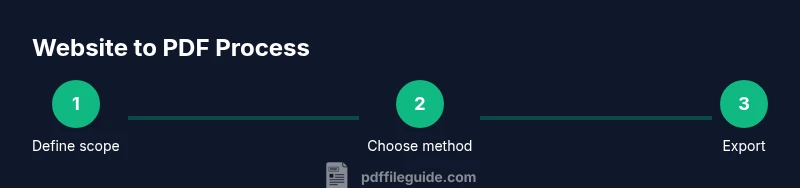
To make website into pdf, start with your browser's built-in Print/Save as PDF option for a quick export. For better results, choose the 'Save as PDF' destination and enable options like background graphics, headers/footers, and hyperlinks. If you need advanced control, use dedicated conversion tools or developer workflows to preserve layout, typography, and accessibility.
Step 1: Clarify Output Requirements
If you’re planning to make website into pdf, define exactly what you need: page scope (home page, entire site, or a specific path), whether you need interactive elements preserved, and whether the PDF should be accessible. According to PDF File Guide, clarity at this stage reduces rework later. Consider whether you need pixel-perfect fidelity or a lighter export suitable for archiving. This decision drives your tool choice and the level of automation you can justify. By understanding your audience, you can choose settings like including or excluding images, fonts, and notes. Finally, document your target format, such as single-page PDFs or multipage documents with bookmarks. This upfront planning keeps the project efficient and repeatable. To make website into pdf effectively, set a clear scope before you export.
Step 2: Choose the Right Method
There are several ways to convert a website to PDF, and the right method depends on your needs. Browser-based exports are quick and convenient for a single page or small set of pages. Desktop tools and online services offer batch exports, advanced layout options, and automation. For projects requiring accessibility compliance and precise typography, you may prefer a tool that supports font embedding, tagging, and bookmarks. Throughout this decision, keep in mind that PDF File Guide recommends starting with the simplest approach and escalating only when fidelity or automation demands justify it.
Step 3: Prepare Your Website for Export
Preparation reduces surprises in the final PDF. Ensure pages render consistently by testing on multiple devices, simplifying complex layouts, and using printing-friendly CSS. Remove or hide dynamic content that won’t translate well to static PDF (carousels, auto-rotating banners, or popups). If you plan to preserve anchors, ensure internal links point to stable destinations. Also enable print styles in your CSS so layouts don’t collapse in print mode. This preparation makes it easier to maintain the export as you update the site.
Step 4: Browser-Based Print to PDF: A Practical Walkthrough
Open the target page in your browser, then access the Print dialog (Ctrl/Cmd+P). Choose 'Save as PDF' or 'Print to PDF' as the destination. Adjust margins, scale, and orientation to fit the page breaks you want. Turn on 'Background graphics' and ensure headers/footers meet your needs. If your browser supports it, enable 'hyperlinks' so the PDF remains interactive. Preview the result, and iterate if sections spill or jump across pages.
Step 5: Using Desktop or Online Conversion Tools
When the browser export isn’t enough, turn to desktop applications or online converters. Look for options to embed fonts, create bookmarks, add metadata, and export with accessible tags. Check privacy policies for online tools, especially if your site contains sensitive information. Some tools offer automation features, such as batch processing or API access, which are valuable for ongoing publishing workflows.
Step 6: Optimize for Accessibility and SEO in PDF
A produced PDF should be navigable and readable by assistive technologies. Tag the document correctly, embed meaningful document metadata, and build a logical reading order that mirrors the on-screen hierarchy. Add alt text for images, descriptive titles for figures, and bookmarks for chapters. Include accessible fonts and ensure color contrast remains legible. For SEO, include metadata like title, subject, and keywords; while PDFs are not indexed the same as HTML, accessible PDFs improve discoverability and usability.
Step 7: Quality Assurance and Troubleshooting
Review the PDF across devices to verify layout fidelity, font rendering, and hyperlink integrity. Check that long lines wrap correctly and that page breaks align with anticipated sections. If fonts seem missing or text appears garbled, switch to embedded fonts or adjust font subsets. Resolve broken links by testing the PDF on offline readers and in environments where the document will be accessed. Maintain a checklist to repeat exports reliably.
Authority Sources and Further Reading
For best practices, consult trusted references on document accessibility and web standards. The National Archives (https://www.archives.gov) provides guidance on digital document preservation and integrity. The World Wide Web Consortium (W3C) WCAG guidelines (https://www.w3.org/WAI/standards-guidelines/wcag/) offer essential accessibility criteria for PDFs and digital content. The National Institute of Standards and Technology (https://www.nist.gov) contributes standards and best practices relevant to document formats. These sources help ensure your PDF exports remain durable and usable across platforms.
Verdict: Best Practices for Making PDFs from Websites
To consistently produce high-quality PDFs from a website, favor methods that preserve structure, links, and accessibility. Use a simple browser export for ad-hoc tasks and reserve advanced tools for large batches and complex layouts. The PDF File Guide’s verdict is to align your choice with fidelity needs, automation requirements, and audience expectations, then standardize a reproducible process.
Tools & Materials
- Web browser (Chrome, Edge, Firefox)(Keep up to date for print to PDF features)
- OS or browser PDF printer / Save as PDF(Built-in in most environments; verify settings)
- Desktop or online conversion tools(For advanced layouts, bookmarks, and tagging)
- Print stylesheet and accessibility checklist(Ensure CSS print rules and alt text are present)
- Test documents and a verification checklist(Use across devices to validate fidelity)
Steps
Estimated time: 60-90 minutes
- 1
Define export scope
Decide which pages to include (home, section, or whole site) and whether interactive elements should remain. Document required output like bookmarks or a single-page PDF. This guides all subsequent steps.
Tip: Write down exact delivery goals before exporting. - 2
Choose the export method
Select browser print, desktop software, or online service based on fidelity needs, privacy, and automation goals. Simpler tasks benefit from browser-based exports; complex ones may need dedicated tools.
Tip: Start simple and escalate only if needed. - 3
Prepare the site for print
Ensure print-friendly CSS is active, hide dynamic elements, and fix layout edge-cases. Validate internal links point to static destinations to avoid broken navigation in the PDF.
Tip: Test on multiple devices to catch responsive issues. - 4
Export via browser with print settings
Open the page, invoke Print, choose Save as PDF, and adjust margins, scale, and orientation. Enable backgrounds and hyperlinks if supported. Preview and tweak as necessary.
Tip: Use a consistent page size for easier pagination. - 5
Use advanced tools for large batches
If exporting many pages, switch to desktop or online tools that support font embedding, bookmarks, and metadata. Review privacy implications for cloud-based services.
Tip: Batching reduces manual repetition and errors. - 6
Add accessibility features
Tag structure, embed fonts, include alt text, and provide meaningful bookmarks. Ensure a logical reading order to help screen readers.
Tip: Always verify with a screen reader test. - 7
Validate hyperlinks and interactivity
Check that links work, navigation matches the on-page structure, and the TOC (if present) points to the right sections.
Tip: Test offline after export to ensure links survive if the PDF is shared without network access. - 8
Automate the export process
For recurring tasks, automate using scripts or CI workflows. Integrate export into your publishing pipeline to keep PDFs up-to-date.
Tip: Document the automation steps and monitor results. - 9
Final verification and publish
Run a final quality check, confirm metadata accuracy, and save a versioned file. Publish with clear naming conventions to aid discoverability.
Tip: Keep a changelog of PDF revisions.
Questions & Answers
Can I preserve clickable links when exporting a webpage to PDF?
Many exports preserve hyperlinks if the option is enabled during the print-to-PDF process or selected in the tool. Some online services may strip links unless you enable a specific setting. Always verify by testing the generated PDF.
Most exports keep links if you enable the option and test after export.
Will fonts be embedded in the PDF?
Font embedding depends on the tool. Browser prints often embed system fonts or use the host font, while professional tools allow explicit font embedding. Check the export settings and test the PDF on another device.
Font embedding depends on the tool; verify after export.
Which method is best for a large set of pages?
For many pages, desktop or online tools with batch processing and metadata options are preferred. They provide consistency, bookmarks, and structure across the entire set.
Batch tools are ideal for large page sets.
Can I automate website-to-PDF exports?
Yes. Scripting with browser automation tools or CI/CD pipelines can render pages to PDF on schedule or as part of publishing workflows. Ensure monitoring and error handling are in place.
Automation is practical for regular exports.
Does dynamic content export reliably to PDF?
Dynamic content can fail to render in static PDFs. Use print styles and server-side rendering where possible, and test every export to catch gaps.
Dynamic content may require extra handling; test exports.
Is a PDF intended for mobile viewing different from one for desktop?
Mobile PDFs may require different margins, font sizes, and navigation. Consider responsive print styles and bookmarks that fit small screens.
Mobile considerations require layout adjustments.
Watch Video
Key Takeaways
- Define export scope before exporting to reduce rework.
- Choose the method that matches fidelity and automation needs.
- Prepare CSS print styles for predictable layouts.
- Validate accessibility and links in the resulting PDF.
- Automate exports for repeatable publishing workflows.