How to Put PDF Into Docs: A Practical Guide
Learn how to put PDF into Docs with embedding, image insertion, and conversion techniques. This educational guide covers Google Docs and Word workflows, plus best practices for preserving layout and accessibility.


Want to put a PDF into Docs? This guide covers three reliable methods: embedding, inserting as an image, and converting the PDF to editable content. It includes step-by-step instructions for Google Docs and Microsoft Word, plus tips to preserve formatting, links, and accessibility.
Why integrating PDFs into docs matters
In many professional settings, PDFs are the source of finalized reports, forms, or manuals. Being able to put a PDF into Docs streamlines collaboration by keeping references, visuals, and data in a single, shareable document. For most teams, the goal is to balance fidelity with editability: you want readers to see the original layout, while still allowing teammates to annotate, search, and adjust content as needed. According to PDF File Guide, choosing the right method—whether embedding, inserting as an image, or converting to editable content—depends on how you plan to use the PDF in the document, the size of the file, and the target audience. This guide uses practical steps and real-world examples to help you master the techniques you’ll reach for most often when you ask, “how to put pdf into docs.”
Quick comparison of methods
There are three common approaches to putting a PDF into a document, each with different trade-offs:
- Embedding (linking to the source): Preserves the ability to open the PDF in a viewer without filling the doc with the PDF content. Best for references or when you want to maintain the original file intact.
- Inserting as an image: Captures exact pages as visuals. Great for preserving layout and graphics, but not ideal for editing text. You can add captions and alt text for accessibility.
- Converting to editable content: Transforms PDF text into flowing document text, allowing full edits. Formatting may shift; some fonts or columns may require cleanup. PDF File Guide notes that conversion is useful when collaboration requires frequent edits.
Choosing among these options depends on fidelity needs, collaboration style, and whether you’ll update the PDF later.
Method A: Embedding a PDF in Google Docs
Google Docs does not support embedding a PDF as a native document object in the same way as images or drawings. However, you can provide access to the PDF by placing a link, or convert the PDF to a Google Docs format for editing. The embedding approach suites workflows where you want readers to access the original file directly from Drive.
Steps you’ll take include uploading the PDF to Google Drive, generating a shareable link, and inserting that link into your Docs document. If you want a more visual reference, consider adding a screenshot of the first page as an image and linking it to the full PDF. The key is to maintain a clean, navigable document while ensuring readers can easily reach the source file when needed.
Method B: Inserting a PDF as an image
This method treats PDF pages as static images within your document. It is ideal when preserving exact visuals, page layout, and graphic fidelity is critical—for example, in annual reports or brochures. You must export the PDF pages as image files (PNG or JPEG) and then insert them into Docs. The result looks like a multi-page montage inside the document. Pros include immediate visual fidelity; cons include limited text search within images and larger file sizes.
- Export PDF pages to image files using your preferred PDF viewer or a conversion tool.
- In Google Docs or Word, go to Insert > Image and upload the exported images in order.
- Arrange page order, adjust image size, and add alt text for accessibility.
Tip: If you only need a single page, export just that page to minimize file size. This approach also works well for client-ready handouts that must look exactly like the source.
Method C: Converting a PDF to editable content
Converting a PDF to editable content is often the quickest route to ongoing collaboration. In Google Docs, you can right-click a PDF stored in Drive and select Open with > Google Docs to generate a new, editable document. In Word, you can use the built-in converter or a PDF-to-Word tool. Be prepared for formatting adjustments: headings, columns, and font choices may shift during the conversion process. After conversion, you can edit text, update charts, and insert new media as needed. PDF File Guide recommends reviewing converted text for accuracy and reapplying accessibility features such as proper heading structure and alt text for images embedded after conversion.
- Pros: high editability and easier collaboration.
- Cons: possible layout changes and font substitutions.
Best-practice tip: convert only the essential sections if the PDF contains complex layouts or tables.
Accessibility and collaboration best practices
When you place a PDF into a docs environment, accessibility should be a priority. Use semantic headings, descriptive link text, and alt text for any images or embedded content. If you convert a PDF, review the resulting document for readable structure, proper alt text, and keyboard navigability. For collaborators, provide a short note explaining which method you used and why it’s suitable for the current task. Remember to keep the source PDF in a consistent location (such as a shared Drive folder) so team members can access updates.
Troubleshooting common issues when adding PDFs to Docs
If a PDF doesn’t appear as expected, check the file size, page count, and whether you’ve used the correct method (embedding vs image vs conversion). Large PDFs can bloat documents; prefer linking or selective conversion for those cases. When formatting seems off after conversion, use the Docs styling tools to reapply headings, bullet lists, and font choices. If an image export is blurry, export at a higher resolution or use vector-friendly formats where available. Finally, confirm recipients can access the source PDF by testing link permissions in Drive.
Advanced tips: maintaining links, annotations, and updates
For long-lived documents, keep a master PDF repository and reference updated versions via links. Use Drive’s version history to monitor changes and re-check permissions. When annotating, prefer comment threads in Docs rather than modifying the original PDF, so you preserve the original file while capturing feedback. If you must embed content from a PDF into Docs, consider creating a table of contents with anchor links to key sections for quick navigation. Keeping these practices helps you stay organized and efficient when you repeatedly need to put PDFs into docs.
Tools & Materials
- Computer with internet access(Stable connection recommended for uploading and syncing files)
- Google Docs or Microsoft Word(Access to Google Drive or Office 365 account)
- PDF file to insert(Keep an organized source file)
- PDF viewer/editor(Needed if you plan to export pages as images or convert for editing)
Steps
Estimated time: 15-25 minutes
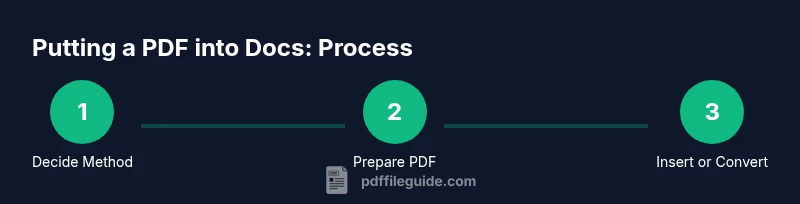
- 1
Decide the best method
Review the PDF’s content and your collaboration needs. Choose embedding (link to source), inserting as an image, or converting to editable text based on fidelity vs. editability.
Tip: If unsure, start with conversion for editability and test on a small section first. - 2
Open the target document
Launch Google Docs or Word and open the document where the PDF will appear. If you’re using Google Docs, ensure the file is saved in Drive for easy linking or conversion.
Tip: Keep a consistent naming convention for easy retrieval. - 3
Insert or link the PDF
For embedding, insert a link to the PDF in Drive. For image insertion, export PDF pages as images and place them in order. For conversion, use Open with Google Docs or a Word converter.
Tip: Use descriptive anchor text for links to improve accessibility. - 4
Adjust layout and accessibility
Tweak image sizes, apply heading styles, and add alt text to images. Ensure the document’s outline reflects the added content for screen readers.
Tip: Test with a screen reader to verify navigation flow. - 5
Save, review, and share
Save changes, review the final layout, and share with teammates. If you converted, recheck for any formatting inconsistencies.
Tip: Include a brief note on which method was used and why.
Questions & Answers
Can I embed a PDF directly in Google Docs?
Google Docs does not support embedding a PDF as a native object. You can link to the PDF stored in Drive or convert the PDF to an editable Google Docs document. If you need visuals, you can insert PDF pages as images after exporting them.
Google Docs doesn't embed PDFs directly. You can link the PDF in Drive or convert it to Google Docs; for visuals, export pages as images and insert them.
What happens to formatting when I convert a PDF to editable content?
Conversion preserves many elements but can shift layouts, fonts, and spacing. You may need to adjust headings, columns, and bullet styles after the process.
Converting a PDF to editable text can shift formatting, so expect some cleanup after conversion.
Is it possible to edit a PDF after embedding or linking it?
Editing a PDF itself isn’t possible inside Docs when you embed or link. To edit, convert the PDF to an editable Docs/Word file first, then update the document.
You can edit content only after converting the PDF to an editable format, not by clicking inside an embedded file.
How can I link to a PDF instead of embedding it?
Upload the PDF to a shared Drive folder, copy the shareable link, and paste it in your Docs. Use descriptive anchor text to clarify what the link points to.
Upload the PDF to Drive, copy the link, and paste it into your document with clear link text.
Are there file size limits when embedding PDFs into Docs?
There isn’t a hard, universal size limit for a linked or embedded reference in Docs, but large PDFs can affect performance. Consider linking to the source for very large files.
There aren’t exact size limits, but very large PDFs can slow things down; linking is a practical workaround.
Can I remove or replace the embedded PDF later?
Yes. You can delete the embedded image, update the link, or rerun the conversion. If you replace the source, update the Docs to reflect the new file.
You can replace or remove the embedded content easily; just update the source or the linked content accordingly.
Watch Video
Key Takeaways
- Decide method based on fidelity vs. editability
- Link, image, or convert depending on use-case
- Review accessibility and document structure after insertion
- Test across devices to ensure consistent viewing
- Keep source PDFs organized and versions tracked