How to Put PDF into Word Document: A Step-by-Step Guide
Learn practical methods to insert a PDF into Word via embedding, converting, or image insertion. A thorough, professional guide by PDF File Guide.


You can insert a PDF into a Word document by embedding the file as an object or by converting the PDF pages into editable Word content. Essential steps include: 1) Insert > Object > Create from File to embed a PDF (shows an icon). 2) Open the PDF with Word (File > Open > PDF) to convert it to editable text. 3) For visuals, insert PDF pages as images. This provides flexible options depending on whether you need editing or simple viewing.
Why you might want to put a PDF into Word
When you’re preparing a report, proposal, or training material, you often need to blend content from PDFs with native Word formatting. If you’re wondering how to put pdf into word document, there are practical routes that preserve readability, maintain layout, and keep file sizes reasonable. According to PDF File Guide, many professionals rely on two main approaches: embedding the PDF as an object for quick access, or converting the PDF pages into Word-friendly content for full editing. The right choice depends on your goals: do you need readers to annotate, or do you want to edit the text and images directly? If you’re sharing the document with others who may not have the original PDF, conversion to editable Word content can save time; if you want to preserve the exact look of the source, embedding may be best. In this guide we’ll cover both paths, plus best practices for keeping fonts, images, and tables intact. Before you start, verify the PDF's fonts and permissions; some PDFs are restricted and cannot be opened or copied. Also consider whether you need the embedded PDF to be editable or simply viewable. The PDF File Guide team emphasizes that each method has trade-offs, so understanding your goal will help you pick the right workflow.
Methods at a glance
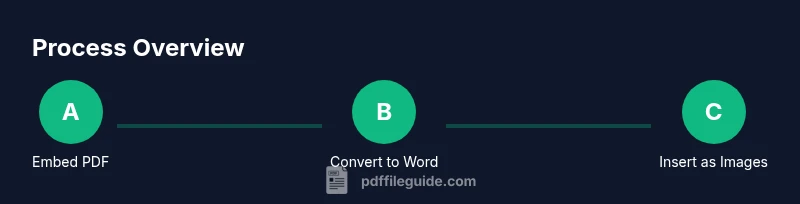
There are three common routes to bring PDF content into Word: 1) Embed the PDF as an object for quick access, often seen as an icon that opens the original PDF; 2) Convert the PDF to Word so you can edit text and images directly; 3) Insert PDF pages as images to preserve layout while keeping Word a light editor. Each method has advantages: embedding is fast and keeps the PDF intact; conversion offers full editability but may require post-conversion cleanup; image insertion preserves visuals perfectly but increases document size. The best approach depends on your goals, the size of the PDF, and how much editing you need afterward. PDF File Guide notes that in many professional workflows, a hybrid approach—embedding one or two critical pages and converting the rest—delivers both accessibility and editability.
Embedding the PDF as an Object
This method inserts the entire PDF file as a single object in the Word document. Start by placing the cursor where you want the PDF reference, then choose Insert > Object > Create from File. Browse to your PDF, select it, and click OK. Word will insert a clickable icon by default; you can uncheck Display as icon to show the first page preview instead (varies by version). Advantages: the original PDF remains intact and can be opened with a double-click; disadvantages: the embedded file increases the Word document size and observers cannot edit the PDF content from Word without reopening the PDF. If you’re sharing with collaborators who only need to view, this method is ideal. Note: some older Word versions handle embedded PDFs differently, so test on your target platform.
Converting the PDF to Word editable content
Word includes a built-in conversion feature that attempts to translate PDF content into editable Word text and objects. To use it, open Word, go to File > Open, select the PDF, and let Word convert it. The result appears in a new Word document; you can save it as a .docx. This route is best when you need to edit the text, adjust fonts, and reflow layouts. Expect some formatting to shift—headers, columns, and images may require cleanup afterward. If the PDF contains scanned pages, you may see OCR results; if you don’t have OCR, you may need to run OCR with dedicated software. PDF File Guide suggests checking the converted document line by line and correcting spacing, hyphenation, and table boundaries.
Inserting PDF pages as images
If maintaining the exact visual appearance is critical, convert each PDF page to an image and insert the images into Word. You can export each page to PNG or JPEG from your PDF viewer or use Adobe Acrobat’s Export tool. In Word, use Insert > Pictures to add the images and place them in order. This method ensures that fonts, colors, and layouts remain faithful, but it inflates the file size and makes text non-editable. To minimize impact, compress images and use the smallest acceptable resolution. For long PDFs, consider splitting content into sections, using page breaks, and adding alt text to images for accessibility.
Practical tips for preserving formatting
When combining PDFs with Word, tiny formatting glitches are common. Use Paste Special with Keep Source Formatting when bringing text from a PDF after conversion. Use consistent fonts (ideally the same font across source and Word) and check paragraph spacing. If you’re embedding, turn off "Display as icon" only if you want readers to see a preview; otherwise they’ll have to double-click. For image insertions, choose high-contrast thumbnails and enable alt text. Always run a final proof to verify that headers, footers, and page numbers align across sections. PDF File Guide recommends testing the document on multiple devices to ensure readability and accessibility.
Compatibility and limitations
The effectiveness of these methods depends on your Word version and operating system. Word's PDF-to-Word conversion is strongest in recent Office releases, while embedding works consistently across platforms with only minor differences in how the object appears. Large PDFs may dramatically increase the Word file size, and the conversion process might misinterpret complex tables or multi-column layouts. If fonts used in the PDF aren’t installed on the target machine, the converted text may look off. Accessibility can also suffer if images are used without alt text or if headings aren’t tagged properly. This is why you may want to keep a copy of the original PDF alongside your Word document for archival purposes.
Troubleshooting checklist
- Confirm the PDF isn’t password-protected; password-protected PDFs cannot be embedded or opened for conversion without permission. - If embedding, ensure Word has permission to access the PDF’s location and that you’re saving in a compatible format. - If conversion produces garbled text, try a higher-quality PDF or use an alternative converter; then re-check for formatting issues. - If images appear blurred, reduce image size on export or adjust resolution. - If you need searchability, prefer converting text rather than embedding; you can run OCR on scanned PDFs before converting. - If workbook includes tables, inspect and manually re-create any complex structures after conversion.
AUTHORITY SOURCES
- Adobe. PDF Open Parameters. https://www.adobe.com/content/dam/acom/en/devnet/acrobat/pdfs/pdf_open_parameters.pdf
- Microsoft Word Support. Insert or open PDFs in Word. https://support.microsoft.com/en-us/office/insert-a-file-as-an-object
- National Archives. PDF/A: An ISO standard for long-term preservation. https://www.archives.gov/preservation/formats/pdf-a
Tools & Materials
- Word processor (Microsoft Word 2016/2019/365 or equivalent)(Ensure you have a recent version for best PDF handling features)
- PDF file to import(Keep a print-ready copy as backup)
- Adobe Acrobat or a reliable PDF viewer (optional)(Helpful for image export and page-by-page capture)
- Images editor or OCR software (optional)(Useful if converting scanned PDFs to editable text)
- External font library (optional)(Useful if the PDF uses fonts not installed on your system)
Steps
Estimated time: 30-60 minutes
- 1
Prepare your files
Gather the PDF you want to place into Word and the Word document you’ll be editing. Save copies in a known folder to minimize path errors. Check if the PDF is password-protected and note any fonts that may not render correctly.
Tip: Back up both files before starting to prevent data loss. - 2
Choose your method
Decide whether you need editable text, perfect visuals, or quick access. Embedding preserves the original PDF; conversion yields editable content; image insertion preserves appearance with larger file size.
Tip: If you’re unsure, start with a small, representative page to test the outcome. - 3
Embed the PDF as an object
Place the cursor where you want the reference, then go to Insert > Object > Create from File, select the PDF, and insert. Decide whether to Display as icon or show a preview.
Tip: Use the icon option if you want a clean document; otherwise a preview helps readers know what’s inside. - 4
Convert the PDF to Word
Open Word, choose File > Open, pick the PDF, and let Word convert it. Save as .docx and review every section for misaligned formatting.
Tip: Expect some edits; focus on headers, tables, and bullets that often shift during conversion. - 5
Insert PDF pages as images
Export PDF pages as images (PNG/JPEG), then Insert > Pictures in Word and arrange in order. Add alt text for accessibility and consider image compression.
Tip: Use the smallest acceptable resolution to keep file size manageable. - 6
Review and refine
Check fonts, margins, spacing, and page breaks across the entire document. Ensure link integrity and that any embedded files open as expected.
Tip: Run a final proof on a different device to catch display issues.
Questions & Answers
Can I edit text after converting from PDF to Word?
Yes. Converting a PDF to Word creates editable text, but formatting may require cleanup. Complex layouts can be challenging to convert perfectly.
Yes, you can edit after conversion, but you may need to clean up formatting afterward.
Is embedding a PDF into Word better than converting?
Embedding is fast and keeps the PDF intact for viewing; converting is better if you need to edit the content. Choose based on your end goal.
Embedding is quick for viewing; converting is better for editing.
What about images and tables when inserting PDFs?
Conversions may misinterpret tables or multi-column layouts; you’ll likely need to adjust. Embedding preserves the original layout but isn’t editable.
Tables often need cleanup after conversion; embedding keeps the look but isn’t editable.
Does this work on Mac or other OS versions?
Yes, but there may be small interface differences. The core methods—embedding, converting, and image insertion—are supported on recent Word versions.
Yes, but steps can vary a bit on Mac; the methods remain the same.
Will the PDF content be searchable in Word?
If you convert to Word, the text becomes searchable. If you embed as an object, searchability applies to Word text only, not the embedded PDF content.
Conversion yields searchable text; embedded PDFs aren’t searchable as part of Word text.
Should I keep a copy of the original PDF?
Yes. Keeping the original PDF ensures you can reference or re-run conversions without losing layout fidelity.
Yes—keep the original PDF for reference or re-conversion when needed.
Watch Video
Key Takeaways
- Embed or convert depending on editing needs
- Expect post-conversion cleanup for accuracy
- Images preserve visuals but increase size
- Always test on target devices