How to Save Adobe PDF as Normal PDF: A Practical Guide
Learn how to save an Adobe PDF as a standard PDF with Acrobat. This guide covers Save As, export options, accessibility, and best practices for cross-reader compatibility.


According to PDF File Guide, you’ll learn how to save adobe pdf as normal pdf using Adobe Acrobat, turning any Adobe PDF into a standard, broadly compatible file. You’ll understand when to use Save As, Export, or Print to PDF, and how to preserve accessibility, embeds, and image quality. No special software beyond a modern Acrobat version is required.
What is a 'normal PDF' and why it matters
A 'normal PDF' refers to a standard, widely compatible PDF file created by saving or exporting from an application (such as Adobe Acrobat) rather than using a printer driver that outputs a PDF. The goal is to produce a file that opens consistently across readers, devices, and operating systems, preserves readable fonts, embedded images, and accessible structure, and avoids vendor-specific quirks that might cause layout shifts. When you save as normal PDF, you’re typically ensuring a portable document with predictable rendering, suitable for sharing with colleagues, clients, or partners who may use different software.
Key considerations include:
- Font embedding and subset selection to avoid missing glyphs.
- Image compression and color management to balance quality with file size.
- Metadata and accessibility tags that improve searchability and screen reader support.
- Compatibility with older readers that may not support newer PDF features.
In practice, you’ll prefer normal PDFs for professional communication and archival storage because they minimize surprises when the file is opened on another device or platform. Always compare the original and saved copies to verify that content, links, and form fields remain intact.
Save As vs Print to PDF: clarifying the options
Two common paths exist when creating a standard PDF from an existing document: Save As (or Save As Other) and printing to a PDF. Save As saves a true PDF file with embedded fonts, metadata, and structure, which generally preserves accessibility and searchability. Printing to PDF uses a virtual printer driver; while convenient, it can introduce subtle variations in font rendering, image downsampling, or color management depending on the driver settings and operating system. For the most predictable results, prefer Save As or Export to PDF and reserve Print to PDF for quick captures when the exact output driver is your only option.
Tips:
- Always verify the saved file by reopening it in a different viewer to catch rendering discrepancies early.
- When in doubt, run a quick comparison of key pages, hyperlinks, and form fields between the original and saved copy.
File integrity: fonts, images, and accessibility when saving
Saving as a normal PDF should preserve the document’s integrity, but this depends on how fonts and images are handled. Embedded fonts guarantee consistent typography across devices, while non-embedded fonts may render differently or be substituted, especially on systems without those fonts installed. Image quality is governed by downsampling, compression, and color profiles; use standard or high-quality settings to keep readability intact. Accessibility is often overlooked but critical for many users; ensure tags, reading order, and alt text for images persist after saving. If you are working with scanned documents, consider OCR quality and whether searchable text is retained.
Practical checklists:
- Confirm all fonts are embedded or subset embedded.
- Review color profiles to avoid drastic shifts in appearance.
- Validate accessibility tags and reading order where applicable.
- Test bookmarked links and document structure (headings, table of contents).
A well-executed save to a normal PDF provides a reliable file that opens reliably in most readers and on various devices, while preserving essential accessibility and searchability.
Version differences and how to choose the right settings
Different versions of Acrobat offer different options for saving PDFs. In newer editions, you may see Save As, Export To, and Save As Other with sub-options that affect compatibility, image quality, and font handling. If your goal is broad compatibility, choose a compatible PDF version (for example, PDF 1.4 or PDF 1.7, depending on your audience) and avoid aggressive downsampling that can blur text. Some features (like font embedding or accessibility checks) are more robust in Pro versions, so consider upgrading if your workflow requires strict compliance or batch processing. Understanding these nuances helps you select the right settings for your specific use case, whether archiving, distribution, or collaboration.
Best practices:
- Use the default, widely supported compatibility level for general sharing.
- Enable font embedding to preserve typography.
- Run a secondary check with accessibility tools if needed for compliance.
Practical scenarios: when to save as standard PDF
There are several common scenarios where saving as a normal PDF is advantageous. When sharing documents with clients or colleagues who use a variety of PDF readers, a standard PDF minimizes rendering differences. For archival purposes, consistent font embedding and tagging are critical for long-term accessibility. If your document contains forms or interactive elements, verify that those features remain usable after saving. For scanned documents, ensure OCR text is preserved or searchable. In contrast, if you need to compress files aggressively for email or web delivery, consider a targeted optimization approach that preserves essential readability while reducing file size.
Real-world examples:
- A client report intended for cross-platform viewing.
- Archived project documents requiring long-term accessibility.
- Government forms that must remain readable by assistive technologies.
By aligning your save strategy with these scenarios, you ensure that your PDFs perform consistently across devices and readers.
Quick checks after saving: verification steps
After saving, take a small verification pass to confirm everything stayed intact. Open the new PDF in multiple readers (Acrobat, a browser, and a mobile viewer if possible). Check that fonts render correctly, links work, and form fields (if present) respond as expected. Look for color shifts, image quality changes, and any missing metadata. If any issue arises, compare to the original and adjust the Save As settings (such as increasing image quality or toggling font embedding) before saving a fresh copy. A deliberate verification process saves time and avoids surprises for end users.
Tools & Materials
- Adobe Acrobat DC (Pro or Standard)(Ensure you have Save As capability; version 2019+ recommended)
- Original PDF file(Keep a copy before changing format)
- Backup storage (external drive or cloud)(Optional, for archival originals)
- Notes on fonts used in the document(If fonts aren’t embedded, plan substitutions or embedding)
Steps
Estimated time: 10-15 minutes
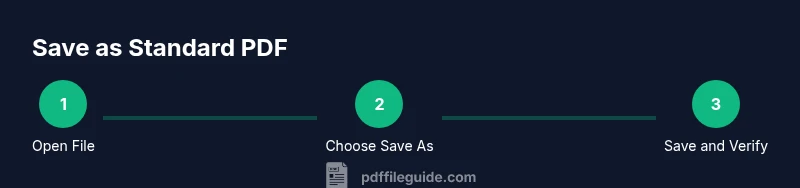
- 1
Open the PDF in Adobe Acrobat
Launch Acrobat and open the document you want to save as a standard PDF. Verify the content, links, and form fields are as expected before saving.
Tip: If the file is large, give Acrobat a moment to render all elements before saving. - 2
Choose Save As
In the menu, select File > Save As or File > Save As Other depending on your version. This prevents overwriting the original file.
Tip: If Save As isn’t visible, try the File menu or right-click the document tab. - 3
Select PDF as the format
In the dialog box, ensure the format is PDF (*.pdf). Choose the destination folder where you want the new copy.
Tip: Confirm the file extension and rename if needed to distinguish from the original. - 4
Set compatibility and quality
If available, choose a compatibility level (e.g., Acrobat 4.x–X) and avoid applying excessive downsampling that harms readability.
Tip: Use default or 'Standard' quality for general sharing. - 5
Save and verify
Click Save, then reopen the new file to confirm all content, forms, and bookmarks work as expected.
Tip: Check that links open and fonts render correctly. - 6
Optional: optimize for size or accessibility
If needed, use 'Optimize Scanned PDF' or 'Accessibility Checker' to ensure compliance and usability.
Tip: Be mindful that aggressive optimization can affect image quality.
Questions & Answers
What is the difference between saving as a normal PDF and printing to PDF?
Saving via Save As or Export creates a true PDF file with embedded fonts, metadata, and structure. Printing to PDF uses a printer driver that may introduce variations in font handling or image compression.
Saving with Save As creates a standard PDF with embedded resources, whereas printing to PDF may cause inconsistencies in font handling.
Do I need Acrobat Pro to save as a normal PDF?
Most standard Save As operations are available in Acrobat DC, including the full 'Save As' dialog. Some advanced options (like preflight or accessibility checks) require Acrobat Pro.
You can usually save as a standard PDF with a regular Acrobat license, but some features require Pro.
Will fonts be embedded when saving as normal PDF?
If you save as a normal PDF, ensure the fonts are embedded or subset embedded. This prevents font substitution on other devices.
Embed fonts to keep text appearance consistent across readers.
Can I automate this process for multiple files?
Yes. In Acrobat, batch processing and action wizards can apply Save As settings to multiple PDFs. This is efficient for workflows.
You can automate with batch processing to save time.
What if the saved PDF still looks different on another device?
Check embedded fonts, color profiles, and monitor calibration. If necessary, re-save with standard quality settings and test again.
If it looks off on another device, re-save with default settings and test again.
Is there a risk of data loss when saving as normal PDF?
Provided you don’t overwrite the original and use Save As, data loss is unlikely. Always confirm all pages and links post-save.
If you use Save As and verify, data loss is unlikely.
Watch Video
Key Takeaways
- Save as a standard PDF, not via a printer driver, to maximize compatibility
- Embed fonts and optimize images to balance quality and file size
- Test the saved file across devices and readers for reliability
- Use Save As or Export for predictable results, preserving the original file