How to Use Normal PDF: A Practical Guide
Master everyday PDF tasks—viewing, annotating, filling forms, pairing with basic conversions—using trusted tools. This educational guide, backed by PDF File Guide, covers practical steps, safety practices, accessibility tips, and best practices for universal compatibility.


According to PDF File Guide, you can use a normal PDF for viewing, annotating, form filling, and basic conversion—no specialized tools required. Start by opening the file, navigating pages, using search, and applying simple annotations. This guide covers best practices and common pitfalls. It emphasizes safety, privacy, and compatibility across devices.
What a 'normal PDF' means and when to use it
A normal PDF refers to a standard Portable Document Format file that preserves layout and typography across devices. It is the most common format for distributing forms, manuals, and reports. For editing, converting, or advanced workflows, you might encounter PDFs that require additional software, but a reliable 'normal' PDF remains accessible with most core features in built-in readers. The PDF File Guide team notes that most everyday tasks rely on a predictable set of capabilities: view, search, annotate, fill forms, and print or export. Avoid overcomplicating tasks with premium editors when the job can be done with default tools. In practice, a normal PDF should open quickly, display fonts correctly, and render images without distortion. If you encounter a PDF that looks odd, try a different viewer or confirm the file is not damaged. Throughout this guide, we’ll focus on practical steps you can take today to work efficiently, protect privacy, and maintain document integrity. The distinction between a normal PDF and a scanned image or password-protected file matters because it determines the tools and steps you’ll use, not just the outcome.
Core capabilities of a normal PDF workflow
A normal PDF supports several core actions that cover most daily needs for professionals and students. First, viewing: you can quickly skim pages, zoom in on details, and use bookmarking to jump between sections. Second, searching: keyword search helps locate information without scrolling. Third, printing: PDFs preserve layout for hard copies, and most readers offer a print preview to catch margins and color issues. Fourth, annotation: highlights, comments, and sticky notes let you collaborate without altering the original text. Fifth, forms: many PDFs include fillable fields; you can type, sign, and save responses. Sixth, basic edits: you can rotate pages, reorder, extract pages, or attach simple notes, depending on the reader. Finally, conversion and export: you can save as text, image, or other formats when the source permits. While some tasks require paid software, the majority of everyday work is achievable with free, reputable readers that exist across Windows, macOS, Linux, and mobile platforms. Always verify that your version supports the features you need.
Security and privacy considerations
Opening PDFs from unknown sources can expose you to malware or phishing attempts embedded in links or scripts. Use trusted viewers and keep your software up to date; enable security features such as sandboxing, JavaScript restrictions, and warnings for suspicious files. Avoid saving sensitive PDFs to shared or publicly accessible locations; use encrypted storage when possible. When filling forms or signing documents, be mindful of where your data goes after you submit or save. For added protection, enable password protection on your own PDFs and review permission settings to restrict printing or copying. PDF File Guide emphasizes the importance of digital hygiene: review the file metadata, verify the source, and test on a secondary device if the file contains sensitive information. If a document is password-protected, ensure you have the correct credentials before attempting edits—do not attempt to bypass protections.
Common tasks and how to do them
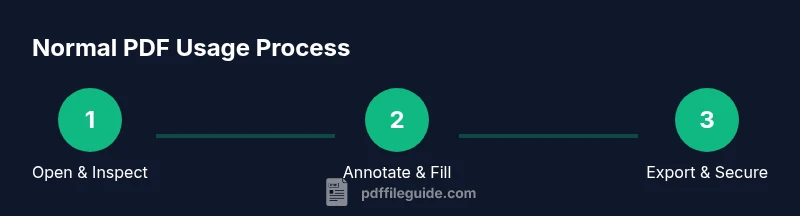
This section covers frequent tasks you’ll perform with a normal PDF, including viewing, annotating, filling forms, signing, exporting, and printing. For each task, start with a trusted viewer and follow the steps, then validate the outcome by saving a copy with a clear filename. Viewing and navigation: open the document, use the outline or bookmarks to jump sections, and adjust zoom to read fine print. Annotating: highlight, underline, or add comments to important passages; use sticky notes for questions. Filling forms: click into form fields, type your responses, and save with a recognizable file name. Signing: apply a digital signature if your reader supports it, or print and sign where required. Exporting: choose formats like plain text or image for reuse in other apps. Printing: preview, select the correct pages, and verify margins. Security: avoid sharing raw PDFs publicly; consider applying permissions. Accessibility: test for screen-reader compatibility by checking reading order.
Tools & Materials
- A reliable PDF reader (desktop or mobile)(Examples: Adobe Acrobat Reader, Preview (Mac), or a reputable free reader.)
- A modern web browser(Many PDFs render directly in-browser for quick access.)
- Stable internet connection(Useful for cloud storage, online converters, or updates.)
- Printer or PDF printer driver(Helpful for creating hard copies or new PDFs from other formats.)
- Digital signature capability(For legally signing documents when required.)
- Optional: PDF editing or conversion software(Needed for advanced edits or batch conversions.)
Steps
Estimated time: 45-60 minutes
- 1
Open the PDF in a trusted viewer
Launch your preferred PDF reader from a known source or launcher. If the file is local, double-click to open or use the reader’s Open function. Verify the document loads without unexpected prompts or errors.
Tip: Always verify the source of the file before opening to avoid malware. - 2
Navigate pages and use search
Familiarize yourself with the page thumbnails or outline; use the search tool to locate keywords quickly. If the document is long, enable bookmarks to jump between sections.
Tip: Use keyword quotes for exact matches to save time. - 3
Annotate important sections
Highlight, underline, or add comments where you need feedback or questions. Use sticky notes for context and date your remarks when collaboration is involved.
Tip: Keep annotations concise to avoid clutter. - 4
Fill forms and apply signatures
Click into form fields and type your responses. For signatures, use the built-in signing feature or attach a digital signature if available.
Tip: Save a separate copy after signing to preserve the original. - 5
Export or convert when needed
If you must reuse content, use the export or Save As function to convert to Word, text, or image formats. Check formatting after conversion for accuracy.
Tip: Some conversions are imperfect; lightly proofread the output. - 6
Print or share your document
Open the Print dialog, choose pages, layout, and color settings, then print or save as PDF to share. Check the preview to avoid cut-off or misalignment.
Tip: Use the print preview to catch issues before printing. - 7
Secure and backup
If the PDF contains sensitive data, apply password protection or permissions, and store copies in encrypted locations. Regularly back up the file to trusted devices.
Tip: Never store sensitive PDFs in publicly accessible folders. - 8
Verify accessibility and compatibility
Confirm that tags, alt text, and reading order are sensible if accessibility is important. Test the PDF on another device or reader to ensure consistent rendering.
Tip: Accessibility checks improve long-term usability.
Questions & Answers
What is a normal PDF and when should I use it?
A normal PDF is a portable document format that preserves layout and fonts across devices. It is ideal for viewing, annotating, filling forms, and distributing consistent documents. For most tasks, standard readers are sufficient.
A normal PDF keeps layout intact and works well for viewing, annotating, and form filling across devices.
Can I edit a PDF without specialized software?
Yes for basic tasks like annotating, highlighting, or filling fields using common readers. For heavier edits (text changes, layout), you may need dedicated PDF editors.
You can do basic edits with standard viewers, but heavier edits need a dedicated editor.
Is it safe to open PDFs from email or downloads?
Only open PDFs from trusted sources, keep software updated, and enable security features. Be cautious of unexpected links or macros.
Only open PDFs from trusted sources and keep your software up to date.
How do I convert a PDF to another format like Word?
Many readers offer an export or Save As option to convert PDFs. Results vary, especially with complex formatting; you may need manual adjustments afterward.
Exporting is possible, but formatting might require tweaks afterwards.
Why is my PDF not searchable, and what can I do?
If the document is a scanned image, it won’t be searchable until OCR (optical character recognition) is applied. Use a reader with built-in OCR or a separate OCR tool.
If it’s just an image, OCR can make it searchable.
What accessibility features should I look for in PDFs?
Look for tagged structure, alt text on images, proper reading order, and semantic headings to improve screen-reader support.
Accessible PDFs have tags, alt text, and proper order for screen readers.
Watch Video
Key Takeaways
- Open PDFs with trusted readers first
- Annotate and fill forms without altering the original file
- Use export options carefully and verify results
- Secure sensitive PDFs with passwords and permissions