Save Pictures in PDF Format: A Practical Step-by-Step Guide
Learn how to save pictures in PDF format with clear steps for Windows, macOS, mobile, and online tools. This guide covers single-image and multi-image workflows for crisp, portable PDFs, tailored for editors, designers, and professionals.


You can save pictures as PDFs by exporting from image editors, printing to PDF, or converting images to PDF in batch with a dedicated tool. The best method depends on whether you need a single-page PDF or a multi-page collection, and on your device. This guide from PDF File Guide walks you through clear, practical options.
What saving pictures in PDF format means
Saving pictures in PDF format creates a portable document that preserves your image content exactly as captured, with consistent colors, orientation, and page dimensions across devices. For professionals who edit, convert, or share images, PDF is a reliable container that bundles one or more pictures into a standardized file. According to PDF File Guide, saving images as PDFs helps maintain layout integrity when sending proofs to clients or archiving project assets. Whether you export from an image editor, print to PDF, or use a batch converter, understanding the core concepts will help you pick the right method for your workflow. This article uses the term 'image-to-PDF' to describe the process, but the techniques apply across Windows, macOS, and mobile platforms. You will learn how to save a single picture or a collection of images into a neat, professional PDF that others can view without needing specialized software.
Methods at a glance: Windows, macOS, mobile, and online
There are several reliable ways to save pictures as PDFs, depending on your device and whether you need a single-page document or a multi-page collection. The simplest method on most systems is to export or 'Save As' directly to PDF from an image editor like Photos or Preview. A built-in option in many apps is the 'Print to PDF' function, which creates a PDF from the current image or a selected set. For multiple images, batch converters or printing workflows can assemble a multi-page document. Finally, online tools and mobile apps provide quick options when you’re away from a computer. PDF File Guide analysis shows that choosing the right workflow reduces steps and preserves image fidelity.
Saving a single image to PDF on Windows
On Windows, you can save a single image as a PDF by using the built-in print-to-PDF feature. Open the image in the default viewer (Photos), select File > Print, choose a PDF printer such as 'Microsoft Print to PDF', set the desired page size and orientation, and click Print. Choose a descriptive filename and save location. If the image is very large, consider resizing before saving to keep file size reasonable. Pro tip: use the 'Fit' option to preserve full-image fidelity without cropping. If your system lacks a PDF printer, you can use the export option in Photos or install a lightweight virtual printer.
Saving multiple images to a single PDF
To create a single PDF from several images, start by selecting all the images in your file explorer, then choose Print and select 'Microsoft Print to PDF' (Windows) or use an app that supports multi-page PDFs. In the Print dialog, pick a layout that places one image per page for a clean, gallery-like result, or choose a grid or contact-sheet layout for a compact overview. Adjust page size and margins to suit your needs, then save the file with a clear, descriptive name. For higher control over ordering and per-page adjustments, a batch-conversion tool can enforce a strict sequence and include metadata.
Saving images to PDF on macOS
macOS users can leverage Preview to create PDFs from one or more images. Select the images in Finder, right-click and open with Preview, or drag them into Preview’s sidebar to form a quick multi-page document. Go to File > Print, then click PDF > Save as PDF, choose a destination, and rename the file. Preview also offers an Export option for higher quality if you need to compress or convert color spaces. If you need one image per page, ensure each image is on its own page in Preview before printing. This method preserves color fidelity and often yields compact PDFs.
Using online tools and mobile apps
Online tools provide convenience when you’re away from a desktop or need to share quickly. Use reputable services that allow uploading images and exporting a PDF, with options to set page size, margins, and compression. For mobile devices, many apps offer direct import of photos and one-tap PDF creation. Remember to review privacy policies before uploading sensitive photos, as online platforms may store or process your data. If security matters, prefer offline methods or trusted vendors that support local processing.
Best practices for image quality and accessibility
To ensure crisp PDFs, start with high-quality source images (avoid heavy compression before saving). Choose a standard page size (A4 or letter) and consistent orientation. When possible, save lossless formats (PNG) for line art or screenshots and reserve lossy formats (JPEG) for photos with optimized compression. If accessibility matters, add descriptive alt text in PDFs or provide an accessible image sequence so screen readers can interpret the content. Always verify color profiles (sRGB is a safe default) and test the final PDF on multiple devices to confirm faithful rendering.
Troubleshooting common issues
If a PDF saves with blank pages, check that the images were actually loaded into the application before printing or exporting. Ensure the correct page size and orientation are selected and that the correct printer is chosen. If the file size is unexpectedly large, review the image resolution and compression settings. Some apps limit batch processing to a certain number of images per PDF; in that case, split the batch and reassemble later. For password-protected or restricted PDFs, confirm you have permission to modify the file and remove restrictions if needed.
Automating and archiving: integrating into workflows
Advanced users can automate image-to-PDF conversion with scripts, batch processing tools, or workflow automation apps. Establish a standard folder structure for incoming images, a naming convention that includes date or project code, and a consistent export profile (page size, color space, and compression). For archival quality, store a high-resolution master alongside the generated PDFs and consider adding metadata (title, author, keywords) to improve searchability later. The PDF File Guide team recommends documenting your workflow so team members can reproduce results consistently.
Tools & Materials
- Computer or mobile device(Any OS (Windows, macOS, iOS, Android))
- Source image files(JPG, PNG, TIFF, or RAW (converted to a standard format before saving))
- PDF printer or export option(Built-in printers like 'Microsoft Print to PDF' or 'Export as PDF' options)
- Image editing software (optional)(For resizing, color correction, or format changes)
- Batch conversion utility (optional)(For processing many images into a single PDF)
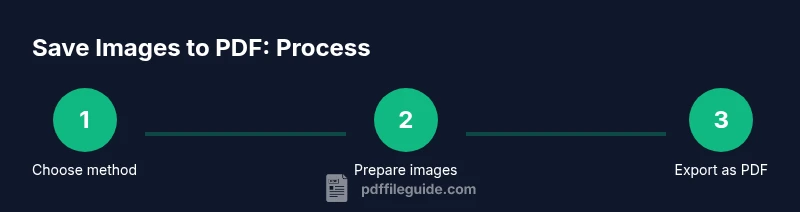
Steps
Estimated time: Total time: 15-30 minutes depending on batch size and device speed
- 1
Decide your method
Choose whether you’ll export from an image editor, print to PDF, or batch-convert a set of images into a single PDF. Your choice should depend on whether you need one image per page or multiple images per document, and on the available software on your device.
Tip: If you’re unsure, start with the simplest path: export a single image to PDF to confirm quality and workflow. - 2
Gather your images
Collect all images you want to include, organize them by desired order, and ensure they are in a compatible format. Rename files if you plan a specific sequence, which helps when you create a multi-page PDF.
Tip: Keep a copy of the originals in a separate folder as a safetybackup. - 3
Open the image(s) in the chosen app
Open the image(s) in the application you decided to use (image editor, Preview, or a browser/online tool). If you’re consolidating multiple images, ensure they appear in the correct order in the workspace.
Tip: For batch apps, you can often drag and drop to reorder before exporting. - 4
Configure output settings
Set the page size (A4 or Letter), orientation (portrait or landscape), and image placement. Decide on the level of compression or image quality to balance readability and file size.
Tip: If printing for proof, preserve higher quality without excessive compression. - 5
Create or export the PDF
Use the app’s export/print-to-PDF option. For one-image PDFs, ensure the page is filled correctly; for multi-image PDFs, verify per-page sequencing and margins.
Tip: Choose a descriptive filename that includes the project or date. - 6
Save the PDF and review
Save the file to a known location and open it to verify content, color, and layout. Check that all pages render correctly and that no image is cropped unexpectedly.
Tip: If you notice issues, re-export with adjusted settings rather than editing the original file repeatedly. - 7
Archive and backup
Store a high-resolution master image set alongside the generated PDF and keep a copy in a secure location or cloud storage. Document the workflow and any settings used for future reuse.
Tip: Include metadata like project name, date, and version to aid future retrieval.
Questions & Answers
What is the best way to save a single image as a PDF?
For a single image, the straightforward approach is to use a Print to PDF function or Export as PDF from the image viewer. This preserves the image in a single-page PDF with minimal setup. Ensure the page size matches the image’s aspect ratio for optimal results.
Use the print-to-PDF option or export as PDF from your image viewer for a simple single-page result.
Can I save multiple images into one PDF?
Yes. You can select all images and use a batch print-to-PDF or an image-to-PDF tool to assemble them into a multi-page document. Ordering is important, so arrange images before exporting.
Yes, you can compile many images into a single PDF by arranging them in order and exporting as one document.
Will the resulting PDF preserve image quality?
Quality depends on the source images and export settings. Avoid excessive compression, choose appropriate page size, and use lossless or lightly compressed formats when fidelity matters.
Export with moderate to high quality and avoid aggressive compression to preserve detail.
Is it safe to use online tools for sensitive images?
Online tools can be convenient, but they may process and store your images. Use trusted services, review privacy policies, or prefer offline methods for sensitive content.
Be cautious with sensitive images and consider offline options when possible.
Can I password-protect a PDF created from images?
Yes, many tools offer password protection during the Save or Encrypt step. Apply a strong password and store it securely; this protects access to the content.
Password protect the PDF during export if your workflow requires security.
Can I automate this for a batch of images?
Automation is possible with scripts, batch converters, or workflow apps. Define a consistent profile (size, quality) and run the batch to generate PDFs programmatically.
Yes, you can set up a batch workflow to convert many images to PDFs automatically.
Watch Video
Key Takeaways
- Choose a method that matches batch size and quality needs.
- Verify both image quality and PDF layout after saving.
- Use consistent naming and storage to support archiving.
- Protect sensitive images with secure tools or local processing.
- Document the workflow for repeatability.