How to Convert PDF to Word: A Practical Guide for 2026
Learn reliable methods to convert PDFs into editable Word documents, preserving layout, fonts, and accessibility. This guide explains text-based vs. scanned PDFs, OCR nuances, and practical workflows for 2026.


Goal: learn how to convert pdf a word into an editable Word document, preserving layout and fonts. For text PDFs, use direct export; for scanned PDFs, enable OCR. Validate results, adjust fonts/images, and save as Word (.docx). The PDF File Guide notes that testing a small sample first increases accuracy and helps you tune the workflow for future files.
What converting pdf a word means for professionals
Converting a PDF to Word is a common workflow for editors, accountants, researchers, and students who need editable content. The goal is to transform the fixed-layout PDF into a flexible Word document without losing key elements. In practice, you’re balancing fidelity (how well the original looks) with editability (how easily you can modify the text). A successful conversion relies on knowing when to apply direct export, when to run OCR, and how to adjust fonts, bullets, tables, and images after the process. According to PDF File Guide, the most reliable approach starts by identifying the PDF type—text-based or image-based—and then selecting the appropriate tool. The PDF File Guide team found that a small test file can reveal unexpected issues such as font substitution, misaligned columns, or embedded graphics that don’t export as expected. By planning for these quirks, you reduce rework and speed up the workflow. The key is to build a consistent routine: verify the source, choose the right method, perform OCR when needed, review the Word output, and iterate if necessary. This mindset minimizes post-conversion cleanup and keeps you focused on content rather than formatting.
Key differences between text-based and scanned PDFs
Text-based PDFs contain actual text characters; when you export to Word, the content tends to map cleanly to Word's text runs, headings, and lists. Scanned PDFs, by contrast, are image-based; they require optical character recognition (OCR) to turn pixels into editable text. Even after OCR, you’ll notice differences in line breaks, hyphenation, and table alignment. The OCR process also adds potential errors in languages with diacritics or similar-looking characters. For multilingual documents, you may need to switch OCR language packs and verify fonts in the target Word document. If your PDF includes vector graphics, charts, or embedded fonts, you may need to extract or recreate those elements in Word. Understanding these differences up front helps you select the best method and avoid rework later.
Methods for converting: built-in Word, Adobe Acrobat, and third-party tools
Word’s built-in Import feature can open some PDF files and convert them to editable Word content. It works best with simple layouts and reliably preserves paragraphs and headings. Adobe Acrobat Pro DC offers more robust conversion options, including export to Word with layout preservation and built-in OCR for scans. Third‑party tools—online and offline—can be convenient but carry privacy considerations. Some online converters offer batch processing; others provide advanced table recognition. When evaluating tools, consider: how well they keep fonts, how they handle tables, whether they preserve bullet and numbering styles, and whether they allow you to export to Word without format loss. Privacy and data security should guide your decision if you’re handling sensitive information; prefer offline software for confidential documents, and use reputable services with clear privacy policies.
OCR considerations: language support, accuracy, and formatting
OCR accuracy depends on scan quality, font, language, and image resolution. For best results, ensure that scans are high-resolution (300 dpi or higher) and that text is not skewed. Choose an OCR tool that supports your document language and can preserve layout, including columns and tables. After OCR, you will likely need to correct misrecognized words, adjust hyphenation, and reflow paragraphs to match your Word style. In multilingual documents, OCR language packs are essential; always proofread for punctuation and diacritical marks. Some tools offer zone-based OCR so you can apply different language settings within the same document, which is useful for mixed-language PDFs.
Preserving layout: fonts, bullets, tables, and images
Even with a successful conversion, fonts may shift, bullets and numbering may reflow, and tables may lose column widths. To minimize this, set a consistent Word template before converting, embed fonts when possible, and manually adjust tables after export. For images, you may need to reinsert or resize to preserve alignment. If the source PDF uses unusual fonts, you might encounter substitutions; in such cases, pair fonts in Word to approximate the original look. Use Word’s Table of Contents, styles, and heading levels to reproduce the structure rather than manually formatting each element. After you finish, compare the Word document line-by-line with the PDF to confirm fidelity and identify sections requiring adjustment.
Accessibility and PDF/A considerations
If long-term accessibility and archival quality matter, consider PDF/A as the baseline for the source and final documents. While converting to Word, retain accessible structure where possible by keeping headings, lists, alt text for images, and properly labeled tables. Some organisations maintain separate accessibility checklists for PDF-to-Word workflows to ensure screen readers can interpret the exported document. When sharing the Word file, you can preserve readability by using descriptive hyperlink text and accessible document properties. This ensures your workflow aligns with best practices and supports future retrieval.
Practical workflow for frequent conversions
For professionals who convert PDFs to Word on a regular basis, a repeatable workflow saves time and reduces errors. Start by classifying the PDF (text-based or scanned). If text-based, try a direct export first; if scanned, enable OCR and select the correct language. After exporting, perform a quick visual pass to catch obvious layout shifts, then run a focused correction pass on headings, bullets, and tables. Save a template with your preferred font set and styles to minimize rework on future files. Finally, document any tool-specific quirks you discovered and refine your steps accordingly for faster results next time.
Tools & Materials
- Computer with internet access(Stable connection for online converters or cloud storage)
- Microsoft Word (2019 or Microsoft 365)(Prefer latest version for best compatibility)
- PDF editor with export-to-Word capability (e.g., Adobe Acrobat Pro DC)(Recommended for high-fidelity conversions)
- OCR software (if working with scanned PDFs)(E.g., ABBYY FineReader or built-in OCR in Word/Acrobat)
- Privacy-conscious online converter (optional)(Use only for non-sensitive documents; review privacy policy)
- Font resources and Word templates(Predefine fonts and heading styles to match source)
- Backup storage (local or cloud)(Always back up originals before conversion)
Steps
Estimated time: 45-60 minutes
- 1
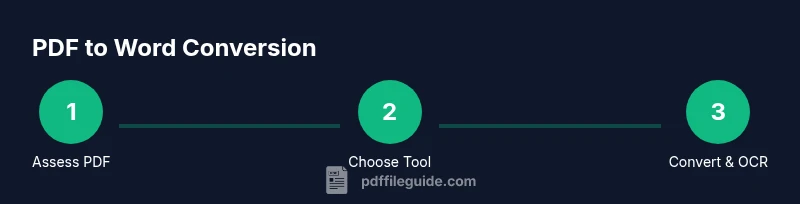
Assess the PDF type
Open the PDF and determine if it is text-based or scanned. If you can select and copy text, you’re likely dealing with a text-based PDF. If not, assume it’s image-based and plan to use OCR.
Tip: Mark a quick note about any tricky sections (tables, columns) before converting. - 2
Choose your conversion tool
Based on the PDF type, select a tool: direct export for text-based PDFs, OCR-enabled export for scanned ones. Prefer offline tools for sensitive documents.
Tip: If uncertain, run a quick trial on a small page to gauge fidelity. - 3
Export or open in Word
Attempt to open the PDF in Word or export to Word from the PDF editor. Review the initial Word output for obvious layout issues.
Tip: Enable Word’s show formatting marks to spot hidden elements. - 4
Run OCR if needed
If the source is scanned, run OCR with the correct language settings. Verify the text flow and correct any misrecognized words.
Tip: Check diacritics and special characters after OCR. - 5
Proof and adjust formatting
Go through headings, lists, bullets, tables, and images. Reflow paragraphs and adjust spacing to align with your Word template.
Tip: Use Styles in Word to enforce consistent formatting. - 6
Embed fonts and finalize
Embed fonts when possible to preserve appearance, and save as .docx. Run a final comparison with the original PDF for fidelity.
Tip: Keep a changelog of edits for future reference. - 7
Save a reusable template
Create and save a Word template with your preferred styles and layout. This speeds up future conversions.
Tip: Whenever possible, use a consistent template to reduce clean-up time. - 8
Archive and document
Store the original PDF and the Word output in an organized folder structure. Include notes on any known issues or deviations.
Tip: Label files with version numbers to track improvements.
Questions & Answers
What is the most reliable way to convert a simple text-based PDF to Word?
For straightforward text PDFs, try Word’s built-in export or a reputable PDF editor's export-to-Word feature. These options typically preserve paragraphs and headings with minimal edits.
For simple text PDFs, use Word's built-in export first, then check headings and lists. You’ll likely need only light edits.
Can scanned PDFs be effectively converted to editable Word documents?
Yes, but you’ll need OCR to turn images into text. After OCR, expect some misrecognized characters and formatting tweaks to restore the layout.
Scanned PDFs require OCR before editing in Word; you’ll need to proofread and adjust formatting afterward.
How can I preserve fonts and layout after conversion?
Choose a reliable converter, embed fonts when possible, and apply a consistent Word template. Manually adjust tables and images to match the source as needed.
Use a good tool, embed fonts, and align with a consistent Word template; you’ll still adjust tables and images.
Is there a privacy risk with online PDF-to-Word tools?
Online converters can pose privacy risks for sensitive documents. Prefer offline software or trusted, privacy-conscious services with clear policies.
Be careful with sensitive files—use offline tools or trusted services with clear privacy terms.
What should I do if a PDF contains multiple languages?
Ensure OCR language packs cover all languages in the document and verify punctuation and diacritics after conversion.
If multiple languages appear, enable language-specific OCR packs and proofread the result carefully.
Are there accessibility considerations when converting PDF to Word?
Yes. Maintain document structure (headings, lists), add alt text for images, and ensure all links are descriptive to support screen readers.
Keep structure and alt text, and use descriptive links so screen readers can interpret the Word document.
Watch Video
Key Takeaways
- Choose the appropriate method based on the PDF type.
- OCR is essential for scanned PDFs to regain editability.
- Always review formatting after conversion and adjust fonts.
- Embed fonts and preserve structure for accessibility.