PDF to Adobe Acrobat: Convert, Edit, and Optimize
Learn how to convert, edit, and optimize PDFs using Adobe Acrobat Pro. This educational guide covers practical steps, best practices, and essential tips for reliable, accessible documents.


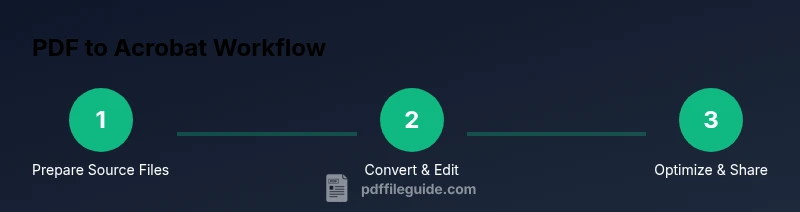
Learn how to perform pdf to adobe acrobat workflows: convert, edit, and optimize PDFs using Adobe Acrobat Pro. This quick guide outlines essential steps, prerequisites, and best practices for reliable results, plus tips to maintain document integrity and accessibility. Whether you’re preparing client reports or archiving records, mastering these tasks saves time and reduces errors. This format highlights the core actions and decision points you’ll encounter in real-world usage.
pdf to adobe acrobat: Why this workflow matters
According to PDF File Guide, the most practical approach to handling PDFs in a professional setting starts with clear goals and a reliable toolchain. Today we focus on a practical workflow: the path from a basic PDF to a full Adobe Acrobat setup. This 'pdf to adobe acrobat' workflow covers conversion, editing, annotation, and optimization within Acrobat, helping you deliver polished documents. The PDF File Guide Editorial Team notes that standardized steps reduce errors and boost consistency, especially when coordinating with teams across different departments. By adopting a deliberate workflow, you can convert, edit, and optimize PDFs with confidence, while preserving accessibility and compliance where required.
This article explains how to frame your tasks, select the right tools, and validate outcomes at every stage. You’ll learn the core decisions, common pitfalls, and practical checkpoints that save time and prevent rework. The emphasis is on reproducible processes that work with real-world document sets, including scanned PDFs, contracts, and reports.
Core capabilities of Adobe Acrobat for PDF conversion
Adobe Acrobat Pro DC offers a wide range of conversion options, enabling you to turn PDFs into editable documents and back again. When you run a conversion, you can preserve layout, maintain fonts, and choose text recognition for scanned pages. In the context of the pdf to adobe acrobat workflow, selecting the right export format (Word, Excel, PowerPoint, or image) affects downstream systems, accessibility, and searchability. This block outlines how to map typical input types to appropriate output formats, with notes on preserving structure and metadata. The goal is to minimize manual re-entry and maintain consistency across channels.
Additionally, Acrobat's export workflow supports batch processing via Action Wizard, allowing you to apply the same conversion rules across multiple files. This is particularly valuable for organizations that regularly produce annual reports, invoices, or policy documents. By standardizing these conversions, you reduce variability and ensure that downstream teams see predictable results.
Tools and prerequisites for a smooth workflow
Before you start the pdf to adobe acrobat process, verify you have the right tools and prerequisites in place. At minimum, you need a licensed copy of Adobe Acrobat Pro DC, access to the PDFs you’ll convert or edit, and a workstation with enough RAM to handle large files. If you’re performing OCR or batch exports, ensure your system has sufficient memory and disk space. The PDF File Guide team recommends keeping a clean, organized file structure to avoid misplacing originals or working copies. Optional add-ons include OCR language packs, font packs, and cloud storage for backups. Planning ahead helps you avoid last-minute roadblocks when deadlines loom.
Step-by-step preview: converting PDFs with Acrobat
Conversion is a core task in the pdf to adobe acrobat workflow. You can export to Word, Excel, PowerPoint, or image formats depending on your needs. The Export tool is located under Tools > Export PDF. For scanned documents, enable OCR to generate searchable text before exporting. Review the output for formatting fidelity, retained headings, and embedded fonts. If the original document contained forms, consider exporting to Word to preserve form fields or converting to a fillable PDF for that form in Acrobat. The goal is to produce a usable, editable output with minimal manual corrections.
Editing and annotating in Acrobat for precision edits
Text editing in PDFs can be tricky due to fonts and line wrapping. Use the Edit PDF tool to adjust content while preserving layout. For images, you can replace, resize, or reposition assets without creating new fonts. Annotations—highlights, sticky notes, and callouts—facilitate collaboration. When you annotate, maintain a clear review trail and simplify feedback collection by exporting a summary of comments. These editing and annotation steps are essential for delivering professional documents that communicate clearly and look consistent across devices.
Optimizing PDFs for sharing and archiving
After editing, optimization helps ensure fast loading, smooth sharing, and minimal bandwidth usage. Use compression to reduce file size while preserving readability, embed fonts to maintain typography, and apply the appropriate PDF version and compatibility settings for target platforms. For archival purposes, consider creating PDF/A or PDF/UA-compliant files to improve long-term accessibility and interoperability. The pdf to adobe acrobat workflow benefits from a cautious approach to compression—test the final file on multiple devices and email clients to confirm fidelity.
Accessibility and compliance considerations
Making PDFs accessible improves usability for people who rely on assistive technologies. Add proper document structure using headings, tags, and alt text for images. Ensure that form fields are tagged and that reading order is logical so screen readers can interpret the document correctly. If you plan to share the document publicly or with clients, verify that the PDF meets established accessibility standards and that your OCR results are accurate for the languages used in the document.
Troubleshooting common issues in the pdf to adobe acrobat workflow
Even the best workflows encounter snags. Common problems include missing fonts, corrupted exports, and OCR inaccuracies. When fonts don’t render as expected, embed fonts or replace them with similar licensed options. If an export fails, check file permissions and availability of source files, then review the export settings. For OCR, run a quick pass with corrected language settings and verify the resulting text against the original page. The goal is to identify and fix issues early, avoiding last-minute surprises.
Power-user tips for faster workflows
For power users, keyboard shortcuts and batch actions significantly speed up conversion and editing. Create custom action sequences to apply the same set of steps to multiple PDFs, and leverage batch processing to export many files in one go. Maintain a changelog of major edits and preserve a pristine archive of originals. Regularly update to the latest Acrobat version to access new features and security improvements.
Tools & Materials
- Adobe Acrobat Pro DC license(Ensure it is the latest version with OCR capabilities.)
- Source PDFs and backups(Keep originals in a secure folder.)
- Reliable computer and internet(Adequate RAM (8-16GB+) recommended for large files.)
- OCR language packs (optional)(Use languages relevant to your documents.)
- External storage for backups (optional)(USB or cloud storage recommended.)
Steps
Estimated time: 60-90 minutes
- 1
Open Adobe Acrobat and load your PDF
Launch Adobe Acrobat Pro DC and open the PDF you plan to convert or edit. Confirm the file loads correctly and review fonts and image rendering for consistency.
Tip: Use File > Open or drag-and-drop to minimize steps; keep a backup copy. - 2
Choose the correct export option
Navigate to Tools > Export PDF, select the target format (Word, Excel, image, etc.). This ensures compatibility with downstream workflows and searchability.
Tip: If you need searchable text, choose OCR-enabled export when available. - 3
Run OCR for image-based PDFs
If the PDF is created from scans, enable Optical Character Recognition (OCR) to convert images to editable text. Set language, output format, and accuracy preferences.
Tip: Review OCR results and correct misreads before exporting. - 4
Edit text and images in place
Use the Edit PDF tool to modify text, adjust fonts, and replace or resize images. Save changes frequently to avoid data loss.
Tip: Keep an original copy untouched; edit on a duplicate file. - 5
Annotate and collaborate
Add highlights, notes, and comments; share for review and track changes. Use a summary report to consolidate feedback.
Tip: Use the comments pane to export feedback as a single file. - 6
Optimize, secure, and share
Apply compression, embed fonts, and set security options (passwords, permissions) to prepare the final PDF. Verify readability after optimization.
Tip: Avoid over-compression that degrades readability; test on multiple devices.
Questions & Answers
What is the difference between exporting to Word versus Excel?
Exporting to Word preserves editable text and layout for document editing, while Excel best handles table data. Choose based on whether you need text editing or data manipulation after export.
Export to Word for editing text; export to Excel for tables.
Can I convert PDFs without Acrobat Pro?
There are free and lower-cost tools, but Acrobat Pro offers the most reliable conversions and preserves formatting. For frequent tasks, a Pro license is worthwhile.
Free tools exist, but Acrobat Pro gives the best results.
Is OCR reliable for languages other than English?
OCR accuracy depends on language packs and font clarity. For non-English texts, ensure the correct language is selected and review results.
OCR works for many languages with the right language pack.
How do I preserve accessibility when converting?
Add alt text to images, tag headings, and ensure reading order. Use Acrobat's accessibility checker to verify compliance.
Make sure headings, alt text, and reading order are properly set.
What’s the best way to reduce PDF file size?
Use compression settings and font embedding judiciously; test on multiple devices to maintain readability.
Compress wisely and test across devices.
What are common pitfalls in Acrobat conversions?
Missing fonts, broken layouts, and OCR errors are common. Verify fonts, re-run OCR with correct settings, and review exports.
Watch for fonts, layouts, and OCR accuracy.
Watch Video
Key Takeaways
- Plan and document each step before editing.
- Export to the correct format to preserve structure.
- OCR is essential for scanned PDFs with search needs.
- Validate accessibility metadata for compliance.