Compress PDF with Adobe Acrobat: A Step-by-Step Guide
Learn how to compress PDFs with Adobe Acrobat to reduce file size while preserving readability. This comprehensive guide from PDF File Guide covers quick methods, advanced optimization, and best practices for professionals.


By the end, you’ll know how to compress a PDF using Adobe Acrobat, saving file size without sacrificing essential quality. You’ll learn which compression options exist, when to apply each, and how to balance readability and data integrity. This guide—from PDF File Guide—walks you through step-by-step actions you can perform in Acrobat today.
Why compress PDFs matters
Reducing the size of a PDF can make it easier to share via email, faster to upload or download, and more efficient to store for long-term archiving. For professionals handling large documents, compression lowers bandwidth costs and improves collaboration workflows. The goal is to shrink the file without eroding essential content such as text clarity, embedded images, and accessibility features. The PDF File Guide team emphasizes a balanced approach: aim for meaningful size reductions with minimal impact on readability. In practice, the most effective compression preserves text searchability and preserves critical images or diagrams while trimming redundant objects and metadata. For editors, developers, and content creators, understanding the trade-offs helps you pick the right settings for each document. The result is a lighter PDF that still serves its purpose in communications and reporting.
This block introduces the core purpose of compression in professional contexts and sets expectations for the step-by-step process that follows.
Tools & Materials
- Adobe Acrobat Pro DC or higher(Must be the full professional edition to access PDF Optimizer and batch actions)
- Original PDF file(Keep an unmodified copy for reference and rollback)
- A computer with a modern OS(Sufficient RAM (8GB+ recommended) to run optimizer smoothly)
- Backup storage (optional)(External drive or cloud storage for safe versioning)
- Notes or a change log(Document what settings you used for future audits)
Steps
Estimated time: 25-40 minutes
- 1
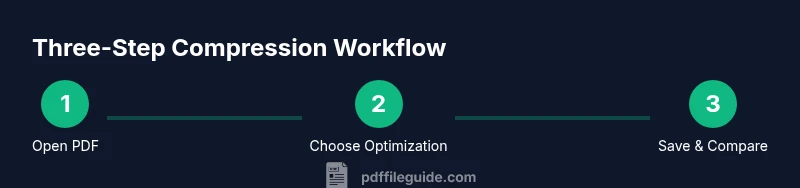
Open the PDF in Acrobat
Launch Adobe Acrobat and load the target PDF file. Verify that the document renders correctly and that text is selectable if accessibility is a requirement. This initial check ensures you aren’t compressing a file with issues that could worsen after optimization.
Tip: If the file is large, consider opening a lightweight preview first to confirm it’s the correct document before applying any compression. - 2
Create a duplicate version
Save a copy of the original as a new file (e.g., filename-reduced.pdf). This preserves the original document for comparison and rollback if needed. Work on the copy to avoid accidental data loss.
Tip: Use Save As to ensure the original remains untouched during experimentation with compression levels. - 3
Access Reduce File Size option
Go to File > Save as Other > Reduced Size PDF (or equivalent in your version). This quick option provides a baseline reduction using Acrobat’s built-in presets and compatibility settings.
Tip: Choose a compatibility level that matches your audience’s software to avoid missing features or fonts. - 4
Select a compatibility profile
When prompted, pick a compatibility profile that aligns with your readers’ software. A tighter compatibility range often yields greater size reduction, but may limit newer features.
Tip: If many recipients use older software, prefer broader compatibility to prevent loss of formatting or functions. - 5
Review the results and re-save
Review the resulting file size and content integrity. If the size improvement is insufficient or quality degraded, switch to the PDF Optimizer for finer control and re-save the file.
Tip: Always compare the optimized file side-by-side with the original to spot subtle quality changes. - 6
Open PDF Optimizer for granular control
In Acrobat, choose File > Save as Other > Optimized PDF. This tool lets you tailor image handling, font embedding, transparency, and other objects for targeted compression.
Tip: Start with conservative changes and test gradually; avoid over-compression that harms readability. - 7
Configure image and font settings
Within PDF Optimizer, adjust color and grayscale image downsampling and compression, and consider font subsetting or removing embedded fonts if appropriate for the document type.
Tip: Prioritize text clarity and essential visuals; reserving high-quality fonts helps preserve typography in professional documents. - 8
Preview, compare, and finalize
Use Acrobat’s preview and side-by-side comparison to ensure that text remains readable and images retain critical detail. After you’re satisfied, save the final version with a clear name indicating its compressed status.
Tip: Document the exact settings used for future audits or re-processing.
Questions & Answers
What is the difference between Reduce File Size and PDF Optimizer in Adobe Acrobat?
Reduce File Size is a quick, general compression tool that applies broad reductions. PDF Optimizer provides granular control, allowing you to adjust image quality, font embedding, and transparency for finer balance between size and fidelity.
Reduce File Size is a quick option, while PDF Optimizer gives you precise control over what to compress. Choose based on how much control you need over quality and file size.
Can I compress a scanned PDF without OCR?
Yes, you can compress scanned PDFs, but results depend on the scan quality. For readable text, you may want to OCR first or use optimization settings that preserve text clarity and legibility.
You can compress a scanned PDF, but OCR may help preserve text quality if the scan is rough.
Will compression degrade image quality?
Some loss in image quality is expected with compression. The goal is to minimize visible degradation by adjusting image downsampling and choosing appropriate compression settings.
Compression can affect image quality; adjust settings to keep essential visuals clear.
How can I preserve accessibility after compression?
Maintain text structure and tagging during optimization. Re-run accessibility checks and ensure that screen-reader-friendly tags remain intact.
Keep the document tagged and test with a screen reader after compressing.
Can I apply the same compression settings to multiple files?
Yes, Acrobat supports batch processing or actions to apply consistent compression settings across multiple PDFs. Validate each file afterward to ensure consistency.
You can batch apply settings, but verify each file to confirm consistency.
How do I verify that compression was successful?
Compare file sizes before and after, review visual quality, and run a quick content check (text search, images, and forms) to ensure functionality remains intact.
Check the new size, look for quality issues, and test essential features.
Watch Video
Key Takeaways
- Back up the original before compression.
- Choose the right Acrobat path (quick reduce vs. PDF Optimizer) based on needs.
- Preview results visually to detect quality loss early.
- Document settings for auditability and future tasks.
- Validate accessibility and searchability after compression.