Website to PDF: How to Convert Web Pages to PDF
Learn practical, privacy-friendly ways to save any webpage as a PDF. This educational guide covers browser-based saving, desktop tools, and trusted online services with tips for fidelity, accessibility, and workflow.


According to PDF File Guide, you can convert a website to PDF in multiple reliable ways. This guide explains browser-based saving, built-in print-to-PDF, and trusted third-party tools, plus tips for preserving layout and interactivity. You'll learn step-by-step methods, how to manage dynamic content, and how to verify the resulting PDF.
What It Means to Convert a Website to PDF
Converting a website to PDF creates a portable, easily shareable snapshot of a page. It’s useful for records, offline reading, or legal/archive purposes. However, the result is typically a static representation: interactive elements like video players or dynamic forms may not function, and layout can shift across devices and printers. The goal is to preserve essential content—text, images, headings, and links—while keeping the document readable and navigable. According to PDF File Guide, a well-executed conversion should balance fidelity with file size and accessibility considerations. This section introduces the core concepts and what to expect from different methods.
Choosing the Right Method for Your Page
Not every page needs the same approach. Static articles, receipts, or manuals benefit from speed and simplicity, while pages with rich media or forms may require more control over how content is captured. Your decision should balance fidelity (how true the PDF is to the original page), privacy (whether the method transmits content to a third party), and workflow (how often you convert pages). PDF File Guide Analysis, 2026 suggests prioritizing offline methods for sensitive content and browser-based saves for everyday archiving. Always test a sample page to confirm the result meets your expectations.
Method A: Save as PDF via Web Browser
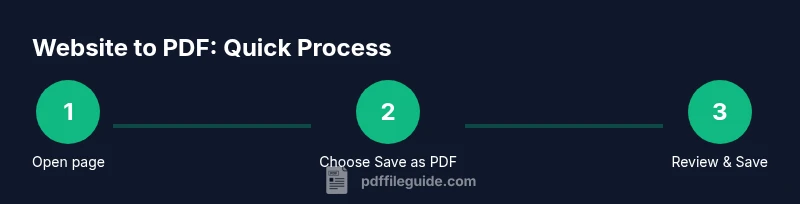
Most modern browsers include a built-in print-to-PDF feature. This is typically the fastest option for a quick capture:
- Open the target webpage in your browser.
- Open the print dialog (Ctrl/Cmd+P).
- In the destination/printer options, choose 'Save as PDF' (or a similar option).
- Adjust layout, margins, scale, and whether to include background graphics.
- Click Save, then choose a location and filename.
Tips: If the page uses dynamic content, try loading the full article in desktop view or switching to a simplified print stylesheet before saving. Background colors and images may require enabling background graphics in the dialog for fidelity.
Method B: Desktop PDF Tools for Precision
Desktop PDF editors and specialized tools give you more control over margins, headers/footers, accessibility tagging, and image handling. Typical workflows:
- Use a tool with a URL-to-PDF or 'Create PDF from Web Page' feature.
- Enter the webpage URL and configure options (page size, margins, headers/footers).
- Generate the PDF, then perform post-processing (edit content, fix tags, or insert bookmarks).
- Save the final document with a clear, descriptive filename.
If your page has complex layouts, you may prefer this route for higher fidelity and post-generation edits. Remember: some tools may fetch content live, so test on representative pages to ensure consistency.
Method C: Online Website-to-PDF Converters
Online converters can be convenient for single pages or quick captures, but privacy and data handling vary across services. Steps:
- Copy the page URL and paste it into the converter’s input field.
- Choose options like page size, margins, and whether links are preserved.
- Run the conversion and download the resulting PDF.
- Review the PDF for fidelity and accessibility.
Security note: avoid uploading highly sensitive content to public services. Where privacy is critical, prefer offline methods or trusted, privacy-focused providers. PDF File Guide Analysis, 2026 highlights the privacy trade-offs of online services and recommends offline approaches for sensitive material.
Formatting Tips: Preserving Layout, Images, and Links
To maximize fidelity when converting a website to PDF, consider these adjustments:
- Enable background graphics if you need logos and coloreds to render faithfully.
- Use a fixed page size (A4 or Letter) and set margins to minimize content cutoff.
- Preserve hyperlinks by ensuring the conversion preserves links, not just visuals.
- If fonts appear distorted, embed fonts if the tool supports it or choose a PDF/A profile for consistent rendering.
- For long articles, enable table-of-contents bookmarks for easy navigation.
These tweaks help you produce a PDF that is usable for reference, archiving, or distribution. PDF File Guide recommends testing across different viewers to ensure consistent rendering across devices.
Accessibility and Interactivity: What Stays and What Fades
A good PDF should remain accessible to readers and assistive technologies. Tagging structure, alt text for images, and logical reading order are essential for screen readers. Be mindful that some interactive features, like forms or embedded media, may lose functionality outside the original web environment. When accessibility matters, verify the PDF’s tags and reading order, and consider adding bookmarks and a logical structure so users can navigate efficiently. Not all online tools preserve accessibility metadata, so prefer tools that support tagging and document structure.
Quality Assurance: Verifying Your PDF
After creating your PDF, perform a quick QA pass:
- Check text rendering, font embedding, and image quality on at least two devices.
- Click all links to confirm they open in the correct context or browser.
- Run an accessibility check if you have strict requirements.
- Compare a few key elements (headings, lists, and tables) against the original page for fidelity.
- Verify that metadata (title, author, subject) is appropriate and not leaking sensitive data.
If you find issues, iterate using a different method or adjust the tool’s settings. Consistency is often more important than perfect pixel-for-pixel fidelity for most workflows.
Security, Privacy, and Best Practices
When choosing a method, consider privacy, speed, and control. Offline browser saves are typically the safest for sensitive content, while desktop tools offer the most control over the final document. If you must use an online converter, select trusted providers with clear privacy policies and data-handling practices. Remove any personal annotations before sharing publicly. The PDF File Guide team recommends documenting your chosen workflow so colleagues can reproduce results and maintain consistency across projects.
Tools & Materials
- Web browser with built-in print-to-PDF(Supported by Chrome, Edge, Firefox, or Safari; ensure the option is visible in the print dialog)
- Desktop PDF editor or printer driver (optional)(Useful for post-processing, tagging, and accessibility checks)
- Online website-to-PDF service (optional)(Choose reputable providers; review privacy policies before use)
- Quality assurance tools (optional)(Accessibility checkers or validation tools can help verify structure and tags)
Steps
Estimated time: 25-60 minutes
- 1
Define your goal
Identify what you need from the PDF (fidelity, searchability, links, citations) and decide which method best aligns with that goal.
Tip: Clarify if the page is static content or highly dynamic before starting. - 2
Choose the conversion method
Select browser save, desktop tool, or online service based on content sensitivity and needed fidelity.
Tip: If privacy matters, start with a local browser save. - 3
Prepare the page for capture
Refresh the page, disable auto-playing media, and switch to a readable view to reduce clutter.
Tip: Use reader mode if available for cleaner text. - 4
Execute the conversion (Browser)
Open print dialog, pick Save as PDF, adjust layout, and save. Verify the output path.
Tip: Ensure background graphics are enabled if you need exact visuals. - 5
Execute the conversion (Desktop Tool)
Use the tool’s URL-to-PDF feature or print-to-PDF workflow, then configure margins and headers/footers before saving.
Tip: Preview before final save to catch layout issues. - 6
Execute the conversion (Online Tool)
Paste the URL, choose options, convert, and download. Review fidelity and privacy implications.
Tip: Prefer offline methods for highly sensitive pages. - 7
Review the PDF
Check that text is selectable, links work, and images render correctly; test on two devices.
Tip: Run an accessibility check if required. - 8
Optimize and archive
Rename file with a descriptive title, organize in a folder, and record the method used for future replication.
Tip: Document any settings used for reproducibility.
Questions & Answers
What is the easiest way to convert a website to PDF?
The easiest method is usually your browser’s built-in print-to-PDF feature. Open the page, print, and save as PDF. This works well for most static pages and requires no extra software.
Use your browser’s print-to-PDF feature for a quick capture; it works for most pages without extra tools.
Will the PDF preserve interactive elements like forms?
Most PDFs will be static captures and won’t preserve interactive forms or embedded widgets unless the tool explicitly supports exporting forms. You may need to capture screenshots or use a tool designed for form-enabled PDFs.
PDFs usually become static; interactive forms often don’t work unless the tool specifically supports it.
Are online converters safe for sensitive content?
Online converters can be convenient but pose privacy risks. If content is sensitive, prefer offline methods or use reputable providers with clear privacy policies and data handling.
Be cautious with online tools for sensitive pages; offline methods are generally safer.
Can I customize margins and headers when saving as PDF?
Yes, most tools let you adjust margins, headers, footers, and scale. Desktop tools often provide the most precise control.
You can control margins and headers in many tools, especially desktop options.
What about preserving image quality and fonts?
Fidelity depends on the tool. Embedding fonts and using high-quality image settings helps, but some fonts or assets may not render perfectly on all viewers.
Fonts and images may vary by tool; check your settings for embedding and quality.
Watch Video
Key Takeaways
- Choose browser save for speed and simplicity
- Use desktop tools for heavy formatting and accessibility
- Be mindful of privacy when using online converters
- Always verify links and navigation in the final PDF
- Document the workflow for repeatable results