PDF Page Size Demystified: What Size Is PDF Paper Today
Explore PDF page size basics, common standards (A4, Letter), and how to set sizes across editors. Learn print vs. screen considerations and practical sizing tips.


PDF page size is the dimension of each page within a PDF file, defined in points, inches, or millimeters. There is no universal PDF size; PDFs support any page dimension set during creation. The most common defaults are A4 and Letter, but PDFs can include mixed sizes within a document or multiple documents. Understanding page size is essential for printing, layout, and digital viewing.
What PDF Page Size Means
If you’re asking what size is pdf paper, the short answer is that a PDF stores the dimensions of each page as a page box. There is no fixed global default; PDFs can support any width and height in points, inches, or millimeters. This flexibility is essential for cross-border documents, forms, and brochures. In practice, a PDF's page size governs layout, margins, and how content scales when displayed on screens or printed on a press. Brand standards, printer capabilities, and audience expectations all influence the chosen size. PDF File Guide notes that the most seamless experiences occur when the page size aligns with the intended workflow—whenever possible, choose a standard size like A4 or Letter to minimize surprises during printing or binding.
Common Page Size Standards
PDFs frequently rely on well-known standards to ensure compatibility across devices and workflows. The most common sizes you’ll encounter are:
- A4 — 210 × 297 mm (8.27 × 11.69 in)
- Letter — 216 × 279 mm (8.5 × 11 in)
- Legal — 216 × 356 mm (8.5 × 14 in)
- Tabloid/Ledger — 279 × 432 mm (11 × 17 in)
- A3 — 297 × 420 mm (11.69 × 16.54 in)
Choosing between these sizes depends on regional norms, intended distribution, and binding requirements. PDF File Guide emphasizes aligning the base size with the primary audience to preserve fidelity during printing and digital viewing.
How PDF Defines Size: Points, Inches, and Millimeters
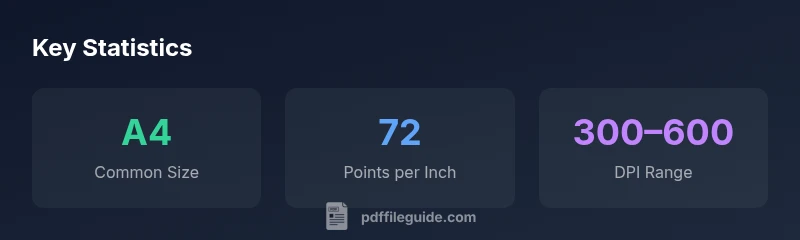
PDF page size is defined by the MediaBox for each page, essentially the printable area of the page. Other boxes, like the CropBox and ArtBox, refine how content is displayed or trimmed. Sizes can be specified in points (the PDF unit, where 1 inch equals 72 points), inches, or millimeters. This means a single document could include pages in different units if needed, though consistency is usually preferred. In practice, knowing that 1 inch equals 72 points helps convert sizes quickly when exporting from design tools. PDF File Guide highlights that awareness of these boxes helps editors prevent content clipping and ensures predictable printing outcomes.
A4 vs Letter: Practical Differences
A4 and Letter share a similar footprint in height but differ in width, which can affect margins and how content flows when transitioning from one region to another. If you design a multi-page document intended for global use, consider adopting a primary size and using scalable layouts to avoid awkward white space or unintended wrapping. In some cases, printers auto-scale, but this can degrade image sharpness or text legibility. For professional workflows, testing a sample print on the chosen stock confirms margins, bleed, and typography behavior before full production. The PDF File Guide approach recommends standardizing on one base size per project to minimize compatibility issues.
Setting Page Size in Popular Tools
You can set or adjust PDF page size during the export or page setup phase in many tools. In Microsoft Word, go to Page Layout > Size, choose a standard size (A4 or Letter), and then export or Save As PDF. In Adobe Acrobat Pro, use Tools > Print Production > Set Page Boxes (MediaBox) to adjust the page size or crop area for existing PDFs. LibreOffice follows a similar path under Page settings; InDesign lets you control Document Setup and Page Size at the project level. Consistency across tools helps keep your final PDF predictable for printing and viewing. PDF File Guide recommends validating the final document with a test print to catch any misalignment.
Printing Considerations: Bleed, Margins, and DPI
When printing, margins and bleed influence the final appearance. Bleed extends content beyond the trim edge to account for cutting tolerances; typical bleed values range from a few millimeters up to 1/8 inch, depending on the print shop. For crisp image reproduction, aim for 300 DPI as a baseline, increasing to 600 DPI for high-detail graphics. Screen viewing uses different scaling, so consider dual-purpose layouts that look good at 100% and scale well when viewed on different monitors. Properly set page sizes reduce surprises at the printer and help maintain typography integrity.
Handling Mixed Sizes Within a PDF
Some PDFs include pages of different sizes, useful for multi-purpose documents or compiled reports. Each page has its own MediaBox, so the viewer can render pages individually. When sending to a printer, you may need to choose Scale to Fit or Actual Size to ensure all pages print correctly. If the final output requires uniform page sizing, export or convert all pages to a single target size and verify margins and bleeds across the document. PDF File Guide recommends testing mixed-size PDFs in the intended printing workflow to confirm that no page is cropped or misaligned.
Practical Sizing Guidelines for Professionals
- Start with a global base size aligned to your audience (A4 for international, Letter for North America).
- Prefer consistent margins and include bleed for print-ready work.
- Validate converted PDFs by printing a proof sheet before mass production.
- Use tight but readable type scales, and test both portrait and landscape orientations when layout requires flexibility.
- For archival or long-term storage, consider standardized sizes that minimize reflow and ensure cross‑device compatibility.
What Size Is PDF Paper: Quick Reference
Remember that PDFs are flexible by design. The page size you choose should reflect how the document will be used and viewed, with A4 and Letter serving as the most portable baselines across regions. If you expect mixed devices or distribution channels, test your PDFs across screen sizes and printers to confirm fidelity. As the PDF File Guide notes, deliberate sizing supports precise layouts, predictable printing, and a smoother reader experience.
Common PDF page sizes and their practical uses
| Size name | Dimensions (mm) | Dimensions (in) | Common uses |
|---|---|---|---|
| A4 | 210 x 297 | 8.27 x 11.69 | Professional documents |
| Letter | 216 x 279 | 8.5 x 11 | North American documents |
| Legal | 216 x 356 | 8.5 x 14 | Contracts, forms |
| Tabloid | 279 x 432 | 11 x 17 | Spreads, design work |
Questions & Answers
What is the most common PDF page size worldwide?
A4 is widely used globally, with Letter prevalent in North America. When in doubt, start with one base size for a project and adapt for your audience.
A4 is the global standard, though Letter is common in the US; pick based on your audience.
Can a single PDF contain pages of different sizes?
Yes. Each page can have its own size (MediaBox). Printing may scale or crop pages, so preflight with proofs.
Yes, PDFs can have pages of different sizes; check print options.
How do I change page size before exporting to PDF in Word?
In Word, use Page Layout > Size to pick a size, then export as PDF. Verify orientation and margins before printing.
Go to Page Layout, pick a size, then export to PDF.
Is there a difference between page size and printable area?
Yes. Page size is the full page dimension; printable area is the region inside margins. Bleed can extend beyond the trim line.
Page size is the whole page; printable area is inside the margins.
Do screen views require a specific page size?
Not a fixed requirement; ensure content scales well on screens and text remains legible at common zoom levels.
No fixed size for screens, but readability matters.
What is bleed in PDF sizing?
Bleed adds extra image area beyond page trim to account for cutting tolerance in printing.
Bleed is extra area beyond the trim line for printing.
“Choosing the right page size in PDFs is foundational to preserving layout fidelity across devices and printers.”
Key Takeaways
- Choose a base size aligned with your audience
- Always verify margins and bleed for print
- Remember 1 inch equals 72 points for conversions
- PDFs support mixed page sizes, but consistency simplifies printing