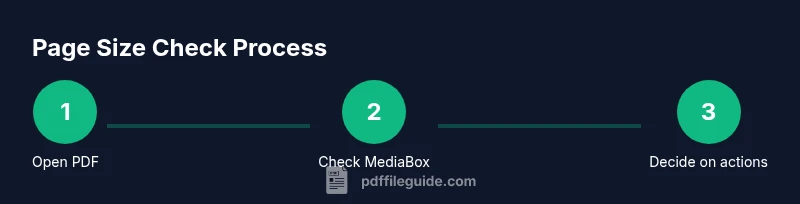
How to Know PDF Page Size: A Practical Guide
Learn how to identify PDF page sizes accurately across tools. This guide covers quick checks, viewing methods, and step-by-step methods to verify page dimensions for printing, editing, and sharing.


To know a PDF’s page size, inspect the media box or crop box in a PDF editor or viewer. Check the document properties for the default size, and review each page if the file uses mixed sizes. Common defaults include A4 and Letter, though other formats appear in scans or templates. Verifying size at the start saves formatting and printing headaches later.
Understanding PDF Page Size Fundamentals
In the PDF ecosystem, page size is defined by a few geometric boxes that describe how content sits on a page. The most important is the MediaBox, which declares the official size of the page as it should appear when printed or viewed. Some PDFs also use a CropBox or BleedBox to describe margins or trimmed areas, which can differ from the actual page dimensions. When you receive a PDF, you should check the MediaBox to know the official page size; never rely solely on on-screen zoom to judge dimensions, because display scaling can mislead you. In practice, you may encounter a file where a single document uses different sizes across pages due to design needs, scanned pages, or re-used templates. In such cases, you’ll want to verify each page's size individually and note any deviations. Understanding these boxes helps you prepare files for printing, exporting, or conversion with the right start size.
Common Page Size Standards and Variations
PDFs across industries often adhere to standard sizes, but real-world documents can vary. The most common default sizes include A4 and Letter, with A4 being standard in many regions outside North America and Letter prevailing in the United States. Legal and tabloid sizes appear for specific workflows, while created or scanned PDFs may capture unusual or mixed sizes. Always check whether a file was designed for a single page dimension or if it intentionally uses multiple sizes. When printing, mismatches between page size and printer settings can lead to cut-off content or extra margins, so confirming the exact size before sending to print saves time and material. If you work with multi-page documents, note any pages that diverge from the norm and plan how you will handle them in downstream steps.
Quick Checks Using Popular PDF Viewers
Most PDF viewers expose page size information through a simple menu. In a common reader, open the file, go to the document or page properties, and read the page size displayed as dimensions or inches/millimeters. Some viewers summarize the page size in the status bar when you select a page, or in the page thumbnails panel there is a small label showing the page width and height. If the file uses a single size across all pages, the report is straightforward. If there are many pages, you may need to navigate through a few pages to confirm consistency. For a fast first look, compare the default page size listed at the start with what you see on a few representative pages.
Reading Page Size in PDF Editors
More advanced editors provide a dedicated inspector to reveal page geometry. Open the PDF in an editor, locate the Page or Document Properties, and read the MediaBox values. Some tools also show CropBox and BleedBox, which indicate trimmed or printable areas. If the editor allows toggling measurement units, set them to a familiar unit (inches or millimeters) to compare sizes easily. When a document includes large margins or annotations that extend beyond the printable area, you may see a larger CropBox that does not affect the actual MediaBox. Recording the official page size per page helps you plan accurate exports, image crops, or form field alignments later.
Handling Documents with Mixed Page Sizes
A common challenge is PDFs that mix sizes, often due to combining scanned pages with native content. In such cases, compile a per-page size list and annotate any irregular pages. If your goal is a single, print-ready document, you might prefer to standardize all pages to one size using a page-resize or crop operation and then re-save. If preserving the original layout is essential, keep track of which pages require adjustments and why, so your downstream workflow can accommodate different sizes without confusion.
Cropping and Resizing: When to Adjust Page Size
Cropping reduces the visible area and may not visibly alter the printed page size, depending on printer margins. Resizing changes the actual page dimensions and can impact content layout. Before performing any resize, back up the original file and test print a sample. If your project demands exact fit for a template, align page edges, margins, and columns to the target size. After cropping or resizing, re-check the page sizes across multiple pages to ensure consistency, as a single mismatch can derail downstream steps like exporting to images, converting to other formats, or creating fillable forms.
Best Practices for Accurate Page Sizing in Workflows
Establish a clear standard at the start of a project, and document the intended page size in your workflow brief. When creating PDFs, fix the page size early and avoid ad hoc changes late in production. Use templates that lock in the correct dimensions for all pages, especially for forms and manuals. Before sharing with colleagues, verify the page size on a sample of representative pages and in the final print preview. Finally, when possible, keep a per-page size log as part of your project assets to speed future revisions.
Authoritative sources and verification methods
For learning and verification, consult established references on PDF geometry and printing standards. Look up the MediaBox, CropBox, and BleedBox definitions in the official documentation from reputable publishers. As you work, compare what you see in your tools with these sources to confirm that your page size readings are accurate across different software environments.
Tools & Materials
- PDF viewer( essential for quick page size checks; look for MediaBox and CropBox readouts)
- PDF editor(needed for deeper inspection of page geometry and for resizing/cropping if required)
- Web browser(useful for viewing online viewers or cloud-based editors)
- Printer with adjustable margins(helps verify print-ready page size against physical output)
- Ruler or caliper(optional for manual measurement when units are not shown clearly)
- Backup storage (cloud or local)(keep a copy of originals before any resizing or cropping)
Steps
Estimated time: Estimated total time: 20-40 minutes
- 1
Open the PDF in a reliable viewer/editor
Launch a tool that can display page geometry and metadata. This gives you the baseline page size for the document. If the file uses multiple sizes, you will notice variations across pages as you navigate.
Tip: Use a keyboard shortcut to quickly access document properties (varies by tool). - 2
Access page size in the document properties
Find the Page or Document Properties section and read the MediaBox values. If available, also note the CropBox and BleedBox to understand trimmed areas and printing margins.
Tip: Switch units to inches or millimeters for easier comparison. - 3
Check multiple pages for consistency
If the document contains many pages, skim a representative set to confirm a single default size or identify pages with different sizes. Document any deviations in a quick log.
Tip: Create a small table listing page numbers and sizes for quick reference. - 4
Assess CropBox vs MediaBox
Determine whether the visible content area (CropBox) matches the overall page size (MediaBox). A mismatch can indicate trimmed margins or content outside printable regions.
Tip: Do not assume CropBox equals page size; confirm with the tool’s measurements. - 5
Consider standardizing or cropping if needed
If the goal is a single, print-ready document, you may crop or resize pages to a unified size. Always back up the original before making changes.
Tip: Test on a print preview to confirm alignment with templates. - 6
Save and verify the final output
Save the edited PDF and reopen to verify that new page sizes are consistent across pages. Export to other formats only after confirming dimensions.
Tip: Keep a changelog of page-size adjustments for future audits.
Questions & Answers
What does it mean if a PDF shows multiple page sizes?
That usually indicates a mixed-layout document. You should identify which pages differ and decide whether to unify sizes or preserve the original layout for those pages.
A mixed-layout PDF has pages of different sizes; decide whether to standardize or keep the variations.
Can page size be changed after a PDF is created?
Yes, you can crop or resize pages using a PDF editor, but this can affect content layout. Always back up before making changes and re-check all pages afterward.
You can change page size in a PDF editor, but back up first and re-check all pages afterward.
How do I know if a page size is correct for printing?
Check the printer’s intended media size and compare it with the PDF’s MediaBox. Use the final print preview to verify margins and content fit.
Compare the PDF size to the printer’s media size and check the print preview.
Is there a difference between MediaBox and CropBox?
Yes. MediaBox defines the page’s actual size, while CropBox describes the portion to display or print. They can be different if margins or trimming are applied.
MediaBox is the page size; CropBox shows the display area; they can differ if margins are trimmed.
Which tools can read page size for free?
Most free PDF viewers and editors can show page size in properties. For deeper inspection, some open-source tools and libraries provide access to page boxes programmatically.
Free viewers often show page size in properties; some open-source tools can read page boxes programmatically.
Watch Video
Key Takeaways
- Identify the MediaBox to confirm official page size.
- Check CropBox for trimmed or non-printable areas.
- Standardize sizes only after backing up originals.
- Verify all pages; mixed sizes require per-page checks.