Adobe PDF Download Guide: Get Acrobat Reader and More
Learn how to safely download Adobe PDF tools, install Acrobat Reader or Pro, and configure settings for reliable PDF work across desktop and mobile. This educational guide covers source verification, installation steps, and practical workflows for professionals and students.


With this guide, you’ll master adobe for pdf download: choosing the right Adobe PDF tool (Reader or Pro), verifying the official source, and installing safely for desktop or mobile. You’ll learn how to select a plan, avoid counterfeit installers, and configure basic preferences for fast, reliable access to your PDFs.
Understanding the Adobe PDF ecosystem
PDFs are a universal format for documents, forms, and manuals. Adobe offers two core products that affect how you work with PDFs: Acrobat Reader, which is free for viewing and basic tasks, and Acrobat Pro, a paid solution with editing, creation, and advanced security features. Understanding when to use each helps you optimize your workflow, whether you’re reviewing reports, filling forms, or compiling client-ready documents. The PDF File Guide team emphasizes starting with official sources to ensure you receive legitimate installers and up-to-date features. In practice, most users begin with Reader for everyday tasks and upgrade to Pro only when editing or batch processing is required. This decision impacts your licensing, updates, and access to premium tools like file conversion, OCR, and signature workflows.
Acrobat Reader vs Acrobat Pro: What you need
Acrobat Reader (DC) is practically universal for reading, filling, and commenting on PDFs. Acrobat Pro DC adds features like editing text and images, combining files, creating PDFs from other formats, and applying advanced protections. If your work involves secure document handling, e-signatures, or batch processing, Pro is usually worth the cost, while Reader suffices for most standard tasks. Consider your team size, subscription preferences, and whether you’ll need features like OCR, form creation, or automated actions. The choice also affects how you share, annotate, and export PDFs across devices, so pick the option that aligns with your daily tasks.
Safety and authenticity: How to verify downloads
Downloading software from unofficial sources is a common vector for malware. Always use official Adobe sites, verify the URL, and look for HTTPS and a valid digital signature if available. Avoid third-party download managers that add extra bloat or bundled software. Regularly check for official release notes to stay informed about security patches and feature updates. These practices reduce risk and keep your PDF workflows intact. According to PDF File Guide, staying vigilant about source integrity is essential when performing an adobe for pdf download.
Additionally, keep your antivirus active and perform periodic scans after new installations to catch any tampering early.
Where to download: official sources and alternatives
The safest path is to download directly from Adobe’s official site or authorized app stores. For desktop work, start at the Acrobat or Reader product pages on adobe.com. If you see offers on third-party sites, resist them unless they link to Adobe’s official download pages. If you use a managed enterprise environment, your IT team might provide a controlled distribution method. PDF File Guide analysis shows that users who verify sources and avoid phishing links are less likely to encounter insecure installers. Always ensure you’re on the correct domain and avoid clicking popups that claim urgent security issues; these are common phishing tactics.
Installation steps overview
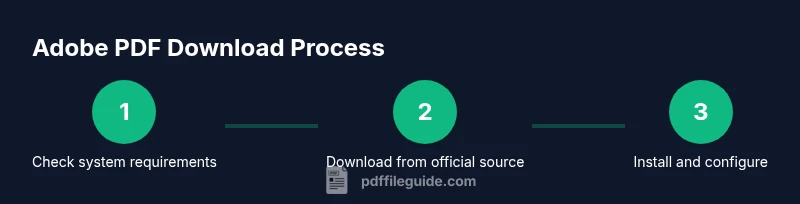
After downloading the installer, close all other applications to prevent conflicts. Run the installer with administrative privileges to ensure all components are registered on your system. Follow the on-screen prompts to accept terms, choose a destination folder, and sign in with an Adobe ID if you plan to use Pro features. The installer may offer optional components like browser plugins or printer extensions; deselect options you don’t need to minimize bloat. Finish by launching the application to confirm a successful setup and initial updates.
Post-installation configuration and preferences
Open the application and adjust preferences to fit your workflow. Set default PDF viewers, enable automatic updates, and configure security settings such as trusted documents and document protection. If you work with sensitive files, enable enhanced security features and configure password protection and e-signature defaults. Create shortcuts or dock icons for quick access, and customize toolbars to show frequently used functions like Edit, Convert, and Comment. Regularly review privacy settings to keep data handling aligned with your organization’s policies.
Accessibility considerations and usage tips
PDFs are frequently consumed by diverse audiences. Enable accessibility features such as reading order, screen reader-friendly text, and tagged PDFs to improve readability for all users. When sharing documents, ensure alt text for images and accessible forms so screen readers can interpret content. Use clear, logical structures and consistent headings to assist navigation. If you’re preparing fillable forms, test them with assistive technologies and consider providing plain-language alternatives for critical information.
Common issues and quick fixes
If Acrobat won’t launch, check system requirements and ensure the latest version is installed. If PDFs won’t render correctly, try disabling unnecessary plug-ins, repairing the installation, or resetting preferences. For license or activation problems, sign in with a valid Adobe ID and verify your subscription status. If updates fail, use the official updater from Adobe or reinstall the product from the official site. In most cases, these steps resolve typical hiccups and keep your PDF tasks moving smoothly.
Advanced workflows: combining PDFs, e-signatures, and forms
For power users, Acrobat Pro offers tools to merge multiple PDFs, insert pages from other documents, apply digital signatures, and export to various formats. Create fillable forms, enable auto-calculation fields, and enable form data export for data-driven workflows. When sharing documents, apply security settings that restrict copying or printing as needed. Keep an eye on compatibility with other tools in your stack, such as word processors, note-taking apps, and cloud storage services, to maintain a seamless end-to-end process.
Tools & Materials
- Computer or mobile device with internet access(Windows, macOS, iOS, or Android; ensure the device is up to date)
- Official Adobe download access(Visit the official Adobe site to obtain Reader or Pro installers)
- Administrative access(You may need admin rights to install software)
- Stable internet connection(Prefer wired connection for large installers)
- Adobe ID (optional for Pro)(Needed for Pro subscription and sign-in-based features)
- Backup of existing PDFs(Optional safety net before major installers)
Steps
Estimated time: 25-40 minutes
- 1
Check system requirements
Before downloading, confirm your operating system and hardware meet the minimum requirements listed by Adobe. This prevents install failures and ensures smooth performance. Verify available disk space and RAM to accommodate the installer and the PDFs you work with.
Tip: Verify OS version and available disk space; aim for at least 500 MB free for the installer. - 2
Choose the correct Adobe product
Decide between Acrobat Reader for basic viewing and Acrobat Pro for editing, creation, and advanced features. Consider your workflow, team size, and whether you need OCR, forms, or batch processing. Make a note of whether you require subscriptions or perpetual licenses.
Tip: If unsure, start with Reader and upgrade later when you need editing capabilities. - 3
Download from official source
Navigate to the official Adobe download page for Acrobat Reader or Pro. Avoid third-party sites and bundled installers. Confirm you are on the correct domain and avoid pop-ups that claim urgent security issues.
Tip: Bookmark the official page to reduce the chance of encountering counterfeit sites. - 4
Run installer with admin rights
Launch the installer with administrative privileges. Follow the prompts to accept terms, select installation options, and complete the setup. Close other apps to prevent conflicts during the install.
Tip: Run as administrator to ensure all components are registered system-wide. - 5
Sign in and activate
If you plan to use Pro features, sign in with your Adobe ID or create one. Activation connects your license to the device and unlocks features like cloud storage and document signing.
Tip: Use a strong, unique password and enable two-factor authentication on your Adobe account. - 6
Update to latest version
Check for updates after installation to ensure you have the latest security patches and features. Enable automatic updates if available to simplify future maintenance.
Tip: Set auto-update to avoid missing critical security improvements. - 7
Configure preferences
Open the app and tailor preferences: default PDF viewer, security settings, form behavior, and accessibility options. Create shortcuts for frequently used tools and set up cloud sync if needed.
Tip: Organize toolbars to keep essential features reachable during daily tasks.
Questions & Answers
Is Adobe Reader free for download?
Yes, Adobe Reader is available as a free download with core viewing and commenting features. Some advanced features may require a Pro subscription.
Adobe Reader is free to download for viewing, with advanced features offered in Pro if you upgrade.
What is the difference between Acrobat Reader and Acrobat Pro?
Reader is free for basic viewing and commenting. Pro adds editing, creation, OCR, and form tools, plus advanced security features. Choose based on your editing needs.
Reader is free for viewing; Pro adds editing and advanced tools.
Can I download Adobe PDF on mobile devices?
Yes. Adobe offers mobile apps like Acrobat Reader and Acrobat Pro for iOS and Android through official app stores. Features may vary by platform.
You can download Adobe PDF apps on iOS and Android from official stores.
Do I need an Adobe account to download?
A basic Reader download does not require an Adobe ID. Pro features and subscriptions typically require signing in with an Adobe ID.
A Pro subscription requires an Adobe ID; Reader can work without one.
How do I verify the download is legitimate?
Always download from Adobe’s official site, check the URL, ensure HTTPS, and verify any available digital signature. Be wary of offers that seem too good to be true.
Download only from Adobe’s official site and verify the site URL.
What if I only need to view PDFs occasionally?
Acrobat Reader is typically sufficient for casual viewing and basic forms. For occasional viewing, this free option should cover most needs, with Pro reserved for more advanced tasks.
Reader is enough for occasional viewing; upgrade only if you need editing.
Watch Video
Key Takeaways
- Choose Reader for viewing, Pro for editing to fit your needs
- Always download from official sources to avoid malware
- Enable updates to stay protected and feature-rich
- Configure preferences for faster, more efficient workflows
- Use accessibility features to improve document usability