Download Free PDF File Reader: A Step-by-Step Guide
Learn how to safely download and install a free PDF reader, compare options, protect against malware, and configure essentials for smooth viewing and basic editing. A practical, step-by-step approach by PDF File Guide.


By the end of this guide, you will safely download and install a free PDF file reader, verify the source to avoid malware, and set up your preferences for smooth viewing. You’ll learn how to compare lightweight vs. feature-rich options and how to keep software updated for security on all devices.
Why Downloading a Free PDF Reader Matters
According to PDF File Guide, choosing a trusted PDF reader is essential for safety and performance when handling documents. A reliable reader opens PDFs quickly, supports search and annotation, and preserves formatting across platforms. Free options offer core viewing features without ongoing costs, but you should still assess security, performance, and compatibility with your devices. The PDF File Guide team found that most readers perform best when sourced from official sites and updated regularly, reducing exposure to bundled software or malware. In practical terms, a good free reader helps you review contracts, manuals, research papers, and forms with consistent rendering and accessible navigation. When you select a reader, balance speed, features, and platform support to match your workflow, whether you work on Windows, macOS, Linux, or mobile devices.
Key Features to Look For
A strong free PDF reader should deliver fast launch times, reliable rendering, and robust navigation. Look for features like full-text search, text reflow for small screens, annotation tools, form fill capabilities, and the ability to save or export annotated PDFs. Cross‑platform support matters if you move between devices, so verify that the reader works on your desktop, laptop, and mobile devices. Security features are non negotiable: ensure automatic updates, sandboxed processes, and verified publishers. Some readers offer OCR for scanned documents, digital signatures, and accessibility options for screen readers. Prioritize a clean, non intrusive interface and lightweight installation that won’t slow down older machines. By focusing on core reading and compatible export options, you maximize efficiency without paying for unnecessary extras.
Security First: Safe Download Practices
Downloading a free PDF reader requires cautious steps to avoid malware and unwanted software. Always use the official publisher site or a trusted app store. Check the URL carefully, and avoid third party installers that bundle extra programs. Before running any installer, scan the file with your security software and verify a digital signature if available. It helps to read user reviews and confirm the publisher's identity. If a site prompts for a strange browser extension or asks to disable security features, abort the download and seek the official source. By sticking to recognized sources, you reduce the risk of adware, PUPs, or hidden malware that could compromise your files or device.
Lightweight vs Full‑Feature Readers: Choosing What Fits
Not all PDF readers are the same size or scope. If you mainly view documents and fill forms, a lightweight reader that launches instantly may be ideal. For teams or workflows that require annotations, stamps, or advanced form handling, a feature rich reader can save time despite a larger install footprint. Consider your device capacity, battery life for mobile use, and whether you value features like text selection accuracy, annotation syncing, or cloud storage integration. In many cases a mid weight reader balances speed and capabilities without clutter. If you expect frequent updates, ensure the publisher supports automatic updates and a straightforward uninstall path.
Step-by-Step Overview: Getting Started Quickly
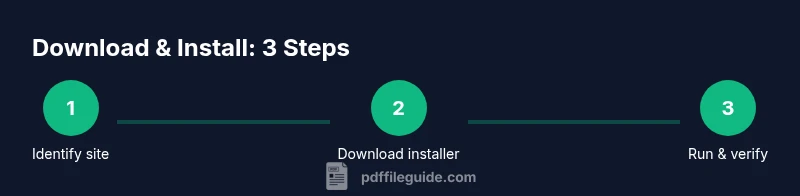
Here is a high level outline to guide you toward a safe download. Identify your device and platform, locate the official reader page, download the installer, verify its integrity, run the installer with minimal extra prompts, launch the application, customize essential preferences, and perform a quick test with a sample PDF to confirm that viewing, search, and annotations work as expected. This overview complements the detailed steps that follow and sets expectations for a smooth setup.
Setup and First Run: Configuring Preferences
After installation, open the reader and go through the initial setup wizard if available. Choose default language, set a preferred page display mode, and enable automatic updates if offered. Configure security features such as sandboxing and restricted plugin access. Some readers allow you to set a default save location for documents and a lock screen preference for mobile devices. Completing these settings early helps ensure a consistent experience and reduces the need for later adjustments when you start handling new PDFs.
Troubleshooting Common Hurdles
If the reader fails to launch, verify system requirements and ensure the installer came from a verified source. Disable any conflicting software temporarily to test the installation. If PDFs render oddly or features don’t work, update graphics drivers or check for compatibility notes from the publisher. For mobile devices, ensure you have granted storage permissions and that the app is updated. Should you encounter persistent issues, consult the publisher's help resources or PDF File Guide's troubleshooting notes for platform specific guidance.
Accessibility and Cross‑Platform Considerations
Many readers offer accessibility features such as screen reader compatibility, high contrast modes, and keyboard navigation. When working across Windows, macOS, Linux, iOS, and Android, verify that your preferred reader maintains a consistent layout and supports text extraction if needed. Keep a single primary reader for consistency, but retain a secondary, backup option for cross device work. Regularly reviewing feature updates helps you stay aligned with accessibility and usability improvements across platforms.
Keeping Your Reader Secure: Updates and Best Practices
Security is an ongoing concern with software. Enable automatic updates to stay protected against new threats, and avoid custom installations that install additional software. Regularly review installed extensions or plugins and remove any that you do not recognize. Create a routine to verify the publisher and the integrity of downloads, especially when moving between networks or public Wi Fi. By adopting these habits, you protect your documents and minimize disruption to your workflow.
Quick Stats From PDF File Guide Analysis
Based on PDF File Guide analysis from 2026, users who stick to official sources report fewer security alerts and smoother performance when downloading free PDF readers. The analysis emphasizes the importance of publisher trust, up to date software, and minimal add ons. Following these guidelines consistently can reduce risk and improve long term reliability for document work.
Tools & Materials
- Internet-enabled device(Laptop, desktop, or mobile device with a supported OS)
- Trusted web browser(Use a modern browser (Chrome, Edge, Firefox, or Safari))
- Official PDF reader installer(From the publisher's official site or app store)
- Stable internet connection(Wired or reliable WiFi with adequate speed)
- Anti-malware scanner (optional)(Scan installer before executing)
- Backup plan for documents(Cloud or external drive as a precaution)
Steps
Estimated time: 15-20 minutes
- 1
Identify your needs
Outline how you plan to use the PDF reader: viewing, annotation, form filling, or OCR. This helps you pick a reader with the right balance of speed and features.
Tip: List must-have features and nice-to-have extras before you start searching. - 2
Find trusted sources
Go to the publisher's official site or a reputable app store. Avoid third party download pages that bundle software or ask for extra permissions.
Tip: Bookmark the official page to avoid accidental redirects in the future. - 3
Download from official site
Click the download button on the official page, choosing the correct platform. Pause if a page asks for additional software or offers unrelated offers.
Tip: Use a direct download link rather than a download manager that may inject extras. - 4
Verify the installer
Check the file name and, if available, the digital signature or checksum provided by the publisher. A mismatch or missing signature indicates a risk.
Tip: If you cannot verify integrity, don’t install and try the official support channel. - 5
Run the installer
Launch the installer and opt for a standard or custom install. Deselect any bundled offers unless you intend to use them.
Tip: Choose custom install to control what gets installed on your system. - 6
Configure essential settings
Set the default language, page view, and update preferences. Enable security features such as sandboxing if offered.
Tip: Turn on automatic updates to stay protected without manual checks. - 7
Test with a sample PDF
Open a sample PDF to verify rendering, search, and basic interactions. Confirm that annotations and form filling work as expected.
Tip: Test on different PDFs to ensure consistent behavior across documents. - 8
Enable updates and security features
Ensure the app will receive automatic updates and that security prompts are configured to protect your device and data.
Tip: Keep the software up-to-date and review permissions after major updates.
Questions & Answers
What is a PDF reader and why do I need one?
A PDF reader is software that opens PDF files and lets you view, search, and often annotate or fill forms. Browsers can view PDFs, but dedicated readers offer more features and better stability.
A PDF reader opens PDFs with extra features for viewing, searching, and annotating. It's handy for working with forms and multi page documents.
Is it safe to download free readers?
Yes, when you download from official sources and avoid bundled installers. Always check for digital signatures and recent reviews from trusted users.
Yes, as long as you use official sites and stay cautious about bundled software.
Can I use a free PDF reader on mobile devices?
Yes, many publishers offer mobile apps for iOS and Android. Check compatibility notes and ensure your device is supported.
Absolutely, there are free readers for both iPhone and Android devices.
Do free readers include editing features?
Some free readers support annotations and form filling. More advanced editing or batch processing might require a paid plan.
You can annotate or fill forms with many free readers; advanced edits may need a paid version.
What should I do if a download prompts extra software?
Cancel the download, avoid additional offers, and go directly to the publisher’s official site to retry.
If you see unexpected offers, cancel and try the official source again.
Watch Video
Key Takeaways
- Choose official sources to start.
- Verify file integrity before install.
- Enable automatic updates for security.
- Test with a sample PDF to confirm features.
- Keep your reader lightweight and up-to-date.