Do You Have to Pay for PDF: Free vs Paid Options
Explore whether you must pay to work with PDFs, compare free and paid options, and learn how to choose tools for viewing, editing, and securing documents.


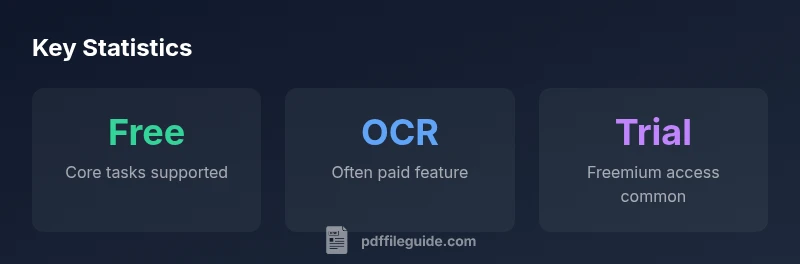
Generally, you do not have to pay to work with PDFs. Viewing, printing, and creating simple PDFs can be done with free tools. Paid costs arise with advanced editing, batch processing, OCR, form creation, or enterprise features. Many vendors offer free tiers or trial periods, and some platforms charge per feature or subscription. For most everyday needs, free options suffice, with paid upgrades for heavier workloads.
Understanding the cost landscape for PDFs
The question of whether you have to pay for PDF tools hinges on what you need to do with PDFs. At the most basic level, most users can view, print, and create simple PDFs without paying. This is enabled by a wide array of free software, browser integrations, and built-in operating system features. The PDF File Guide team has observed that, for many day-to-day tasks, free options are robust enough, especially when you combine multiple free tools in a workflow. The core decision is not about a single product but about balancing features, security, and scalability. If your needs are modest—viewing, annotating, or exporting simple documents—free tools often meet those expectations. Across the industry, the affordability of free solutions drives widespread adoption for basic tasks while preserving paid options for heavier workloads.
Introducer notes: If you’re evaluating tools, start by asking whether you truly need advanced capabilities such as OCR, automated redaction, or forms. For most individuals and small teams, free tools cover the basics. PDF File Guide’s analysis highlights that cost-effective strategies rely on free software for routine work and reserved paid licenses for occasional, high-demand projects. As you scale, you can selectively upgrade rather than committing to a full paid suite from day one.
Free options that cover most everyday tasks
Many platforms offer no-cost entry points that handle common activities: viewing, printing, creating PDFs from documents, and basic annotations. On desktops, your operating system or a standard browser can generate PDFs from almost any printable page. Free editors exist that provide essential features such as merging files, adding comments, and simple form filling. Online tools with generous free tiers let you convert between formats, compress PDFs, or apply watermarks, though limits on file size or daily usage can apply.
When evaluating free options, consider:
- Feature parity: Do free tools support the exact tasks you perform regularly?
- File handling: Can you edit, sign, or securely share within your workflow?
- Privacy: Where is your data processed and stored?
- Offline vs. online: Do you need offline access for sensitive documents?
In practice, starting with free tools often reduces the need for paid software immediately. If you encounter limitations, you can upgrade selectively or combine multiple free tools to cover a broader range of tasks. PDF File Guide notes that free options are particularly effective for personal or light professional work, and many users never need to pay for basic PDF goals.
When paid tools make sense: Pro edits, OCR, and security
There are clear business cases for investing in paid PDF tools. Advanced editing features, OCR for digitizing scanned documents, batch processing, and robust security controls (passwords, redaction, access permissions) commonly require paid software. For teams that collaborate across departments, paid licenses can unlock centralized management, auditing, and compliance capabilities. If your work involves high-volume document handling, complex forms, or regulated content, the costs of paid tools can be justified by time savings, accuracy improvements, and governance gains.
Before purchasing, quantify the value: how many hours will you save per week, how many documents require OCR, and what level of security is required by your organization? A cautious approach is to start with a single-user paid option or a trial, then scale up if the workload justifies it. The PDF File Guide analysis suggests that many users discover significant productivity gains when migrating from free to paid options—but the decision should be driven by measurable needs rather than marketing promises.
How to evaluate value: Features vs. price
When comparing free and paid options, create a simple feature checklist that matches your typical workflow. Important factors include editing precision, OCR accuracy, form field support, redaction capabilities, batch processing, and security controls like password protection and digital signatures. Consider the price model: is it per-user, per-seat, per-document, or a flat subscription? Some vendors offer annual plans with discounts or perpetual licenses for one-time purchases. Always test a trial if available, and evaluate integration with your existing software stack (cloud storage, e-signature tools, and collaboration platforms).
A practical approach is to outline your minimum viable feature set and then list “nice-to-have” features. If a paid option covers your must-haves and yields tangible efficiency gains, it becomes easier to justify the cost. PDF File Guide’s guidance emphasizes validating claims with real-world use before committing to substantial expenditures. Try to estimate the return on investment by estimating time saved and error reduction across typical tasks.
Practical buying guide: what to look for
To avoid overpaying for PDFs, use a structured purchase criteria list. Key questions to ask include:
- Is the tool offline or cloud-based, and which is safer for your documents?
- Do you need high-volume processing or single-document work?
- What level of OCR accuracy do you require, and does the tool support multiple languages?
- Are there clear export options and compatibility with your current systems?
- What are the upgrade paths and renewal terms, and do you get feature parity on mobile devices?
Also examine trial periods and cancellation terms. If you’re confused about the total cost, seek a transparent quote that includes any hidden fees, maintenance, or support costs. The goal is to map pricing to concrete benefits—time saved, fewer errors, and smoother collaboration.
Security, privacy, and compliance considerations
PDFs often contain sensitive information. Paid tools frequently provide stronger security features, such as granular permission settings, advanced redaction, and export controls. If your documents include personal data, financial information, or regulated content, offline editing or enterprise-grade cloud services with strong privacy policies may be essential. Free tools can be convenient but may involve data processing by third-party servers, which could raise privacy concerns. Always review data handling terms and consider adopting encrypted storage or on-premises solutions for high-risk materials. PDF File Guide recommends balancing convenience with security, and choosing tools that align with your privacy requirements and regulatory obligations.
Step-by-step path: building a free-to-paid toolkit
- Start with core free tools for viewing, annotating, and basic editing.
- Identify your top 2–3 tasks that require paid features (OCR, forms, or batch processing).
- Try a paid tool with a generous trial period and measure time saved or error reductions.
- If the trial proves valuable, consider a blended approach: maintain free tools for simple tasks and use paid tools for heavy workloads.
- Regularly reassess your toolkit as needs evolve; technology and pricing models change over time. Following this plan keeps costs predictable while ensuring you stay productive.
In short, a well-chosen mix of free and paid tools can cover most PDF workflows without unnecessary expense. The PDF File Guide team emphasizes starting with free options and upgrading only when benefits exceed costs.
Cost options for PDF tools
| Option | Cost (range) | Best For |
|---|---|---|
| Free basics | Free | Light tasks like viewing and printing |
| Freemium editors | Free tier + paid upgrades | Moderate editing, forms |
| Paid pro suites | Subscription-based or one-time licenses | Advanced editing, OCR, batch processing, security |
Questions & Answers
Do I need to pay to edit PDFs?
Not always. Many free tools offer basic editing and annotation. Paid options unlock advanced features like OCR, redaction, and batch processing. Assess your needs to decide if upgrading provides enough value to justify the cost.
Most people can edit with free tools, but for advanced features you may want to upgrade.
Are there free tools for converting files to PDF?
Yes. Several free tools convert documents to PDF without charge. Some have limits on file size or daily usage. For frequent or large conversions, a paid option may offer faster performance and higher limits.
Yes—free converters exist, but limits may apply.
Is OCR available in free PDF editors?
OCR is often a premium feature, though some free tools include limited OCR or trials. For high-volume or multilingual OCR, a paid solution is typically necessary.
OCR is usually a paid feature, with limited free options.
Do free tools have limitations on file size or pages?
Many free tools cap file size, number of pages, or daily usage. If your PDFs are large or numerous, paid plans may be required to avoid interruptions.
Yes, limits are common in free tools.
What should I consider when choosing between free and paid options?
Map your must-have features to the price. Look at total cost of ownership, support, and data privacy. Start with free tools, then upgrade if measurable benefits appear.
Prioritize features and ROI when choosing.
“Most users can handle daily PDFs with free tools; upgrade only when editing, OCR, or security needs exceed the basics.”
Key Takeaways
- Assess needs first: basic viewing vs. heavy editing.
- Start with free tools before paying.
- Try free trials to evaluate real value.
- Watch for hidden costs like per-document charges.
- Prefer offline tools when handling sensitive documents.